How to Adjust Screen Resolution on a Dell Laptop
Adjusting screen resolution on a Dell laptop is quick and easy once you know where to look. This guide covers every method from Display Settings to graphics control panels. You will also learn how to troubleshoot common resolution problems and choose the right setting for your screen.
Adjusting the screen resolution on a Dell laptop is one of the simplest ways to improve how everything looks on your display. Whether your screen looks blurry, too small, or stretched out, changing the resolution can fix the problem fast. This guide walks you through every step needed to adjust screen resolution on a Dell laptop with ease. You will learn how to access settings, choose the right resolution, and troubleshoot common issues. By the end, your Dell display will look crisp and clear.
Your Dell laptop screen is your window into everything you do. From browsing the web to watching videos, the display quality matters a lot. But sometimes the picture looks fuzzy or items appear too small. This usually happens when the resolution is not set correctly.
The good news is that fixing this takes just a few minutes. You do not need to be a tech expert. This article will show you exactly how to adjust screen resolution on a Dell laptop in simple steps. Let us get started.
Key Takeaways
- Native resolution is best: Always choose the recommended resolution for the sharpest and clearest image on your Dell laptop.
- Multiple methods exist: You can adjust screen resolution through Windows Display Settings or your graphics control panel.
- Scaling matters too: Adjusting scale and layout settings alongside resolution improves comfort and readability.
- Driver updates fix grayed-out options: Outdated graphics drivers often cause resolution issues that are easy to resolve.
- Refresh rate affects smoothness: Higher refresh rates make motion smoother, which is great for gaming and video.
- Blurry screens have simple fixes: Switching back to the native resolution and checking scaling settings solves most blur problems.
📑 Table of Contents
- Understanding Screen Resolution on Your Dell Laptop
- How to Adjust Screen Resolution on a Dell Laptop Using Windows Display Settings
- Choosing the Right Resolution for Your Dell Laptop Screen
- Troubleshooting Common Screen Resolution Issues on Dell Laptops
- Advanced Display Settings to Enhance Your Dell Screen
- Tips to Keep Your Dell Laptop Display Looking Great
- Conclusion
Understanding Screen Resolution on Your Dell Laptop
What Is Screen Resolution?
Screen resolution refers to the number of pixels displayed on your Dell laptop screen. Pixels are tiny dots that make up the image you see. The more pixels your screen has, the sharper and clearer the picture looks.
For example, a resolution of 1920 by 1080 means your screen displays 1920 pixels across and 1080 pixels down. This is often called Full HD. Higher numbers like 2560 by 1440 or 3840 by 2160 give you even more detail. This is known as Quad HD and 4K resolution respectively.
When you adjust screen resolution on a Dell laptop, you are essentially telling the display how many pixels to use. More pixels mean sharper text and images. But they also make everything appear smaller. Fewer pixels make items bigger but can look less sharp.
Your desktop resolution is the setting your laptop uses by default when you first set it up. Over time, you might change it accidentally or it might reset after a driver update. Knowing what your native resolution is helps you get back to the best picture quality.
Why Resolution Matters for Display Quality
The right resolution makes a big difference in how your laptop looks and feels. A low resolution can make text look blurry and icons look pixelated. A high resolution can make everything look crisp and clean.
Here are a few reasons why getting the right display settings matters:
- Readability: Proper resolution makes text easier to read on screen
- Visual comfort: The right settings reduce eye strain during long work sessions
- Screen real estate: Higher resolution gives you more space for windows and apps
- Media quality: Videos and photos look much better at the correct resolution
- Productivity: Clear text and sharp icons help you work faster and more accurately
Getting your pixel density right is also important. Pixel density measures how many pixels fit into each inch of your screen. A Dell laptop with a higher pixel density will look sharper even at the same resolution as a lower-density screen. This is why choosing the native resolution matters so much.
How to Adjust Screen Resolution on a Dell Laptop Using Windows Display Settings
Method 1: Using Display Settings
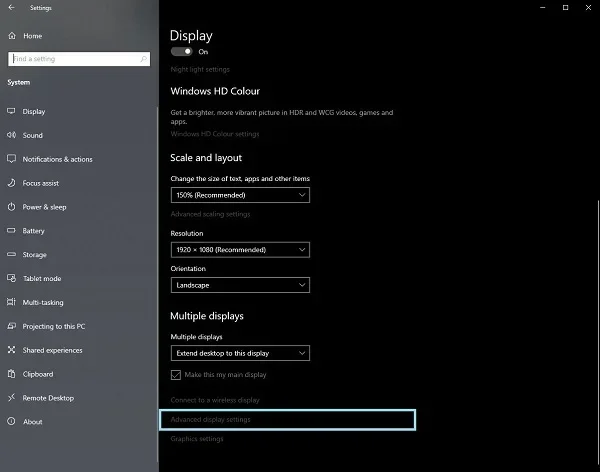
The easiest way to change resolution is through Windows Display Settings. First, right-click on an empty area of your desktop resolution background. A menu will appear. Click on Display Settings from that menu.
You can also get there by clicking the Start button and typing Display Settings in the search bar. Once the settings window opens, look for the Scale and Layout section. Inside that section, you will find a dropdown menu labeled Display Resolution.
Click on that dropdown. You will see a list of available resolutions. Select the one that matches your screen best. Most Dell laptops look great at their recommended or native resolution. This is usually marked as (Recommended) next to the option.
After selecting, click Keep Changes. Your screen will briefly go dark and then return with the new resolution. If it looks good, you are all set. If not, you can revert back within a few seconds. Windows gives you a short window to confirm or undo the change.
Method 2: Using the Graphics Control Panel
Sometimes the Display Settings menu does not show all available options. In that case, you can use your graphics control panel. If your Dell laptop has Intel graphics, right-click on the desktop and select Intel Graphics Settings. For NVIDIA cards, right-click and choose NVIDIA Control Panel.
Inside the graphics control panel, look for Display or Resolution settings. You can adjust the screen resolution from there. This method gives you access to more resolution options. It is especially helpful if the standard method does not work for your specific Dell model.
Using a mouse on a laptop to navigate these menus makes the process much smoother. If your mouse is not responding properly, you may need to troubleshoot that first before diving into display settings.
The graphics control panel also lets you fine-tune other visual settings. You can adjust color depth, refresh rate, and even enable or disable certain display features. This level of control is useful for users who want to customize every aspect of their screen output.
Choosing the Right Resolution for Your Dell Laptop Screen
Common Resolution Options Explained
Not sure which resolution to pick? Here are the most common options you will see in the dropdown menu:
- 1366 x 768: This is a standard HD resolution. It works fine for everyday tasks but may look slightly blurry on larger screens
- 1920 x 1080: This is Full HD. It is the most popular choice for Dell laptops. It offers great clarity for work and entertainment
- 2560 x 1440: This is Quad HD. It provides sharp visuals and is great for creative work and gaming
- 3840 x 2160: This is 4K Ultra HD. It delivers the sharpest image possible but uses more battery power
Each resolution has its own strengths. For general office work and web browsing, 1920 by 1080 is usually perfect. For photo editing or video production, you may want to go higher. The key is matching the resolution to what you use your laptop for most.
Matching Resolution to Your Screen Size
The best resolution depends on your laptop screen size. A 15.6-inch Dell laptop usually looks best at 1920 by 1080. Smaller 13.3-inch screens can handle higher resolutions without making text too tiny.
Larger screens above 17 inches often benefit from higher resolutions too. This prevents everything from looking stretched out. When you adjust screen resolution on a Dell laptop, always choose the native resolution first. The native resolution is the one designed specifically for your screen panel.
You can usually find your native resolution in your laptop manual or on the Dell support website. Choosing the native option ensures the best visual sharpness and overall display quality. If you are unsure, the recommended option in Display Settings is always the safest choice.
Keep in mind that screen size adjustment also depends on how far you sit from the screen. If you use an external monitor, the ideal resolution may differ from your built-in display. Experiment with a few settings to find what feels most comfortable for your setup.
Troubleshooting Common Screen Resolution Issues on Dell Laptops
When the Resolution Option Is Grayed Out
Have you ever tried to change the resolution but found it grayed out? This is a common issue on Dell laptops. It usually means your graphics driver needs updating.
Start by checking for driver updates. Click the Start button and type Device Manager. Open Device Manager and expand the Display Adapters section. Right-click on your graphics card and select Update Driver. Follow the on-screen prompts to install the latest version.
After updating, restart your laptop and try again. The grayed-out option should now be available. If the problem persists, visit the Dell support website to download the latest graphics driver for your specific model. Keeping your display adapter drivers current is one of the best ways to prevent resolution problems.
Sometimes a grayed-out option happens after a Windows update. In that case, rolling back the driver or waiting for a Dell-specific patch often fixes the issue. Check the Dell support page for your model to see if any known issues exist.
Fixing a Blurry or Distorted Display
A blurry screen after changing resolution can be frustrating. This often happens when you select a resolution that does not match your screen’s native settings. The fix is simple. Go back to Display Settings and choose the recommended resolution.
Sometimes the blur happens because of incorrect screen scaling settings. Windows allows you to change the size of text, apps, and other items. If the scaling is set too high or too low, everything can look fuzzy. Go to Display Settings and adjust the Scale slider to 100% or the recommended percentage for your screen.
If you are having trouble clicking the right options, you may need to make the mouse work on a laptop first. A responsive mouse makes navigating settings much easier and helps you apply the right changes quickly.
Another common cause of blur is a loose cable connection. If you use an external monitor, try unplugging and replugging the cable. For built-in screens, a restart often clears up temporary display glitches. These simple steps resolve most display troubleshooting issues without needing technical support.
Advanced Display Settings to Enhance Your Dell Screen
Adjusting Scale and Layout
Beyond resolution, Windows offers Scale and Layout options. These settings let you make text, apps, and icons bigger or smaller without changing the resolution. This is helpful if you have a high-resolution screen but find everything too small to read comfortably.
Go to Display Settings and find the Scale and Layout dropdown. Choose a percentage that feels comfortable. Common options include 100%, 125%, 150%, and 200%. Higher percentages make everything bigger but may reduce the amount of space available on screen.
Finding the right balance takes a little trial and error. Set a percentage, use your laptop for a while, and adjust if needed. The goal is a comfortable viewing experience that does not strain your eyes during long work sessions.
Some users prefer different scaling for different monitors. If you use an external display alongside your Dell laptop, you can set separate scaling for each screen. This feature is available in the Display Settings under the Multiple Displays section.
Changing Refresh Rate for Smoother Visuals
Refresh rate is another setting that affects how your Dell laptop screen looks. It measures how many times the screen refreshes per second, measured in Hertz (Hz). A higher refresh rate means smoother motion, which is great for videos and games.
To change the refresh rate, right-click on the desktop and select Display Settings. Scroll down and click Advanced Display Settings. Look for the Refresh Rate dropdown and select the highest available option.
Most Dell laptops support 60Hz, but some newer models support 120Hz or even 144Hz. Keep in mind that not all content benefits from higher refresh rates. For everyday office work, 60Hz is usually fine. But for gaming or video editing, a higher rate makes a noticeable difference in smoothness.
You can also adjust your graphics settings through the control panel to optimize performance. Lowering certain visual effects can improve frame rates and make your laptop feel faster. Experiment with these settings to find the best balance between looks and performance.
Tips to Keep Your Dell Laptop Display Looking Great
Once you have found the perfect resolution, you want to keep it looking great. Here are some simple tips to maintain your display quality on your Dell laptop:
- Update your graphics drivers regularly: New drivers often improve display performance and fix bugs
- Clean your screen gently: Use a microfiber cloth to remove dust and fingerprints
- Adjust brightness to match lighting: Too bright or too dim can cause eye fatigue over time
- Use night light mode in the evening: This reduces blue light and helps you sleep better
- Check for Windows updates: Microsoft often releases display improvements through system updates
- Avoid extreme temperatures: Heat and cold can affect your screen panel and display performance
Taking care of your display goes a long way. A well-maintained screen looks better and lasts longer. These small habits keep your Dell laptop display performing at its best every single day.
If you notice any persistent issues, do not ignore them. Early detection of display problems can prevent bigger issues later. Whether it is a faint flicker, color distortion, or resolution drift, addressing it quickly saves time and money in the long run.
Conclusion
Learning how to adjust screen resolution on a Dell laptop is a valuable skill that everyone should have. It helps you get the clearest picture and the most comfortable viewing experience possible. Whether you use the Display Settings menu or the graphics control panel, the process is simple and fast.
Remember to always start with your native resolution. This gives you the best visual sharpness and overall display quality. If you run into issues, check your drivers and scaling settings. With the right display settings, your Dell laptop screen will look amazing every day.
Now you have all the tools you need. Go ahead and tweak your resolution. Enjoy the crisp, clear display your Dell laptop is capable of delivering. A little adjustment goes a long way toward a better computing experience.
Frequently Asked Questions
What is the best resolution for a Dell laptop?
The best resolution is usually the native or recommended resolution for your specific model. Most Dell laptops look great at 1920 by 1080, which is Full HD. Check your Display Settings to see what is marked as recommended for your screen.
Why is my screen resolution grayed out on my Dell laptop?
A grayed-out resolution option usually means your graphics driver is outdated. Update your driver through Device Manager or download the latest version from the Dell support website. After updating, restart your laptop and the option should become available.
Can I change the screen resolution on a Dell laptop without a mouse?
Yes, you can use keyboard shortcuts to navigate. Press Windows plus S to open the search bar, type Display Settings, and use the arrow keys to select it. Then use Tab and arrow keys to navigate to the resolution dropdown. However, using a mouse makes the process much easier.
How do I revert to the original resolution on my Dell laptop?
Go to Display Settings by right-clicking on your desktop background. Select the original or recommended resolution from the dropdown menu. Click Keep Changes, and your screen will return to its previous settings within a few seconds.
Does screen resolution affect battery life on a Dell laptop?
Yes, higher resolutions use more processing power and can drain your battery faster. If you are working on battery power, sticking with a lower resolution like 1920 by 1080 can help extend your battery life significantly.
What should I do if the screen looks blurry after changing resolution?
A blurry screen usually means you selected a non-native resolution. Go back to Display Settings and choose the recommended resolution. Also check your screen scaling settings and adjust them to the recommended percentage for your display.