Can You Upgrade Laptop Ram

Yes, you can upgrade the RAM in most laptops, but it’s not universal. The ability depends entirely on your specific laptop model’s design. Many laptops have accessible RAM slots for easy upgrades, while an increasing number, especially thin-and-light Ultrabooks, have the memory soldered directly to the motherboard, making upgrades impossible. Before you buy anything, you must verify your laptop’s exact model, its maximum supported RAM, the type of RAM it uses (DDR3, DDR4, DDR5), and whether it has free slots. A successful RAM upgrade is one of the most cost-effective ways to significantly improve multitasking performance and breathe new life into an aging machine.
Key Takeaways
- Most laptops are upgradeable, but not all: Traditional laptops and gaming rigs often have user-accessible slots. Modern ultraportables frequently have soldered, non-upgradeable RAM.
- Compatibility is king: You must match the exact DDR generation (DDR3, DDR4, DDR5), speed (MHz), and voltage. Mixing mismatched sticks can cause failure.
- Check your maximum supported RAM: Your laptop’s chipset and BIOS have a hard limit (e.g., 16GB, 32GB, 64GB). Exceeding it provides no benefit.
- Physical access varies: Some laptops require removing a simple bottom panel. Others may need a full disassembly or have no user-accessible internals at all.
- Upgrading is a top performance hack: Adding RAM is often cheaper and more impactful than upgrading an old HDD to an SSD for systems already on an SSD.
- Dual-channel performance matters: For optimal speed, install identical RAM sticks (same size, speed, brand) in both slots if your laptop supports dual-channel mode.
- Static electricity can kill components: Always ground yourself by touching the metal laptop chassis before handling RAM modules.
📑 Table of Contents
- Why Would You Even Want to Upgrade Laptop RAM?
- How to Check Your Laptop’s Current RAM and Upgrade Potential
- Your Step-by-Step Guide to the Physical RAM Upgrade
- Common Pitfalls and Troubleshooting
- When Upgrading Laptop RAM Is Simply Not Possible
- The Future of RAM in Laptops: LPDDR and Beyond
- Conclusion: Is It Worth It?
Why Would You Even Want to Upgrade Laptop RAM?
Let’s start with the “why.” Your laptop’s Random Access Memory (RAM) is its short-term working memory. It’s where the operating system, all your open applications, and the data they’re actively using live while your computer is on. Think of it like a desk. A bigger desk (more RAM) lets you spread out all your current project papers (programs and files) without constantly shuffling things in and out of a filing cabinet (the much slower hard drive or SSD).
The Tell-Tale Signs You Need More RAM
If your laptop feels sluggish, especially when you have several browser tabs open, a few apps running, and maybe a document or two, RAM is the usual suspect. Specific symptoms include:
- Constant hard drive/SSD activity: You hear the drive churning or see the activity light blinking non-stop during normal use. This is the system “paging” or “swapping,” moving data from RAM to storage to make room, which is incredibly slow.
- Programs stuttering or freezing: Apps become unresponsive for seconds at a time, especially when switching between them.
- “Your computer is low on memory” warnings: Windows or macOS will literally tell you.
- Inability to open desired applications: A game or professional software simply refuses to launch, citing insufficient memory.
Before you spend a dime, a RAM upgrade is the first and most logical troubleshooting step for these issues on an otherwise healthy machine. It’s a direct path to smoother multitasking and better responsiveness.
How to Check Your Laptop’s Current RAM and Upgrade Potential
This is the most critical step. Jumping in without this research is how you end up with incompatible sticks or a busted laptop. You need three key pieces of information: 1) What type of RAM is currently installed? 2) How many slots are available? 3) What is the maximum RAM your laptop supports?
Visual guide about Can You Upgrade Laptop Ram
Image source: wepc.com
Using Built-in System Tools (The Easy Way)
Both Windows and macOS have simple utilities.
- Windows: Press Ctrl + Shift + Esc to open Task Manager. Go to the “Performance” tab and click on “Memory.” Here you’ll see your current installed RAM (e.g., “8.0 GB”), its speed (e.g., “2400 MHz”), and its form factor (usually “SODIMM” for laptops). It also shows the “In use” and “Committed” memory, which can indicate if you’re maxed out.
- macOS: Click the Apple menu > About This Mac > Memory. It will list the total memory and often the type and speed. For older Macs, you may need to click “System Report” and look under “Memory.”
Using Third-Party Software (The Detailed Way)
For the deepest details, free tools like CPU-Z (Windows) are invaluable. Install and run it, then check the “Memory” and “SPD” tabs. The “SPD” tab will list details for each memory slot, showing the exact type (DDR3, DDR4, etc.), size, manufacturer, and part number of each stick. If a slot is empty, it will show “None.” This is how you confirm your laptop has a free slot.
The Gold Standard: Manufacturer’s Documentation
The most reliable source is always your laptop’s official specifications. Go to the manufacturer’s website (Dell, HP, Lenovo, ASUS, etc.), find your exact model number (usually on a sticker on the bottom), and look for the “Specifications” or “Tech Specs” page. Search for terms like “Memory,” “RAM,” “Upgradable,” or “Maximum.” This will tell you the official max RAM (e.g., “Supports up to 32GB”) and the type (e.g., “DDR4 SODIMM 2666MHz”).
Practical Example: You own a 2019 Dell XPS 15 7590. The spec sheet says: “Memory: 8GB, 16GB, or 32GB DDR4 SDRAM at 2666MHz; 2 slots.” This tells you it uses DDR4 at 2666MHz, has two slots, and the max is 32GB. If you have the 8GB model, it likely has one 8GB stick and one empty slot, allowing a simple upgrade to 16GB (8GB+8GB) or 32GB (16GB+16GB).
Your Step-by-Step Guide to the Physical RAM Upgrade
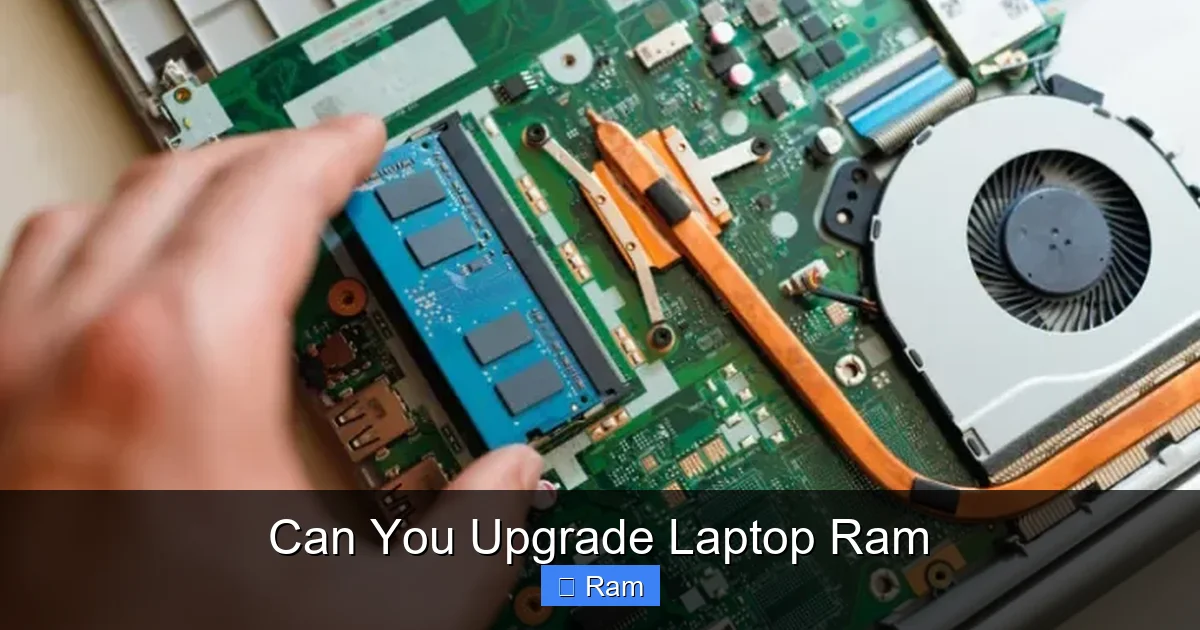
So you’ve confirmed you have a free slot and bought the correct RAM. Now, the physical swap. The process has become simpler over the years but still requires care.
Visual guide about Can You Upgrade Laptop Ram
Image source: beebom.com
Gather Your Tools and Prepare Your Workspace
You will need:
- The new, compatible RAM module(s).
- A small Phillips-head screwdriver (#0 or #1 is usually sufficient).
- A plastic spudger or pry tool (optional, but safer than metal for opening clips).
- A clean, flat, static-free surface. A wooden table is fine; avoid carpets.
CRITICAL: Disconnect the laptop from AC power and remove the battery if it’s easily removable. For modern laptops with internal batteries, this step is done by opening the case. You must power down completely and unplug.
Accessing the RAM Bay
Turn the laptop over. Most laptops with upgradeable RAM have a single, large bottom panel secured by 8-12 screws. Some have a smaller, dedicated RAM access panel. Carefully remove all screws and keep them in a small container. Note any screws that are longer/shorter; they often go back in specific places. Gently pry the panel off starting at a corner; it may have hidden clips. Work your way around. If it’s stuck, double-check for screws you missed.
Removing the Old RAM (If Replacing)
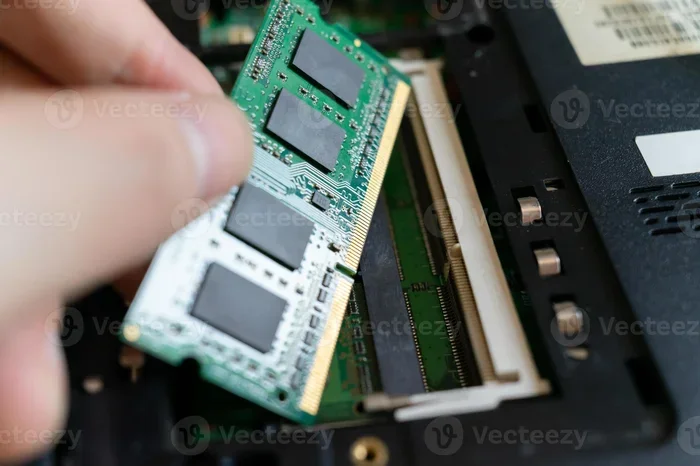
The RAM sticks are held by small, white plastic clips on either side. Gently but firmly pry these clips outward and away from the RAM stick. The stick will pop up at about a 45-degree angle. Grasp it by the edges (avoid touching the gold contacts) and pull it straight out.
Installing the New RAM
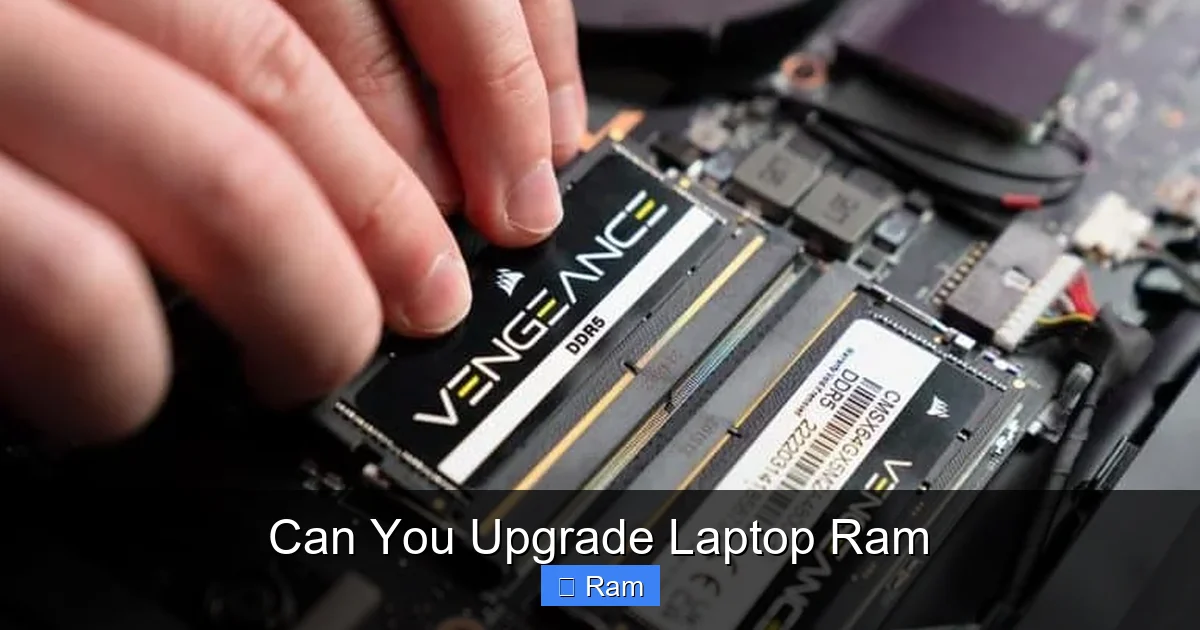
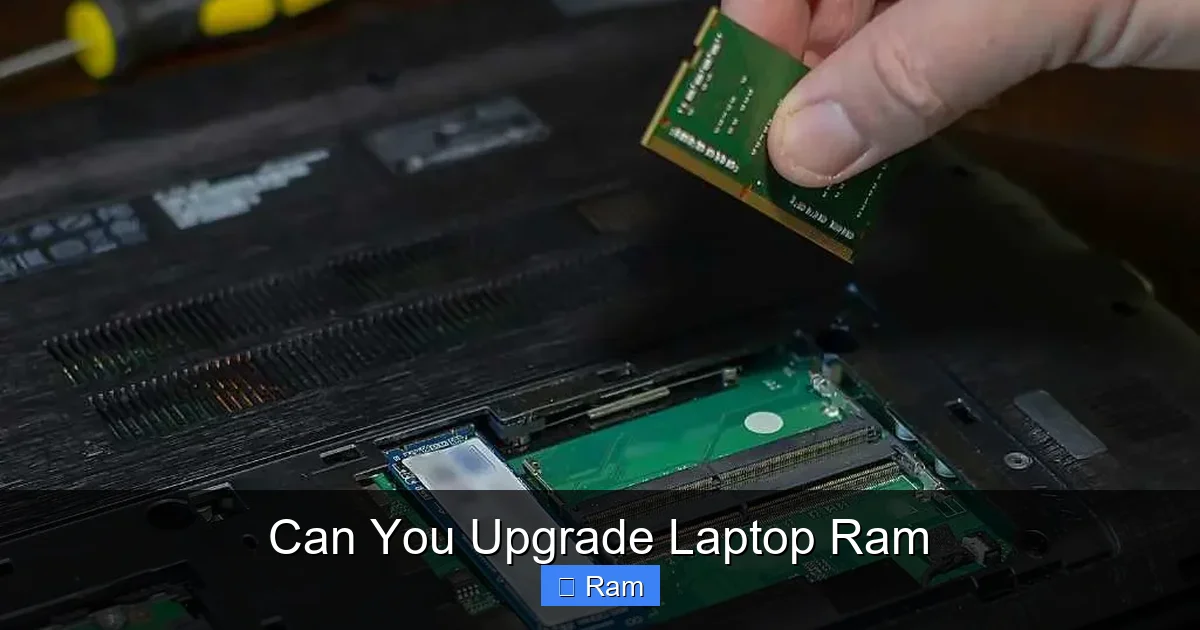
This is the reverse. Look at the notch on the bottom edge of your new RAM module. Align it with the key in the slot—it only fits one way. Place the stick in the slot at a 45-degree angle, ensuring the gold contacts are fully in the groove. Press down firmly and evenly on the top edge until the side clips snap into place with a audible *click*. You should feel resistance, then a click. The stick should now lie flat, parallel to the motherboard, secured by the clips.
Closing Up and First Boot
Do not reassemble yet! Flip the laptop back over (without the bottom panel), connect the power adapter, and power it on. If it boots to your login screen or BIOS, the RAM is recognized. Enter the BIOS/UEFI (usually by pressing F2, Del, or F12 during boot) to confirm the system sees the new total capacity. If it fails to boot or beeps, power down, re-seat the RAM, and try again. Once confirmed, power down, reassemble the bottom panel, and tighten all screws in a cross pattern to ensure even pressure.
Common Pitfalls and Troubleshooting
Even with the best prep, things can go wrong. Here’s how to handle it.
Visual guide about Can You Upgrade Laptop Ram
Image source: budgetpcupgraderepair.com
The Laptop Won’t Boot After Installation
This is the most common issue. First, don’t panic. Power down, unplug, and open the case again. Reseat the RAM: remove it, blow out any dust from the slot with compressed air, reinsert it firmly until the clips click. If you have two sticks installed, try booting with only the new one (in the primary slot, usually slot A). If that works, try the old one alone. This isolates a bad stick or slot. Ensure you fully clicked the clips; a partially seated stick is a common failure.
The System Sees Less RAM Than You Installed
If you installed 16GB but Windows only shows 7.9GB, the cause is almost always a 32-bit vs. 64-bit operating system issue. A 32-bit OS can only address ~4GB of RAM. You must be running a 64-bit version of Windows or macOS. To check Windows: Settings > System > About > “System type.” If it says “32-bit operating system, x64-based processor,” you need to reinstall a 64-bit version of Windows (which requires a clean install).
RAM Speed is Not Running at Advertised MHz
You bought 3200MHz RAM, but your system utility shows it running at 2133MHz. This is common. The RAM will default to the JEDEC standard speed (often 2133 or 2400 for DDR4) until you enable the XMP/EXPO profile in your BIOS/UEFI. Enter BIOS, look for “Memory Frequency,” “DRAM Frequency,” or “XMP” settings, and enable the profile. Save and exit. Not all laptop BIOSes support XMP, especially business-class laptops (Dell Latitude, HP EliteBook), which may lock the RAM to a standard speed.
Is My RAM Compatible? Mixing and Matching
Can you mix a 4GB and an 8GB stick? Technically, yes, if they are the same DDR type and speed. The system will run in “flex mode” or “asymmetric dual-channel,” where the first 4GB of each stick runs in faster dual-channel mode, and the remaining 4GB on the 8GB stick runs in single-channel. Performance will be fine, but not optimal. For best results, use identical pairs (same size, speed, brand, model). Mixing different speeds will cause all RAM to run at the speed of the slowest stick.
When Upgrading Laptop RAM Is Simply Not Possible
This is the sobering reality of modern laptop design. The trend toward thinner, lighter, and more powerful devices has led manufacturers to solder RAM directly to the motherboard. This saves space, improves structural integrity, and reduces cost, but it permanently locks the memory capacity.
How to Identify Soldered-Only Designs
1. Check the manufacturer’s spec sheet meticulously. Language like “soldered,” “onboard,” “integrated,” or “non-expandable” is a dead giveaway. It might say “8GB LPDDR4X RAM (soldered).”
2. Look for no access panel. If the entire bottom is a solid piece with no obvious screws or panels, it’s a bad sign. Some models have panels, but opening them reveals no RAM slots.
3. Search for your exact model + “RAM upgrade” or “teardown” on YouTube. This is the ultimate proof. If a teardown video shows the logic board with no visible RAM slots and chips soldered on, it’s a done deal.
The Ultrabook and Premium Laptop Reality
Virtually all Apple MacBooks (since the 2012 Retina models) have soldered RAM. Many premium Windows Ultrabooks follow suit: the Dell XPS 13 (most models), Lenovo Yoga 9i, HP Spectre x360 13, ASUS Zenbook, and Microsoft Surface Laptop all have non-upgradeable memory. The trade-off is incredible thinness and often better battery life. If you are buying a new laptop and foresee needing more than 8GB in 3 years, you must buy the higher RAM configuration upfront. There is no upgrading later.
The Business-Class Exception
Interestingly, many business laptops (Dell Latitude, Lenovo ThinkPad T-series, HP EliteBook) often do have upgradeable RAM even in relatively thin chassis. This is a key selling point for IT departments that want to extend device lifecycles. Always check the specific model’s maintenance manual. A ThinkPad T14 Gen 3 might have soldered RAM, while a T15 Gen 2 has slots. It varies by generation.
The Future of RAM in Laptops: LPDDR and Beyond
The landscape is changing. The new standard for high-performance, low-power memory in thin devices is LPDDR (Low Power DDR). It’s soldered, offers incredible bandwidth and power efficiency, but is not user-upgradeable. You’re seeing LPDDR4X and now LPDDR5 in everything from ultraportables to some gaming laptops. The performance difference between standard DDR4/DDR5 SODIMMs and LPDDR is narrowing, but the upgradeability gap is permanent for these devices.
For the few remaining upgradeable laptops, DDR5 SODIMMs are now the standard for new Intel 12th/13th/14th Gen and AMD Ryzen 6000/7000 series laptops. They offer higher speeds (4800MHz to 6400MHz+) but are currently more expensive than DDR4. The physical installation process is identical; the compatibility rules (type, speed, max supported) are the same, just with a newer generation.
Conclusion: Is It Worth It?
Upgrading your laptop’s RAM is one of the most satisfying and effective DIY computer projects you can undertake. It’s relatively low-risk, requires minimal tools, and can make a night-and-day difference in daily use for a fraction of the cost of a new laptop. The feeling of reviving a slow, struggling machine into a zippy, responsive workhorse is incredibly rewarding.
However, the first and non-negotiable step is research. You must become a temporary detective, confirming your exact model’s capabilities. In an era where soldered memory is becoming the norm, this research is more important than ever. If your laptop checks out as upgradeable, follow the steps carefully, respect static electricity, and you’ll likely succeed. If it’s soldered, that knowledge is valuable too—it informs your next purchasing decision, pushing you to choose a model with upgradeable memory or to max out the RAM at checkout. In the great RAM upgrade debate, knowledge is not just power; it’s the key to a faster laptop.
Frequently Asked Questions
Can I upgrade the RAM on any laptop?
No. While many traditional and gaming laptops have user-accessible RAM slots, a growing number of modern ultrabooks and premium laptops (like most MacBooks, Dell XPS 13, and many thin-and-lights) have the memory soldered to the motherboard, making upgrades impossible. You must check your specific model’s specifications.
How do I know what type of RAM my laptop needs?
The most reliable way is to check your laptop manufacturer’s official support page for your exact model number. You can also use built-in tools like Windows Task Manager (Performance > Memory) or third-party software like CPU-Z to see the current RAM’s type (DDR3, DDR4, DDR5) and speed (MHz). Always match the type and try to match the speed for optimal performance.
Will adding more RAM make my laptop faster?
It will make your laptop feel faster and more responsive, but only if slow performance was caused by running out of RAM. If your laptop was already using less than 80% of its available RAM, you won’t notice a significant speed boost. The biggest improvements are seen in multitasking (many browser tabs + apps open), working with large files (photos, videos), and running modern games or professional software.
Is it better to upgrade RAM or replace the hard drive with an SSD?
If your laptop still has a traditional hard disk drive (HDD), upgrading to an SSD is the single biggest performance upgrade you can make, period. It will drastically improve boot times, app launches, and overall system snappiness. If you already have an SSD and are experiencing slowdowns only when multitasking heavily, then adding more RAM is the logical next step.
Can I mix different RAM sizes or brands?
Technically, you can mix different sizes (e.g., 4GB + 8GB) and brands, as long as they are the same DDR generation (all DDR4) and speed. The system will run, but it may operate in a slightly slower “flex mode.” For the best and most stable performance, especially in dual-channel mode, it’s recommended to use a matched kit (two identical sticks from the same kit). Mixing different speeds will cause all RAM to run at the speed of the slowest stick.
Do I need to update my BIOS after installing new RAM?
Usually not. A BIOS update is not required for basic RAM compatibility if you bought RAM that matches your laptop’s specified type. However, if you are installing a very high-capacity or high-speed module that is on the newer side, a BIOS update from the manufacturer’s website might add support for it or improve stability. It’s a good practice to check the support page for any BIOS updates before or after a major hardware upgrade.