Is Usb C Compatible with Usb C

Yes, USB C is compatible with USB C, but not all USB-C cables and ports are created equal. The connector shape is universal, yet the underlying standards like USB 3.2, USB4, and Thunderbolt can vary widely. Understanding these differences helps you avoid slow speeds, charging issues, and frustrating compatibility problems.
You plug in a USB-C cable. It fits. It clicks. But then nothing happens, or worse, it charges slowly and refuses to transfer files at the speed you expected. Sound familiar? This is the exact moment most people ask the question: Is USB C compatible with USB C?
The short answer is yes. USB-C is a universal connector shape, and any USB-C plug can physically fit into any USB-C port. But the real story goes much deeper. Under the hood, USB-C cables carry different data protocols, power delivery profiles, and speed standards. Not every USB-C cable delivers the same performance. Some handle 10Gbps. Others max out at 480Mbps. Some charge at 60 watts. Others push 240 watts. This guide breaks down everything you need to know so you never get caught off guard again.
Whether you are connecting a laptop to a monitor, syncing files from an external drive, or just trying to charge your phone, understanding USB-C compatibility saves you time, money, and frustration. Let us dive in.
Key Takeaways
- Universal Connector: USB-C is a reversible connector shape that fits in either direction, making it incredibly convenient.
- Not All Cables Are Equal: USB-C cables support different data speeds and power levels depending on the standard they follow.
- Thunderbolt and USB4 Offer the Best Speeds: These protocols deliver up to 40Gbps and are fully backward compatible with older USB-C devices.
- Power Delivery Varies: USB-C can handle up to 240W with USB PD, but your cable and port must both support it.
- Check Both Ends: Compatibility depends on the cable, the host port, and the device you are connecting.
- Adapters Solve Most Problems: USB-C adapters and docks help bridge gaps between different standards and connector types.
📑 Table of Contents
What Makes USB-C So Popular?
USB-C has taken the tech world by storm. Nearly every modern laptop, tablet, phone, and accessory uses it. Here is why it has become the go-to connector.
Reversible Design
Remember the days of flipping a USB-A cable three times before it plugs in? USB-C eliminates that annoyance entirely. The connector is symmetrical, so it works no matter which way you insert it. This small design change makes a huge difference in daily use.
One Cable for Everything
USB-C carries data, video, and power through a single cable. You can connect your phone to a computer, charge your laptop, and hook up an external display with one cable type. This convergence is a big reason why USB-C accessories have exploded in popularity.
Fast Data and Power
Modern USB-C standards support blazing fast speeds. The latest protocols push data rates up to 80Gbps. At the same time, USB Power Delivery can supply up to 240 watts of power. That is enough to charge a gaming laptop from zero to full.
Understanding USB-C Compatibility
Here is where things get interesting. Just because two devices both use USB-C does not mean they will work perfectly together. Compatibility depends on three key factors: the cable, the port, and the protocol.
The Cable Matters Most
Not all USB-C cables are built the same. A cheap cable might only support USB 2.0 speeds, which maxes out at 480Mbps. That is painfully slow for transferring large files. A quality cable with USB 3.2 or USB4 support can move data at 10Gbps or even 40Gbps.
When shopping for cables, look for these specifications:
- USB 2.0: 480Mbps data, basic charging only
- USB 3.2 Gen 1: 5Gbps data transfer
- USB 3.2 Gen 2: 10Gbps data transfer
- USB4: 20Gbps or 40Gbps data transfer
- Thunderbolt 3/4: 40Gbps data transfer with video output
If your cable does not list a speed standard, assume it is USB 2.0. That is the most common issue people run into when asking, Is USB C compatible with USB C. The cable fits, but it does not do what you need it to do.
The Port on Your Device
Your device also plays a role. A laptop might have a USB-C port that only supports USB 3.2. Plugging in a Thunderbolt cable will not magically make it faster. The port caps the speed at whatever standard it supports. Always check your device specifications to see what its USB-C port can handle.
Some devices use USB-C ports for power delivery only. These ports do not carry data at all. This is common on budget laptops and docking stations. So before you blame the cable, check what the port is actually designed to do.
Protocol and Standard Matching
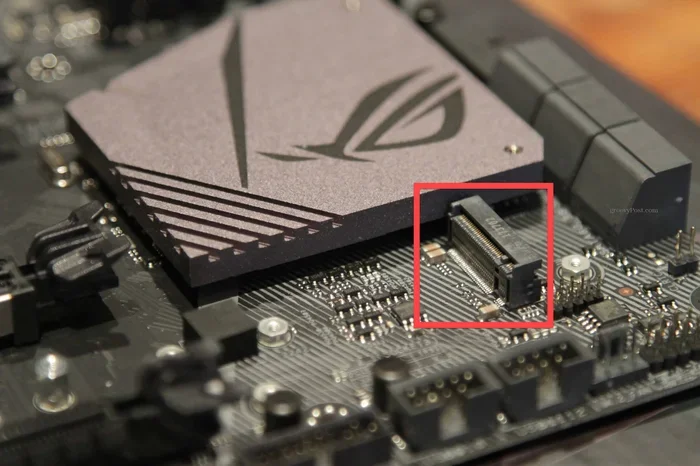
For the best experience, try to match the protocol on both ends of the connection. If you are connecting a M 2 Nvme Ssd Usb enclosure to your laptop, make sure both the enclosure and the laptop support the same USB standard. A mismatch here leads to slower speeds than what your hardware is capable of.
The good news is that USB-C is designed to be backward compatible. A USB 3.2 cable works in a USB4 port, and a USB4 cable works in a USB 3.2 port. The connection just falls back to the lowest common standard. It works, but you do not get the full speed advantage.
Common USB-C Compatibility Issues
Even though USB-C is universal, real-world problems still happen. Here are the most common issues and how to fix them.
Slow Data Transfer Speeds
This is the number one complaint. You plug in an external drive and the transfer crawl along. Most of the time, the culprit is a USB 2.0 cable. The fix is simple: replace it with a certified USB 3.2 or USB4 cable. Look for cables that are clearly labeled with their speed rating.
Charging Problems
Some USB-C cables only carry power and no data. These are common in phone chargers and power banks. If you need data transfer and charging, make sure your cable supports both. Check the packaging for mentions of data transfer speeds or USB PD (Power Delivery).
Video Output Failures
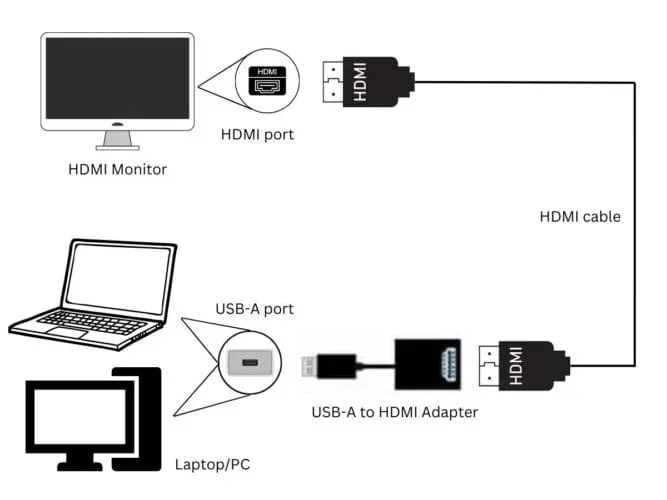
Not every USB-C port supports video output. Only Thunderbolt 3, Thunderbolt 4, and USB4 ports reliably carry video signals through Alt Mode. If your laptop has a basic USB-C port, it might not drive an external monitor. An adapter or dock can help bridge this gap, and you can find options like an Nvme Ssd To Usb Adapter that also carries display signals when equipped with the right chipset.
Cable Damage and Wear
USB-C cables take a beating. They get bent, stepped on, and yanked from ports daily. A damaged cable can cause intermittent connections, slow charging, or complete failure. Inspect your cables regularly and replace any that show fraying or bending at the connector.
How to Choose the Right USB-C Cable
Buying the right USB-C cable does not have to be confusing. Follow these simple guidelines to get the right one for your needs.
Check What You Need
Ask yourself what you want to do with the cable. Are you just charging a phone? A basic cable works fine. Do you need to transfer large video files? You need a USB 3.2 or higher cable. Want to connect to an external display? Look for Thunderbolt or USB4 certified cables.
Look for Certifications
USB-IF certification is your best friend. This means the cable has been tested and meets the official USB standard. Certified cables are clearly labeled. Avoid cheap, unmarked cables from unknown brands. They often lie about their capabilities and can even damage your devices.
Consider the Length
Longer cables can lose signal strength, especially at high data rates. For USB 3.2 and above, keep cables under two meters for best performance. If you need a longer run, consider an active cable with built-in signal boosting.
Power Delivery Ratings
If you use USB-C for charging, check the wattage rating. A 60W cable handles most laptops. A 100W or 240W cable is needed for power-hungry machines. The cable must support USB Power Delivery for higher wattages to work.
Quick Tips for Buying USB-C Cables
- Always buy from reputable brands
- Check for USB-IF certification marks
- Match the cable speed to your device capability
- Avoid cables that feel flimsy or lightweight
- Read reviews before purchasing
- Keep spare cables of different lengths
USB-C in Everyday Accessories
USB-C is everywhere now, and that includes a huge range of accessories. From headphones to external storage, the connector has become the industry standard.
Audio Accessories
Many modern headphones and headsets now use USB-C instead of the traditional 3.5mm jack. Best Usb Type C Headphones offer digital sound quality, built-in amplifiers, and sometimes even active noise cancellation. The shift to USB-C audio means better sound but also requires compatible devices or a DAC adapter.
External Storage
External SSDs with USB-C connections deliver incredible speeds. Devices like the M 2 Nvme To Usb C Ssd Enclosure let you connect NVMe drives directly through USB-C at speeds up to 10Gbps or higher. This makes file transfers fast and seamless for creative professionals and everyday users alike.
Docking Stations and Hubs
USB-C docking stations have become essential for laptop users. A single cable connects your laptop to multiple peripherals, external monitors, and power sources. These hubs rely on USB-C compatibility working properly, so always check that your dock supports the same USB standard as your laptop port.
The Future of USB-C
USB-C is not going anywhere. In fact, it is becoming even more dominant. The European Union has mandated USB-C as the standard charging port for all mobile devices sold in the region. This means every new phone, tablet, and laptop will use the same connector.
USB4 version 2.0 is pushing speeds to 80Gbps, doubling the current USB4 standard. Thunderbolt 5 is on the horizon and promises even faster data and video performance through the USB-C connector. As these standards roll out, having the right USB-C cable becomes even more important.
The beauty of USB-C is its forward and backward compatibility. A USB4 cable works with older USB 3.2 devices. A USB 3.2 cable still works in a USB4 port. This ecosystem design means your investments in USB-C accessories stay relevant for years to come.
Final Thoughts
So, Is USB C compatible with USB C? Absolutely. The connector is universal and works across devices, brands, and standards. But the real key to a smooth experience lies in understanding what your specific cable, port, and device can do. A USB-C cable that is perfect for charging might not cut it for 4K video output or high-speed file transfers.
Take a few minutes to check your equipment. Look at the labels, read the specifications, and invest in quality cables. A few dollars spent on the right USB-C cable saves hours of frustration down the road. With the right setup, USB-C delivers a fast, versatile, and future-proof connection that works seamlessly across all your devices.
Stay informed, choose the right accessories, and enjoy the simplicity that USB-C brings to your tech life.
Frequently Asked Questions
Can any USB-C cable be used for charging?
Most USB-C cables can carry power, but not all support the same wattage. Basic cables handle 60W, while USB Power Delivery cables can go up to 240W. Always check the cable’s power rating before relying on it for fast charging.
Why does my USB-C cable not transfer data even though it charges?
This usually means the cable only supports power delivery and not data transfer. Some USB-C cables are designed for charging only. Look for cables that explicitly list data transfer speeds like USB 3.2 or USB4.
Is Thunderbolt the same as USB-C?
Thunderbolt uses the USB-C connector shape, but it is a different protocol. Thunderbolt 3 and 4 offer faster speeds and more features than standard USB-C. All Thunderbolt cables are USB-C, but not all USB-C cables are Thunderbolt.
Do I need a special cable for USB-C to USB-C connections?
No special cable is needed. Any USB-C to USB-C cable will physically connect. However, the speed and power you get depends on the cable’s specifications. A certified USB 3.2 or USB4 cable gives the best results.
Can USB-C cables go bad over time?
Yes, USB-C cables wear out just like any other cable. Frequent bending, pulling, and exposure to heat can damage the internal wires. Replace cables that show physical damage or intermittent connection issues.
What is the difference between USB-C and USB 3.2?
USB-C is a connector shape. USB 3.2 is a data transfer standard. A cable can use a USB-C connector while supporting USB 3.2 speeds. They are not competing technologies, they describe different aspects of the connection.