Charge Iphone with Laptop
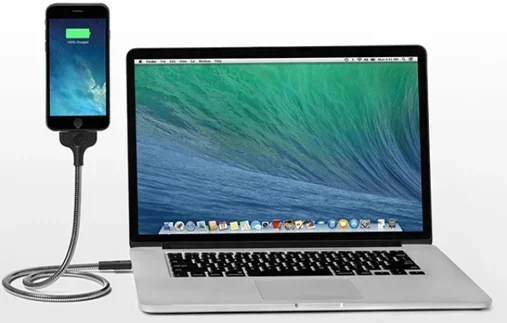
Charging your iPhone with a laptop is one of the simplest and most convenient ways to keep your device powered up. You just need a compatible cable and an open USB port on your laptop. This guide walks you through every method, troubleshooting tips, and ways to speed up your charge iPhone with laptop experience.
There is nothing worse than watching your iPhone battery drain to single digits while you are working on your laptop. Whether you are at home, in a café, or at the office, your laptop can become a reliable charging station for your iPhone. Charging iPhone with laptop is simple, fast, and something most people already know how to do but rarely think about optimizing.
In this guide, we will cover every aspect of charging your iPhone with a laptop. You will learn which cables work best, how to maximize charging speed, what to do when things go wrong, and which laptops pair well with iPhones. Whether you own the latest iPhone 15 or an older model, this guide has you covered.
Many people do not realize that laptop USB ports come in different types and deliver different power levels. Understanding these differences helps you charge faster and protect your iPhone battery health over time. Let us dive into everything you need to know about keeping your iPhone powered using your laptop.
Key Takeaways
- Easy and Convenient: You can charge your iPhone using any laptop with a USB port, no wall outlet needed.
- Multiple Cable Options: Lightning cables and USB-C cables both work depending on your iPhone model and laptop ports.
- Charging Speed Matters: Laptop USB ports deliver varying power, so your charging speed depends on your laptop model and port type.
- Troubleshooting is Simple: Most charging issues can be fixed with a cable swap, port cleaning, or software restart.
- Simultaneous Use: You can charge your iPhone and use your laptop at the same time without any problems.
📑 Table of Contents
Why Charge Your iPhone with a Laptop
Charging your iPhone with a laptop offers several real advantages that go beyond just convenience. Let us explore why this method has become a go-to solution for millions of users.
Convenience and Accessibility
Your laptop is always nearby when you work or study. Instead of hunting for a wall charger or an available outlet, you simply plug your iPhone into the USB port on your laptop. This works especially well when you are traveling or sitting at a desk for long hours. Charging iPhone with laptop means you never have to carry extra chargers or adapters.
Data Transfer While Charging
One of the biggest benefits of using a laptop to charge your iPhone is that you can transfer data at the same time. You can sync photos, back up your device, and update iOS all while your battery is charging. This dual function makes the laptop a powerful hub for iPhone charging and data management.
No Extra Equipment Needed
Most laptops come with USB ports built right in. You do not need to buy a separate wall adapter or a portable power bank. The cable you already use for your iPhone works perfectly with your laptop. This makes charging iPhone with laptop one of the most cost-effective ways to keep your device alive.
What You Need to Charge iPhone with Laptop
Before you start, you need a few basic items. The good news is that you likely already have everything you need at home or in your bag.
Compatible Cables
The cable you use depends on your iPhone model. iPhone 14 and older models use a Lightning cable. The newer iPhone 15 and iPhone 16 models use a USB-C cable. Both cable types plug directly into most modern laptops without any adapters.
USB Port Types on Laptops
Laptops come with different types of USB ports. Here is a quick look at what you might find:
- USB-A: The classic rectangular port found on older laptops. Works with Lightning cables using an adapter.
- USB-C: The newer oval-shaped port found on most modern laptops. Works directly with both USB-C and Lightning cables (with adapters).
- Thunderbolt 3/4: Found on high-performance laptops like many Lenovo laptops and business models. Delivers the fastest charging speeds and data transfer rates.
For the best experience, look for a laptop with USB-C or Thunderbolt ports. These deliver more power and charge your iPhone faster than older USB-A ports. If you are shopping for a new laptop, consider models like the Lenovo Laptop with 16GB RAM, which offers fast USB-C ports and plenty of power for all your devices.
Software and Drivers
In most cases, your laptop will recognize your iPhone instantly when you plug it in. However, you may need to update your laptop’s operating system or install Apple drivers if your laptop does not detect the device. Keeping your laptop software up to date ensures smooth iPhone charging and data sync every time.
Step-by-Step: How to Charge iPhone with Laptop
Follow these simple steps to start charging your iPhone using your laptop. The process takes less than a minute.
- Check your cable: Make sure you have a Lightning or USB-C cable that matches your iPhone model.
- Find an open USB port: Look at your laptop and identify a USB port that is not already in use.
- Plug the cable into your laptop: Insert the USB end of the cable into the laptop port firmly.
- Plug the other end into your iPhone: Connect the Lightning or USB-C end to your iPhone’s charging port.
- Wait for the confirmation: Your iPhone screen should show a charging battery icon. On newer models, you will see a green battery icon.
- Check battery percentage: Swipe down from the top right corner of your iPhone screen to see the current battery percentage and confirm charging has started.
That is it. Your iPhone is now charging from your laptop. You can continue using your laptop while your iPhone charges. Some users worry that charging their iPhone this way might slow down their laptop. In most cases, the impact is minimal and barely noticeable.
Charging Speed: How Fast Does It Charge
One of the most common questions about charging iPhone with laptop is how fast it actually charges. The answer depends on several factors, including your laptop model, the USB port type, and your iPhone model.
USB-A vs USB-C Charging Speeds
USB-A ports on older laptops typically deliver 2.5 watts of power. This means your iPhone will charge slowly compared to a wall charger. USB-C ports on modern laptops can deliver much more power, often between 15 and 100 watts depending on the laptop.
If you want faster iPhone charging from your laptop, look for a USB-C port that supports power delivery. Many modern laptops now include USB-C ports with PD (Power Delivery) technology. These ports can charge your iPhone at speeds close to a wall charger.
Factors That Affect Charging Speed
Several things influence how quickly your iPhone charges when connected to a laptop:
- Laptop power output: Higher wattage USB-C ports charge faster than low-power USB-A ports.
- Cable quality: Certified cables from Apple or reputable brands charge faster and safer than cheap knockoffs.
- iPhone model: Newer iPhones support faster charging speeds when paired with the right cable and power source.
- Laptop activity: If your laptop is under heavy load, it may reduce the power available for charging your iPhone.
- Background apps: Apps running on your iPhone can slow down charging slightly because they use battery power while charging.
Tips to Charge Faster
Want to speed up your iPhone charging experience? Try these simple tips:
- Put your iPhone in Airplane Mode while charging. This stops background activity and lets the battery charge faster.
- Close unnecessary apps on your iPhone before plugging it in.
- Use a high-quality USB-C cable that supports fast charging.
- Turn off your iPhone completely if you need the fastest possible charge.
- Avoid using your iPhone heavily while it charges from the laptop.
For users who frequently charge their iPhone from a laptop, consider pairing your setup with a laptop that has strong power delivery. Laptops like the Laptop with I7 Processor and 16GB RAM Touchscreen offer powerful USB-C ports that deliver excellent charging speeds for all your devices.
Troubleshooting Common Charging Issues
Sometimes charging iPhone with laptop does not work as expected. Here are the most common problems and how to fix them quickly.
iPhone Not Recognized by Laptop
If your laptop does not detect your iPhone when you plug it in, try these steps first. Unplug the cable and plug it back in firmly. Restart both your iPhone and your laptop. Check if your laptop needs a software update. On Windows laptops, you may need to install Apple Mobile Device Support from the Apple website. On Mac laptops, make sure macOS is up to date.
Slow Charging or No Charging
If your iPhone shows it is charging but the battery percentage barely moves, the issue is likely power output. Try a different USB port on your laptop. USB-C ports almost always charge faster than USB-A ports. You can also try a different cable to rule out a faulty cable. Clean your iPhone charging port gently with a soft brush to remove any dust or debris that might block the connection.
Cable Keeps Disconnecting
A loose connection is frustrating but easy to fix. Check if the cable is damaged or bent near the connectors. Try a different cable. If you are using an adapter, make sure it is firmly connected. Sometimes dust inside the laptop USB port causes intermittent disconnections. A quick blast of compressed air can fix this.
iPhone Shows “Not Charging” Message
This message usually appears when the laptop USB port cannot provide enough power. Try plugging your iPhone directly into a wall charger instead. If you must charge from a laptop, use a USB-C port with power delivery support. Some older laptops simply do not provide enough wattage through their USB ports to charge an iPhone effectively.
Best Laptops for Charging Your iPhone
Not all laptops are created equal when it comes to charging iPhone. Some laptops have powerful USB-C ports that charge your iPhone quickly, while others offer only slow charging through older USB-A ports. Here are some things to look for when choosing a laptop that works well with your iPhone.
What to Look For
- USB-C ports with Power Delivery: These deliver fast and efficient iPhone charging.
- Multiple USB ports: Having more than one port lets you charge your iPhone and other devices at the same time.
- High battery capacity: A laptop with a large battery can charge your iPhone multiple times without needing to be plugged in itself.
- Thunderbolt support: Thunderbolt ports offer the fastest data transfer and charging speeds available on laptops.
If you are in the market for a new laptop that handles iPhone charging beautifully, consider the Laptop with 16GB RAM and SSD. These machines offer fast USB-C ports, strong processors, and enough power to keep all your devices charged throughout the day.
Laptop Recommendations
Here are some laptop types that work great for charging iPhone with laptop:
- Ultrabooks: Lightweight and portable with modern USB-C ports. Perfect for on-the-go iPhone charging.
- Business laptops: Models from brands like Lenovo and Dell often include Thunderbolt ports for maximum compatibility.
- Gaming laptops: These have powerful USB-C ports that deliver high wattage output for fast iPhone charging.
- Budget laptops: Even affordable laptops with USB-C ports can charge your iPhone reliably, though speeds may vary.
For users who want a reliable and affordable option, the Cheapest Laptop with 16GB RAM provides excellent value and includes modern USB-C ports that work well for charging iPhones and other mobile devices.
Safety Tips for Charging iPhone with Laptop
Charging your iPhone from your laptop is generally very safe. However, following a few simple precautions helps protect both your iPhone and your laptop.
- Use certified cables: Always use Apple-certified or MFi-certified cables. Cheap uncertified cables can damage your iPhone battery or charging port over time.
- Avoid cheap adapters: If you use an adapter to connect your Lightning cable to a USB-C port, make sure it is from a reputable brand.
- Do not charge in extreme temperatures: Both your iPhone and laptop perform best at room temperature. Avoid charging in very hot or very cold environments.
- Keep your laptop ventilated: If your laptop gets hot while charging your iPhone, make sure the vents are not blocked. Good airflow prevents overheating.
- Update your software: Keep both your iPhone and laptop software updated to the latest versions. Updates often include fixes for charging and connectivity issues.
By following these simple safety tips, you can enjoy worry-free charging iPhone with laptop every single day. Your devices will stay healthy and perform at their best for years to come.
Conclusion
Charging iPhone with laptop is one of the easiest and most practical ways to keep your device powered throughout the day. With just a simple cable and an open USB port, you can charge your iPhone while working, studying, or traveling. The process is fast, convenient, and requires no extra equipment.
Remember to use the right cable for your iPhone model, choose a laptop with USB-C or Thunderbolt ports for the best speeds, and follow the troubleshooting tips if anything goes wrong. Whether you use a budget-friendly setup or a high-performance machine, your laptop can serve as a reliable charging station for your iPhone.
Take a few minutes today to optimize your charging setup. Try the tips in this guide and see the difference they make. Your iPhone battery will thank you, and you will never be stuck with a dead phone again. Happy charging.
Frequently Asked Questions
Can I charge my iPhone with any laptop?
Yes, you can charge your iPhone with almost any laptop that has a USB port. Whether your laptop uses USB-A or USB-C ports, there is a way to connect your iPhone. You may need a Lightning to USB-A cable or a USB-C to Lightning cable depending on your laptop and iPhone model. The charging speed will vary based on the port type and power output.
Does charging iPhone from a laptop damage the battery?
No, charging your iPhone from a laptop does not damage the battery. Apple designs iPhones to charge safely from any standard USB power source. However, using cheap or uncertified cables can cause long-term battery damage. Always use certified cables and adapters to keep your iPhone battery healthy over time.
Why is my iPhone charging slowly when connected to my laptop?
Slow charging usually happens because the laptop USB port delivers low power. USB-A ports typically provide only 2.5 watts, which is much slower than a wall charger. USB-C ports with Power Delivery charge much faster. You can also speed up charging by putting your iPhone in Airplane Mode and closing background apps while it charges.
Can I use my iPhone while it charges from my laptop?
Yes, you can absolutely use your iPhone while it charges from your laptop. You can browse, scroll, and use apps normally. However, heavy usage like gaming or video streaming may slow down the charging speed because the phone uses power faster than the laptop supplies it. For the fastest charge, put your iPhone in Airplane Mode.
What is the difference between USB-A and USB-C for iPhone charging?
USB-A is the older rectangular port found on most laptops. It charges iPhones slowly, typically at 2.5 watts. USB-C is the newer oval-shaped port found on modern laptops. It charges iPhones much faster and can deliver up to 100 watts with Power Delivery. If your laptop has USB-C ports, always use them for iPhone charging to get the best speeds.
Do I need any special software to charge my iPhone from a Windows laptop?
No, you do not need any special software to charge your iPhone from a Windows laptop. The charging works automatically when you plug in the cable. However, if you want to sync data or back up your iPhone, you may need to install iTunes or the Apple Devices app on your Windows laptop. For charging alone, no additional software is required.