Do All Monitors Have Speakers

Not all monitors come with speakers, and the ones that do often sacrifice quality for convenience. Understanding which panels include audio, how to evaluate built‑in sound, and the best ways to upgrade will help you create a setup that fits your needs without breaking the bank.
Key Takeaways
- Built‑in speakers aren’t universal: Many monitors, especially budget and professional models, skip audio hardware.
- Quality varies widely: Even when speakers are present, they usually can’t replace dedicated desktop or headset solutions.
- Connectivity matters: Look for HDMI, DisplayPort, or USB‑C audio‑return options if you plan to use built‑in sound.
- External solutions are easy: Soundbars, desktop speakers, or headphones can be added for a fraction of the cost.
- Use‑case drives the decision: Gaming, video editing, and casual browsing each have different audio expectations.
- Check specifications: Manufacturer specs, user reviews, and video demos reveal the real‑world performance of monitor speakers.
- Future‑proofing: Choosing a monitor with flexible audio outputs keeps your setup adaptable as your needs evolve.
📑 Table of Contents
- Introduction: Why the Question Even Exists
- 1. The Landscape of Monitor Speakers
- 2. Evaluating Built‑In Speaker Quality
- 3. Connecting Audio: Ports and Compatibility
- 4. External Audio Solutions: When Built‑In Isn’t Enough
- 5. Choosing the Right Monitor for Your Audio Needs
- Conclusion: The Bottom Line on Monitor Speakers
Introduction: Why the Question Even Exists
When you shop for a new screen, the first thing you notice is the size, the resolution, and the refresh rate. The next thing you might glance at is the speaker icon on the product picture. That tiny symbol can spark a big question: do all monitors have speakers? The answer is simple—no, they don’t. But the story behind that “no” is worth a deeper look.
In today’s world, many people treat a monitor as an all‑in‑one entertainment hub. A laptop can stream movies, a TV can run games, and a desktop monitor can do the same—if it has speakers. Yet manufacturers balance cost, space, and performance, and audio is often the first feature to get trimmed. Whether you’re a gamer, a graphic designer, or just someone who watches Netflix on a big screen, knowing the truth about built‑in speakers helps you avoid surprises at checkout.
1. The Landscape of Monitor Speakers
1.1 Which Monitors Actually Include Speakers?
Only a subset of monitors ship with speakers. Typically, you’ll find them in:

Visual guide about Do All Monitors Have Speakers
Image source: image.slidesharecdn.com
- Entry‑level office displays (e.g., 22‑inch 1080p panels)
- All‑in‑one PCs that combine a computer and a screen
- Some mid‑range gaming monitors that market “immersive audio”
- Ultra‑wide or curved monitors aimed at casual use
High‑end professional monitors—those used for color‑critical work or high‑refresh‑rate gaming—often skip speakers to keep the panel thin and the price competitive.
1.2 Why Some Brands Skip Audio
Manufacturers make trade‑offs. Adding speakers means extra components, more wiring, and a larger chassis. For a monitor that needs to stay sleek for graphic designers, those extra millimeters can be a deal‑breaker. Moreover, built‑in speakers rarely match the fidelity of dedicated audio gear, so many companies assume consumers will add their own solution.
1.3 Common Misconceptions
It’s easy to assume that an HDMI or DisplayPort connection automatically carries sound. While those cables can transmit audio, the monitor must actually have a speaker system or a headphone jack to output it. Some monitors have a “pass‑through” audio port that lets you plug external speakers directly into the monitor, but the monitor itself still doesn’t produce sound.
2. Evaluating Built‑In Speaker Quality
2.1 Technical Specs to Watch
When a monitor does have speakers, the spec sheet usually lists:

Visual guide about Do All Monitors Have Speakers
Image source: hobby.watch.impress.co.jp
- Power rating (often 2–5 W total)
- Frequency response (commonly 100 Hz–20 kHz)
- Number of drivers (usually 2, sometimes 4)
These numbers give a rough idea of volume and clarity. A 2‑W stereo pair will sound thin compared to a 5‑W setup, especially in the bass region.
2.2 Real‑World Listening Tests
Read user reviews and watch video unboxings. Pay attention to comments about “tinny” sound, “lack of bass,” or “good enough for movies.” A monitor that claims “enhanced audio” might still be best suited for voice‑over work rather than music production.
2.3 When Built‑In Audio Is Actually Good Enough
For tasks like:
- Watching YouTube videos or Netflix
- Video calls and webinars
- Casual gaming where immersion isn’t critical
the modest output of most monitor speakers can be perfectly acceptable, especially if you keep the volume moderate and use a small desktop speaker or a pair of earbuds for occasional upgrades.
3. Connecting Audio: Ports and Compatibility
3.1 HDMI and DisplayPort Audio Pass‑Through
Both HDMI and DisplayPort can carry digital audio signals. If your monitor has built‑in speakers, the audio will travel through the same cable that delivers video. Make sure your graphics card’s output is set to “audio output” in the OS sound settings.

Visual guide about Do All Monitors Have Speakers
Image source: mir-s3-cdn-cf.behance.net
3.2 USB‑C and Thunderbolt Options
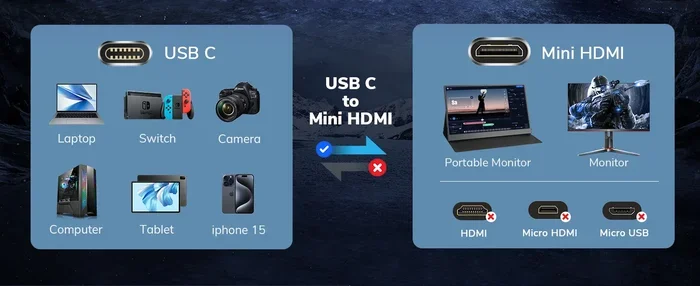
Modern monitors with USB‑C or Thunderbolt connections can deliver power, video, and audio over a single cable. This is especially handy for laptop users who want a clean desk with minimal cables.
3.3 Dedicated Audio Out Jacks
Many monitors include a 3.5 mm headphone jack. Plug in headphones or external speakers for a quick upgrade without opening the case. Some models also offer a line‑out port for connecting to a home theater receiver.
3.4 Internal Linking Example
If you’re setting up a multi‑monitor workstation, you might wonder about the best refresh rates. Check out our guide on Best Hz To Have When Having 3 Monitors Reddit for tips that also touch on audio syncing across screens.
4. External Audio Solutions: When Built‑In Isn’t Enough
4.1 Desktop Speaker Sets
Two‑speaker desktop bundles are a popular upgrade. They usually range from $20 to $100 and provide clearer mids and better bass than most monitor speakers. Look for models with a built‑in amp if you plan to use a subwoofer.
4.2 Soundbars for Monitors
Compact soundbars can sit directly below a monitor, delivering a wider soundstage without cluttering the desk. Many include Bluetooth, so you can stream music from your phone while you work.
4.3 Headphones and Gaming Headsets
For immersive gaming or noisy environments, a good pair of headphones or a gaming headset is the simplest solution. They bypass the monitor entirely and often feature surround sound processing.
4.4 Using a TV as a Monitor
If you already own a TV with decent speakers, you can connect your PC via HDMI and use the TV’s audio system. Just remember to adjust the TV’s picture settings for a true‑to‑life computer display.
4.5 Practical Tip: Avoiding Crackle
If you notice static or crackling in your external speakers, see our troubleshooting article Why Do My Speakers Crackle for quick fixes.
5. Choosing the Right Monitor for Your Audio Needs
5.1 For Graphic Designers
Designers prioritize color accuracy over audio. A monitor like those listed in Best Monitors For Graphic Designers usually omits speakers to keep the panel slim and the price down. Pair it with quality headphones for a balanced workstation.
5.2 For Gamers
Gaming monitors often market “immersive audio,” but the built‑in speakers rarely match a dedicated headset. If you’re a competitive player, invest in a headset. If you prefer couch‑style gaming, a soundbar or a 2.1 speaker system will give you a richer experience.
5.3 For Dual‑Monitor Setups
When you run two screens side by side, audio routing can get confusing. Choose a primary monitor with speakers or a headphone jack, and route the audio from your PC to that screen only. Our Best Monitors For Dual Monitors guide highlights models with convenient audio outputs.
5.4 For Curved or Ultra‑Wide Displays
Curved monitors designed for office work or media consumption often include a modest speaker pair. If you love the immersive feel of a curve but need better sound, a soundbar that matches the curve’s width works well. See Best Curved Monitors For Work for options that balance ergonomics and audio.
5.5 Future‑Proofing Your Audio
Look for monitors with multiple audio outputs: HDMI, USB‑C, and a 3.5 mm jack. This flexibility lets you switch between built‑in speakers, external speakers, or headphones without buying new cables.
Conclusion: The Bottom Line on Monitor Speakers
In short, do all monitors have speakers? No, they do not. The majority of budget and consumer‑grade panels include a basic speaker pair, while most professional, high‑refresh‑rate, and ultra‑thin models leave audio out entirely. When they do have speakers, the sound is typically adequate for everyday media consumption but falls short for music lovers, gamers, and creators who demand fidelity.
The smartest approach is to define your primary use case first. If you need high‑quality audio, plan for external speakers or a headset from the start. If you just want background music while you work, a monitor with built‑in speakers can save desk space and cable clutter. By checking the spec sheet, testing the audio in‑person if possible, and keeping an eye on connectivity options, you’ll build a setup that sounds as good as it looks.
Frequently Asked Questions
Do all monitors come with built‑in speakers?
No. Only a portion of consumer‑grade monitors include speakers, and many professional or high‑performance models omit them entirely.
Can I use HDMI to get sound from a monitor without speakers?
HDMI can carry audio, but if the monitor lacks speakers or a headphone jack, the sound has nowhere to go. You’ll need external speakers or a headset.
Are monitor speakers good for gaming?
They are usually adequate for casual gaming, but serious gamers prefer headsets or dedicated speaker systems for better positional audio and bass response.
What’s the difference between a soundbar and desktop speakers?
A soundbar is a single, elongated speaker that often includes a subwoofer and can sit beneath the monitor, while desktop speakers are separate left‑right units that sit on the desk.
How can I tell if a monitor’s speakers are decent before buying?
Read user reviews, watch video demos, and check the power rating (2–5 W is typical). Look for comments on clarity and volume.
Do I need a special cable to get audio from a USB‑C monitor?
No special cable is needed; a standard USB‑C cable that supports video and audio will carry both signals to the monitor.