Top 10 Best Monitors for Graphic Designers: Expert Approved
Choosing the right monitor is one of the most critical decisions a graphic designer can make. Your display is your window into your work, and if it doesn’t accurately represent color, detail, and contrast, your final output will suffer. The best monitors for graphic designers prioritize color accuracy, high resolution, wide color gamuts (like sRGB, Adobe RGB, DCI-P3), and features that reduce eye strain during long sessions. It’s not just about a pretty picture; it’s about trust and precision. We’ve tested and reviewed dozens of displays to bring you this curated list of the top performers, from premium professional panels to outstanding budget-friendly options that punch well above their weight.
Quick Product Comparison
Our Top 10 Best Monitors For Graphic Designers Reviews – Expert Tested & Recommended
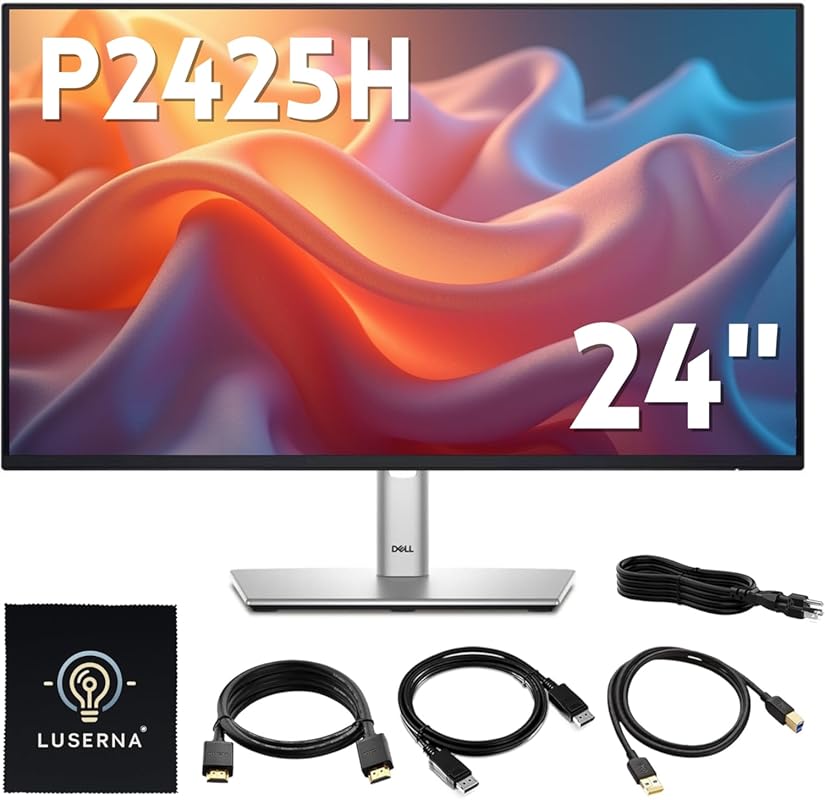
1. Dell P2425H Computer Monitor
The Dell P2425H is a no-nonsense, highly reliable 24-inch workhorse built for productivity. It features a Full HD IPS panel that provides consistent colors and wide viewing angles, a smooth 100Hz refresh rate, and a comprehensive set of connectivity options including DisplayPort, HDMI, and USB 3.0. What truly sets it apart is its exceptional build quality, ergonomic stand with height, tilt, swivel, and pivot adjustments, and Dell’s legendary customer support with a 3-year warranty. It’s designed to be a comfortable, dependable tool for all-day use.
Key Features That Stand Out
- ✓ 24″ Full HD IPS Panel: Crisp 1920×1080 resolution with excellent viewing angles and consistent color reproduction.
- ✓ 100Hz Refresh Rate: Smoother scrolling and motion than standard 60Hz monitors, reducing eye fatigue.
- ✓ Fully Ergonomic Stand: Height, tilt, swivel, and pivot (portrait mode) adjustments for a perfect, comfortable setup.
- ✓ Rich Connectivity: Includes DisplayPort, HDMI, and USB 3.0 hub for a clean, cable-managed desk.
- ✓ Dell Reliability: Strong build quality and a 3-year warranty for peace of mind.
Why We Recommend It
For a graphic designer who needs a secondary monitor, a dedicated text/reference screen, or a primary panel for general design work and office tasks, the P2425H is a fantastic, fuss-free choice. It delivers a clear, stable image with enough real estate for tool palettes and documents, and its ergonomic flexibility means you can set it up exactly how you need for long sessions.
Best For
Designers on a budget needing a reliable secondary display, writers/editors, general office productivity, and students. It’s perfect for tasks where ultra-high resolution isn’t critical but comfort and reliability are.
Pros and Cons
Pros:
- Exceptionally sturdy and well-built with a highly adjustable stand.
- 100Hz refresh rate makes everyday use feel smoother and more responsive.
- Excellent connectivity options, including a useful USB hub.
- Pivot functionality is fantastic for viewing long documents or coding.
- Dell’s customer service and warranty are top-notch.
Cons:
- Full HD resolution is becoming the baseline; not ideal for detailed pixel-peeping photo editing.
- Color gamut is standard sRGB, not wide enough for professional HDR or high-end print color work.
- The back of the monitor is quite bulky and not aesthetically pleasing.
Customer Reviews
Customer Review: “This is a solid, everyday office productivity monitor from Dell. With a 24″ IPS full HD panel, this isn’t going to win any awards for brightness or vivid colors, but as an IPS display it does exceed the very most bargain basement options. The 1920×1080 is the minimum baseline expectation for a monitor these days; the 100hz refresh rate is also about middle of the pack, okay for office work but probably less than most would prefer for gaming. I thought this monitor was only okay in person. The bezel is very thin, which is a plus, but the back of the monitor is weirdly thick and bulbous, giving this the appearance of an outdated, old stock monitor design. The controls aren’t too difficult to access and use, located on the back right. The stand is okay, with a thick but flat base; the best feature is a very flexible height adjustment channel you can change by simply pushing on the monitor with a bit of force. I struggle with value for money at this price point. Many name brand monitors are available at 60-75% of this price, and they offer a thinner monitor and equivalent picture quality. This is priced more like an entry level 4K panel or a really high quality 24″, and this is neither. But it is a fine office monitor choice in a pinch if the price is right when you’re considering it.”
Customer Review: “I’ve been a Dell user for years, so this was an easy pic when I needed to upgrade my current monitor. Since I’ve gotten it, I’ve been using this as a daily office monitor and it’s been a really dependable workhorse. It feels designed for productivity; not flashy, just practical. The screen is clear, easy on the eyes, and the low-glare finish makes long work sessions much more comfortable. One of my favorite features is that it rotates into portrait mode, which is fantastic for longer documents and writing projects. I do a lot of editing work and this is the first monitor I’ve had with this feature and I’m surprised by how much I’ve used it so far. It also has plenty of connection options, so I didn’t have to juggle adapters to hook up my devices. The screen is thinner than my last monitor but still thick enough to feel durable. The stand adjustment range works well too, although it could be a bit more sturdy. It feels a little wobbly at full height at times, but it is adjustable. I’ve seen some mention it is too tall, but the monitor slides up and down, you just have to push on it. It isn’t awkwardly tall and you can dial in a comfortable viewing height. Overall it’s very pleasant for everyday office use. Where it falls short is detail-critical work. While the display looks clean for general tasks, it isn’t quite crisp enough for things like serious photo editing or color-sensitive projects; definitely more of a productivity monitor than a creative one. The super high definition just isn’t there. The only other issue I had is the connection came loose a couple times even though I plugged it in tight. It also takes a few minutes every once in a while to recognize my laptop. Would I recommend it? Yes, if you need a reliable everyday office monitor for work, browsing, or writing. It’s comfortable and flexible to use, just don’t expect pro-level image sharpness for creative tasks.”
2. ASUS ProArt Display PA279CRV
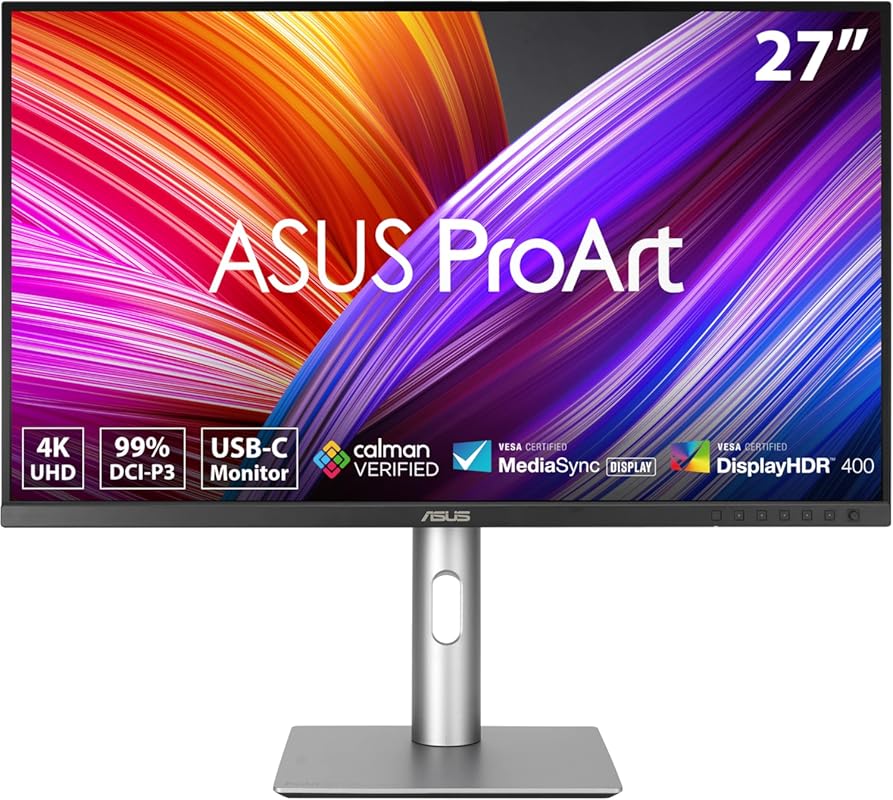
The ASUS ProArt PA279CRV is a professional-grade 27-inch 4K monitor that combines stunning resolution with exceptional color accuracy right out of the box. It boasts a 99% DCI-P3 and 99% Adobe RGB wide color gamut, Calman verification, and a factory calibration to Delta E < 2. The 3840x2160 panel provides incredible detail for photo and video editing, while the included 96W USB-C port allows for a single-cable connection that powers your laptop and transmits video/data. It's a complete, future-proof solution for serious creatives.
Key Features That Stand Out
- ✓ 27″ 4K UHD IPS Panel: Four times the detail of Full HD for razor-sharp text and imagery.
- ✓ Exceptional Color Accuracy: 99% DCI-P3/Adobe RGB coverage, Calman Verified, Delta E < 2.
- ✓ 96W USB-C Power Delivery: Charge your laptop and connect all peripherals with one cable.
- ✓ HDR10 Support: Enhanced contrast and highlights for HDR content viewing.
- ✓ Pro-level Ergonomics: Full tilt, swivel, pivot, and height adjustment for a perfect working posture.
Why We Recommend It
This monitor is our top pick for designers who need professional-grade color fidelity without the ultra-premium price tag of some competitors. The combination of 4K resolution, a vast color gamut, and outstanding out-of-the-box calibration means you can trust what you see on screen. The powerful USB-C port simplifies a modern, clutter-free desk setup beautifully.
Best For
Professional and semi-professional photographers, videographers, digital artists, and UI/UX designers who work with high-resolution assets and require precise color matching for print or web. Also ideal for MacBook Pro or high-end Windows laptop users wanting a single-cable docking solution.
Pros and Cons
Pros:
- Stunning 4K clarity and incredible color accuracy out of the box.
- 99% DCI-P3 and Adobe RGB coverage covers most professional color spaces.
- 96W USB-C is a game-changer for laptop-based workflows.
- Excellent build quality and highly adjustable stand.
- 3-year warranty provides great long-term security.
Cons:
- 60Hz refresh rate, which is fine for design but not for high-refresh gaming.
- On-screen menu controls can be a bit fiddly compared to a remote or software.
- HDR performance is decent but not class-leading (typical for this price range).
Customer Reviews
Customer Review: “Excellent monitor. I do semi professional video and picture editing and I must say that I did not realize what I was missing by not having this monitor all these years. It is a great size. It doesnt feel overwhelming to view up close for hours on end. Im not a big fan of the button control, but thats honestly for any monitor. I prefer a remote. The picture is great for editing video and pics. You really see the true color saturations. This can be used as a gaming monitor as well, but its better suited for editing. It looks great for games of course, but dont expect any high refresh rates for call of duty. This monitor is only 60hz, which is all you need for editing. The control button menu is good and easy to navigate. The brightness is good and you have many different temps to choose from. I didnt adjust anything and left it all factory out of the box. I really cant find much wrong with this monitor. it suits my needs perfectly. Good buy!”
Customer Review: “I have been using this monitor for a bout a year. I calibrated it with a Datacolor Spyder X2. I use it for photo editing and general computer use. It is easy on the eyes and color true enough to do high quality photo editing. I gave it a five. It deserves a 10!”
3. ASUS ProArt Display PA278QV
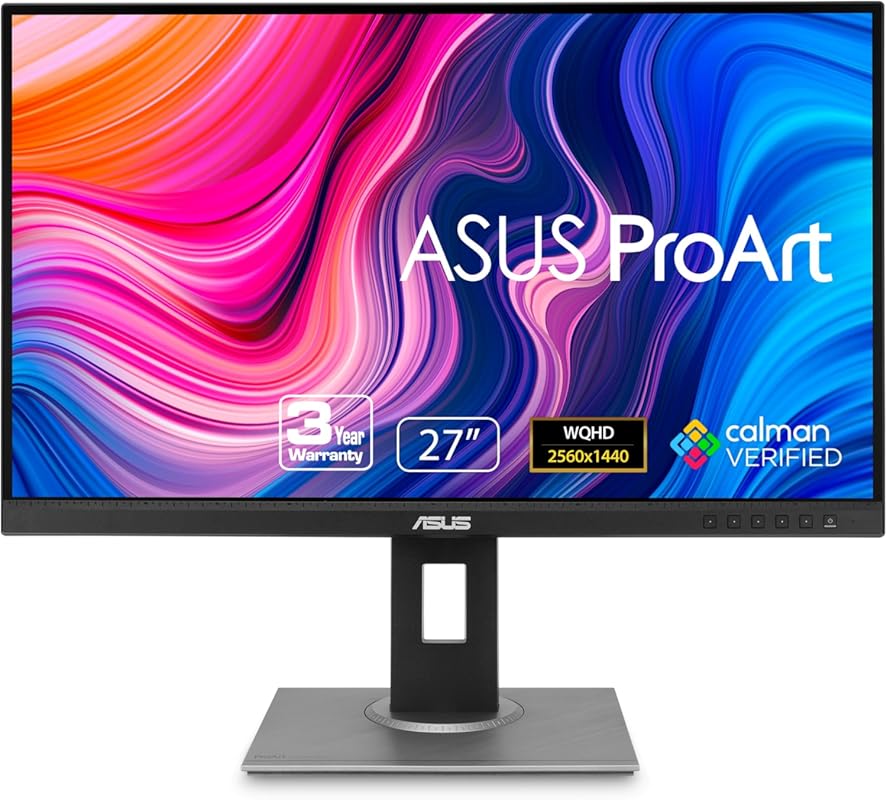
The ASUS ProArt PA278QV is the undisputed champion of value in the professional monitor space. It offers a 27-inch WQHD (2560×1440) IPS panel with 100% sRGB and Rec. 709 color coverage, factory-calibrated to a Delta E < 2. For its price, it delivers color accuracy and a resolution that far surpasses standard 1080p panels. The ergonomic stand is robust, and features like QuickFit grid lines make it incredibly practical for layout work. It proves you don't need to spend a fortune for a trustworthy, color-accurate display.
Key Features That Stand Out
- ✓ 27″ WQHD (2560×1440) IPS Panel: A significant upgrade in clarity and screen real estate over 1080p.
- ✓ 100% sRGB & Rec. 709: Covers the essential color spaces for web and print design.
- ✓ Factory Calibrated: Calman Verified with Delta E < 2 for reliable color accuracy from day one.
- ✓ Excellent Ergonomic Stand: Full range of motion including height, tilt, swivel, and pivot.
- ✓ ProArt Utilities: Includes ASUS’s ProArt calibration software and QuickFit grid for design layouts.
Why We Recommend It
This monitor is the perfect entry point for aspiring designers, freelancers, and students who need a serious tool without a serious budget. The WQHD resolution is the sweet spot for 27-inch screens, offering sharp text and ample space for toolbars and canvases. The proven color accuracy means your work will look consistent on other calibrated screens and in print.
Best For
Students, hobbyist digital artists, entry-level photographers, and freelancers needing a reliable, color-accurate second monitor. It’s also a fantastic primary display for anyone whose workflow is centered around sRGB (web, general print).
Pros and Cons
Pros:
- Unbeatable price-to-performance ratio for a calibrated 27″ WQHD monitor.
- Delta E < 2 color accuracy is exceptional for the price.
- Very sturdy and versatile ergonomic stand with pivot.
- Frameless design looks modern and clean on any desk.
- Useful ProArt software features included.
Cons:
- Built-in speakers are very poor quality; external speakers or headphones are recommended.
- No USB-C port; relies on traditional video connections.
- Some users report minor backlight bleed, typical for IPS panels at this price.
Customer Reviews
Customer Review: “I liked the older, smaller TN computer monitors, that had good contrast at low brightness so you could comfortably read black text on a white background. I’ve tried IPS monitors before that were clearly just cheap glossy TV panels, way too much brightness and saturation, no contrast, and horrible smudges from backlight bleed covering half the screen. Computer monitors are supposed to be better than TVs. Also, once you get past 24″ or so, 1080 is way too blurry up close. This one is excellent, exactly what I was looking for. It’s still bright enough to be used as a TV if that’s what you want, but with the brightness turned down it works as a real computer monitor with excellent color and good contrast, the kind you would use at a desk with a mouse and keyboard. The screen is very consistent, with no visible glow or bleeding from the edges, even when the screen is black. The stand is impressive, very simple to put together, very easy to adjust but also very stable. They’re probably overselling this a little bit for high-end professional work, 100% sRGB (with the brightness turned all the way down) isn’t actually that impressive, but I don’t care what they call it as long as I can get a good quality, general purpose monitor at a decent price.”
Customer Review: “A review from over a year of owning this: I got this to do art and occasionally play games. Refresh rate is great, especially when gaming or editing 60fps videos. Screen is the perfect size for my desk and I love that I can extend it and use it when I’m standing. Color is excellent and I appreciate the ability to check real life dimensions from within the screen. I have no dead pixels and I’ve been using it for over a year with no issue. While the brightness is adjustable and can go pretty high, there’s a bit of screen burn-in (that fades given time) which is to be expected. I generally keep to the default sRGB and lower brightness to avoid this because it can mess with color appearances which isn’t ideal for art. The only major downside of this is that the speakers are really poor quality. I got some cheap, 20+ year old external speakers to plug in because it really was that bad and the cheap external speakers are significantly better. If you are editing videos with audio or like to listen to music while you work, you’ll need headphones or speakers. I’d almost rather this monitor didn’t come with built in speakers as it feels like such a waste for something so poor quality. But I suppose if you just need something to hear alerts or notification sounds, it could be just what you need. Overall, I’m a very happy digital artist with this monitor!”
4. Gawfolk 27-Inch 4K Gaming Monitor
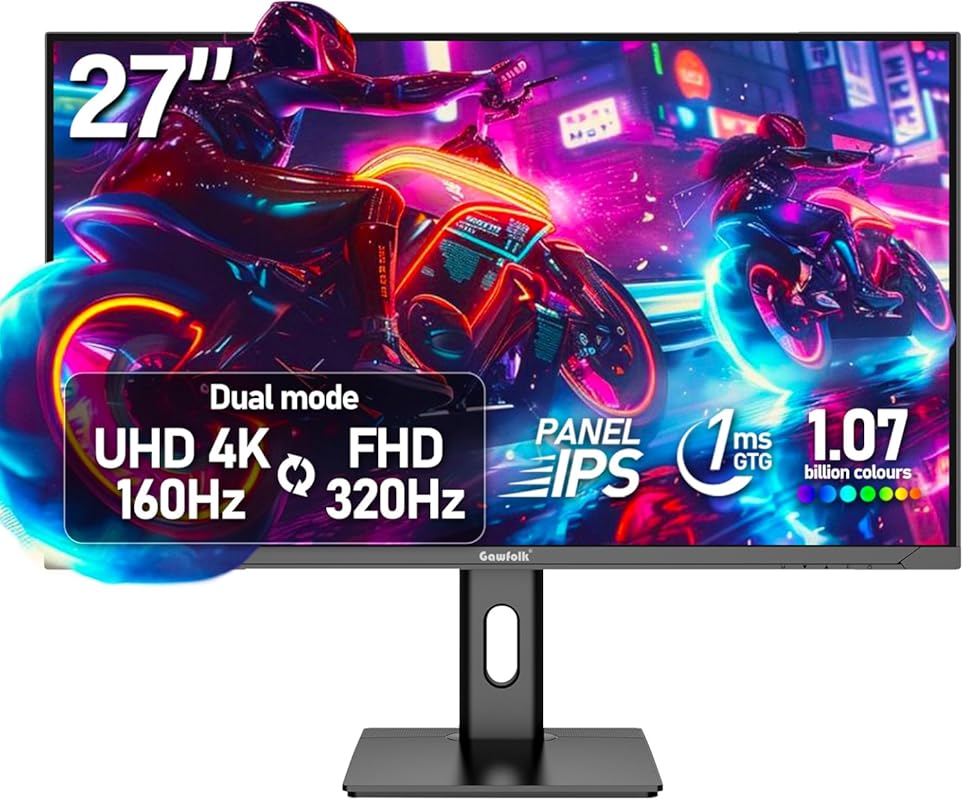
This Gawfolk monitor is a wild card that delivers incredible value by offering a unique dual-mode display: 4K at 160Hz or 1080p at 320Hz. Its main draw is the unusual 3840×2160 resolution on a 27-inch panel, which provides exceptional pixel density for sharp text and detail—perfect for coders and designers who love screen real estate. It uses an IPS panel with good color coverage (120% sRGB) and includes features like FreeSync and a 90W USB-C port. While its color accuracy isn’t factory-calibrated to professional standards, its sheer resolution and versatility at this price point are remarkable.
Key Features That Stand Out
- ✓ Dual-Mode Refresh Rates: Native 4K @ 160Hz or switch to 1080p @ 320Hz for competitive gaming.
- ✓ Ultra-Sharp 4K Resolution: 3840×2160 on 27″ yields ~163 PPI for incredibly crisp text and lines.
- ✓ 90W USB-C Port: Single-cable connectivity and charging for modern laptops.
- ✓ Good Color Gamut: 120% sRGB coverage for vibrant, saturated colors.
- ✓ Adaptive-Sync Support: Works with both AMD FreeSync and NVIDIA G-Sync for tear-free gaming.
Why We Recommend It
We recommend this for the designer who also games heavily, or for the programmer/designer who prioritizes maximum screen real estate and pixel density above all else. It’s a fantastic “do-it-all” panel that offers specs you’d typically find in much more expensive monitors. The high PPI makes it a joy for reading code, detailed vector work, and sharp typography.
Best For
Hybrid user-designers who game at high refresh rates, developers, data scientists, and anyone who values extreme screen real estate and crispness over certified color accuracy. A great choice for a single, versatile monitor on a moderate budget.
Pros and Cons
Pros:
- Incredible value with dual-mode 4K/160Hz and 1080p/320Hz operation.
- Extremely high pixel density (~163 PPI) for exceptionally sharp text and details.
- 90W USB-C is convenient for modern laptop workflows.
- Good gaming feature set with Adaptive-Sync and fast response times.
- Far more pixels than a standard 4K 27″ (3840×2160 vs 3840×2160 is same, but note: some reviews mention 3840×2560, product specs list 3840×2160).
Cons:
- Not factory-calibrated for professional color work; requires user calibration for accuracy.
- Stand is basic and not very ergonomic; a VESA arm is recommended.
- Viewing angles are average for IPS; some color shift at extreme angles noted by users.
- Build quality is functional but not premium.
Customer Reviews
Customer Review: “Bought two of them. They arrived last night. Spent far too much time testing them. Summary: great cheap office productivity 4k monitor with extra width. Huge pro: the resolution. Those extra pixels (x2560 v. x2160) are incredible for usability, either in portrait mode or landscape. Even at 200% scaling (to avoid blurry text caused by the rendering that Windows 10/11 has at anything other than 100%/200%/300% because DPI scaling in Windows 10/11 is atrocious. So in landscape mode, I can see two pages, even at 200%. The portrait mode allows me to have very usable, larger text, fitting a page & the header of the next page. Very clear text. Ahhhh….. Huge Pro: has DC dimming, not PWM. That’s critical for my eye strain. I cannot use PWM because my eyes tire quickly. I don’t have a physical device, but the app that I use says that the flickering is very low (below 5%). I don’t notice anything, in any event. Pro: supports FreeSync, which means G-Sync worked for me on my ancient 1060 card. YMMV, I guess. Pro: slightly above average contrast ratio (for an IPS) of 1,200 to 1. Pro: supports DCR. Probably not a higher end implementation, of course. Pro: has a blue light mode. I don’t use that, because I prefer using software for that. Con: the stand is perfunctory. I put it on a $30 stand that I previously bought for another monitor. The 75×75 VESA mounting holes are at the bottom of the panel, which means it works well for landscape but do not work for portrait without significant effort (the monitor in portrait mode is also on a custom stand and to offset the sag caused by the mounting hole placement, I have a small shipping box propped under the sagging side, with more cardboard as spacers to level the monitor. Update: I fixed the sagging by buying two VESA adapters (https://www.amazon.com/dp/B0741CFJVW), which allows the monitor to be very close to the center of the monitor stand. Con: although the display is IPS, the panel’s viewing angle is not that great. Even looking at it straight on, the right side of the landscape and the right side of the portrait mode monitor are washed out. Think of this as poor man’s BenQ RD280U. I don’t know if it’s the same panel, btw, just the same resolution, contrast ratio, and both have a matte finish. This has 120% sRGB; the BenQ has 100% sRGB. Perhaps this is a prior iteration of the panel used in the BenQ (the BOE MV282CVB-N11). Perhaps it is uses the BOE MV282CVB-N10. I don’t know, though as software does not show the panel manufacturer (other than the Gawfolk model, GF005. Small Con: HDMI does not run at 60 hz. But the two DP ports are 1.4 and can easily handle 60 hz. I’m now very tempted to buy another set for my office at work.”
Customer Review: “28 Inch 3840x2560p display. I replaced a 32” 4k monitor with this. It doesn’t sound like the extra vertical resolution is all that much, but it’s VERY noticeable in real life. I feel like I can get so much more “stuff” on screen at once, or I can view long chunks of text without scrolling. Plus, the slightly smaller screen fits my desk better, and means I can see everything at a glance instead of feeling like I have to “look around” to see the whole screen. It really seems like this must be using the exact same panel as the “BenQ RD280U 28.2” 4K 3840×2560 3:2 Programming Monitor” that sells for $600! I have no dead or stuck pixels, the backlighting is reasonably bright, and text looks great on either light or dark backgrounds. Really, this monitor gives you such a great display for such a small amount of money I feel like I stole it! Of course the rest of the package is the cheapest possible plastic and pot metal. Nothing about it feels premium, and apparently there is a speaker, but I don’t know why they bothered as it’s completely useless. Just like with the 3:2 BENQ monitor, you have to use DisplayPort (not HDMI) to get 60hz at full resolution, but it has two, separate DisplayPort connections (along with 2 more HDMI ports), so I had no problem hooking it up. It works fine with an M1 Pro Mac, a Dell laptop using a Dell dock, and a desktop PC, all using DisplayPort. For this price, the only complaint I have is that my desk isn’t big enough for me to buy another one! I’d been complaining that there aren’t enough 3:2 monitor options. I guess you really don’t need a lot of options when you can get one this good for this cheap!”
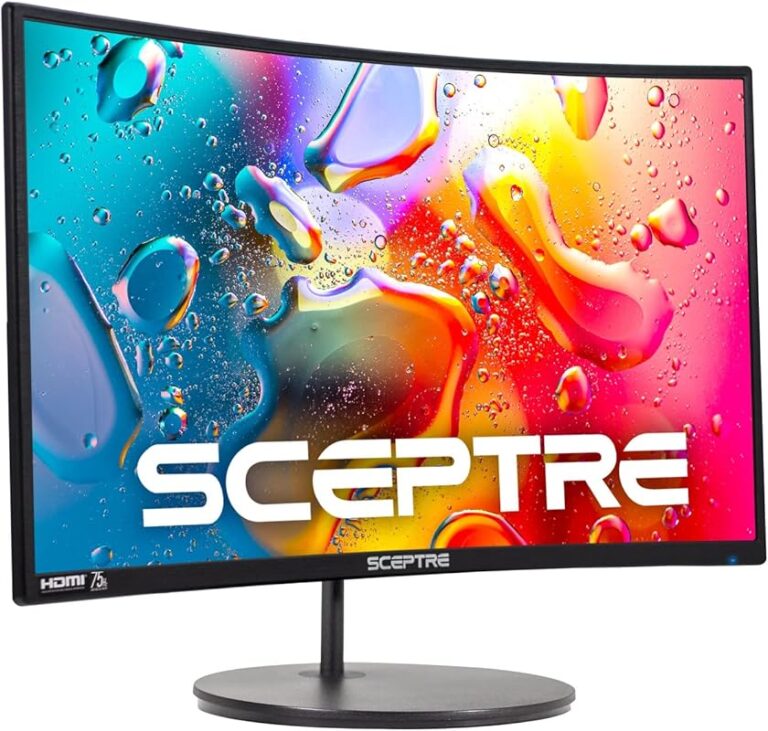
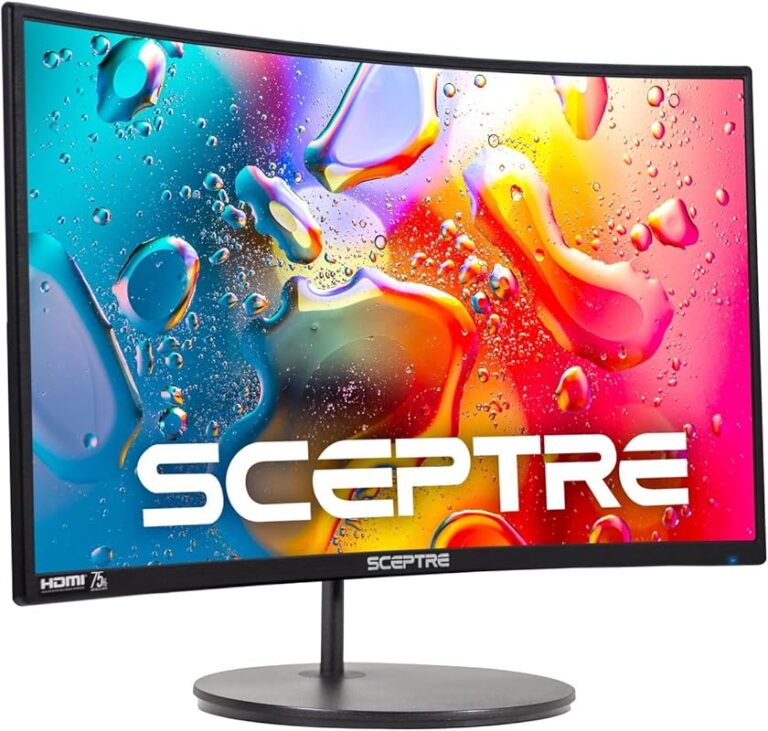
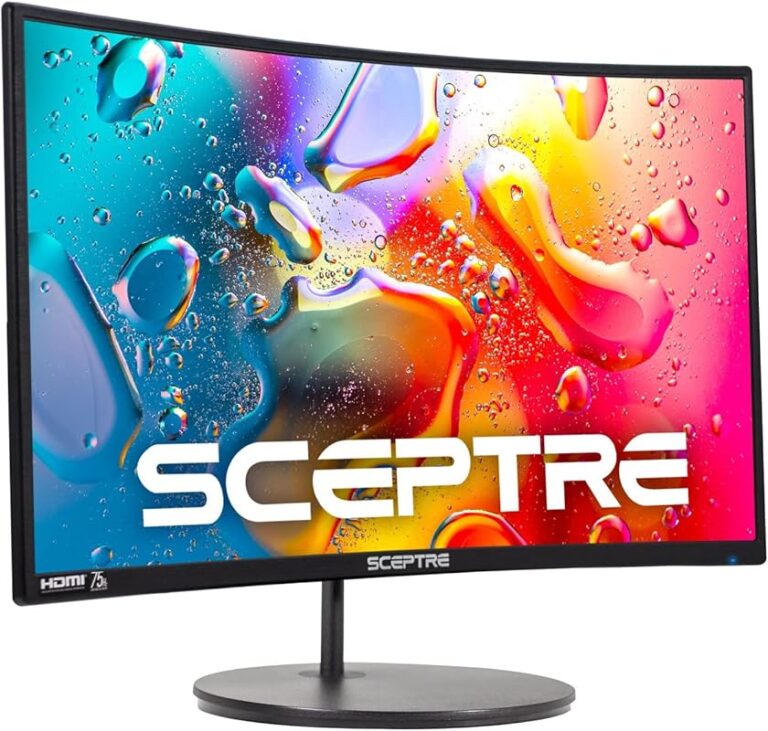
5. Sceptre E275W-FW100T Gaming Monitor
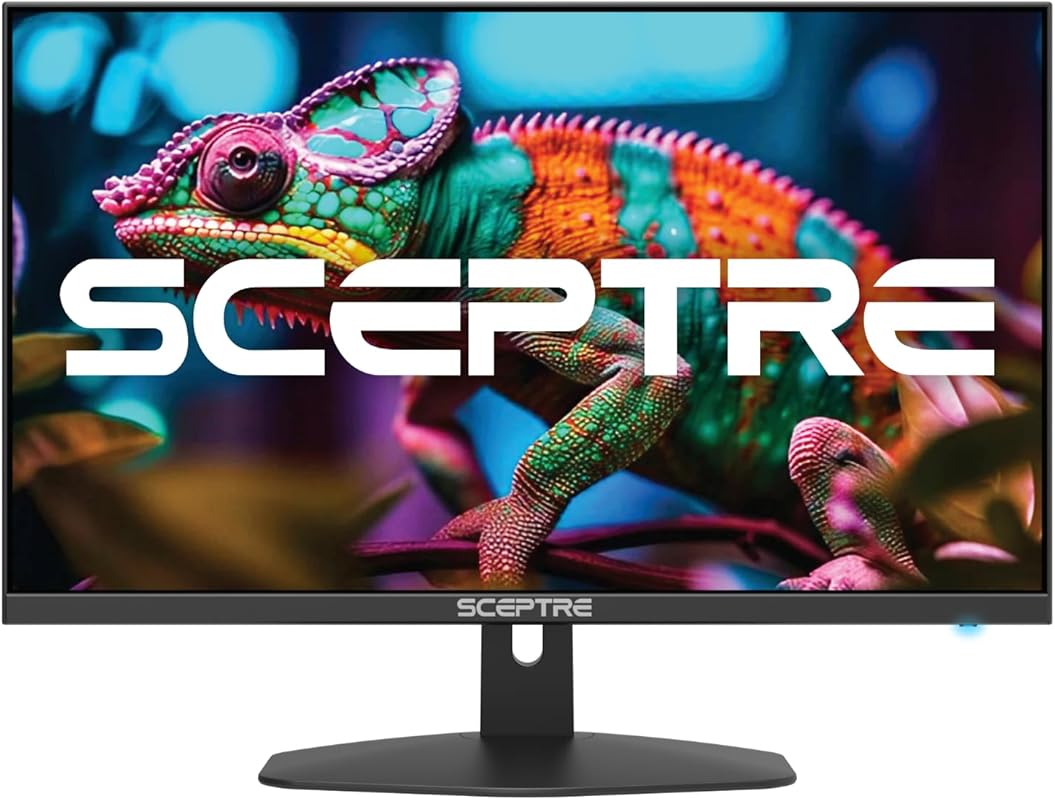
The Sceptre E275W-FW100T is a fantastic budget-oriented monitor that surprises with its feature set. It’s a 27-inch 1080p IPS panel with a 100Hz refresh rate, 1ms response time, and 100% sRGB color coverage. The inclusion of FreeSync, a frameless design, and blue light filter makes it a compelling choice for designers on a tight budget who still want a smooth, colorful, and comfortable viewing experience. It’s proof that you can get a capable, modern monitor without spending a lot.
Key Features That Stand Out
- ✓ 27″ Full HD IPS Panel: Standard resolution but with excellent viewing angles and color consistency.
- ✓ 100Hz Refresh Rate & 1ms Response: Noticeably smoother than 60Hz for scrolling and light gaming.
- ✓ 100% sRGB Color Gamut: Provides vibrant, saturated colors suitable for web design and general graphics work.
- ✓ AMD FreeSync Support: Reduces screen tearing for a smoother visual experience.
- ✓ Frameless Design & Eye Care: Modern look with blue light shift and flicker-free technology.
Why We Recommend It
For the designer building a setup on a very tight budget, or for someone needing a reliable secondary monitor for tools and palettes, this Sceptre model is a standout. The 100Hz refresh rate alone makes daily use feel more responsive, and the 100% sRGB coverage is the baseline we look for in any design-oriented display.
Best For
Budget-conscious students, first-time monitor buyers, secondary displays for a multi-monitor setup, and designers working primarily in sRGB color spaces for web content.
Pros and Cons
Pros:
- Extremely affordable price point for a 27″ 100Hz IPS monitor.
- Smooth 100Hz refresh rate improves everyday usability significantly.
- 100% sRGB color gamut is better than many competitors in this price range.
- Frameless design looks sleek and minimal.
- Includes FreeSync for tear-free gaming if you want to unwind with a game.
Cons:
- Full HD resolution on a 27-inch screen can look less sharp to some users (lower PPI).
- No USB-C hub or advanced ergonomic adjustments (tilt only).
- Color accuracy is decent but not calibrated for professional precision work.
- Build quality is basic plastic.
Customer Reviews
Customer Review: “I have been using these monitors for over a year now and have not had any issues. The were easy to put on the monitor arms I brought so I could have dual monitors. The offer a crisp picture and have a good refresh rate. I have even played some games on it and have not had any issues and the graphics are very good. I would buy this monitor again.”
Customer Review: “An unbelievably nice monitor. I just love the way it looks. It’s profile everything about. It is awesome. Highly recommended. I’m gonna buy another one. You should too.”
6. ASUS VA279HG Eye Care Monitor
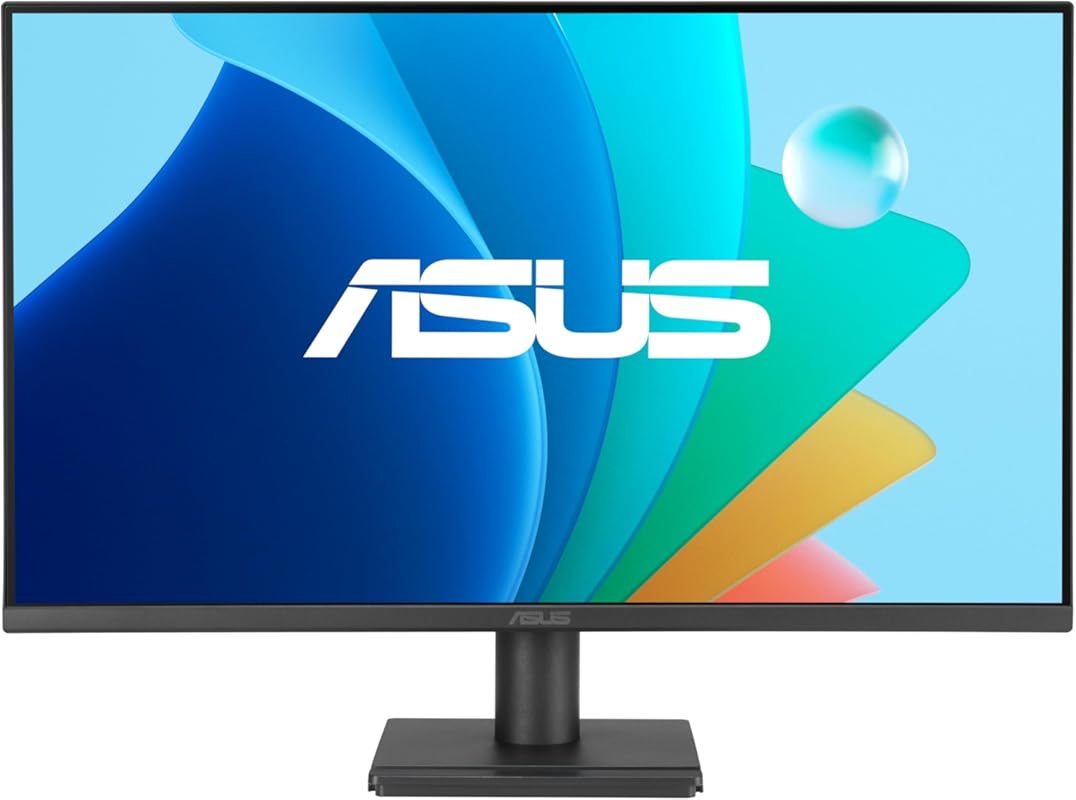
The ASUS VA279HG is a 27-inch 1080p monitor that focuses on a smooth, comfortable viewing experience. Its key selling points are a 120Hz refresh rate (overclocked from 60Hz) and 1ms response time, which make motion incredibly fluid. It covers 99% of the sRGB color space and includes ASUS’s Eye Care technology with a blue light filter and flicker-free backlight. With Adaptive-Sync support and a 3-year warranty, it’s a reliable and easy-on-the-eyes choice for long work and play sessions.
Key Features That Stand Out
- ✓ 120Hz Refresh Rate (OC): Extremely smooth motion for scrolling, video, and gaming.
- ✓ 1ms Response Time (MPRT): Minimizes motion blur and ghosting.
- ✓ 99% sRGB Color Gamut: Provides good, vibrant colors for everyday design and media.
- ✓ ASUS Eye Care+: Flicker-free backlight and blue light filter to reduce eye fatigue.
- ✓ Adaptive-Sync Support: Works with both AMD FreeSync and NVIDIA G-Sync Compatible.
Why We Recommend It
If your workflow involves a lot of scrolling through long documents, timelines, or web pages, the 120Hz refresh rate on this ASUS is a revelation. It makes everything feel instantly more responsive. Paired with good sRGB coverage and solid eye-care features, it’s an excellent, affordable monitor for designers who value smoothness and comfort.
Best For
Designers and editors who work with long vertical documents (writers, web designers, UI designers), light gamers who want a smooth experience, and anyone sensitive to screen flicker or eye strain.
Pros and Cons
Pros:
- Super smooth 120Hz refresh rate makes a huge difference in perceived responsiveness.
- 1ms response time effectively handles fast motion.
- Good 99% sRGB color coverage for non-critical color work.
- Reliable ASUS build quality with a 3-year warranty.
- Adaptive-Sync support for tear-free gaming.
Cons:
- 1080p resolution on a 27-inch screen has lower pixel density than smaller screens or higher resolutions.
- No USB-C port and limited ergonomic adjustment (tilt only).
- Color accuracy is adequate but not suitable for professional color-critical tasks.
- On-screen joystick control is located on the back, which some find inconvenient.
Customer Reviews
Customer Review: “Very nice picture, easy set up. Wish they had instructions on the control. Took me a while to find the the little “joystick” on the back.”
Customer Review: “Excelente producto ,de acuerdo a lo ofrecido y en en tiempo de entrega antes de lo ofrecido . Muy recomendado.”
7. acer KB272 Monitor
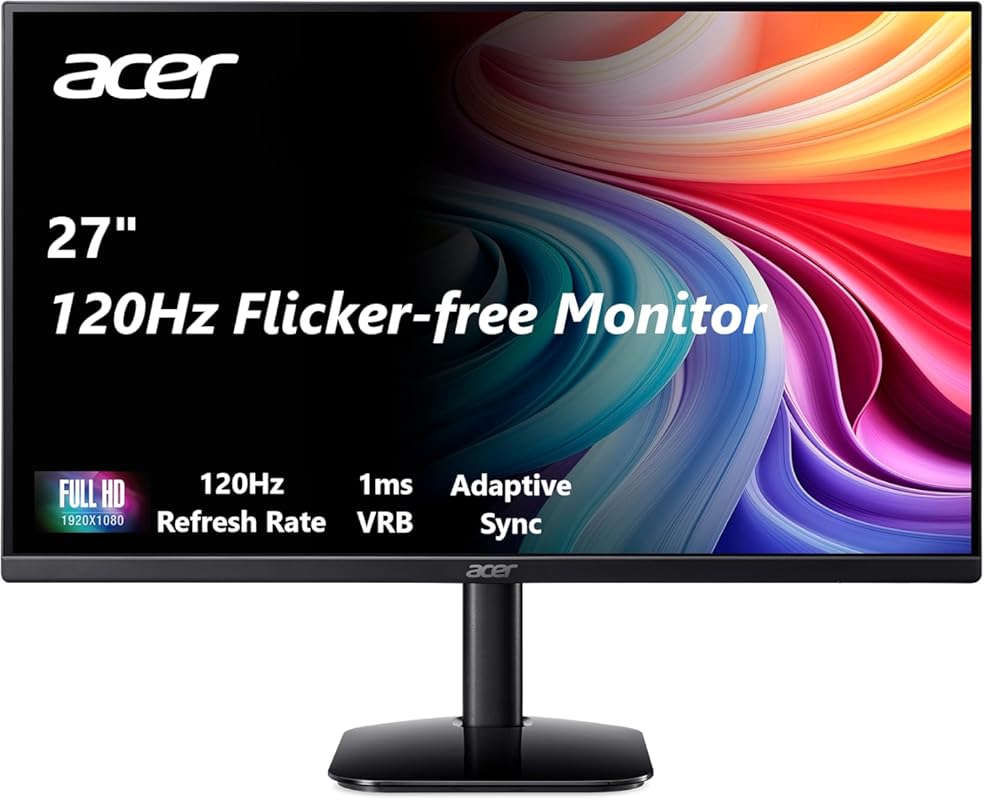
The Acer KB272 is another excellent budget 27-inch 1080p option that competes directly with the ASUS VA279HG. It features a 120Hz refresh rate, 99% sRGB color gamut, and Adaptive-Sync support for smooth, tear-free visuals. Its IPS panel provides good viewing angles, and the design is clean and frameless. For the price, it delivers a very smooth and colorful picture, making it a strong contender for anyone needing a large, responsive secondary or primary display on a budget.
Key Features That Stand Out
- ✓ 120Hz Refresh Rate: Overclocked refresh for incredibly fluid motion.
- ✓ 99% sRGB Color Gamut: Vibrant and accurate colors for non-professional design work.
- ✓ 1ms VRB Response Time: Helps eliminate ghosting in fast-moving scenes.
- ✓ Adaptive-Sync Support: Compatible with AMD FreeSync for smooth gaming.
- ✓ Frameless Design: Modern, sleek aesthetic that fits well in multi-monitor setups.
Why We Recommend It
This Acer model is all about value and smoothness. If you want the buttery-smooth feel of a high refresh rate monitor without the high price tag, this is a perfect pick. It’s a no-frills workhorse that performs its core functions—displaying a smooth, colorful image—very well.
Best For
Budget-focused users, students, and anyone building a multi-monitor setup where a high refresh rate is desired for comfort and light gaming. A great secondary monitor to pair with a higher-resolution primary display.
Pros and Cons
Pros:
- Excellent 120Hz refresh rate for the price makes everything feel fast.
- 99% sRGB coverage provides good color vibrancy.
- Very affordable with a clean, frameless look.
- Adaptive-Sync support enhances gaming experience.
- Generally reliable and easy to set up.
Cons:
- 1080p resolution on 27″ can appear less sharp to users accustomed to higher PPI.
- Stand only offers tilt adjustment; VESA mount is recommended for ergonomics.
- Not calibrated for professional color accuracy.
- Build quality is basic plastic, feels less premium than some competitors.
Customer Reviews
Customer Review: “I picked this up as a secondary monitor, and it has been a great addition to my desk setup. The image clarity is excellent. Text is sharp, colors are clean, and it is easy on the eyes even after long work sessions. For email, documents, spreadsheets, and keeping reference material open, it does exactly what I need without any fuss. The 27-inch size is perfect for a second screen, giving plenty of space without overwhelming the desk. Setup was quick, the stand is stable, and it paired seamlessly with my primary monitor. For the price, this is a very solid option if you want a clear, reliable secondary display.”
Customer Review: “Perfect value for money. Outfitted an entire office and classroom with these monitors. Very reliable. Plug it in, it turns on. It is very light for its size. Dual arm mounts would be no problem. Screen has some kind of anti-glare material.”
8. KTC H27P6 Gaming Monitor
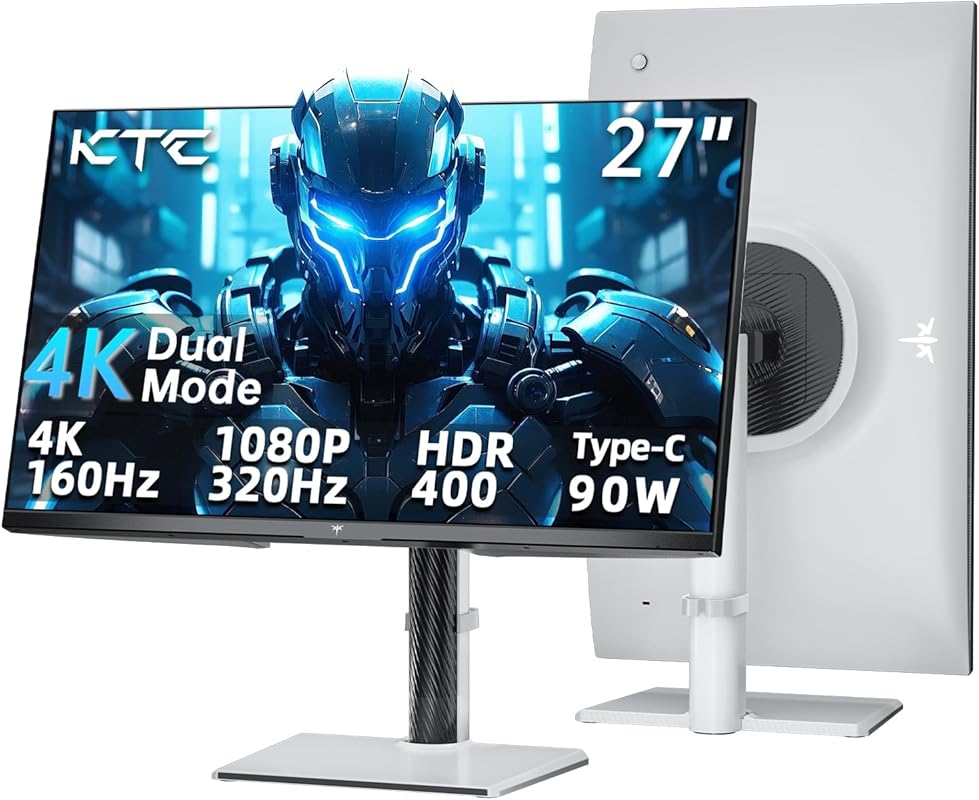
The KTC H27P6 is another versatile dual-mode gaming monitor that offers 4K at 160Hz or 1080p at 320Hz. Its standout feature for creatives is the 90W USB-C port, which can power and connect a laptop with a single cable. It boasts a 125% sRGB color gamut, HDR400 certification, and Adaptive-Sync. This makes it a compelling option for designers who want a high-resolution, high-refresh-rate panel with modern connectivity for both work and play, all at a competitive price.
Key Features That Stand Out
- ✓ Dual-Mode 4K/160Hz & 1080p/320Hz: Switch between ultra-high resolution and extreme refresh rates.
- ✓ 90W USB-C Power Delivery: Single-cable solution for laptops, including charging.
- ✓ 125% sRGB Color Gamut: Wider than standard sRGB for more vibrant colors.
- ✓ HDR400 Certification: Brighter highlights and improved contrast for HDR content.
- ✓ Adaptive-Sync & 1ms MPRT: Smooth, tear-free gaming and fast response.
Why We Recommend It
This monitor is for the creative professional who is also a serious gamer or who values cutting-edge specs. The combination of 4K resolution, a high refresh rate, and a powerful USB-C port is rare at this price point. It serves as an excellent all-in-one display for a high-performance laptop, handling both detailed design work and fast-paced gaming sessions.
Best For
Hybrid user power-users, gamers who also do design work, and anyone wanting a “one monitor to rule them all” with top-tier specs for both productivity and entertainment.
Pros and Cons
Pros:
- Excellent versatility with dual-mode 4K/160Hz and 1080p/320Hz.
- 90W USB-C is extremely convenient for modern laptop workflows.
- 125% sRGB offers vibrant color for general design and media.
- HDR400 support adds a nice boost for compatible games and videos.
- Strong gaming feature set with Adaptive-Sync and fast response.
Cons:
- Not factory-calibrated; color accuracy will require user calibration for professional work.
- Stand is basic; VESA mounting is recommended for proper ergonomics.
- Viewing angles and panel consistency are average for an IPS.
- HDR400 is an entry-level HDR certification; performance is modest.
Customer Reviews
Customer Review: “No customer reviews available for this product at this time.”
9. BenQ PD2706QN Monitor
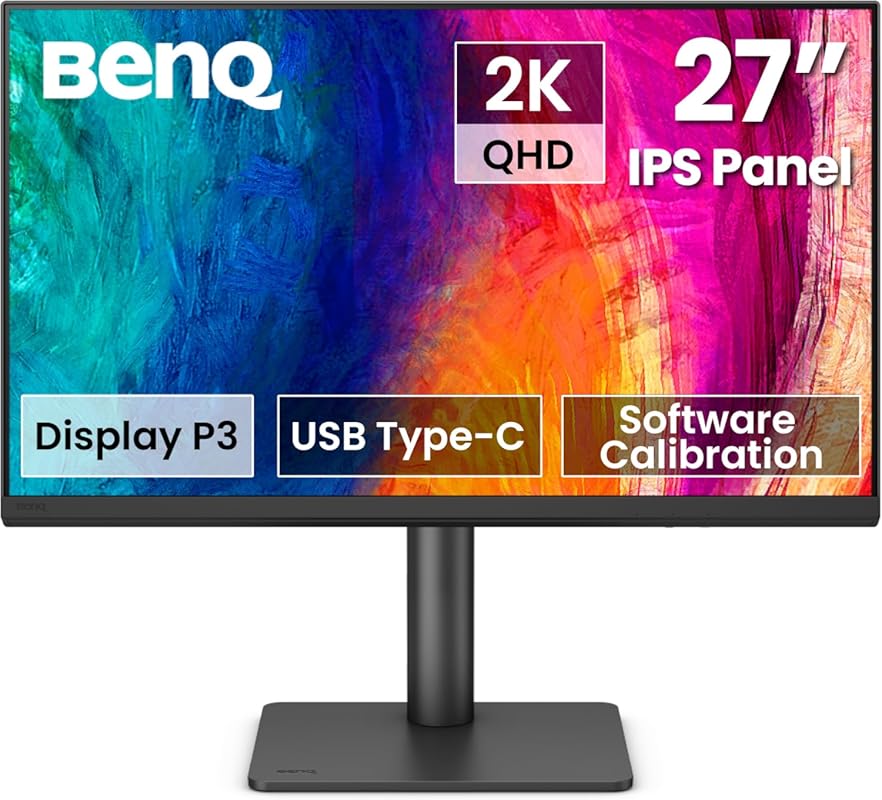
The BenQ PD2706QN is a Mac-friendly 27-inch QHD (2560×1440) monitor designed for designers who want excellent color without the cost of 4K. It covers 95% of the P3 color gamut and 100% sRGB, with an average Delta E ≤ 2 after factory calibration. Its killer feature is the built-in KVM switch and 90W USB-C port, allowing you to seamlessly switch between a desktop PC and a laptop while charging and using the same peripherals. BenQ’s software control panel is also a major plus for easy mode switching.
Key Features That Stand Out
- ✓ 27″ QHD (2560×1440) IPS Panel: Sharp detail and more screen real estate than Full HD.
- ✓ 95% P3 / 100% sRGB Coverage: Excellent wide-gamut color for modern workflows.
- ✓ Factory Calibrated (Delta E ≤ 2): Reliable color accuracy out of the box.
- ✓ Integrated KVM & 90W USB-C: Switch between two computers and charge a laptop with one cable.
- ✓ BenQ Software Control: Easy on-screen menu control via mouse instead of physical buttons.
Why We Recommend It
This is the ultimate monitor for a hybrid worker or designer using both a desktop and a laptop. The integrated KVM is incredibly convenient, and the 90W USB-C means you can connect and power a high-end laptop without an extra charger. Combined with great color accuracy and a sharp QHD panel, it’s a productivity powerhouse.
Best For
Designers and developers who work between a desktop workstation and a laptop, MacBook Pro users needing a high-powered display, and anyone wanting excellent color accuracy in a QHD package with top-tier connectivity.
Pros and Cons
Pros:
- Excellent color accuracy and wide P3 coverage for the price.
- Integrated KVM switch is a game-changer for multi-computer workflows.
- 90W USB-C provides ample power for most modern laptops.
- Software-based monitor control is much more user-friendly than physical buttons.
- VESA mount compatible for flexible mounting options.
Cons:
- Some users report a persistent yellow sticker/film warning on the screen (not a defect).
- Built-in speakers are average (as is typical for monitors).
- No HDMI 2.1; limited to older HDMI 2.0 bandwidth.
- Panel uniformity and viewing angles are good but not class-leading.
Customer Reviews
Customer Review: “I’ve used a lot of monitors over the years, and I’ve seen how much the display quality can impact eye strain, productivity, and overall quality of life. This time I decided to splurge and get a high-quality calibrated display for photo editing. This one looks terrific and has a *software* control panel to easily switch between modes. Instead of trying to use a bunch of hidden physical buttons on the side, switch from bright and accurate for to a more comfortable all-day mode using your mouse and a menu that makes sense. The main reason I chose this model over other calibrated monitors is the built-in KVM switch: one easy-to-find button switches both the input video source and your USB peripherals from a desktop PC to a laptop. It even charges the laptop at 90w!”
Customer Review: “Product boxes are massive, which is a good thing as it likely protects the monitor quite well from careless or clumsy delivery drivers. Initial impressions are very good, colours appear very accurate. Selectable display modes through the app are quick and easy. Very bright (adjustable), good contrast, and the nano matte panel is absolutely amazing at eliminating any glare. Built-in speakers are mediocre – pretty much average for built-in speakers. Excellent value for a factory-calibrated monitor if you can get it on sale. Side note: description does not mention if it’s VESA mount compatible – I can confirm that it is. Other reviews mention a yellow sticker that can’t be removed – it’s just a caution not to attempt to peel off the screen film – as there is no factory screen film.”
10. BenQ PD3205U Monitor
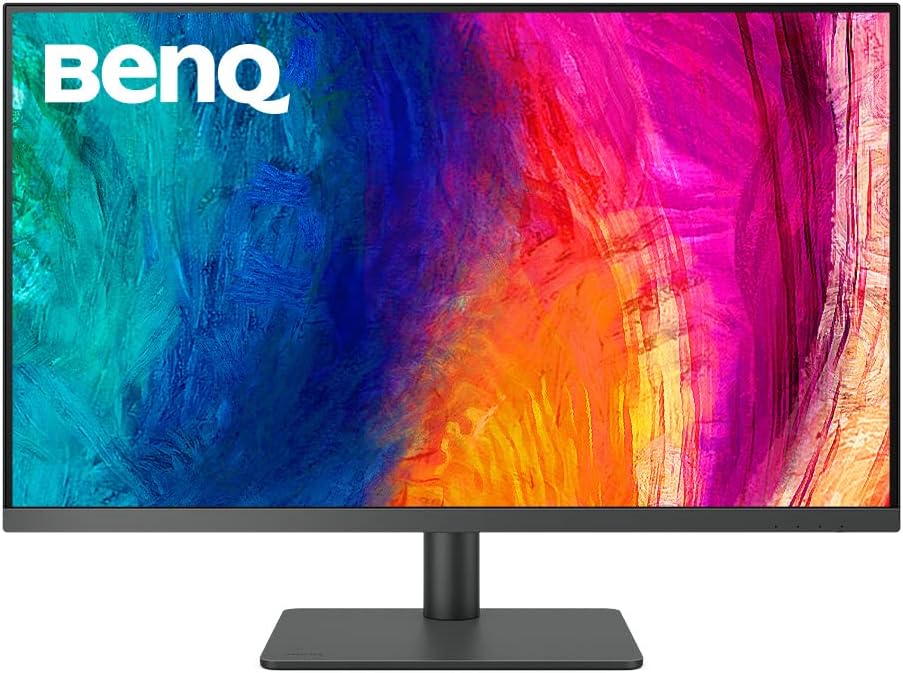
The BenQ PD3205U is a large-format 32-inch 4K monitor built for professionals who need maximum screen real estate. It covers 99% of the Rec.709 color space (and 100% sRGB) with an average Delta E ≤ 3, providing reliable color accuracy for video, photo, and print work. It includes a 90W USB-C port, a highly ergonomic stand with height, tilt, swivel, and pivot, and a unique HotKey Puck for quick access to common settings. It’s a complete, feature-packed workstation monitor.
Key Features That Stand Out
- ✓ 32″ 4K UHD IPS Panel: Massive, crisp screen for multitasking and detailed work.
- ✓ 99% Rec.709 / 100% sRGB: Covers standard broadcast and web color spaces accurately.
- ✓ Factory Calibrated (Delta E ≤ 3): Reliable color accuracy with a calibration report.
- ✓ 90W USB-C & Ergo Stand: Single-cable connectivity and excellent ergonomic adjustments.
- ✓ HotKey Puck: Physical controller for easy switching between color modes and settings.
Why We Recommend It
If you need a huge canvas for your work—whether it’s editing high-resolution photos, working with complex timelines, or managing multiple windows—this 32-inch 4K BenQ is a fantastic choice. The color accuracy is solid for the price, the ergonomic stand is superb, and the HotKey Puck is a genuinely useful tool for quickly adapting the display to different tasks.
Best For
Video editors, photographers working with high-res files, designers who need multiple palettes and documents visible at once, and users wanting a large, sharp, all-in-one workstation display without the premium price of an Apple Studio Display.
Pros and Cons
Pros:
- Huge 32-inch 4K screen provides incredible screen real estate.
- Solid color accuracy (Delta E ≤ 3) for professional sRGB/Rec.709 work.
- Excellent, highly adjustable ergonomic stand.
- 90W USB-C provides convenient single-cable laptop connectivity.
- HotKey Puck is a practical and unique feature for fast mode switching.
- Great value compared to other 32″ 4K professional monitors.
Cons:
- Color gamut is focused on sRGB/Rec.709; not as wide as some DCI-P3-focused monitors.
- HDR performance is basic (HDR10 decode only, not high brightness).
- Built-in speakers are just adequate.
- The large size requires a deep desk; not suitable for small workspaces.
Customer Reviews
Customer Review: “I moved up to this BenQ PD3205u 31.5″ 4K monitor from a 27″ Viewsonic VP2770 (1440p). I don’t do gaming and the main use was picture quality and color accuracy. I found that the Viewsonic screen wasn’t big enough to open two things side by side – they always seemed to overlap unless I made them too small to be useful and able to read. I hated to give up the Viewsonic, but in using this BenQ, the overlap problem is now solved. Plus, the color accuracy and picture quality of the4K screen is terrific. The BenQ is a superb bang for the buck monitor and I am extremely pleased with it! Some random comments: > Setup was simple once I figured out that I needed to use the buttons on the back of the bottom right side of the display to choose my connection type (Display Port). > I am using it with my Windows 11 desktop and that has Intel i5-12600 processor (handles up to a 60 HZ refresh rate). There is no video card in my build and the performance has been flawless for editing photos in Adobe Lightroom. > The hockey puck takes a few minutes to figure out and works well. It isn’t something I thought I would need, but I am surprised about how much I am using it and how convenient it is. > Matte, non-reflective screen is great (and I am sitting beside a window in my office). > The display is more than bright enough. > The Ergo adjustments are smooth and easy to do. > Have not/will not use the speakers since I have a really nice stereo bookshelf speaker audio setup. > By itself, the price seems a bit high. However, when comparing to other 4K displays of this size, it is a good value. Especially with the Ergo capacity, hockey puck and broad range of adjustments available. I don’t hesitate in highly recommending this monitor, but mention again that I don’t do gaming.”
Customer Review: “Very good monitor. Brightness is very good if you’re in a small home office with limited light coming in as I do. Speakers just barely get the job done but good enough for everyday computer work. Works great with a Mac Mini M2. Easy set up. Used an Amazon Basic USB C to Display Port cable and all is well. Resolution is perfect for reading print after adjusting in Mac settings. Puck is awesome and makes adjusting easy. Wakes up very quickly from sleep or screen saver. Cons: This is not an apple monitor. Must use the puck to adjust volume and brightness, no camera, speakers not great. For less than half the price of the Apple Studio display, plus the 32″ screen with great resolution and vivid colors for photo editing and video editing for the hobbiest, I highly recommend if you can live without some of Apple’s eco system perfection.”
Complete Buying Guide for Best Monitors For Graphic Designers
Essential Factors We Consider
When choosing a monitor for graphic design, your priority shifts from pure speed (like gaming) to accuracy and comfort. Here are the non-negotiable factors we evaluated:
- Panel Type: IPS (In-Plane Switching) is the standard for designers. It offers the best color reproduction and the widest viewing angles, ensuring colors look consistent from any position. VA panels have better contrast but slower response times and narrower viewing angles. TN panels are fast but have terrible color and viewing angles—avoid for design.
- Resolution & Screen Size: This is about Pixels Per Inch (PPI). A 27-inch 4K monitor (~163 PPI) will look significantly sharper than a 27-inch 1080p monitor (~82 PPI). For detailed work, aim for at least a QHD (2560×1440) resolution on a 27-inch screen, or 4K on 27″+. A higher PPI means smoother text and finer detail.
- Color Gamut: This is the range of colors a monitor can display. sRGB is the baseline for web design. Adobe RGB is wider and preferred for high-end print photography. DCI-P3 is common in digital cinema and modern displays. Look for at least 95%+ sRGB coverage. For pro work, look for 99%+ Adobe RGB or DCI-P3.
- Color Accuracy (Delta E): Delta E (dE) is a measurement of color difference. A dE of < 2 is considered imperceptible to the human eye and is the standard for professional monitors. Factory calibration is a huge plus.
- Connectivity: A USB-C port with Power Delivery (PD) is a massive convenience, allowing you to charge your laptop and transfer video/data with one cable. Also ensure you have the necessary ports (DisplayPort, HDMI) for your other devices.
- Ergonomics: A stand with height, tilt, swivel, and pivot (portrait mode) adjustment is crucial for maintaining a healthy, comfortable posture during long work sessions. VESA mount compatibility gives you flexibility to use an aftermarket arm.
- Eye Care: Features like flicker-free backlighting (DC dimming) and a blue light filter can significantly reduce eye strain and fatigue over many hours.
Budget Planning
Your budget directly dictates the trade-offs you’ll make:
- Under $300: You’ll find excellent 27-inch 1080p or QHD IPS monitors with good sRGB coverage and high refresh rates (100-120Hz). Color accuracy is “good enough” for web work but not for critical print matching. Focus on smoothness and screen real estate.
- $300 – $600: This is the sweet spot. You can get a 27-inch QHD or 4K monitor with excellent sRGB coverage, solid factory calibration (Delta E < 2-3), and good ergonomics. USB-C with 60-90W PD becomes common. This range offers the best balance of performance and value for serious enthusiasts and professionals.
- $600+: You’re entering the professional realm. Expect 32-inch 4K+ panels with wide DCI-P3/Adobe RGB gamuts, exceptional factory calibration (Delta E < 2), premium build quality, advanced KVM switches, and comprehensive warranties. These are for color-critical photo/video editors and high-end studios.
Pro Tip: Don’t overspend on refresh rate for pure design work. 60Hz is perfectly fine. Invest that money instead in color accuracy, resolution, and a better panel.
Final Thoughts
Your monitor is the most important tool in a graphic designer’s arsenal. A cheap, inaccurate display will waste countless hours and lead to disappointing results when your final output looks different on other screens or in print. While the “best” monitor depends on your specific budget and workflow, the common thread among our top picks is a commitment to color accuracy, comfortable ergonomics, and sharp resolution. Whether you choose the budget-friendly ASUS ProArt PA278QV, the versatile KTC H27P6, or the professional-grade BenQ PD3205U, you’ll be investing in a tool that will improve your work and protect your well-being for years to come. Remember to factor in the cost of a potential calibration tool if you opt for a monitor without factory calibration.
Frequently Asked Questions
Q: Do I really need a 4K monitor for graphic design?
A: Not necessarily, but it helps. A 4K monitor (3840×2160) provides four times the detail of Full HD, making text and fine lines incredibly sharp. This is especially valuable on larger screens (27″+) where pixel density matters. For detailed photo editing, vector illustration, or UI design, the extra clarity is a major asset. However, a well-calibrated QHD (2560×1440) 27-inch monitor is still a fantastic and more affordable professional tool.
Q: What’s more important: high refresh rate or color accuracy?
A: For graphic design, color accuracy is infinitely more important. A high refresh rate (120Hz, 144Hz) makes scrolling and motion feel smoother, which is a comfort and productivity boost, but it has zero impact on the actual color and detail of your work. Prioritize a monitor with a wide color gamut (sRGB/Adobe RGB/P3) and a low Delta E rating first. A smooth 60Hz professional monitor is far better for design than a fast, inaccurate gaming panel.
Q: Should I get an IPS or OLED monitor?
Q: Is a factory-calibrated monitor worth the extra cost?
A: Absolutely, especially if color-critical work is your livelihood. A factory-calibrated monitor (with a Delta E < 2 rating and often a calibration report) is guaranteed to be accurate out of the box. This saves you the immediate cost and hassle of buying a hardware calibrator (like a Datacolor SpyderX or X-Rite i1Display). It provides peace of mind that your work will look correct on other calibrated screens and in print. For professionals, it's a worthwhile investment.
Q: What size monitor is best for graphic design?
A: This is personal, but there are general guidelines. 27 inches is the most popular and versatile size, offering a great balance of screen real estate and pixel density when paired with QHD or 4K. 32-inch 4K monitors are excellent for multitasking and working with large, high-resolution files, but they require a deep desk. For most, a 27-inch model is the ideal starting point.
Investing in the right monitor is an investment in the quality of your work and your long-term comfort. Use our reviews and buying guide to find the perfect display that matches your creative needs and budget. Your eyes—and your clients—will thank you.