Is It Ok to Use Hdmi to Displayport
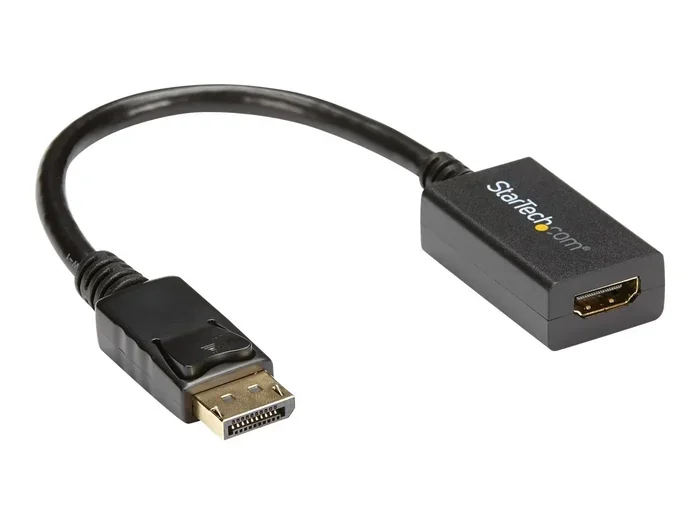
Using an HDMI to DisplayPort connection is possible with the right adapter, but it requires an active converter to work correctly. Passive cables won’t do the job because HDMI and DisplayPort use different signal protocols. This guide breaks down everything you need to know about HDMI to DisplayPort compatibility, adapters, and setup.
Have you ever looked at the back of your monitor or graphics card and thought, “Wait, I have HDMI on this but my other device uses DisplayPort”? You are not alone. This is one of the most common questions people ask when setting up a new display connection. The short answer is yes, it is ok to use HDMI to DisplayPort, but only with the right adapter. Let us walk through exactly how this works and what you need to watch out for.
Connecting different types of video ports used to be a real headache. Today, adapters and converters make it much easier. But not all adapters are created equal. A wrong choice can lead to no signal, poor image quality, or missing audio. Whether you are hooking up a gaming setup, a home office, or a creative workstation, understanding how HDMI to DisplayPort conversion works saves you time, money, and frustration.
Key Takeaways
- Active Adapter Required: You need an active HDMI to DisplayPort adapter, not a passive cable, because the two protocols are different.
- Signal Direction Matters: Converting from HDMI to DisplayPort works differently than DisplayPort to HDMI. Always check the adapter’s direction.
- Resolution and Refresh Rate: Your adapter must support the resolution and refresh rate you need, such as 4K at 60Hz or 144Hz for gaming.
- Audio May Not Transfer: Some adapters do not carry audio from HDMI to DisplayPort. Check specifications before buying.
- Check Your Device Ports: Not all GPUs and monitors support both HDMI and DisplayPort. Verify your hardware first.
- Quality Varies Widely: Cheap adapters may cause flickering, signal loss, or dropped frames. Invest in a reputable brand.
- Gaming and Professional Use: For high-performance setups, always choose adapters that support the latest standards like DP 1.4 or HDMI 2.1.
📑 Table of Contents
- What Is the Difference Between HDMI and DisplayPort?
- Can You Connect HDMI to DisplayPort?
- How to Choose the Right HDMI to DisplayPort Adapter
- Setting Up Your HDMI to DisplayPort Connection
- Common Mistakes to Avoid
- When to Consider Alternative Solutions
- Expert Tips for the Best Experience
- Final Thoughts
What Is the Difference Between HDMI and DisplayPort?
Before you grab an adapter, it helps to understand why these two ports are not the same. They look similar, but they carry signals differently.
How HDMI Works
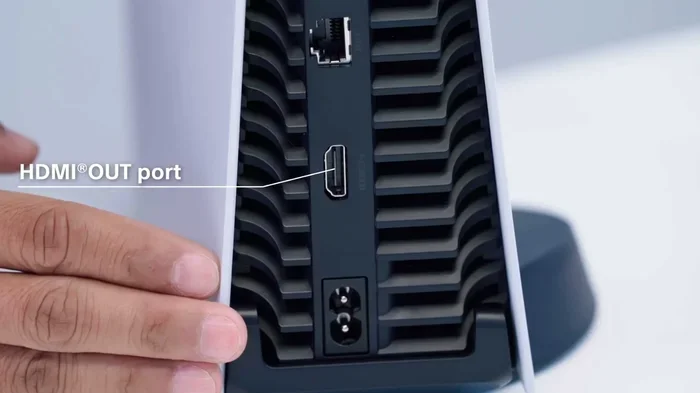
HDMI stands for High-Definition Multimedia Interface. It is one of the most widely used ports for connecting TVs, laptops, game consoles, and graphics cards. HDMI carries both video and audio through a single cable. Most people are very familiar with HDMI because it comes standard on almost every TV and monitor made today. The latest version, HDMI 2.1, supports very high resolutions and refresh rates, including 4K at 120Hz and even 8K.
How DisplayPort Works
DisplayPort was designed primarily for computer displays and professional monitors. It is a digital display interface developed by VESA. DisplayPort also carries video and audio, but it uses a different signaling method than HDMI. DisplayPort 1.4 and the newer DisplayPort 2.1 standards offer excellent bandwidth for high-resolution displays. Many gaming monitors and professional displays prefer DisplayPort because it supports features like G-Sync and FreeSync natively.
Why the Difference Matters
Because HDMI and DisplayPort use different protocols, you cannot just plug one into the other and expect it to work. The devices speak different “languages” when it comes to video signals. This is where an active adapter comes in. It translates the signal from one format to the other so your devices can communicate properly.
Can You Connect HDMI to DisplayPort?
The short answer is yes, but you need the right type of adapter. Let us break this down clearly.
Active vs. Passive Adapters
This is the most important thing to understand. An active HDMI to DisplayPort adapter contains a chip that converts the HDMI signal into a DisplayPort signal. Without this chip, the connection simply will not work. A passive adapter does not have this chip and only works when both ports use the same protocol.
Here is a quick comparison:
- Active Adapter: Converts HDMI signal to DisplayPort signal. Requires power, usually from a USB port. Works for HDMI to DisplayPort conversion.
- Passive Cable: Does not convert signals. Only works between identical port types. Will not work for HDMI to DisplayPort.
Always double-check that your adapter is labeled for the correct direction. Some adapters convert DisplayPort to HDMI, while others go the opposite way. Buying the wrong direction is a very common mistake.
When You Need an Active Adapter
You need an active adapter whenever you are connecting an HDMI output device to a DisplayPort input monitor, or vice versa. For example, if your laptop has an HDMI output and your monitor only has DisplayPort inputs, you will need an active HDMI to DisplayPort adapter to make the connection work.
How to Choose the Right HDMI to DisplayPort Adapter
Not all adapters are the same. Choosing the wrong one can lead to disappointing results. Here is what to look for.
Check Resolution and Refresh Rate Support
The adapter you buy must support the resolution and refresh rate you need. If you have a 4K monitor, make sure the adapter supports 4K. If you are a gamer who wants 144Hz or even 240Hz, the adapter must handle that refresh rate too. Cheap adapters often only support 1080p at 60Hz, which is fine for basic office work but not for gaming or video editing.
Look for Version Compatibility
Check whether the adapter supports HDMI 2.0 or HDMI 2.1 and DisplayPort 1.4 or DisplayPort 2.1. The version determines the maximum bandwidth available. Higher versions mean better support for high resolutions and refresh rates. For the best display connectivity experience, aim for adapters that support the latest standards.
Does Audio Matter?
If you are using your monitor’s built-in speakers or sending audio to external speakers through the display, check whether the adapter supports audio transmission. Some HDMI to DisplayPort adapters only pass video and drop the audio signal. Read the product specifications carefully before purchasing.
Build Quality and Brand Reputation
Adapters are small devices, but their build quality matters a lot. A poorly made adapter can cause signal drops, screen flickering, or no signal at all. Stick with reputable brands and read user reviews. Spending a little more on a quality adapter saves you from headaches later.
Setting Up Your HDMI to DisplayPort Connection
Once you have the right adapter, setting things up is straightforward. Follow these steps for a smooth installation.
Step-by-Step Setup Guide
- Turn off both your source device and your monitor.
- Connect the HDMI cable from your source device to the HDMI input of the adapter.
- Connect the DisplayPort cable from the adapter to your monitor.
- If the adapter requires external power, plug in the USB cable.
- Turn on your monitor first, then turn on your source device.
- Select the correct input source on your monitor using the monitor’s menu button.
- Check that both video and audio are working correctly.
Troubleshooting Common Issues
If you are not getting a signal, do not panic. Try these quick fixes:
- Make sure the adapter is fully seated in both ports.
- Check that the adapter is receiving power if it requires a USB connection.
- Try a different HDMI cable or DisplayPort cable to rule out a faulty cable.
- Update your graphics card drivers. Outdated drivers can cause compatibility issues.
- Verify that your monitor is set to the correct input source.
Sometimes the simplest fix is just unplugging everything and plugging it back in. It sounds basic, but it works more often than you would think.
Common Mistakes to Avoid
Even with the right adapter, people still run into problems. Here are the most common mistakes and how to avoid them.
- Buying a Passive Adapter: This is the number one mistake. Passive cables and adapters do not convert signals between HDMI and DisplayPort. They only work between identical port types.
- Getting the Wrong Direction: Some adapters convert HDMI to DisplayPort, while others convert DisplayPort to HDMI. Make sure you buy the one that matches your setup.
- Ignoring Resolution Limits: A budget adapter might support 1080p but not 4K. Always check the specs against your display’s capabilities.
- Overlooking Power Requirements: Some active adapters need a USB power connection. Without it, they will not work. Check this before you buy.
- Using a Damaged Cable: A frayed or damaged HDMI or DisplayPort cable can cause signal issues. Inspect your cables before blaming the adapter.
When to Consider Alternative Solutions
Sometimes an adapter is not the best solution. Here are a few alternatives worth considering.
Use a DisplayPort Output Instead
If your graphics card has both HDMI and DisplayPort outputs, try using DisplayPort directly. This avoids any conversion issues and gives you the best signal quality. For example, if you are comparing setups, check what GPU is the Ryzen 7 5700G equivalent to and whether it offers DisplayPort natively. Direct connections always perform better than converted ones.
Check Monitor Compatibility
Many modern monitors come with both HDMI and DisplayPort inputs. If your monitor has both, you can skip the adapter entirely. Simply use whichever cable matches your source device’s output. This is the easiest and most reliable solution.
Consider a New Cable or Device
If your adapter keeps causing problems, it might be worth upgrading your monitor or source device to one with matching ports. Sometimes the cost of a reliable adapter plus ongoing troubleshooting is close to the cost of a simple hardware upgrade.
Expert Tips for the Best Experience
Here are some tips from experienced users and tech professionals to get the most out of your HDMI to DisplayPort setup.
- Keep Firmware Updated: Some monitors and adapters receive firmware updates that improve compatibility. Check the manufacturer’s website periodically.
- Use Short Cables: Longer cables can degrade signal quality. Keep your cables as short as possible for the best performance.
- Test Before Mounting: Always test your connection before wall-mounting your monitor or permanently setting up your desk. It is much easier to fix issues before everything is in place.
- Match Your Refresh Rate: If you are gaming, make sure your adapter, monitor, and graphics card all support the same refresh rate. Mismatched specs can limit your experience.
- Consider Overclocking Your Monitor: If your monitor supports it, you can push beyond the stock refresh rate for smoother gameplay. Just be aware that this may void your warranty.
For those running high-performance setups, keeping your system cool matters too. If you are pushing your hardware hard, you might want to explore whether liquid cooling is worth it for your configuration. A well-cooled system maintains better performance during intensive tasks like gaming or video rendering.
Final Thoughts
So, is it ok to use HDMI to DisplayPort? Absolutely, as long as you use an active adapter that matches your needs. The key is understanding the difference between active and passive adapters, checking resolution and refresh rate support, and making sure audio works if you need it.
Most people run into problems because they buy the wrong type of adapter or do not check their device specifications first. Take a few minutes to verify your ports, your resolution needs, and your adapter’s capabilities before making a purchase. A little preparation goes a long way.
Whether you are setting up a new gaming rig, connecting a laptop to an external monitor, or building a professional workstation, the right HDMI to DisplayPort adapter makes all the difference. Choose quality, check compatibility, and enjoy a seamless display connection every time.
Frequently Asked Questions
Can I use a passive HDMI to DisplayPort cable?
No, passive cables do not convert signals between HDMI and DisplayPort. They only work between identical port types. You must use an active adapter that contains a signal conversion chip to connect HDMI output devices to DisplayPort input monitors.
Why is my HDMI to DisplayPort adapter not working?
The most common reason is that the adapter is passive instead of active. Other possible causes include a lack of USB power, outdated graphics drivers, or a faulty cable. Try reseating all connections and checking that your adapter supports the resolution and refresh rate you need.
Does HDMI to DisplayPort conversion affect audio?
Some adapters only pass video and drop the audio signal. Check the product specifications before buying to confirm audio support. If audio is important to your setup, choose an adapter that explicitly states it supports HDMI audio pass-through.
What resolution can an HDMI to DisplayPort adapter support?
It depends on the adapter model and version. Many support 4K at 60Hz, while higher-end models handle 4K at 120Hz or even 8K. Always check the adapter’s specifications to ensure it meets your resolution and refresh rate requirements.
Is it better to use DisplayPort directly instead of an adapter?
Yes, a direct connection always performs better than a converted one. Adapters introduce an extra step in the signal chain, which can occasionally cause issues. Use DisplayPort directly whenever both your source device and monitor support it.
Can I use an HDMI to DisplayPort adapter for gaming?
Yes, but you need an adapter that supports your monitor’s refresh rate and resolution. For competitive gaming at high refresh rates like 144Hz or 240Hz, make sure the adapter explicitly supports those rates. Cheap adapters often limit you to 60Hz, which is not ideal for fast-paced games.