Do Hdmi 2 0 Cables Work with Regular Hdmi Ports
Yes, HDMI 2.0 cables work with regular HDMI ports. They are fully backward compatible, meaning you can plug an HDMI 2.0 cable into an older HDMI 1.4 port and it will function perfectly. However, you will only get the features supported by the older port version. If you want to unlock 4K at 60Hz or higher bandwidth, both the cable and the port need to support HDMI 2.0.
Have you ever grabbed an HDMI 2.0 cable from a drawer and wondered if it would work with your older TV or monitor? Maybe you just upgraded your gaming setup, or you are trying to connect a new laptop to a display that a few years old. Either way, the question is simple but important: do HDMI 2.0 cables work with regular HDMI ports?
The short answer is yes. HDMI 2.0 cables are fully backward compatible with older HDMI ports. You can plug an HDMI 2.0 cable into an HDMI 1.4 port, an HDMI 1.3 port, or even an older HDMI 1.2 port, and it will work just fine. But here is the catch: you will only get the features that the older port supports. Let us break this down so you fully understand what to expect.
Understanding HDMI versions and cable compatibility can save you money and frustration. You do not need to buy a brand new cable every time you get a new device. In this guide, we will walk through everything you need to know about HDMI 2.0 cables, regular HDMI ports, and how they work together. We will also cover what happens when you mix and match different HDMI versions, and how to get the best performance from your setup.
Key Takeaways
- Full backward compatibility: HDMI 2.0 cables work with HDMI 1.4 and older ports without any issues.
- Speed depends on the port: A regular HDMI port will limit the cable’s speed to its own maximum capability.
- 4K at 60Hz needs HDMI 2.0 on both ends: You need a 2.0 cable AND a 2.0 port to get the full 4K 60Hz experience.
- Physical connector is the same: HDMI 2.0 and older cables use the same plug shape, so they fit into any standard HDMI port.
- Check your device specs: Always verify what HDMI version your TV, monitor, or laptop supports before buying a cable.
- Cable quality matters: Even with HDMI 2.0, a cheap or damaged cable can cause signal issues or flickering.
📑 Table of Contents
What Is HDMI 2.0?
HDMI 2.0 is a version of the High-Definition Multimedia Interface standard. It was released in 2013 and brought some big improvements over the earlier versions. The most notable upgrade was increased bandwidth, which allows for higher resolution and smoother video playback.
HDMI 2.0 supports 4K resolution at 60 frames per second. The previous version, HDMI 1.4, could only handle 4K at 30 frames per second. For gaming and watching high-quality video, that difference is huge. HDMI 2.0 also supports wider color gamuts, higher dynamic range, and up to 32 audio channels.
Key Features of HDMI 2.0
- Bandwidth of 18 Gbps: This is double the bandwidth of HDMI 1.4, which had 10.2 Gbps.
- 4K at 60Hz support: Smooth, fluid video at ultra-high definition.
- Simultaneous 4K audio: Support for up to 32 audio channels.
- HDR support: High Dynamic Range for better contrast and color.
- Dual-view technology: Display two different video streams on one screen.
If you have an HDMI 2.0 cable, it carries all of these capabilities in the cable itself. But whether you actually get to use them depends on the port you plug it into.
Do HDMI 2.0 Cables Work with Regular HDMI Ports?
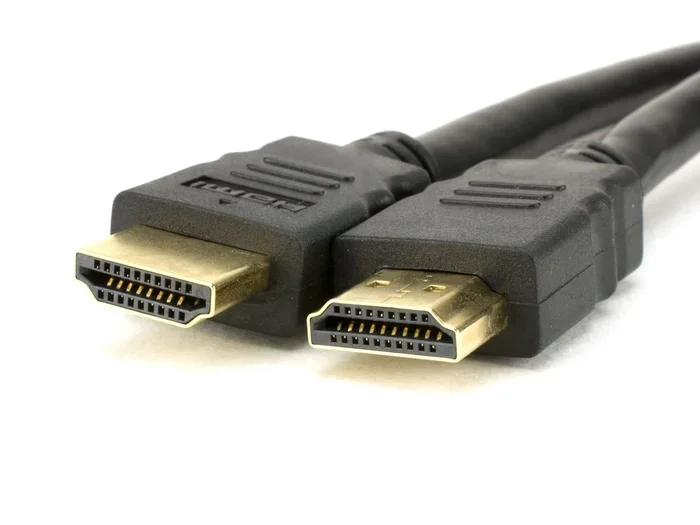
This is the core question, and the answer is a reassuring yes. An HDMI 2.0 cable will physically fit into any standard HDMI port, regardless of the version. The connector shape has not changed across HDMI versions. Whether you are dealing with an HDMI 1.4 port or a brand new HDMI 2.1 port, the same cable will plug in and make a connection.
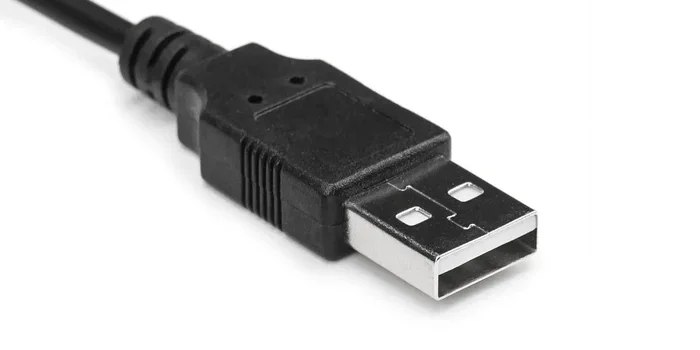
Think of it like a USB cable. A USB 3.0 flash drive works fine when plugged into a USB 2.0 port. It just transfers data at USB 2.0 speeds. The same principle applies to HDMI cables and ports. The cable does the best it can with what the port allows.
What Happens When You Use an HDMI 2.0 Cable with an Older Port
When you connect an HDMI 2.0 cable to an HDMI 1.4 port, the connection will work. Your screen will display video and audio normally. But you will be limited to the capabilities of HDMI 1.4. That means you will get 4K at 30Hz, not 60Hz. You will not get the full 18 Gbps bandwidth that HDMI 2.0 offers.
For most everyday use, this is perfectly fine. Watching movies, browsing the web, or working on documents does not require 4K at 60Hz. But if you are a gamer or a video editor who needs smooth, high-resolution output, this limitation can be noticeable.
Similarly, if you use an HDMI 2.0 cable with an HDMI 1.3 port, you will be limited to 10.2 Gbps bandwidth and 1080p or lower resolutions at best. The cable still works, but it operates at the speed of the older port.
Understanding HDMI Port Versions
Not all HDMI ports are created equal. Different devices come with different HDMI versions, and knowing which one you have can help you get the most out of your setup. Here is a quick look at the common HDMI port versions you will encounter.
HDMI 1.4 Ports
HDMI 1.4 ports are very common in older TVs, monitors, and laptops. They support 4K resolution but only at 30 frames per second. They also support 3D content and Ethernet over HDMI. If your device has an HDMI 1.4 port, an HDMI 2.0 cable will work, but you will be capped at 4K 30Hz.
HDMI 2.0 Ports
HDMI 2.0 ports started appearing in devices around 2015 and 2016. They are found in many mid-range and high-end TVs, monitors, and gaming consoles. These ports support 4K at 60Hz and all the other features we mentioned earlier. When you use an HDMI 2.0 cable with an HDMI 2.0 port, you get the full experience.
HDMI 2.1 Ports
HDMI 2.1 is the newest standard, and it supports up to 48 Gbps of bandwidth. It can handle 4K at 120Hz and even 8K at 60Hz. An HDMI 2.0 cable will work with an HDMI 2.1 port, but you will be limited to 18 Gbps. You will not get the full HDMI 2.1 features unless you also have an HDMI 2.1 cable.
Interestingly, the same physical port type (Type A) is used across all these versions. There is no visual difference between an HDMI 1.4 port and an HDMI 2.1 port on the outside. You usually need to check the device manual or the manufacturer’s website to confirm the version.
What About HDMI 2.0 Cables and Gaming?
Gaming is one of the main reasons people care about HDMI version compatibility. If you are playing a game on a console like the PlayStation 5 or Xbox Series X, you want smooth, high-resolution visuals. An HDMI 2.0 cable with an HDMI 2.0 port gives you 4K at 60Hz, which is great for most games.
But if you plug that same HDMI 2.0 cable into a regular HDMI 1.4 port on an older TV, you will only get 4K at 30Hz. That can make fast-moving games feel choppy and unresponsive. For competitive gaming, even 1080p at 60Hz on an HDMI 1.4 port is better than 4K at 30Hz.
If you want the best gaming experience, make sure both your cable and your port support HDMI 2.0 or higher. And if you are building a setup that includes fast storage for game loading times, consider pairing your display setup with a quality M.2 2242 PCIe 4.0 NVMe SSD for lightning-fast load speeds.
Common HDMI Cable Types and What to Look For
The HDMI cable market can be confusing. There are standard HDMI cables, high-speed HDMI cables, and premium high-speed HDMI cables. Here is what you need to know to pick the right one.
Standard HDMI Cable
A standard HDMI cable supports resolutions up to 1080p. It is fine for older devices and basic setups. It does not support 4K or the higher bandwidth of HDMI 2.0.
High-Speed HDMI Cable
A high-speed HDMI cable supports resolutions up to 4K at 30Hz. This is the minimum you need for basic 4K content. Most cables sold today are high-speed by default.
Premium High-Speed HDMI Cable
A premium high-speed HDMI cable supports HDMI 2.0 features, including 4K at 60Hz, HDR, and wider color gamuts. If you want to use HDMI 2.0 to its full potential, this is the cable you should buy. Look for the “Premium High Speed” label on the packaging.
Ultra High-Speed HDMI Cable
This is the newest cable type, designed for HDMI 2.1. It supports up to 48 Gbps and can handle 4K at 120Hz and 8K at 60Hz. If you have an HDMI 2.1 port, this is the cable you need to unlock its full potential.
When shopping, always check the cable’s rating against your device’s HDMI port version. Using a mismatched cable and port will not break anything, but it will limit your experience.
Quick Tips for HDMI Compatibility
Here are some practical tips to help you get the best results when using HDMI cables and ports:
- Check both ends: Always verify the HDMI version on both the source device and the display. The connection is only as strong as the weakest link.
- Buy certified cables: Look for HDMI Premium Certified cables to ensure they meet the stated specifications.
- Do not buy more than you need: If your devices only support HDMI 1.4, there is no need to spend extra on an HDMI 2.1 cable.
- Test your setup: After connecting, go to your display settings and check the resolution and refresh rate. If it is lower than expected, the port or cable may be the bottleneck.
- Keep cables short when possible: Longer cables can lead to signal degradation, especially at higher resolutions and refresh rates.
- Use an adapter if needed: If your device has a different port type, such as DisplayPort or USB-C, you can use an adapter to connect to an HDMI display.
For those working with multiple devices and cables in a tech setup, keeping your data storage fast and reliable is just as important as your display connection. A fast NVMe SSD enclosure with Thunderbolt 5 support can complement your HDMI setup by ensuring quick file transfers and smooth media playback.
Common Mistakes People Make with HDMI Cables
Even though HDMI cables are simple to use, people often make mistakes that lead to poor performance. Here are some common errors to avoid.
Assuming All HDMI Cables Are the Same
Not all HDMI cables support the same features. A cheap, uncertified cable might claim to be high-speed but may not deliver the bandwidth it promises. Always buy from reputable brands and look for certification labels.
Ignoring the Port Version
Buying an expensive HDMI 2.1 cable will not magically give you 4K at 120Hz if your port only supports HDMI 2.0. The port is the limiting factor, not the cable. Make sure your device supports the version you need before upgrading cables.
Using Damaged or Bent Cables
A cable with a bent connector or frayed shielding can cause intermittent signal loss, flickering, or no signal at all. Inspect your cables regularly and replace any that look worn or damaged.
Not Checking Refresh Rate Settings
Sometimes the cable and port are fine, but the refresh rate setting on your device is set too high. If your HDMI 1.4 port cannot handle 4K at 60Hz, lower the resolution or refresh rate in your display settings to match the connection’s capabilities.
The Bottom Line
HDMI 2.0 cables work perfectly with regular HDMI ports. They are backward compatible and will function with any HDMI port version. The key thing to remember is that the features you get depend on the oldest component in the chain. If your cable is HDMI 2.0 but your port is HDMI 1.4, you will get HDMI 1.4 performance.
This backward compatibility is one of the best things about HDMI as a standard. You do not need to replace your cables every time you buy a new device. But if you want to take full advantage of 4K at 60Hz, HDR, and other HDMI 2.0 features, make sure both your cable and your port support the standard.
Before making a purchase, take a moment to check the specifications of your devices. A quick look at the manual or the manufacturer’s website can save you from buying the wrong cable. And when in doubt, go with a certified premium high-speed cable. It will work with virtually any device you own today and well into the future.
For a complete setup that handles both fast storage and high-quality display output, consider pairing your devices with reliable components. Whether you are building a gaming rig, a home theater, or a simple office station, getting the right HDMI cable is one of the easiest ways to ensure a great experience.
You might also want to explore options like a VGA port guide for laptops if you are dealing with older devices that use different video output standards. Understanding your connectivity options helps you make smarter buying decisions and avoid compatibility headaches.
Frequently Asked Questions
Can I use an HDMI 2.0 cable with an HDMI 1.4 port?
Yes, you can. HDMI 2.0 cables are fully backward compatible with HDMI 1.4 ports. The cable will work, but you will only get the features supported by the HDMI 1.4 port, such as 4K at 30Hz instead of 60Hz.
Do I need an HDMI 2.0 cable for 4K gaming?
Yes, if you want to game at 4K resolution with a smooth 60Hz refresh rate, you need both an HDMI 2.0 cable and an HDMI 2.0 port. Without HDMI 2.0 on both ends, you will be limited to 4K at 30Hz, which can feel choppy during fast-paced games.
What is the difference between HDMI 2.0 and HDMI 2.1 cables?
HDMI 2.1 cables support much higher bandwidth at 48 Gbps compared to HDMI 2.0’s 18 Gbps. This allows HDMI 2.1 to handle 4K at 120Hz and even 8K at 60Hz. HDMI 2.0 cables max out at 4K 60Hz.
Will an HDMI 2.0 cable work with a regular TV from 2014?
It depends on the TV’s HDMI port version. Most TVs from 2014 have HDMI 1.4 ports. An HDMI 2.0 cable will work and display video, but you will be limited to 4K at 30Hz. For full 4K at 60Hz, you would need a TV with an HDMI 2.0 port.
Can HDMI cable quality affect video performance?
Yes, cable quality matters. A cheap or damaged HDMI cable can cause signal loss, flickering, or poor image quality. Always choose certified cables from reputable brands, especially if you are pushing higher resolutions and refresh rates.
Do all HDMI cables look the same on the outside?
Yes, all standard HDMI Type A cables have the same physical connector shape regardless of the version. You cannot tell if a cable is HDMI 1.4 or HDMI 2.0 just by looking at it. You need to check the packaging, the product label, or the manufacturer’s specifications.
=== CONCLUSION ===
HDMI 2.0 cables work with regular HDMI ports, and they do so without any compatibility issues. The backward compatibility of the HDMI standard makes it easy to mix and match cables and ports across different devices. Just remember that the features you get depend on the lowest HDMI version in your connection chain.
If you want the full HDMI 2.0 experience, make sure both your cable and your port support it. Check your device specs, buy certified cables, and avoid common mistakes like using damaged cables or ignoring port limitations. With the right setup, you will enjoy smooth 4K video, vibrant HDR colors, and crystal-clear audio every time you hit play.