Why Cant I Boot from Usb
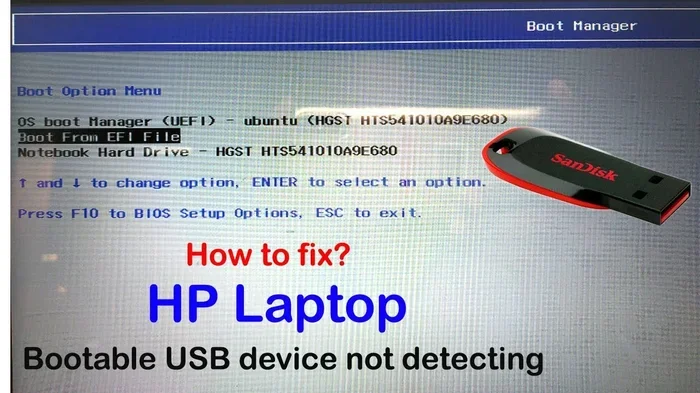
Why can’t I boot from USB? The most common reasons include incorrect BIOS boot order, a drive that isn’t properly formatted, Secure Boot being enabled, or a USB port that isn’t compatible. This guide walks you through every likely cause and gives you clear, step-by-step fixes to get your USB drive booting again.
This is a comprehensive guide about Why Cant I Boot From Usb.
Key Takeaways
- Boot order matters: Your computer must be set to check the USB drive before the hard drive in BIOS settings.
- Legacy and UEFI modes differ: Choosing the wrong boot mode can prevent your USB from being detected during startup.
- Secure Boot can block USB booting: This security feature may need to be disabled for certain bootable drives to work.
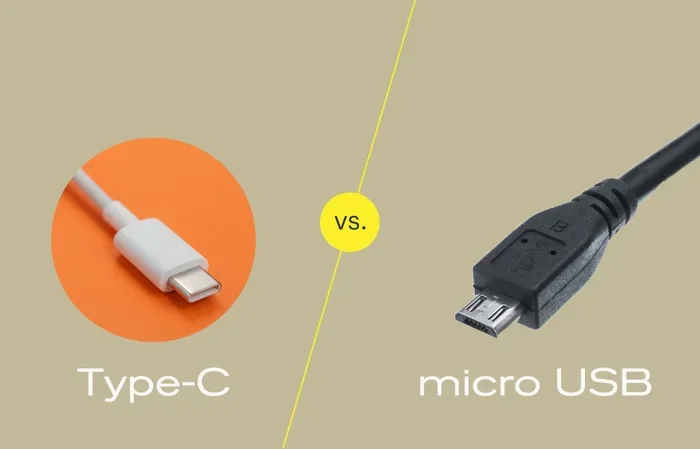
- USB port choice is critical: USB 2.0 ports are often more reliable for booting than USB 3.0 or USB-C ports.
- File system and formatting affect bootability: Your USB drive must use FAT32 or the correct file system for your target OS.
- Corrupted ISO files cause boot failure: Always verify your downloaded image before creating a bootable drive.
[FEATURED_IMAGE_PLACEHOLDER]
You plug in your USB drive, restart your computer, and nothing happens. No boot menu. No options. Just the same old desktop or a blank screen. It is incredibly frustrating, especially when you are trying to install a new operating system, run a recovery tool, or test out a fresh Linux setup. The good news is that this problem is almost always fixable. You just need to know where to look.
Booting from a USB drive should be simple. You insert the drive, restart, and press a key to access the boot menu. But in real life, things don’t always go that smoothly. Whether your computer ignores the USB entirely, gets stuck on a black screen, or throws an error message, the root cause usually falls into one of a handful of common categories. Once you understand those categories, solving the problem becomes much easier.
This guide covers every major reason why your computer might refuse to boot from USB. We will walk through BIOS settings, USB port compatibility, drive formatting, and more. By the end, you will have a clear checklist of things to try and the confidence to fix the issue yourself.
Common Reasons Why You Can’t Boot from USB
Before you start changing settings, it helps to understand what is actually going wrong. Below are the most common reasons computers fail to boot from a USB drive. Each one has a clear solution, and we will cover them in detail.
Your USB Drive Is Not Recognized in BIOS
When your computer starts up, it looks for a bootable device in a specific order. If the BIOS does not detect your USB drive at all, the computer will skip it and move on to the next option, usually your hard drive or SSD. This can happen for several reasons. The USB drive might be plugged into the wrong port. The drive itself might not be properly formatted. Or there could be a hardware issue with the drive or the port.
One thing that surprises many people is that some USB drives simply aren’t set up correctly to be bootable. Just copying files onto a USB stick does not make it bootable. The drive needs a specific structure, including a bootloader, for the computer to recognize it as a boot device. If you are using a tool like Rufus or the Windows Media Creation Tool, make sure the process completed without errors.
Also, some older computers have a limited USB driver support in BIOS. This means they might not recognize modern USB 3.0 or USB-C drives during the early boot phase. If you are dealing with an older machine, try plugging the drive into a USB 2.0 port instead. You can also try a different USB drive entirely to rule out a hardware problem.
Incorrect Boot Order in BIOS
The boot order tells your computer which devices to check for an operating system, and in what sequence. If your hard drive is listed first and the USB drive is listed second, your computer will start from the hard drive every time. You need to move the USB drive higher in the boot priority list.
Accessing the BIOS setup screen is different on every computer. Usually, you press a key like F2, F12, Del, or Esc right after you turn on the machine. Once inside the BIOS, look for a section called Boot, Boot Order, or Boot Priority. Use the arrow keys to move the USB drive to the top of the list. Save your changes and exit. Your computer should now try to boot from the USB drive first.
Some computers also have a one-time boot menu that lets you choose a device without changing the permanent boot order. On most PCs, pressing F12 or F8 during startup opens this menu. If you see your USB drive listed there, simply select it and your computer will boot from it just once.
How to Create a Properly Bootable USB Drive
Even if your BIOS settings are perfect, a badly created bootable USB drive will still fail. The way you prepare the drive matters a lot. A bootable USB is not the same as a regular USB drive with files on it. It needs a specific boot sector and file system that the computer can read during the earliest stages of startup.
Choosing the Right USB Drive
Not all USB drives are equal when it comes to booting. A cheap, low-quality drive might work for storing files but fail when asked to boot an operating system. Look for drives from reputable brands like SanDisk, Kingston, or Samsung. A minimum of 8 GB is recommended for most operating systems, though 16 GB gives you more room and better compatibility.
Speed matters too, but not in the way you might think. A fast USB 3.0 drive is great for transferring large files, but during the boot process, the computer communicates with the drive at a slower pace. In some cases, a USB 2.0 flash drive actually boots more reliably than a USB 3.0 drive, especially on older machines. If you are having trouble, switching to a simpler, older-style USB 2.0 flash drive can make a big difference.
Using the Right Software to Make the Drive Bootable
You cannot just drag and drop an operating system file onto a USB stick and expect it to boot. You need a dedicated tool that writes the bootloader and sets up the correct file system. For Windows, the Media Creation Tool from Microsoft is the go-to option. For Linux, tools like Rufus, Etcher, or UNetbootin work great.
When using Rufus, pay attention to the partition scheme. If your computer uses UEFI firmware (which most modern PCs do), select GPT. If it uses older BIOS firmware, select MBR. Choosing the wrong one is a common reason booting fails. Also, make sure the file system is set to FAT32 for maximum compatibility across different machines.
After creating the drive, always verify that the tool completed the process successfully. Some tools show a confirmation message, while others might fail silently. If possible, test the USB drive on a different computer before troubleshooting your main machine. This helps you determine whether the problem is with the drive or with your computer’s settings.
BIOS and UEFI Settings You Need to Check
Your computer’s firmware settings control how it starts up and which devices it looks for first. Two major settings can block USB booting: the boot mode (Legacy vs. UEFI) and Secure Boot. Both are easy to check and fix, but they can be confusing if you have never looked at them before.
Legacy Boot vs. UEFI Mode
Modern computers use UEFI firmware, which is a more advanced replacement for the old BIOS. However, many USB drives and operating system installers are still created in Legacy BIOS mode. If your computer is set to UEFI-only and the USB drive was created in Legacy mode, the two will not match, and booting will fail.
To fix this, enter your BIOS settings and look for an option called Boot Mode, UEFI/Legacy Boot, or CSM Support. If your USB drive was made for Legacy mode, switch the boot mode to Legacy or enable CSM (Compatibility Support Module). If the drive was made for UEFI mode, keep the setting on UEFI. Matching these two settings is one of the most overlooked reasons computers fail to boot from USB.
Some computers let you switch between modes on the fly using the one-time boot menu. Others require you to go into the full BIOS setup. Check your computer’s manual or manufacturer website if you are unsure where to find these settings.
Secure Boot and Its Impact on USB Booting
Secure Boot is a security feature in UEFI systems that ensures only trusted, digitally signed operating systems can boot. This is great for security, but it can block bootable USB drives that are not properly signed. Linux distributions, in particular, sometimes have trouble with Secure Boot enabled.
To disable Secure Boot, go to the BIOS or UEFI settings and look for the Secure Boot option, usually under the Security or Boot tab. Set it to Disabled, save your changes, and restart. Your computer should now be able to boot from the USB drive. If you need Secure Boot enabled for security reasons, look for a Linux distribution or Windows installer that is specifically signed and certified for Secure Boot compatibility.
USB Port and Connection Issues
It sounds simple, but the USB port you use can make or break your ability to boot from a USB drive. Not all ports are created equal, and not all ports are active during the boot process.
USB 2.0 vs. USB 3.0 vs. USB-C Ports
Most computers have a mix of USB 2.0, USB 3.0, and USB-C ports. Here is the thing: during the boot process, the computer’s firmware initializes USB ports one at a time. USB 2.0 ports are almost always initialized first and are the most reliable for booting. USB 3.0 and USB-C ports may not be ready in time for the BIOS to detect the USB drive.
If you are using a USB 3.0 port (usually blue inside) or a USB-C port, try moving the drive to a USB 2.0 port (usually black or white inside). This simple change solves the problem more often than people realize. It is one of the first things you should try before diving into BIOS settings.
Faulty Cables, Hubs, and Ports
If you are using a USB hub or an extension cable, the boot process might not reach the USB drive through that connection. USB hubs can sometimes cause power delivery issues during boot. The best practice is to plug the USB drive directly into a port on the back of the computer, not the front panel. Front panel ports sometimes have weaker connections and less reliable power delivery.
Also, try a different USB cable if your drive uses one. Some cables are designed only for data transfer and do not carry enough power to keep the drive active during the boot process. A loose or damaged port can also cause intermittent detection issues. Wiggle the connector gently while the computer is trying to boot and see if the drive shows up in the boot menu.
File System and Operating System Problems
Even when the hardware side is working perfectly, software issues can still prevent USB booting. The file system on your USB drive and the integrity of the operating system image both play critical roles.
File System Compatibility
Your USB drive needs to use a file system that your computer’s firmware can read during boot. FAT32 is the most universally compatible file system for bootable USB drives. However, FAT32 has a file size limit of 4 GB, which can be a problem when creating a bootable drive for larger operating system images.
If your ISO file is larger than 4 GB, you might need to use NTFS or exFAT instead. However, not all firmware supports booting from NTFS or exFAT drives. In these cases, tools like Rufus have a workaround called “NTFS booting” that adds a small FAT32 bootloader to handle the initial boot process and then switches to NTFS for the larger files. Make sure your bootable creation tool is configured correctly for the file system you are using.
Corrupted or Incomplete ISO Files
A corrupted ISO file is one of the sneakiest causes of USB boot failure. If the download was interrupted or the file got damaged during transfer, the USB drive will be created with incomplete or broken data. The computer might detect the drive but fail to load the operating system, resulting in errors or a black screen.
Always verify the checksum of your downloaded ISO file before creating a bootable drive. Most operating system download pages provide SHA-256 or MD5 checksums. You can use a free tool like HashCheck to compare the checksum of your file against the official one. If they do not match, download the file again and try creating the bootable drive once more.
Advanced Troubleshooting When Nothing Else Works
If you have gone through all the basic fixes and your computer still will not boot from USB, it is time to try some advanced steps. These solutions address less common but still frequent causes of USB boot failure.
Test the USB Drive on Another Computer
This is one of the best diagnostic steps you can take. If the USB drive boots on a different computer, the problem is with your original computer’s settings or hardware. If it fails on every computer, the problem is with the USB drive itself or the way it was created. This simple test narrows down the cause and saves you a lot of guesswork.
You can also test a different USB drive on your computer. If another drive boots successfully, your original drive is likely faulty or incompatible. USB drives have a limited lifespan, and flash memory can degrade over time, especially if the drive was used heavily or stored in extreme temperatures.
Update Your BIOS or UEFI Firmware
Outdated BIOS firmware can have bugs that prevent USB booting, especially with newer USB standards or larger drives. Check your computer or motherboard manufacturer’s website for the latest BIOS update. Download it to a separate USB drive and follow the manufacturer’s instructions for updating the firmware.
Be careful with BIOS updates. Always make sure your computer is plugged into power and do not turn it off during the update process. A failed BIOS update can cause serious problems. If you are not comfortable updating the BIOS yourself, consider seeking help from a professional technician.
Disable Fast Startup in Windows
If you are dual-booting Windows and trying to boot from USB, Windows Fast Startup can interfere. This feature puts your computer into a hibernation-like state instead of a full shutdown, which can cause the firmware to skip USB detection during boot. To disable it, go to Control Panel, then Power Options, then Choose what the power buttons do, and click Change settings that are currently unavailable. Uncheck Turn on fast startup and save changes.
Why Cant I Boot from USB: Final Thoughts
Dealing with a USB drive that will not boot can feel overwhelming, but the reality is that most cases come down to a handful of fixable issues. Check your boot order, verify your BIOS settings, make sure the drive was created correctly, and try a different USB port. These four steps solve the vast majority of USB boot problems. The key is to work through the list systematically rather than randomly trying fixes. Start with the simplest solutions and work your way up to the more advanced ones.
Remember that USB booting depends on both the hardware side and the software side. A great USB drive created with the wrong settings will still fail. A perfectly configured BIOS will not help if the drive itself is corrupted. Both sides need to work together for a successful boot. Take your time, follow the steps in this guide, and you will almost certainly get your USB drive booting again.
Once you get the hang of it, creating and booting from a USB drive becomes second nature. You will be able to install operating systems, run recovery tools, and troubleshoot computers with confidence. Keep this guide bookmarked for the next time you run into trouble. And if you are exploring other USB-related topics, check out our article on M.2 NVMe SSD to USB 3.1 Adapter for more tips on getting the most out of your USB connections.
Frequently Asked Questions
Why won’t my computer recognize my USB drive when I try to boot?
Your computer may not recognize the USB drive during boot because it is plugged into the wrong port, the boot order in BIOS is set incorrectly, or the drive was not created properly as a bootable device. Try switching to a USB 2.0 port, checking the boot priority in BIOS, and recreating the bootable drive using a trusted tool like Rufus or the Windows Media Creation Tool.
Can Secure Boot prevent me from booting from USB?
Yes, Secure Boot can block USB booting if the operating system on the USB drive is not digitally signed. This is especially common with some Linux distributions. You can fix this by going into your BIOS settings and disabling Secure Boot temporarily while booting from the USB drive.
Should I use USB 2.0 or USB 3.0 for booting?
USB 2.0 ports are generally more reliable for booting because they are initialized earlier in the boot process by most computer firmware. If you are having trouble booting from a USB 3.0 port, switch to a USB 2.0 port and try again. You can always use a faster port once the operating system is installed.
What file system should my bootable USB drive use?
FAT32 is the most compatible file system for bootable USB drives because it is supported by almost all computer firmware. However, FAT32 has a 4 GB file size limit. If your operating system image is larger than 4 GB, use a tool like Rufus that can handle NTFS booting with a FAT32 bootloader wrapper.
How do I know if my USB drive was created correctly?
You can test your bootable USB drive by trying it on a different computer. If it boots successfully on another machine, the drive was created correctly and the problem is with your original computer’s settings. You can also use tools like Rufus to verify the bootable drive after creation.
What should I do if my computer shows a black screen when trying to boot from USB?
A black screen during USB boot usually means the bootloader started but could not find the operating system files on the drive. This can happen if the ISO file was corrupted, the drive was not formatted correctly, or the boot mode (Legacy vs. UEFI) does not match your computer’s settings. Try recreating the bootable drive and double-checking your BIOS boot mode setting.
=== CONCLUSION ===
When you ask yourself, “why can’t I boot from USB,” the answer is almost always one of the issues covered in this guide. Whether it is a simple boot order mistake, a mismatched UEFI setting, or a corrupted ISO file, each problem has a clear solution. The key is patience and a systematic approach. Start with the basics, work your way through the checklist, and you will get your USB drive booting in no time.
Do not let USB boot issues stop you from doing what you need to do, whether that is installing a new operating system, running a recovery tool, or testing out a different system. With the right knowledge and a little persistence, you can overcome any USB booting problem. Keep this guide handy for future reference, and share it with anyone who might be struggling with the same issue.