Does Usb 3 1 Need a Special Cable
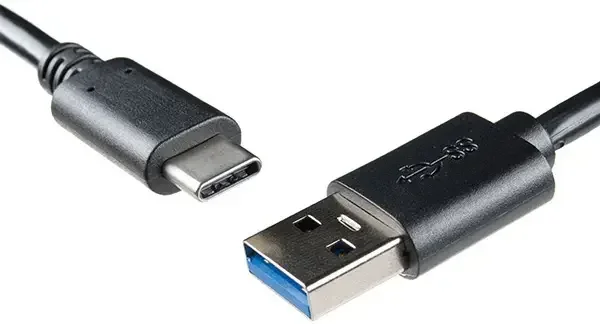
USB 3.1 does not require a special or proprietary cable, but you do need a cable that supports the SuperSpeed USB standard to get the full speed benefits. Most modern USB 3.1 cables are backward compatible with older USB ports, making them versatile and easy to use. Choosing the right USB cable depends on your device, transfer speed needs, and whether you need USB power delivery features.
You plug in a new USB 3.1 device and wonder whether the cable that came with it is good enough. Maybe you have a pile of old cables lying around and are not sure which one to use. The good news is that USB 3.1 does not need a special cable in most cases. But there are a few important details you should know to get the best performance.
In this guide, we will break down everything you need to know about USB 3.1 cables. We will talk about speed ratings, connector types, and how to tell if your existing cables will work. By the end, you will know exactly what to look for and what to avoid.
Key Takeaways
- No special cable needed: USB 3.1 uses standard connectors like Type-A and Type-C, so you do not need a proprietary or exclusive cable.
- Check for SuperSpeed labeling: To get the full 10 Gbps speed of USB 3.1 Gen 2, your cable must be labeled as SuperSpeed USB.
- Backward compatible: USB 3.1 cables work with older USB 2.0 and USB 3.0 ports, though speeds will be limited by the older port.
- Cable quality matters: Cheap or damaged cables can slow down your data transfer and charging speeds significantly.
- USB-C is not the same as USB 3.1: USB-C is a connector shape, while USB 3.1 is a data standard. A USB-C cable may or may not support USB 3.1 speeds.
- Power delivery depends on the cable: If you need fast charging, look for cables rated for USB Power Delivery (USB PD).
📑 Table of Contents
What Is USB 3.1?
USB 3.1 is a data transfer standard developed by the USB Implementers Forum. It replaced the older USB 3.0 standard and brought faster speeds and better efficiency. There are two generations of USB 3.1 that you should know about.
USB 3.1 Gen 1
USB 3.1 Gen 1 offers speeds up to 5 Gbps (gigabits per second). This is the same speed as the old USB 3.0 standard. It was renamed to USB 3.1 Gen 1 for branding purposes. Most people call this SuperSpeed USB.
USB 3.1 Gen 2
USB 3.1 Gen 2 doubles the speed to 10 Gbps. This is a significant jump and makes it great for external hard drives, SSD enclosures, and other devices that need fast data transfer. If you want to learn more about using M 2 NVMe SSDs with USB 3.1, check out our guide on the M 2 NVMe SSD to USB 3.1 adapter for a practical setup.
Does USB 3.1 Require a Special Cable?
The short answer is no. USB 3.1 does not require a special or proprietary cable. It uses the same standard connectors that other USB devices use, such as USB Type-A and USB Type-C. You can use a regular USB cable as long as it supports the speed standard you need.
However, here is where things get a little tricky. Not all USB cables are created equal. A basic USB 2.0 cable will work when plugged into a USB 3.1 port, but it will not give you the fast speeds that USB 3.1 promises. You need a cable that is built to handle the higher data rates.
What Makes a USB 3.1 Cable Different?
A proper USB 3.1 cable has extra wires inside that allow it to handle the higher data transfer speeds. It also tends to have better shielding to reduce interference. The connectors are usually marked with a SuperSpeed USB logo or the letters “SS” to help you identify them.
If you are using an external SSD or NVMe drive, the cable quality really matters. A poor cable can bottleneck your speeds and make even the fastest drive feel slow. For example, a Sabrent Thunderbolt 3 certified M 2 NVMe SSD enclosure relies on a quality cable to deliver its full potential.
USB 3.1 Cable Types and Connectors
USB 3.1 cables come in a few different connector types. Understanding these will help you pick the right one for your setup.
USB Type-A to USB Type-C
This is one of the most common USB 3.1 cable configurations. The Type-A end plugs into your computer or hub, and the Type-C end plugs into your device. Many modern laptops and tablets use USB-C, so this cable is very popular.
USB Type-C to USB Type-C
This cable connects two USB-C devices together. It is commonly used for fast charging and data transfer between devices like phones, tablets, and laptops. Make sure the cable is rated for USB 3.1 or higher to get the full speed benefits.
USB Type-A to USB Type-A
These cables are less common for USB 3.1 but do exist. They are typically used for connecting two computers or for certain specialized equipment.
When shopping for a cable, always check the packaging for the SuperSpeed USB logo. If it does not say USB 3.1 or SuperSpeed on it, it probably will not support the full 5 or 10 Gbps speeds.
USB 3.1 Speed vs. Cable Quality
The speed you get from a USB 3.1 connection depends on three things: the port on your computer, the cable you use, and the device you are connecting. All three components must support USB 3.1 for you to see the full speed.
The Bottleneck Problem
Think of it like a water pipe. If your computer has a USB 3.1 port (the wide pipe), but your cable is only USB 2.0 (a narrow pipe), the data flow will be limited by the cable. This is called a bottleneck. You will not get the fast speeds you paid for.
Here is a quick comparison of what to expect:
- USB 2.0 cable on a USB 3.1 port: Speeds limited to about 480 Mbps. Fine for keyboards and mice, but terrible for large file transfers.
- USB 3.0 cable on a USB 3.1 port: Speeds up to 5 Gbps. Good for most everyday tasks.
- USB 3.1 cable on a USB 3.1 port: Speeds up to 10 Gbps. Best for heavy data work and fast external storage.
If you are building a setup with multiple devices, the best monitors for a 3 monitor setup often require high-bandwidth USB connections for docking stations and peripheral hubs. A quality USB 3.1 cable ensures your peripherals do not slow you down.
How to Identify a Real USB 3.1 Cable
Not all cables that claim to be USB 3.1 are actually up to standard. Here are some tips to make sure you are getting a genuine USB 3.1 cable:
- Look for the SuperSpeed USB logo on the cable or packaging.
- Check for “5 Gbps” or “10 Gbps” printed on the cable.
- USB 3.1 cables often have a blue insert inside the Type-A connector.
- Buy from reputable brands like Sabrent, Anker, or Cable Matters.
- Avoid cables that are very cheap and have no brand name or specifications listed.
Common Mistakes People Make with USB 3.1 Cables
There are a few mistakes that people make all the time when it comes to USB 3.1 cables. Avoiding these will save you a lot of frustration.
Assuming USB-C Means USB 3.1
This is the biggest mistake. USB-C is just a connector shape. It does not tell you anything about the speed or standard. A USB-C cable could be USB 2.0, USB 3.0, USB 3.1, or even USB 4. Always check the specs.
Using Long Cables for High-Speed Transfers
Longer cables can cause signal loss, especially at higher speeds. If you need high-speed data transfer, keep your cable as short as practical, ideally under 3 feet (about 1 meter).
Ignoring Power Delivery
If you are charging a laptop or powering an external drive, the cable needs to support USB Power Delivery. A standard data cable may not carry enough power, and your device will charge slowly or not at all.
Using Damaged or Worn Cables
A frayed or bent cable might still work for charging, but it can cause data transfer errors or slow speeds. If a cable looks damaged, replace it. A new quality cable is cheaper than losing important files.
For those who use USB adapters to connect internal drives externally, understanding your cable needs is essential. You can explore our article on the M 2 NVMe SSD enclosure adapter USB 3.1 to see how the right cable and adapter combination makes all the difference.
When Do You Actually Need a Special Cable for USB 3.1?
There are a few situations where you might need a cable that is specifically designed for USB 3.1 or even beyond.
Using External NVMe SSDs
If you are using an external NVMe SSD enclosure, you need a cable that can handle the high speeds of the SSD. A standard cable might work, but you will not get the full performance. Look for cables rated for 10 Gbps or higher.
Connecting to Thunderbolt Devices
Thunderbolt 3 and Thunderbolt 4 use the USB-C connector but are not the same as standard USB 3.1. Thunderbolt cables are special and offer even higher speeds and more features. If you are connecting a Thunderbolt device, you will need a Thunderbolt-certified cable.
Running USB Over Long Distances
Standard USB cables are designed for short distances. If you need to run USB over 10 feet or more, you may need an active USB cable with a signal booster, or a fiber optic USB cable.
For car-related USB connections, cable quality is just as important. Check out our guide on car camera cable USB port to understand how cable choice affects performance in different devices.
Expert Tips for Choosing the Right USB 3.1 Cable
Here are some practical tips from someone who has tested dozens of USB cables over the years.
- Always check the speed rating. If the package does not list the speed, assume it is not a true USB 3.1 cable.
- Buy from trusted brands. Brands like Anker, Cable Matters, and Sabrent consistently make reliable USB 3.1 cables.
- Do not assume length equals quality. A long cable is not necessarily better. Shorter cables often deliver more consistent speeds.
- Test your setup. After buying a new cable, test the actual transfer speed using a tool like CrystalDiskMark or Blackmagic Disk Speed Test.
- Keep spares. Good cables are small and easy to lose. Keep a couple of backup USB 3.1 cables at your desk and in your bag.
Remember, the cable is the weakest link in your USB connection. Even if your computer and device both support USB 3.1, a bad cable can ruin the experience. Spend a few extra dollars on a quality cable and you will notice the difference immediately.
Final Thoughts
So, does USB 3.1 need a special cable? No, not really. USB 3.1 uses standard connectors and does not require a proprietary cable. But you do need a cable that is built to support the SuperSpeed USB standard if you want to enjoy the full 5 or 10 Gbps speeds.
The key takeaway is to always check your cable specifications. Look for the SuperSpeed logo, verify the speed rating, and avoid cheap no-name cables. A good USB 3.1 cable is inexpensive and makes a huge difference in your daily workflow.
Whether you are transferring large files, connecting an external drive, or charging your laptop, the right cable matters. Take a few minutes to understand what you need, and you will save yourself a lot of headaches down the road.
Frequently Asked Questions
Can I use a USB 2.0 cable with a USB 3.1 port?
Yes, you can physically plug in a USB 2.0 cable to a USB 3.1 port. It will work for charging and basic devices like keyboards and mice. However, the data transfer speed will be limited to USB 2.0 levels, which is about 480 Mbps. You will not get the fast speeds of USB 3.1.
How do I know if my cable supports USB 3.1 speeds?
Look for the SuperSpeed USB logo on the cable or its packaging. You can also check for “5 Gbps” or “10 Gbps” printed on the cable itself. If there is no speed rating or SuperSpeed label, it is likely a USB 2.0 or USB 3.0 cable.
Is USB-C the same as USB 3.1?
No, USB-C and USB 3.1 are not the same thing. USB-C is a connector shape, while USB 3.1 is a data transfer standard. A USB-C cable can support USB 3.1, but it is not guaranteed. Always check the cable specifications to confirm the speed rating.
What is the maximum length for a USB 3.1 cable?
The official USB specification recommends a maximum cable length of about 3 meters (roughly 10 feet) for standard USB 3.1 cables. Beyond that length, signal degradation can occur, and you may experience slower speeds or connection drops. For longer runs, consider an active USB cable with a signal booster.
Do I need a USB 3.1 cable for fast charging?
For fast charging, you need a cable that supports USB Power Delivery (USB PD). While USB 3.1 cables can carry power, not all of them support the higher wattages needed for fast charging. Look for cables rated for USB PD if fast charging is your goal.
Can a bad USB cable damage my device?
A poor-quality cable is unlikely to damage your device, but it can cause slow transfers, connection drops, and charging issues. In rare cases, a cable with faulty wiring could overheat. Always use cables from reputable brands and replace any cable that looks damaged or worn.
=== CONCLUSION ===
USB 3.1 does not need a special cable, but it does need a cable that is built to handle the SuperSpeed standard. By choosing the right cable, you unlock faster data transfers, better charging speeds, and a more reliable connection. Keep the tips from this guide in mind the next time you buy a USB cable, and you will always get the performance you expect.