How Much Ram Should a Laptop Have
Choosing the right amount of RAM for your laptop is critical for smooth performance, but the “perfect” amount varies wildly based on your specific tasks. For basic web browsing and office work, 8GB is the absolute minimum today, with 16GB being the sweet spot for most users. Professionals working with large files, gamers, and content creators should seriously consider 32GB or more to ensure future-proofing and handle demanding applications without slowdowns. Always check if the RAM is upgradeable before buying, as many modern laptops solder memory directly to the motherboard.
Key Takeaways
- 8GB is the new baseline: For 2024 and beyond, 8GB of RAM is the absolute minimum for any new laptop, suitable only for very light tasks like web browsing with a few tabs and basic document editing.
- 16GB is the universal sweet spot: For the vast majority of users—including students, professionals using office suites, casual gamers, and general multitaskers—16GB provides a comfortable, lag-free experience now and for several years.
- 32GB+ is for power users: If you regularly work with large video/photo projects, run virtual machines, do software development, or play the latest AAA games at high settings, 32GB or more is a necessary investment.
- Your operating system matters: Windows and macOS use a portion of your RAM for the system itself (typically 2-4GB). The usable RAM for your apps is always less than the total installed.
- Upgradability is key: Many thin-and-light laptops have soldered, non-upgradeable RAM. If you think you might need more later, prioritize laptops with accessible RAM slots.
- Speed (MHz) is secondary to capacity: While faster RAM (DDR5 vs. DDR4) offers benefits, having enough capacity (e.g., 16GB vs. 8GB) has a far greater impact on overall system responsiveness for most users.
- Consider your whole system: A slow CPU or old-school hard drive will bottleneck performance even with ample RAM. RAM is one part of a balanced system.
📑 Table of Contents
- Decoding the RAM Question: It’s Not One-Size-Fits-All
- Understanding RAM: Your Laptop’s Short-Term Memory
- Matching RAM to Your User Profile: From Student to Scientist
- Operating System & Background Processes: The RAM You Never See
- Future-Proofing vs. Budget: Striking the Right Balance
- Putting It All Together: Your Personalized RAM Recommendation
- Conclusion: RAM is an Investment in Your Sanity
Decoding the RAM Question: It’s Not One-Size-Fits-All
So, you’re shopping for a new laptop. You’ve compared processors, screen sizes, and storage types. Then you hit the spec sheet: RAM. Random Access Memory. The numbers can be confusing—8GB, 16GB, 32GB. How much RAM should a laptop have, really? Is more always better? And what happens if you get it wrong?
Here’s the simple truth: there is no single “best” amount of RAM for every laptop. The right amount for you depends entirely on what you plan to do with it. Think of RAM as your laptop’s immediate workspace. The bigger the workspace, the more projects (applications, files, browser tabs) you can have open and actively working on without everything getting cluttered and slow. Choosing too little leads to frustrating lag, app crashes, and a constant feeling of your laptop struggling to keep up. Choosing more than you need is an unnecessary expense. Our goal here is to give you the precise knowledge to match your RAM to your real-world usage, so you buy a laptop that feels fast and capable from day one and for years to come.
Understanding RAM: Your Laptop’s Short-Term Memory
What RAM Actually Does (In Simple Terms)
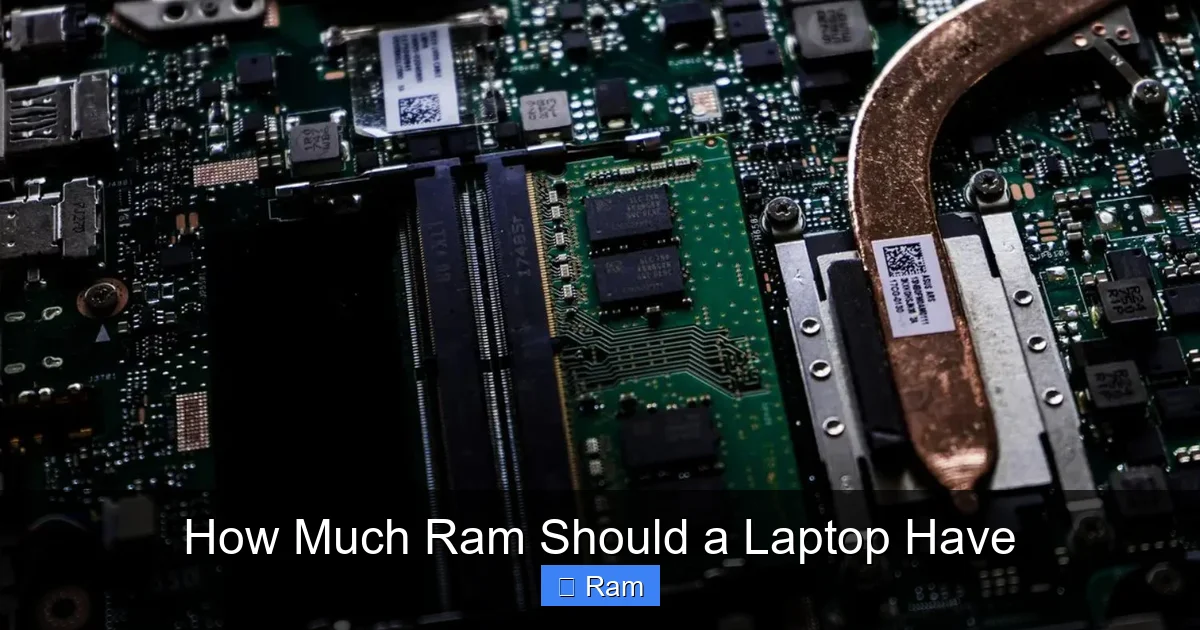
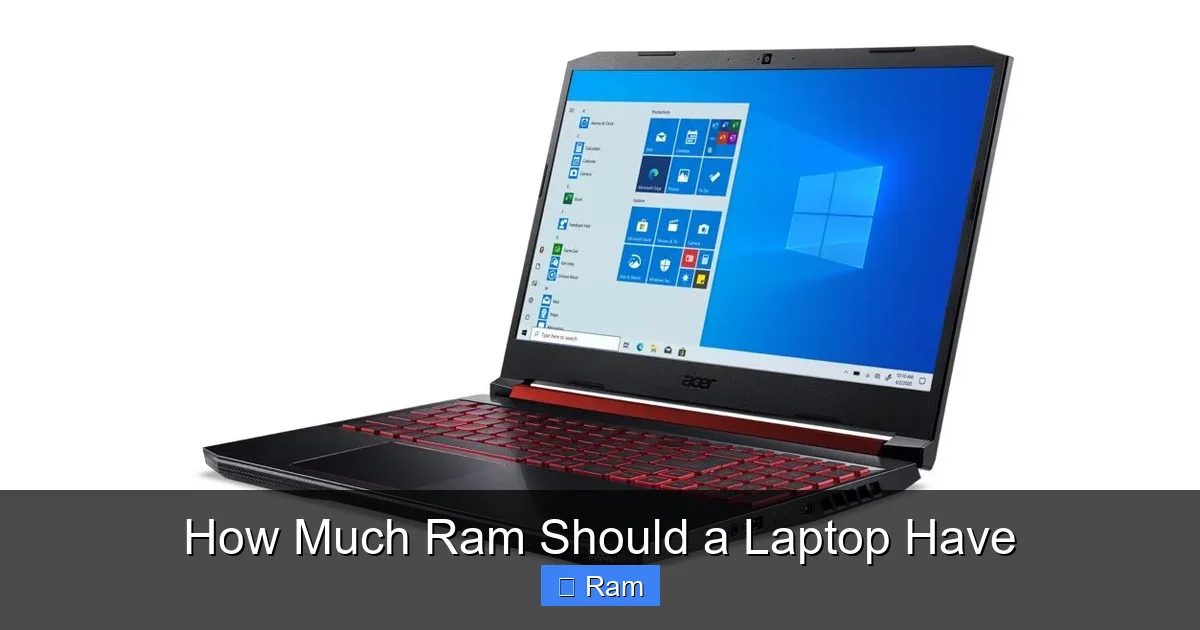
Imagine your laptop’s hard drive or SSD as a massive warehouse where all your files, programs, and the operating system are stored long-term. RAM is the workbench right next to it. When you open an application like Chrome or Photoshop, the core parts of that program that are needed for immediate use are copied from the slow warehouse (storage) to the fast workbench (RAM). The CPU (the brain) can then access data from the RAM at lightning speed.
Visual guide about How Much Ram Should a Laptop Have
Image source: robots.net
When your RAM fills up, your laptop has to start swapping data back and forth between the full RAM and the slower storage. This process, called “thrashing,” is what causes that spinning beach ball of death or the “Not Responding” message. More RAM means a larger workbench, meaning less swapping, and smoother, faster performance when you have multiple things open.
DDR4 vs. DDR5: Does the Generation Matter?
You’ll see specs like DDR4 or DDR5. This is the generation of RAM technology. DDR5 is newer, faster, and more power-efficient than DDR4. However, for the average user, the performance difference in everyday tasks between a laptop with fast DDR4 and slightly slower DDR5 is often negligible compared to the night-and-day difference between having 8GB versus 16GB of RAM. Capacity is almost always the more important factor. If you’re choosing between a laptop with 16GB of DDR4 and one with 8GB of DDR5, the 16GB machine will feel dramatically faster for multitasking.
Single-Channel vs. Dual-Channel: The Hidden Performance Boost
This is a slightly more technical but important point for enthusiasts. RAM is installed in sticks (modules). If your laptop has one stick (e.g., one 16GB module), it runs in “single-channel” mode. If it has two sticks (e.g., two 8GB modules) of identical specs, it can run in “dual-channel” mode. Dual-channel effectively doubles the data pathway between the RAM and the CPU memory controller, providing a significant performance uplift, especially for integrated graphics (like in most non-gaming laptops) and certain productivity tasks. For optimal performance, aim for a dual-channel configuration. Often, a laptop with two 8GB sticks (16GB total) will perform better than one with a single 16GB stick.
Matching RAM to Your User Profile: From Student to Scientist
Now for the practical part. Let’s break down typical user scenarios and recommend the ideal RAM range for each. Remember, these are guidelines. If you’re a heavy browser with 100+ tabs open, you might need to bump up a category.
Visual guide about How Much Ram Should a Laptop Have
Image source: robots.net
The Casual Browser & Basic User (Web, Email, Office)
This is the person who uses a laptop for checking email, browsing social media and news sites (maybe 10-20 tabs), streaming Netflix or YouTube, and using Microsoft Office or Google Docs. This is a common use case for older users, secondary household laptops, or the most budget-conscious buyers.
- Minimum: 8GB. This will work, but you’ll feel the limits quickly. Opening many browser tabs, especially with modern web apps, will consume RAM rapidly. Expect some slowdown.
- Recommended: 16GB. This is the true starting point for a pleasant, lag-free experience in 2024. It allows for comfortable multitasking—a few dozen browser tabs, a Word document, Spotify, and a video call simultaneously—without a hitch.
- Future-Proofing: Stick with 16GB. You won’t need more for this type of work, and the money is better spent on a better SSD or CPU.
The Student & Remote Worker
This user is constantly multitasking: 20+ browser tabs for research, a Zoom call, a Word or Google Docs document, maybe a PDF reader, and Spotify or a YouTube tutorial playing in the background. They might also use lighter photo editing or presentation software.
- Minimum: 16GB. This is non-negotiable. 8GB will lead to constant frustration during a typical study or work session with multiple apps open.
- Recommended: 16GB. This is the sweet spot. It handles the described multitasking load with ease. If your program requires specific software (e.g., engineering CAD, statistical analysis), check its requirements.
- Consider 32GB if: You’re in a field like graphic design, video editing, architecture, or data science where your coursework involves running demanding software like Adobe Creative Suite, AutoCAD, or MATLAB with large datasets.
The Gamer
Gaming RAM needs are tricky because they depend heavily on the GPU. For laptops with a dedicated NVIDIA or AMD GPU, the graphics card has its own dedicated memory (VRAM). The system RAM is used for the game engine, assets, and the operating system.
- Minimum for 1080p gaming: 16GB. This is the standard recommendation for modern AAA titles. Games like “Cyberpunk 2077” or “Hogwarts Legacy” can easily use 10-12GB of system RAM at high settings.
- Recommended for 1080p/1440p & future-proofing: 32GB. This provides ample headroom for the most demanding current games and ensures you won’t need to upgrade RAM for the next console generation of ports. It also helps if you like to stream your gameplay using OBS, which is RAM-intensive.
- Important Note: If you’re buying a gaming laptop, prioritize a powerful GPU (RTX 4060 or better) and a fast CPU first. RAM is secondary to those for raw gaming FPS, but still crucial for overall system stability in-game.
The Content Creator & Professional
This category includes photo editors (Lightroom, Photoshop), video editors (Premiere Pro, DaVinci Resolve), 3D artists (Blender), and music producers (Ableton Live, FL Studio). These applications are infamous RAM hogs, especially when working with high-resolution photos, 4K/8K video footage, complex 3D scenes, or large sample libraries.
- Minimum: 32GB. This is the entry point. You will hit limits with 16GB on serious projects, leading to constant rendering, preview, and export slowdowns.
- Strongly Recommended: 64GB. For professional work, this is becoming the new standard. It allows for smooth scrubbing through 4K timelines, working with multiple high-res layers in Photoshop, and keeping all your sample libraries loaded for instant access.
- Consider 128GB+ if: You work with 8K video, complex 3D simulations, massive datasets in data science, or run multiple virtual machines simultaneously.
The Developer & Power User
Software developers, data scientists, and IT professionals often run multiple resource-intensive tools simultaneously: an IDE (like Visual Studio or IntelliJ), a local web server, a database, Docker containers, a browser with 50 tabs for documentation, and maybe a virtual machine or two.
- Minimum: 32GB. This will get you by for lighter web development or scripting.
- Recommended: 64GB. This is the comfortable zone for serious development. It allows for a full development environment, multiple browser instances, and a virtual machine without the system crawling to a halt.
- Consider 128GB if: You are working with big data (Spark, Hadoop), training small machine learning models locally, or running several heavy VMs for testing.
Operating System & Background Processes: The RAM You Never See
When a laptop says “16GB of RAM,” that’s the total physical memory. You will never have all 16GB available for your applications. Why? Because the operating system itself needs RAM to function.

Visual guide about How Much Ram Should a Laptop Have
Image source: m.media-amazon.com
Windows’ RAM Hunger
A modern, fresh installation of Windows 11 will typically use 4-8GB of RAM at idle, depending on the version and background services. As you install drivers and apps, this baseline usage creeps up. macOS (on Apple Silicon Macs) is famously efficient, often using 2-4GB at idle. Linux distributions can be even leaner. This means an “8GB” Windows laptop might only have 4-5GB truly free for your apps when you first boot up, which is a very tight squeeze.
The “Standby” and “Cached” RAM Myth
If you look at your Task Manager (Windows) or Activity Monitor (macOS), you’ll see a large portion of RAM listed as “Standby” (Windows) or “Cached” (macOS). This is RAM being used by the OS to cache frequently accessed files and data for faster retrieval. This is a good thing! It means your system is being smart with its resources. When an application needs more RAM, the OS instantly frees up this cached memory. Do not be alarmed if you see high RAM usage (e.g., 12GB/16GB used) when you think you’re only running a few apps. Your system is likely just being efficient. Concern is warranted only when your RAM usage is at or near 100% and you’re experiencing significant slowdowns.
Future-Proofing vs. Budget: Striking the Right Balance
Laptops are a long-term investment, often kept for 4-6 years. Buying just enough RAM for today might leave you wanting in two years as software and web apps become more demanding. However, overspending on RAM you’ll never use is wasteful. How do you balance this?
The 4-5 Year Rule of Thumb
A practical way to think about it is: how much RAM will still be “enough” for your typical workload in 4 years? If you’re a student who will graduate and become a professional, buying a laptop with 16GB now might feel tight in 4 years if you step into a role that uses heavier software. Investing in 32GB upfront could save you from an early upgrade. For a casual user, 16GB will almost certainly remain sufficient for the lifespan of the laptop.
Cost Per GB Analysis
RAM pricing has become more stable. The jump from 8GB to 16GB is usually the most cost-effective upgrade you can make when purchasing a new laptop, often costing $50-$150. The jump from 16GB to 32GB is the next most sensible. Beyond that, the cost per GB increases significantly. Ask yourself: is the potential performance gain for my specific workflow worth the several-hundred-dollar premium? For a gamer, 32GB is a great buy. For a writer, spending extra on 64GB is throwing money away.
The Upgradeability Check: Your Most Important Pre-Purchase Step
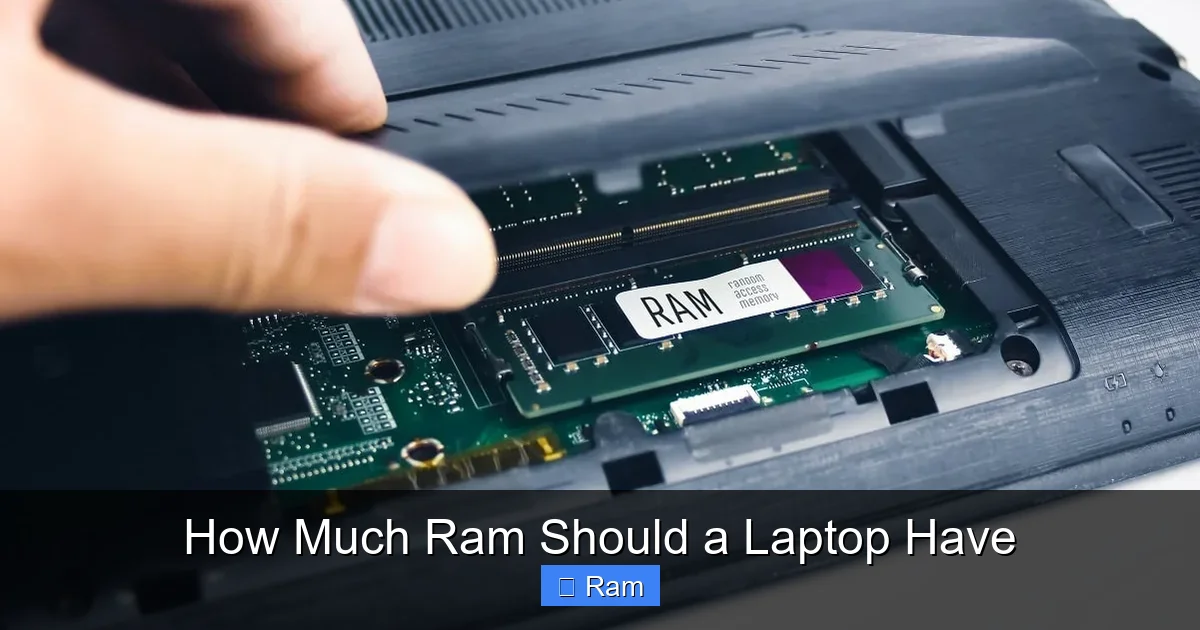
This cannot be stressed enough. Before you click “buy,” you must determine if the laptop’s RAM is upgradeable. Go to the manufacturer’s website, find the exact model’s technical specifications or service manual, or search for “[Model Name] RAM upgrade.” You are looking for answers to two questions:
- Is there an accessible RAM slot? (Often under a bottom panel)
- Is any RAM soldered to the motherboard?
Scenario A (Ideal): Laptop has two empty SO-DIMM slots. You can buy the base model with 8GB and upgrade to 32GB yourself later for cheap.
Scenario B (Common): Laptop has two slots, with one occupied by an 8GB stick. You can replace that stick with a larger one (e.g., swap the 8GB for a 16GB, giving you 32GB total if the other slot is empty).
Scenario C (Rising Trend – Problematic): All RAM is soldered to the motherboard. The configuration you buy (e.g., 16GB) is the one you are stuck with forever. If you think you might need more later, you must buy the max you can afford upfront.
Many sleek ultrabooks and premium laptops (like most recent MacBooks, Dell XPS, some Lenovo ThinkPads) fall into Scenario C. Gaming laptops and productivity workhorses more often fall into A or B.
Putting It All Together: Your Personalized RAM Recommendation
Let’s synthesize everything. Here is a quick-reference decision flow:
- Identify Your Primary Use: Be honest. Are you a “Casual Browser” or a “Video Editor”?
- Apply the Minimum for that Category: Don’t go below this.
- Check Your OS: If using Windows, add a mental buffer of 2-4GB for the system.
- Assess Upgradeability:
- If upgradeable: Buy the minimum for your needs today (e.g., 16GB). Plan to upgrade in 2-3 years if needed.
- If NOT upgradeable: Buy at least one tier above your current minimum (e.g., get 32GB instead of 16GB) to account for future software needs.
- Consider Dual-Channel: If given a choice between a single 16GB stick and two 8GB sticks (same price/speed), choose the two-stick kit for better performance.
Final Examples:
- A college student buying a Dell XPS 13 (RAM is soldered) for general studies and light photo editing should get 16GB minimum, strongly consider 32GB for longevity.
- A gamer buying an ASUS ROG laptop with two upgradeable RAM slots can safely start with 16GB (2x8GB) and upgrade to 32GB (2x16GB) in a couple of years when games demand it.
- A writer buying a budget Lenovo IdeaPad with upgradeable RAM can start with 8GB and upgrade to 16GB for $40 later if needed.
Conclusion: RAM is an Investment in Your Sanity
How much RAM should a laptop have? The answer is a personal one, but it’s an answer you can now confidently find. Remember, RAM is about preventing frustration. It’s the difference between your laptop being a tool that works for you and a source of constant digital friction. For the vast majority of people in 2024, 16GB is the new, responsible minimum. It provides a smooth, multitasking-friendly experience that will serve you well. Only venture into the 8GB realm if your budget is extremely tight and your tasks are truly minimal. For professionals and enthusiasts, 32GB is no longer a luxury but a practical necessity for efficient work.
Before you finalize any purchase, your single most important action is to verify the laptop’s RAM upgradeability. This knowledge transforms your purchase from a guess into a strategic decision. With the guidelines above, you are now equipped to cut through the marketing specs and choose a laptop with the right amount of memory to power your life, your work, and your play—today and tomorrow.
Frequently Asked Questions
Can I add more RAM to my laptop after I buy it?
Sometimes, but not always. Many modern ultrabooks and premium laptops have RAM soldered directly to the motherboard, making upgrades impossible. You must check your specific model’s specifications or service manual to see if it has accessible, replaceable RAM modules (SO-DIMMs). Gaming and business laptops are more likely to have upgradeable RAM.
Is 8GB of RAM enough for a new laptop in 2024?
For the absolute lightest use—basic web browsing with a few tabs and simple office apps—8GB can work. However, it is no longer a comfortable recommendation. Windows 11 and modern web browsers are memory-hungry. 8GB will lead to frequent slowdowns with any real multitasking. 16GB is the strongly recommended starting point for a new laptop.
Does having more RAM make my laptop faster?
More RAM primarily prevents slowdowns when you have multiple programs or browser tabs open. It allows your system to keep more data readily accessible, avoiding the slow process of swapping to the storage drive. However, if a program is limited by your CPU or GPU speed (like a game), adding more RAM beyond a certain point will not increase its frame rate. It improves multitasking and responsiveness under load.
Should I get faster RAM (higher MHz) or more RAM?
Always prioritize capacity over speed. Doubling your RAM from 8GB to 16GB will have a dramatically more noticeable impact on system smoothness than going from 2400MHz to 3200MHz RAM. Only consider faster RAM if you are already at your required capacity (e.g., choosing between two 16GB kits) and your laptop’s CPU supports it (check specs).
How do I check how much RAM my current laptop is using?
On Windows, press Ctrl+Shift+Esc to open Task Manager, then click the “Memory” tab. You’ll see your total RAM, currently used RAM, and a usage graph. On macOS, open Activity Monitor from the Utilities folder and click the “Memory” tab. The “Memory Pressure” graph is a good indicator—green is healthy, yellow is getting full, red means you need more RAM.
Is 32GB of RAM overkill for most people?
For general web browsing, office work, and even most gaming, yes, 32GB is more than necessary. However, for content creators (video/photo editing), professionals working with large datasets or virtual machines, and developers, 32GB is becoming the standard recommended amount for a smooth, future-proof workflow. The line between “overkill” and “necessary” continues to shift upward as software demands grow.