How Much Ram Do I Need Laptop
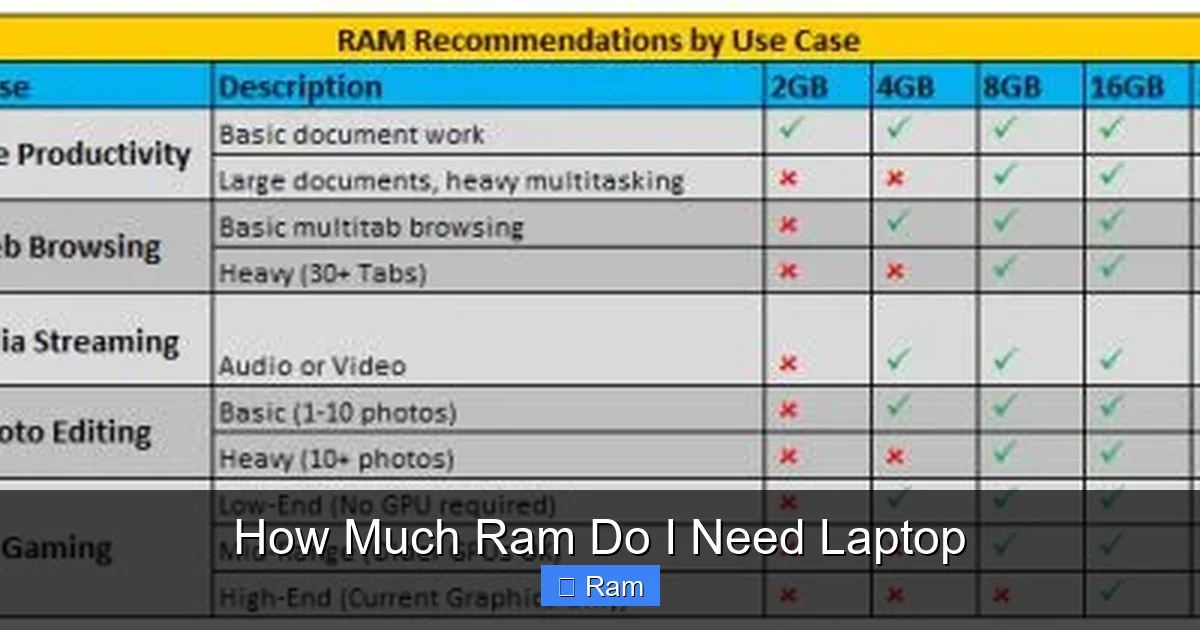
Choosing the right amount of RAM for your laptop is crucial for smooth performance, but it doesn’t have to be complicated. For most everyday users, 8GB is the comfortable starting point. Power users, gamers, and professionals should seriously consider 16GB to 32GB for future-proofing and demanding applications. The key is matching your RAM to your specific software and workflow, not just chasing the highest number.
Key Takeaways
- 8GB is the new baseline: For basic web browsing, office work, and streaming, 8GB of RAM is the absolute minimum for a smooth, lag-free experience in 2024 and beyond.
- 16GB is the sweet spot: This is the recommended amount for the vast majority of users, including students, professionals with multiple apps open, and casual gamers.
- 32GB+ is for specialists: Engineers, video editors, 3D artists, data scientists, and hardcore gamers with high-refresh-rate monitors will see tangible benefits from 32GB or more.
- Your OS and browser are greedy: Modern operating systems like Windows 11 and macOS, along with Chrome or Edge, can easily consume 4-8GB of RAM on their own with a few tabs open.
- Dual-channel matters: For optimal performance, ensure your RAM is installed in matched pairs (e.g., two 8GB sticks for 16GB total) to enable dual-channel mode, which significantly speeds up data transfer.
- Upgradeability is key: Before buying, check if the laptop’s RAM is soldered (non-upgradable) or available in slots. Buying a model with upgradeable slots gives you a path to add more RAM later.
- Speed (MHz) is secondary to capacity: While faster RAM (e.g., 3200MHz vs. 2400MHz) offers a boost, adding more capacity (e.g., going from 8GB to 16GB) will almost always provide a larger real-world performance improvement.
📑 Table of Contents
- What Is RAM, and Why Does It Matter for Your Laptop?
- Tailoring Your RAM to Your Lifestyle: Use Case Scenarios
- Future-Proofing: How Much RAM Do You Need in 2024 for 2027?
- Beyond Capacity: Understanding RAM Speed and Dual-Channel
- Debunking Myths: “More RAM Is Always Better” and Other Misconceptions
- How to Check Your Current RAM Usage and Decide
- Conclusion: Your Personalized RAM Recommendation
What Is RAM, and Why Does It Matter for Your Laptop?
Let’s start with the absolute basics. RAM stands for Random Access Memory. Think of it as your laptop’s short-term memory or its workspace. When you open an application like a web browser, a word processor, or a game, the necessary data is loaded from your slow, permanent storage (the SSD or hard drive) into the lightning-fast RAM. The CPU (your laptop’s brain) then works directly with the data in RAM. The more RAM you have, the more applications and files you can have actively “in memory” at once without your system slowing to a crawl as it frantically swaps data back to the slower storage drive.
This is why the question “how much ram do i need laptop” is so critical. It’s not about raw power for its own sake; it’s about having a seamless, frustration-free experience. If you have too little RAM, your laptop will feel sluggish. You’ll see the spinning beach ball of death on a Mac or the “Not Responding” message on Windows. Apps will take forever to switch between, and opening new programs will feel like wading through mud. Getting the right amount is the single most impactful upgrade for multitaskers and anyone working with modern software.
The RAM Hierarchy: From Bare Minimum to Overkill
We can broadly categorize RAM needs into tiers. Understanding these tiers will help you immediately place yourself and your needs into a clear bucket. It’s a spectrum, but these guidelines are based on the software landscape of 2024 and the near future.
- Tier 1: The Absolute Minimum (4GB) – We do not recommend this for any new laptop purchase in 2024. This amount is only suitable for very lightweight, single-task operations like running a basic Linux distribution for web kiosks or extremely old versions of Windows for legacy hardware. Modern web browsers with a few tabs will already consume most of this, leaving no room for anything else. Avoid if at all possible.
- Tier 2: The Basic/Entry-Level (8GB) – This is the true starting point for today. It allows for comfortable web browsing (10-15 tabs), using Office suites (Word, Excel, PowerPoint), streaming HD video, and running light utility apps simultaneously. It’s perfect for students writing essays, seniors checking email and watching videos, and as a secondary laptop for casual use.
- Tier 3: The Mainstream Sweet Spot (16GB) – This is our go-to recommendation for most people. It provides ample headroom. You can have 30+ Chrome tabs open, a large Word document, a Spotify playlist, a Slack or Teams call, and a few background utilities all running smoothly. It’s ideal for serious students, business professionals, photo editors using tools like Photoshop or Lightroom, and casual 1080p gamers.
- Tier 4: The Power User/Enthusiast (32GB) – This is where you step into professional and enthusiast territory. It’s for those who regularly work with massive files: 4K video editing in DaVinci Resolve or Premiere Pro, complex 3D modeling and rendering in Blender, running multiple virtual machines, working with huge datasets in Python or R, or high-refresh-rate (144Hz+) competitive gaming where every frame counts and system memory can be a bottleneck.
- Tier 5: The Extreme/Workstation (64GB+) – This is for specialized scientific computing, engineering simulations (CFD/FEA), professional 8K video editing suites, and running several heavy virtual machines or Docker containers concurrently. For a personal laptop, this is almost always overkill unless you know your specific workflow explicitly requires it.
Tailoring Your RAM to Your Lifestyle: Use Case Scenarios
The best way to decide is to look at what you actually do. Let’s break down the most common user profiles and their ideal RAM configurations.
Visual guide about How Much Ram Do I Need Laptop
Image source: laptopvoyager.com
The Student & Casual Home User
For a student writing papers, researching with dozens of browser tabs, occasionally editing a photo for a presentation, and streaming lectures or Netflix, 8GB is the functional minimum, but 16GB is the wise choice. Why? Because modern educational software, collaboration tools like Google Docs (which lives in the browser), and operating system updates all demand more memory. A student with 8GB will be fine until exam season when they have 50 tabs open for research, and then things will get sticky. 16GB provides a comfortable buffer that will last through their entire college career without performance anxiety.
The Business Professional & Multitasker
If your job involves having a web browser (with 20+ tabs for research), a full Microsoft Office suite (Outlook, Word, Excel), a video conferencing app (Zoom, Teams), a note-taking app, and maybe a CRM or project management tool open simultaneously, 16GB is non-negotiable. This is the baseline for a stress-free workflow. You’ll switch between apps instantly, and your laptop will feel responsive. For executives or analysts who also work with large Excel datasets, Power BI, or multiple browser-based dashboards, 16GB is still the target. Only if you’re a developer running local servers and IDEs or a data analyst with massive spreadsheets would you look to 32GB.
The Gamer
Gaming RAM requirements have an interesting twist. While many modern AAA games list 16GB as the recommended spec, the real benefit for gamers is in the ecosystem. You’re rarely *just* running a game. You likely have Discord, a web browser with guides or streams, and maybe a recording/streaming software like OBS in the background. 16GB is the solid, safe recommendation for 1080p and 1440p gaming. For 4K gaming or if you are a competitive esports player pushing ultra-high frame rates (240Hz+) on a powerful system with a top-tier GPU, 32GB can help ensure absolutely zero stutters caused by memory shortages, especially in open-world games that stream assets dynamically.
The Content Creator & Creative Professional
This group has the most variable needs, as it depends entirely on the software and project scale.
- Photo Editing (Lightroom, Photoshop): 16GB is good for most work with high-resolution RAW files from modern cameras. For very large stacks, complex photomerges, or working with dozens of layers, 32GB becomes beneficial.
- Video Editing (Premiere Pro, DaVinci Resolve): This is RAM-hungry. For 1080p/1440p editing, 16GB is the starting point. For 4K editing, especially with multiple video tracks, color grading, and effects, 32GB is strongly recommended. 8K or working with heavy codecs (like RAW or ProRes) pushes into 64GB territory for professionals.
- 3D Animation & Rendering (Blender, Maya): Viewport performance (manipulating 3D models) benefits from both RAM capacity and a strong GPU. For moderate scenes, 32GB is excellent. For complex scenes with high-poly counts, simulations, and rendering, 64GB+ may be necessary to avoid constant swapping.
Future-Proofing: How Much RAM Do You Need in 2024 for 2027?
Laptops are a long-term investment. You likely won’t buy a new one every year. So, how do you future-proof your RAM choice? The rule of thumb is to buy for the next 3-5 years of software evolution. Software, operating systems, and web applications consistently become more memory-intensive.

Visual guide about How Much Ram Do I Need Laptop
Image source: robots.net
Consider that Windows 11 and the latest macOS versions are more demanding than their predecessors. A web browser with 10 tabs today might need the same resources as 30 tabs did five years ago. New AI features are being integrated into everyday apps (like Copilot in Windows, AI upscaling in video editors), and these features often run locally, consuming RAM.
Therefore, our strongest advice is: If your budget allows for a modest increase, always choose more RAM than you think you need today. The jump from 8GB to 16GB is one of the most cost-effective performance upgrades you can make. If a laptop comes with 8GB soldered and you can’t upgrade it later, you are locking yourself into a system that will feel its age much sooner. Conversely, a model with a free RAM slot and 8GB pre-installed gives you an easy, cheap upgrade path to 16GB later by adding another 8GB stick.
The Soldered RAM Dilemma: Why Upgradability Trumps All
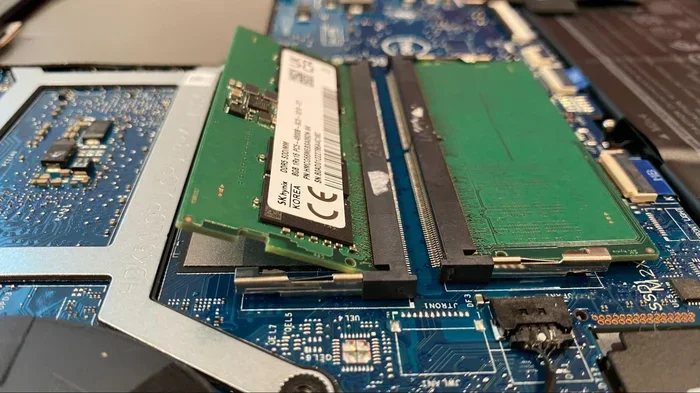
This is the most critical practical consideration. Many modern ultrabooks and premium laptops have their RAM soldered directly onto the motherboard. This makes the laptop thinner and lighter, but it means you cannot upgrade or replace it. The RAM configuration you buy is the one you are stuck with for the life of the laptop.
Before you click “buy,” you must check the laptop’s specifications. Look for terms like “soldered,” “non-expandable,” or “max memory supported.” If it’s soldered, you need to buy the maximum amount of RAM you can afford at the time of purchase. For a general user, that means never buying a new laptop with only 8GB of soldered RAM in 2024. It’s a false economy. You are buying a system with a built-in obsolescence date. Prioritize laptops with at least one accessible SO-DIMM slot for future upgrades, even if it means a slightly thicker profile.
Beyond Capacity: Understanding RAM Speed and Dual-Channel
It’s not just about the GB (gigabytes) number. Two other specs matter: speed (MHz) and channel configuration.
Visual guide about How Much Ram Do I Need Laptop
Image source: newegg.com
RAM Speed (DDR4 vs. DDR5, 2666MHz vs. 3200MHz)
RAM speed is measured in megahertz (MHz) and represents how many cycles per second the RAM can perform. The current standard is DDR5, which is faster and more power-efficient than the older DDR4. Within a generation (e.g., within DDR5), a higher MHz rating (like 4800MHz vs. 5600MHz) means slightly better performance, especially in applications that are sensitive to memory bandwidth, like gaming and some creative workloads.
Our practical advice: Capacity is king. If the choice is between a laptop with 16GB of 4800MHz RAM and one with 32GB of 3200MHz RAM for a video editor, the 32GB kit will be vastly better. Don’t overpay for a minor speed bump if it means sacrificing capacity. However, if comparing two identical laptops with the same capacity, the one with faster RAM (e.g., DDR5-5600 vs. DDR4-3200) will have a slight edge.
Single-Channel vs. Dual-Channel vs. Flex Mode
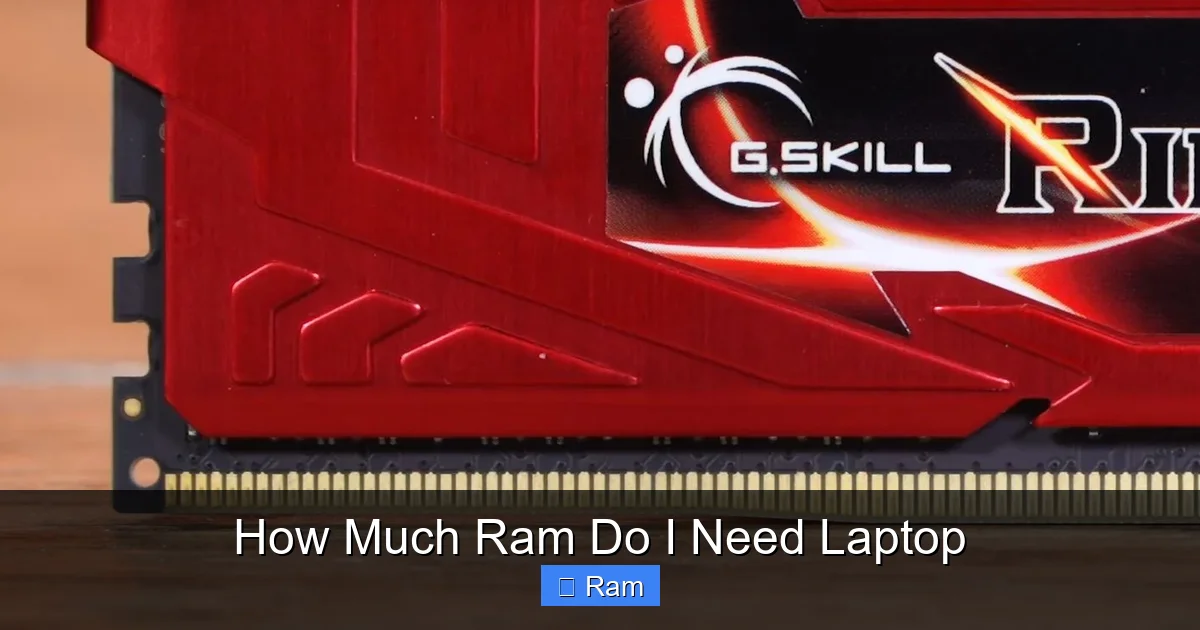
This is a huge performance factor that is often overlooked. Your laptop’s CPU accesses RAM through memory channels. If you install one RAM stick, you run in single-channel mode. If you install two identical sticks (e.g., two 8GB sticks), you enable dual-channel mode, which effectively doubles the data bandwidth between the RAM and the CPU. This can provide a 10-30% performance boost in many applications, from games to video editing timelines.
Some laptops come with one stick pre-installed (e.g., 8GB). If you add another matching 8GB stick yourself, you get the dual-channel benefit. The ideal configuration is always using matched pairs. If you have an odd number of sticks (like one 8GB and one 16GB), most modern systems will run in a hybrid “Flex Mode,” where part of the RAM runs dual-channel and part runs single-channel—better than pure single-channel, but not as good as a perfect matched pair.
Takeaway: For the best performance, aim for your total RAM to be made up of two identical sticks. If buying pre-configured, a 16GB (2x8GB) model will often perform better than a 16GB (1x16GB) model, though the difference in everyday use may be subtle.
Debunking Myths: “More RAM Is Always Better” and Other Misconceptions
Let’s clear up some common confusions that lead to poor purchasing decisions.
Myth 1: “I’ll just max it out; you can never have too much RAM.”
While having excess capacity isn’t *harmful*, it is wasteful. If you never use more than 12GB, having 64GB provides zero benefit. It uses more power (slightly reducing battery life), costs more money, and that money could be better spent on a faster SSD, a better GPU, or a higher-quality display. The goal is the right amount, not the most amount.
Myth 2: “RAM is the same as storage. I’ll just use cloud storage if I run out.”
This is a fundamental misunderstanding. Storage (SSD/HDD) is your long-term filing cabinet. RAM is your active desktop workspace. If your RAM is full, your system starts using a portion of your SSD as “virtual memory” or a “page file.” This process, called swapping, is orders of magnitude slower than using real RAM. Your laptop will grind to a halt. Cloud storage has zero impact on this physical memory limitation. You cannot “store” open applications in the cloud; they must reside in local RAM to run.
Myth 3: “I only browse the web and check email. I don’t need much RAM.”
The modern web is a memory hog. A single tab in Chrome can easily use 500MB to 1GB, especially with modern, JavaScript-heavy sites (Google Docs, Facebook, news sites with ads and videos). With 10-15 tabs, you’re already at 8-12GB before opening any other program. The OS itself needs 2-4GB. The “I just browse” user of 2010 is not the same as the “I just browse” user of 2024. 8GB is the responsible minimum even for this use case.
How to Check Your Current RAM Usage and Decide
If you’re upgrading an existing laptop, the best first step is to look at your current usage.
On Windows: Press Ctrl+Shift+Esc to open Task Manager. Go to the “Performance” tab and click “Memory.” Here you’ll see your total installed RAM, its speed, and a live graph of usage. Pay attention to the “Committed” or “In use” value during your typical heaviest workload (e.g., when you have all your usual apps open). If it’s consistently above 80% of your total, you are RAM-limited and will benefit from an upgrade. The “Hardware Reserved” value is normal and not upgradable.
On macOS: Click the Apple menu > About This Mac > System Report > Memory. You’ll see the total and slot usage. To monitor real-time pressure, open the Activity Monitor app (Applications > Utilities) and click the “Memory” tab. The “Memory Pressure” graph is key. Green is good. Yellow means your system is managing. Red means you are severely RAM-constrained and swapping heavily, which is a clear sign you need more RAM.
Your Action Plan: Simulate your heaviest day. Open every app and file you normally would. Then check the usage. If you’re using 7GB out of 8GB, you need more. If you’re using 10GB out of 16GB, you’re fine. This data-driven approach removes the guesswork.
Conclusion: Your Personalized RAM Recommendation
So, how much RAM do you need in your next laptop? Let’s crystallize it.
- For the budget-conscious student or casual user: 8GB is the absolute minimum, but stretch for 16GB if at all possible. It’s the difference between a laptop that lasts 2 years and one that lasts 4.
- For the business professional, serious student, and mainstream gamer: 16GB is the undisputed sweet spot. It provides excellent performance for virtually all common tasks today and good headroom for tomorrow. This should be your default target.
- For the content creator, developer, engineer, and enthusiast gamer: Start at 32GB. This is where you eliminate memory as a potential bottleneck in demanding professional applications. If your work involves 4K/8K video, complex 3D, or large datasets, this is your baseline.
- For specialized workstation tasks: Evaluate your specific software’s requirements. 64GB or more may be justified, but for a personal laptop, this is exceptionally rare.
Finally, remember to check upgradability. If you buy a laptop with soldered RAM, you are making a final, long-term decision. Err on the side of more capacity. If it has slots, you can always start with less and add more later, giving you flexibility and potentially saving money upfront. By matching your RAM to your real-world workflow and planning for the future, you’ll choose a laptop that feels fast, responsive, and capable for years to come.
Frequently Asked Questions
Can I add more RAM to my laptop later?
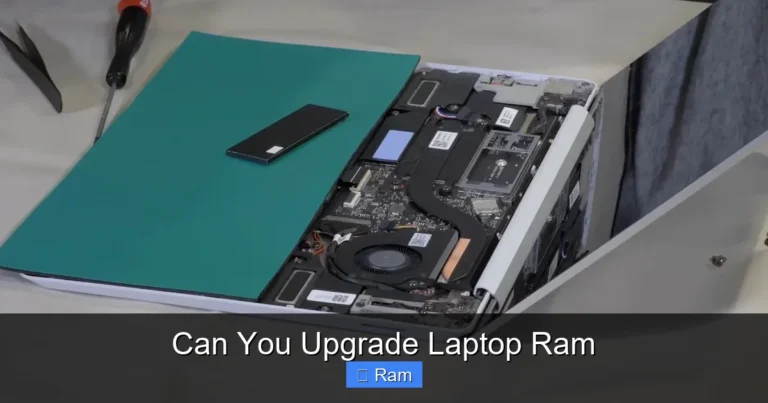
It depends entirely on your laptop’s design. Many modern ultrabooks have RAM soldered to the motherboard, making upgrades impossible. You must check your specific model’s service manual or specifications. Gaming laptops and business-class laptops (like Dell Latitude, Lenovo ThinkPad) often have accessible slots. Always verify upgradeability before purchasing if you think you might need more RAM in the future.
Is 16GB of RAM enough for gaming in 2024?
Yes, for the vast majority of gamers, 16GB is the recommended and sufficient amount for smooth gameplay at 1080p and 1440p resolutions. It provides enough memory for the game itself plus background applications like Discord, web browsers, and streaming software. Only the most demanding titles at 4K or competitive esports players targeting extreme frame rates might see a marginal benefit from 32GB.
What’s the difference between RAM and storage (SSD)?
RAM (memory) is your laptop’s volatile, high-speed short-term workspace where active programs and data are loaded for the CPU to access instantly. Storage (SSD/HDD) is your non-volatile, permanent library where your operating system, applications, and files are saved when the laptop is off. They work together: the OS loads from storage into RAM at startup, and apps shuttle between them. More RAM lets you have more things open at once without slowdowns; a faster SSD makes loading those things into RAM quicker.
Will faster RAM (higher MHz) make my laptop much faster?
Faster RAM provides a performance boost, but it is secondary to capacity. The jump from 8GB to 16GB will be dramatically more noticeable in everyday multitasking than the jump from 3200MHz to 4800MHz. Speed matters most in specific, bandwidth-sensitive tasks like gaming (especially with AMD Ryzen CPUs, which benefit more from fast RAM) and certain professional applications. Prioritize getting enough RAM first; consider speed as a fine-tuning step within your budget.
Is it better to have one 16GB RAM stick or two 8GB sticks?
Two 8GB sticks are generally better for performance. This configuration runs in dual-channel mode, which doubles the memory bandwidth compared to a single stick in single-channel mode. This can improve performance in integrated graphics gaming, content creation apps, and general system responsiveness. The main advantage of a single 16GB stick is that it leaves a second slot free for a future upgrade to 32GB total.
My laptop feels slow even after upgrading to 16GB RAM. What gives?
While insufficient RAM is a common bottleneck, it’s not the only one. A slow or failing storage drive (especially an old hard drive instead of an SSD) is a major culprit. An outdated or low-power CPU/GPU can also limit performance. Check your Task Manager/Activity Monitor to see what resource is maxing out during slowdowns (CPU, Disk, Memory). The upgrade path should target the actual bottleneck, not just add more of one component.