How to Add a Second Ssd for Steam Games
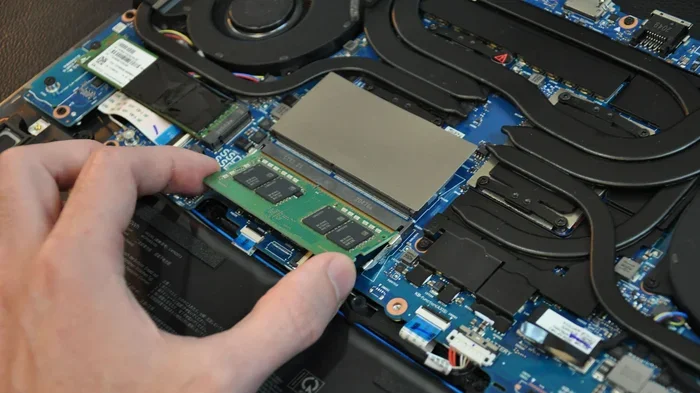
Adding a second SSD for Steam games is one of the best upgrades you can make for your PC or laptop. It gives you more room for your growing game library and makes loading times lightning fast. This guide walks you through every step, from choosing the right drive to setting up your Steam library on the new drive.
So you love gaming on Steam. But now your storage is full. You keep hitting that annoying “disk full” message every time you try to download a new game. Sound familiar? You are not alone. Thousands of PC gamers face this problem every single day.
The good news is that adding a second SSD for Steam games is one of the simplest and most effective upgrades you can make. It gives you more space and faster load times. In this guide, we will walk you through everything you need to know. From picking the right drive to moving your game library over. Let us get started.
Key Takeaways
- More Storage Space: A second SSD gives you room for dozens more Steam games without deleting old ones.
- Faster Load Times: SSDs load games much faster than traditional hard drives, so you spend less time waiting.
- Easy Setup: Installing a second drive is straightforward and does not require advanced tech skills.
- Flexible Options: You can choose between internal NVMe SSDs, SATA SSDs, or even external enclosures.
- Steam Makes It Simple: Steam lets you move your library to a new drive with just a few clicks.
- Cost Effective: Adding a second SSD is cheaper than replacing your existing drive entirely.
📑 Table of Contents
Why Add a Second SSD for Steam Games?
Steam games take up a lot of space. A single AAA title can eat up 100 GB or more. And with new releases coming out every week, your storage fills up fast. A traditional hard drive just cannot keep up anymore.
Here is why a second SSD upgrade makes sense:
- More Room: You can store all your games in one place without deleting anything.
- Speed: SSDs load games way faster than old-school hard drives.
- Better Performance: Games run smoother when they are on an SSD instead of a mechanical drive.
- Easy to Add: You do not need to be a computer expert to install one.
If you are using a Steam Deck or a regular gaming laptop, the same principles apply. The process is very similar across devices. Whether you have a desktop PC or a laptop, adding a second drive is a practical storage solution that improves your entire gaming experience.
SSD vs HDD: Why It Matters for Gaming
Let us talk about the difference between an SSD and an HDD. An HDD is the older type of storage. It uses spinning disks to read and write data. An SSD has no moving parts. It uses flash memory instead.
Here is a quick comparison:
- Speed: SSDs are 5 to 10 times faster than HDDs.
- Durability: SSDs have no moving parts, so they are less likely to break.
- Noise: SSDs are completely silent. HDDs can be loud.
- Price: HDDs are cheaper per GB, but SSD prices have dropped a lot.
For gaming, the speed advantage of an SSD is huge. Games load faster. Screenshots save faster. And your overall system feels more responsive. This is exactly why adding a second gaming storage drive is such a smart move.
Choosing the Right Second SSD
Not all SSDs are the same. Before you buy, you need to know what kind of drive will work for you. There are a few options to consider.
Types of SSDs for Gaming
Here are the main types of SSDs you can use as a second drive:
- NVMe M.2 SSD: The fastest option. It plugs directly into your motherboard. Perfect for gamers who want top performance.
- SATA SSD: Slower than NVMe but still much faster than an HDD. Great budget-friendly choice.
- External SSD: A portable drive that connects through USB. Good if you do not want to open up your PC.
- Portable NVMe Enclosure: An NVMe drive inside a small housing. You get fast speeds with portability.
For most gamers, an NVMe M.2 SSD is the best choice. It offers the fastest speeds and fits right inside your computer. But if you are on a tight budget, a SATA SSD works great too. The SSD speed difference matters a lot when you are loading large game worlds.
How Much Storage Do You Need?
Think about how many games you want to store. A typical AAA game takes up 50 to 150 GB. If you play 10 to 20 games at a time, you need at least 1 to 2 TB of space. Here is a quick guide:
- 500 GB: Good for 5 to 10 games. Tight but workable.
- 1 TB: Holds about 10 to 20 games comfortably.
- 2 TB: Plenty of room for a large library.
Right now, 1 TB and 2 TB NVMe SSDs are very affordable. Brands like Samsung, WD, and Kingston offer great options. Check prices and pick the storage capacity that fits your needs.
How to Install a Second SSD
This is the part where some people get nervous. But trust me, installing a second drive is easier than you think. You do not need any special tools or technical skills. Let us walk through it step by step.
Installing an NVMe M.2 SSD in a PC
First, make sure your motherboard has an M.2 slot. Most modern PCs do. Here is what to do:
- Turn off your PC and unplug it from the wall.
- Open your computer case.
- Locate the M.2 slot on your motherboard.
- Insert the NVMe SSD at a 30-degree angle.
- Press it down gently and secure it with the small screw.
That is it. You just installed a new NVMe SSD. If you are not sure about the process, check out our detailed guide on how to install an M.2 NVMe SSD in a PC for more detailed instructions.
Installing a Second SSD in a Laptop
Laptops can be a bit trickier. Not all laptops have a second drive slot. But many gaming laptops do. Here is what to do:
- Check your laptop manual for a second M.2 slot.
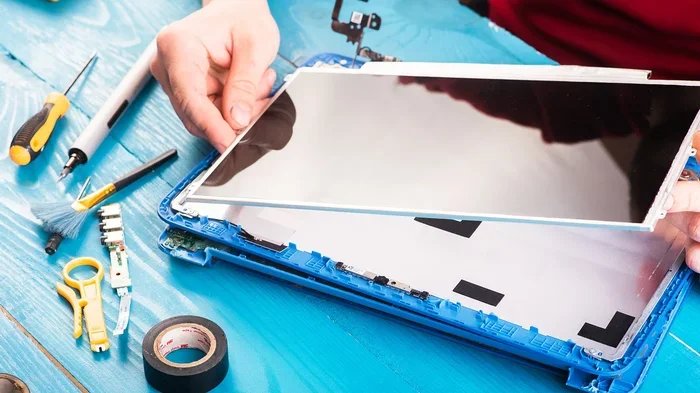
- Remove the bottom panel with a screwdriver.
- Find the empty M.2 slot.
- Insert the SSD and secure it with a screw.
If your laptop does not have a second slot, you can use an external SSD instead. A portable SSD connects through USB and works just as well for storing games. You can learn more about laptop storage upgrades in our guide on how to install an M.2 NVMe SSD in a laptop.
Setting Up the New Drive
Once the physical installation is done, you need to make sure Windows recognizes the drive. Here is how:
- Turn on your PC and log in.
- Right-click the Start button and select Disk Management.
- You should see your new drive listed.
- If it is unallocated, right-click and format it as NTFS.
After formatting, your new drive is ready to use. You can now move your Steam games over to it. The next section covers that process in detail.
Moving Your Steam Library to the New SSD
This is the fun part. You get to move all your games to the new drive. Steam makes this process really easy. You do not need to redownload anything.
Step-by-Step Guide
Follow these steps to move your Steam library:
- Open Steam and go to Settings.
- Click on the Storage tab.
- You will see all your drives listed.
- Click the folder icon next to your new SSD.
- Select the drive where you want to move your games.
- Steam will start moving the games automatically.
You can also change the default installation path for new games. Just go to Settings, then Storage, and set your new SSD as the default. This way, every new game you download goes straight to the second drive.
Pro tip: You do not have to move all your games at once. You can move them one by one. Just right-click a game in your library, go to Properties, then Local Files, and click Move Installation Folder. This is a great way to manage your game storage without overwhelming your system.
Troubleshooting Common Issues
Sometimes things do not go as planned. Here are a few common problems and how to fix them:
- Drive Not Showing Up: Check your connections. If you are using an external drive, try a different USB port.
- Steam Does Not Recognize the Drive: Make sure the drive is formatted as NTFS. Steam does not support FAT32 for large game files.
- Games Won’t Launch From the New Drive: Try verifying the game files. Right-click the game in Steam, go to Properties, and click Verify Integrity of Game Files.
If you run into formatting issues, you can learn how to format a new drive in our guide on how to format a new NVMe SSD. It covers everything you need to know.
Best Practices for Managing a Dual-SSD Setup
Once you have two SSDs, you want to keep things organized. Here are some tips to get the most out of your setup.
Keep Your Operating System on the First SSD
Your Windows installation should stay on your main drive. This keeps your system fast and stable. The second SSD is best used for games and media files.
Monitor Your Storage Usage
Steam lets you see how much space each game takes up. Go to your Library, click the Storage tab, and you will see a breakdown. This helps you decide which games to keep and which to remove.
Use Steam’s Built-In Tools
Steam has some great built-in features for managing your library. You can sort games by size, move them between drives, and even set download priorities. Take advantage of these tools to keep your Steam library organized.
Keep Backups
Always keep a backup of important game saves. You can use cloud storage or an external drive. This protects your progress if something goes wrong with either SSD.
Update Your Drivers Regularly
Make sure your SSD drivers and motherboard firmware are up to date. This ensures the best performance and compatibility. Check your manufacturer’s website for the latest updates.
Final Thoughts
Adding a second SSD for Steam games is one of the simplest upgrades that makes the biggest difference. You get more storage, faster load times, and a better overall gaming experience. Whether you choose an NVMe M.2 drive or a portable external SSD, the process is straightforward and well worth the effort.
Follow the steps in this guide and you will have your new drive up and running in no time. Your Steam library will thank you. And you will wonder why you did not do it sooner. Now go ahead and free up that storage space. Your next favorite game is waiting.
Remember, a well-organized storage upgrade keeps your PC running smoothly. It also saves you from the frustration of constantly deleting games to make room. Take the time to set things up right, and you will enjoy the benefits for years to come.
Frequently Asked Questions
Can I use an external SSD for Steam games?
Yes, you absolutely can. An external SSD connected via USB works great for storing Steam games. Just make sure it uses a USB 3.0 or USB-C connection for the best speeds. Your games will load slightly slower than an internal SSD, but the difference is barely noticeable for most games.
Do I need to reinstall Steam on the second SSD?
No, you do not need to reinstall Steam. You can simply move your existing Steam library to the new drive. Steam will remember all your games, saves, and settings. Just change the installation folder in Steam Settings and move your games over.
Can I have games on both SSDs at the same time?
Yes, you can. Steam lets you install games on different drives. You can keep some games on your main SSD and move others to the second drive. This gives you flexibility to manage your storage based on which games you play most often.
What is the best size SSD for a second Steam drive?
A 1 TB SSD is the sweet spot for most gamers. It gives you enough space for 10 to 20 large games. If you play a lot of AAA titles, a 2 TB drive is even better. Prices for 1 TB NVMe SSDs are very affordable right now.
Will adding a second SSD slow down my PC?
No, adding a second SSD will not slow down your PC at all. In fact, it should improve performance by taking the load off your main drive. Your system will run faster with more available storage space.
Can I move my Steam library back to the original drive later?
Yes, you can. Steam makes it easy to move your library between drives at any time. Just go to Settings, then Storage, and change the installation folder. Steam will handle the rest. You can move games back and forth as many times as you need.