How to Check Dell Laptop Model
Knowing how to check your Dell laptop model is essential for upgrades, warranty checks, and getting the right support. You can find your Dell laptop model using the service tag, System Information, Command Prompt, or even the physical sticker on the bottom of your device. This guide covers every method step by step.
Have you ever needed to look up your Dell laptop model but had no idea where to start? Maybe you want to buy a new charger, upgrade your memory, or check your warranty status. Whatever the reason, finding your Dell laptop model is simpler than you might think.
There are several easy ways to check your Dell laptop model. You can use built-in Windows tools, look at a sticker on your device, or even run a quick command in the terminal. In this guide, we walk you through every method so you can find your model number in just a few minutes.
Whether you are a student, a professional, or just someone who wants to learn more about their device, this guide has you covered. We will also share tips on what to do once you find your Dell laptop model. Let us get started.
Key Takeaways
- Service Tag Method: Your Dell service tag is the fastest way to identify your Dell laptop model and check warranty details.
- System Information Tool: Windows built-in tools make it easy to check Dell laptop model details without any extra software.
- Command Prompt: A quick command line trick reveals your Dell laptop model in seconds.
- Physical Inspection: The sticker on the bottom of your laptop displays the model number and service tag.
- Dell SupportAssist: This free Dell tool automatically detects your Dell laptop model and provides drivers and updates.
- BIOS Check: Your Dell laptop BIOS also displays the model information during startup.
📑 Table of Contents
- Why Knowing Your Dell Laptop Model Matters
- Method 1: Check the Service Tag Sticker
- Method 2: Use Windows System Information
- Method 3: Use Command Prompt
- Method 4: Use Dell SupportAssist
- Method 5: Check the BIOS or UEFI Settings
- Method 6: Check the Dell Quick Start Guide or Original Box
- What to Do After Finding Your Dell Laptop Model
- Common Mistakes to Avoid
- Expert Tips for Managing Your Dell Laptop
- Final Thoughts
Why Knowing Your Dell Laptop Model Matters
Before we dive into the methods, let us talk about why this information is so important. Your Dell laptop model number tells you exactly what hardware and software your device has. This matters for several reasons.
First, it helps you get the right support from Dell. When you contact Dell support, they will ask for your service tag or model number. Without this information, you may wait longer or get incorrect solutions. Second, knowing your Dell laptop model helps you find compatible parts. If you want to upgrade your RAM or storage, you need to know the exact model to buy the right components.
Third, checking your warranty status requires your model information. Dell uses the service tag to pull up your warranty details. Finally, downloading the correct drivers and updates depends on knowing your Dell laptop model. Using the wrong drivers can cause problems with your device.
Method 1: Check the Service Tag Sticker
Locate the Service Tag on Your Dell Laptop
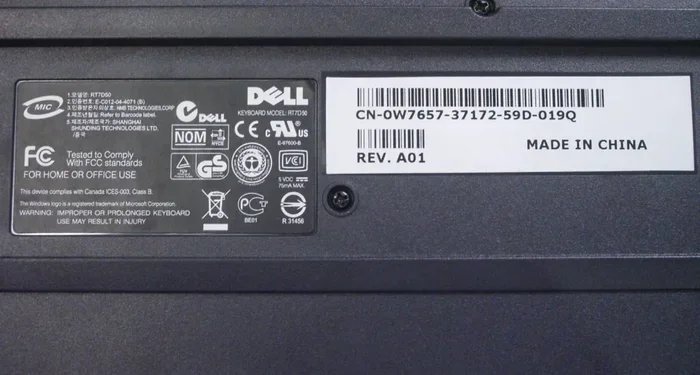
The fastest way to check your Dell laptop model is by looking at the service tag sticker. Dell places this sticker on the bottom of most laptops. It contains a seven-character alphanumeric code that uniquely identifies your device.
Flip your laptop over and look for a white or silver sticker. You will see several labels there, including the service tag, the express service code, and sometimes the serial number. The service tag is the most important one for identifying your Dell laptop model.
Once you find the service tag, you can enter it on the Dell support website. This will pull up your exact Dell laptop model, warranty status, and available drivers. It is the quickest method and requires no technical knowledge at all.
What If the Sticker Is Missing or Worn Off?
Sometimes the sticker on the bottom of your Dell laptop fades or peels off over time. This is common, especially if you have used your laptop for several years. Do not worry, you still have other options.
You can try cleaning the area gently with a damp cloth. Sometimes the text is still visible but hard to read. If the sticker is completely gone, move on to the next methods in this guide. Each method works independently, so you will find your Dell laptop model one way or another.
Method 2: Use Windows System Information
Access System Information on Your Dell Laptop
Windows has a built-in tool called System Information that displays detailed specs about your device. This tool can also show you how to check Dell laptop model information quickly.
Here is how to do it:
- Press the Windows key and the R key at the same time on your keyboard.
- Type “msinfo32” in the Run dialog box and press Enter.
- A new window will open with detailed system information.
- Look for the “System Model” field under the System Summary section.
- The number or code listed there is your Dell laptop model.
This method works on almost all Windows laptops, not just Dell devices. It is reliable and does not require an internet connection. Once you find your Dell laptop model, you can use it to search for drivers or compatible accessories.
What Information Does System Information Show?
System Information provides a lot more than just your Dell laptop model. You can see your processor type, installed RAM, BIOS version, and much more. This is helpful when you are troubleshooting issues or planning an upgrade.
For example, if you want to upgrade your memory, you can check how much RAM you currently have. Then you can visit our guide on how to check RAM of my laptop to see what upgrades are possible. Knowing your Dell laptop model and current specs helps you make smart decisions about upgrades.
Method 3: Use Command Prompt
Run a Simple Command to Find Your Dell Laptop Model
If you are comfortable using the command line, this method is incredibly fast. Command Prompt can reveal your Dell laptop model in just a few seconds.
Here is what you need to do:
- Click the Start menu and type “cmd” in the search bar.
- Click on Command Prompt to open it.
- Type “wmic csproduct get name” and press Enter.
- The screen will display your Dell laptop model name.
That is it. No need to navigate through menus or click through windows. One command and you have your Dell laptop model. This method is especially useful if you need to find the information quickly or if the sticker on your laptop is missing.
Another Useful Command
You can also try another command to get even more details. Type “wmic csproduct get name, vendor, version” in Command Prompt and press Enter. This will show you the model name, the manufacturer (Dell), and the version number.
These details are helpful when you are searching for specific drivers or checking compatibility with accessories. If you are planning to add more memory to your device, you can check our article on how to know what RAM is compatible with my laptop for guidance.
Method 4: Use Dell SupportAssist
Install and Run Dell SupportAssist
Dell SupportAssist is a free tool made by Dell that automatically detects your Dell laptop model and checks for issues. It is one of the easiest ways to identify your device and keep it running smoothly.
You can download Dell SupportAssist from the Dell website or from the Microsoft Store. Once installed, open the app and it will automatically display your Dell laptop model, service tag, and current specifications. It also scans your system for outdated drivers and suggests updates.
This tool is especially helpful for people who are not comfortable with manual methods. Dell SupportAssist does all the work for you. It is a great addition to your Dell laptop toolkit.
What Else Can Dell SupportAssist Do?
Beyond identifying your Dell laptop model, SupportAssist can run hardware diagnostics, check your battery health, and optimize system performance. It is a one-stop tool for maintaining your Dell device.
If SupportAssist detects any hardware issues, it can even help you schedule a service appointment with Dell. This is incredibly convenient if your laptop is still under warranty. You can also use the tool to check if your Dell laptop model qualifies for any current promotions or upgrades.
Method 5: Check the BIOS or UEFI Settings
Find Your Dell Laptop Model in the BIOS
Your Dell laptop BIOS contains detailed information about your device, including the model number. Accessing the BIOS is simple and works on every Dell laptop.
Here is how to do it:
- Restart your Dell laptop.
- Press the F2 key repeatedly as soon as the Dell logo appears on screen.
- You will enter the BIOS setup screen.
- Look for the “System Information” or “Main” tab.
- Your Dell laptop model name will be displayed there.
The BIOS method is useful because it works even if Windows is not starting properly. If your laptop has software issues and you need to find the model number, the BIOS is a reliable fallback option.
What Information Else Can You Find in the BIOS?
The BIOS also shows your BIOS version, processor details, and installed memory. This information is helpful when troubleshooting compatibility issues or planning hardware upgrades. For instance, if you want to check what type of RAM your Dell laptop uses, the BIOS can confirm the current memory specifications before you purchase new modules.
Once you know your Dell laptop model, you can explore upgrade options with confidence. If you are considering adding more RAM, check out our guide on how to upgrade my laptop RAM for a step-by-step walkthrough.
Method 6: Check the Dell Quick Start Guide or Original Box
Use Your Original Documentation
If you still have the original box or the quick start guide that came with your Dell laptop, you can find the model information there. Dell prints the model name and number clearly on the packaging and in the documentation.
Look for a label on the box that says “Model” or “Product Name.” The quick start guide usually has a summary page with the Dell laptop model, serial number, and key specifications. This is a great option if you bought your laptop secondhand and the sticker is gone.
While this method is not as convenient as the digital options, it works well as a backup. Keep your original packaging for at least a few months after purchasing a new laptop. You never know when you might need to reference the Dell laptop model number.
What to Do After Finding Your Dell Laptop Model
Now that you know how to find your Dell laptop model, you might be wondering what to do next. Here are some practical steps you can take with this information.
First, visit the Dell support website and enter your service tag or model number. You will find the latest drivers, firmware updates, and user manuals for your specific device. Keeping your drivers up to date improves performance and fixes security vulnerabilities.
Second, check your warranty status on the Dell website. Enter your service tag to see if your Dell laptop is still covered under warranty. This is important before you pay for any repairs or service visits.
Third, research compatible upgrades. Knowing your exact Dell laptop model helps you find the right RAM modules, storage drives, and accessories. If you are unsure about compatibility, our guide on how to check RAM of my laptop can help you verify what your system supports.
Finally, join Dell online communities or forums. When you share your Dell laptop model in these communities, other users can give you specific advice and tips tailored to your device. This is a great way to get the most out of your laptop.
Common Mistakes to Avoid
When checking your Dell laptop model, there are a few common mistakes that people make. Avoiding these will save you time and frustration.
- Confusing the model name with the service tag: The service tag and the model name are different. The service tag is a seven-character code, while the model name includes words like “Inspiron,” “XPS,” or “Latitude.”
- Ignoring the version number: Some Dell laptop models have different versions or revisions. Make sure you note the full model identifier, not just the base name.
- Using an outdated model number: Dell releases updated versions of the same model. Always check the exact specifications for your specific unit.
- Relying only on one method: If one method does not work, try another. Having multiple ways to check your Dell laptop model ensures you always find the information you need.
Expert Tips for Managing Your Dell Laptop
Once you know your Dell laptop model, you can take better care of your device. Here are some expert tips that go beyond just finding the model number.
Keep a record of your Dell laptop model and service tag in a safe place. You can save it in a note on your phone, store it in a cloud document, or even take a photo of the sticker on the bottom of your laptop. This makes it easy to reference the information whenever you need it.
Set a reminder to check for driver updates every few months. Dell releases regular updates that improve performance and fix bugs. You can also enable automatic updates through Dell SupportAssist to stay current without thinking about it.
Another great tip is to register your Dell laptop on the Dell website. This creates a record of your purchase and makes warranty claims smoother. It also gives you access to exclusive Dell offers and support resources tailored to your Dell laptop model.
Final Thoughts
Checking your Dell laptop model does not have to be complicated. Whether you use the service tag sticker, Windows System Information, Command Prompt, Dell SupportAssist, or the BIOS, you can find your model in just a few minutes. Each method has its own advantages, so pick the one that works best for your situation.
Once you know your Dell laptop model, you unlock a world of possibilities. You can get the right support, find compatible parts, check your warranty, and keep your device running at its best. Take a few minutes today to check your Dell laptop model using the methods in this guide. You will be glad you did.
Remember, your Dell laptop model is the key to everything from driver updates to hardware upgrades. Keep this information handy and you will always be prepared. Happy computing.
Frequently Asked Questions
What is the fastest way to check my Dell laptop model?
The fastest way is to look at the service tag sticker on the bottom of your Dell laptop. You can also enter the service tag on the Dell support website to instantly find your Dell laptop model and warranty details. If the sticker is missing, using Command Prompt with the “wmic csproduct get name” command takes just seconds.
Can I check my Dell laptop model without turning it on?
Yes, you can check the sticker on the bottom of your Dell laptop without turning it on. The service tag and model number are printed there. You can also check the original box or the quick start guide if you still have them. These physical methods work regardless of whether the laptop is powered on.
What is the difference between a Dell model name and a service tag?
The Dell model name is the product name like “Inspiron 15 3520” or “XPS 13 9310.” The service tag is a unique seven-character alphanumeric code assigned to your specific device. The model name tells you the general product line, while the service tag identifies your exact unit for warranty and support purposes.
Will checking my Dell laptop model void my warranty?
No, checking your Dell laptop model will not void your warranty in any way. All the methods in this guide are safe and non-invasive. You are simply reading information that Dell already stores on your device. In fact, knowing your model helps you get better warranty support when you need it.
How do I find drivers for my Dell laptop model?
Once you know your Dell laptop model, visit the Dell support website and enter your service tag or model number. Dell will display all available drivers and downloads for your specific device. You can also use Dell SupportAssist, which automatically detects your Dell laptop model and finds the right drivers for you.
What if my Dell laptop model is not recognized on the Dell website?
If your Dell laptop model is not recognized, double-check that you entered the service tag or model number correctly. Make sure there are no spaces or extra characters. If the issue persists, contact Dell support directly with your service tag. They can look up your Dell laptop model manually and help you resolve any issues.
=== CONCLUSION ===
Now you know every way to check your Dell laptop model. From the simple service tag sticker to the Command Prompt trick, you have multiple reliable methods at your fingertips. Each approach works great, so pick the one that feels most comfortable for you.
Take a moment right now to check your Dell laptop model using one of these methods. Write it down and save it somewhere safe. This small step will save you time and headaches whenever you need support, upgrades, or drivers for your device.