Laptop Virus Keyboard Not Working

A laptop virus can cause your keyboard to stop working suddenly and without warning. This is a common problem that frustrates many users, but it is usually fixable with the right steps. In this guide, you will learn how to identify if a virus is behind your keyboard issues, remove the malware safely, and restore your keyboard to full working order. We also share expert tips to prevent future infections and keep your laptop secure.
Your fingers hit the keys, but nothing happens on screen. You try again. Nothing. A laptop virus keyboard not working situation can be scary, but you are not alone. This is one of the most common issues users face after their laptop gets infected with malware. The good news is that in most cases, you can fix it yourself at home without spending a dime.
Whether your keys stopped responding right after a suspicious download or your keyboard started acting weird days ago, this guide will walk you through every fix. We will cover how viruses affect your keyboard, how to remove the threat, and how to get your typing back to normal. Let us dive in.
Key Takeaways
- Viruses can directly target keyboard drivers and cause keys to stop responding or behave erratically.
- Running a full antivirus scan is the first and most important step to fix a virus-related keyboard problem.
- Updating keyboard drivers after removing the virus often restores normal function quickly.
- Using an external USB keyboard is a smart temporary workaround while you troubleshoot.
- Prevention is key — keeping your antivirus updated and avoiding suspicious downloads stops future problems.
📑 Table of Contents
How a Virus Causes Keyboard Problems
Malware is not just about stealing data. Some viruses are designed to mess with your hardware drivers, including the one that controls your keyboard. When a virus infects your laptop, it can tamper with system files, corrupt drivers, or even block input devices on purpose.
Common Ways Viruses Attack Your Keyboard
- Driver corruption: The virus deletes or damages the keyboard driver, so Windows cannot recognize the device.
- Key remapping: Some malware changes what each key does, making typing confusing and unusable.
- Complete lockout: In severe cases, the virus disables the keyboard entirely to prevent you from running security tools.
- Registry tampering: The virus alters Windows registry entries that control input devices.
- USB denial: Certain viruses block all USB devices, which affects external keyboards too.
Understanding how the virus works helps you choose the right fix. If your keyboard stopped working after virus infection, you are likely dealing with one of these scenarios. The fix is almost always possible, but you need to act quickly.
Sometimes a laptop keyboard and mouse stopped working together after a virus attack. This happens because the malware targets the entire input system. If both your keyboard and mouse are affected, the infection is likely more aggressive, but still treatable.
Signs Your Keyboard Issue Is Caused by a Virus
Not every keyboard problem comes from a virus. Hardware failure, driver updates, or accidental key locks can also cause issues. Here is how to tell if a virus is the real culprit.
Red Flags That Point to Malware
- Your keyboard worked fine yesterday but suddenly stopped today with no physical damage.
- You recently downloaded a file from an untrusted source or clicked a suspicious link.
- Other strange behavior started around the same time, like slow performance or pop-up ads.
- Your antivirus software was disabled or stopped updating on its own.
- Keys produce random characters or the wrong letters appear when you type.
- Your laptop keyboard mouse not working at the same time with no clear hardware cause.
If several of these signs match your situation, a virus is very likely the cause. Do not panic. Move on to the next section where we walk you through the fix step by step.
How to Fix a Laptop Virus Keyboard Not Working
Now for the part you have been waiting for — fixing the problem. Follow these steps in order. Each one addresses a different part of the issue.
Step 1: Boot Your Laptop in Safe Mode
Safe Mode starts Windows with only the most essential drivers and services. This stops most viruses from running, which makes it safer to work on your laptop. To enter Safe Mode on Windows 10 or 11:
- Hold down the Shift key and click Restart.
- Go to Troubleshoot > Advanced Options > Startup Settings.
- Click Restart and press F4 or F5 to enter Safe Mode.
Once you are in Safe Mode, your keyboard should work even if the virus was blocking it. This gives you a safe environment to run scans and make changes.
Step 2: Run a Full Antivirus Scan
If you already have antivirus software, run a full system scan. Do not just do a quick scan — a full scan checks every file on your hard drive. If you do not have antivirus installed, Windows Defender comes built into Windows 10 and 11 and works well for most threats.
After the scan finishes, remove or quarantine every threat it finds. Restart your laptop normally and test your keyboard. In many cases, this alone solves the problem.
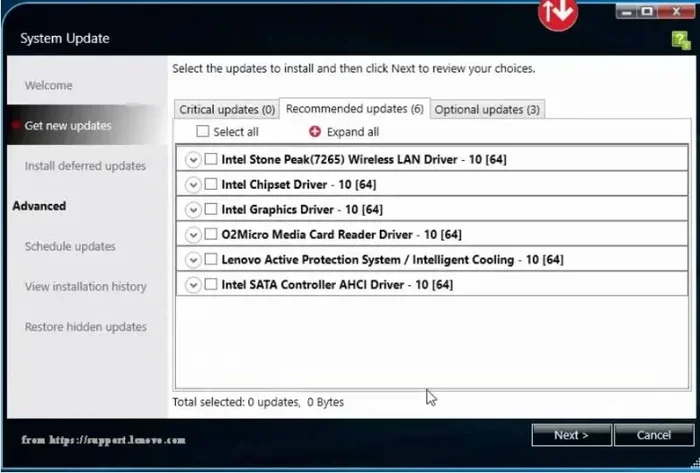
Step 3: Update or Reinstall Keyboard Drivers
Even after removing the virus, the keyboard driver may still be damaged. Here is how to fix it:
- Right-click the Start button and select Device Manager.
- Expand the Keyboards section.
- Right-click your keyboard and select Update Driver.
- Choose Search automatically for drivers.
If updating does not work, uninstall the driver completely. Restart your laptop, and Windows will automatically reinstall a fresh driver. This often resolves lingering issues caused by malware.
Step 4: Use System Restore
If the keyboard problem started recently, System Restore can roll your laptop back to a time before the infection. This undoes changes the virus made without touching your personal files.
- Search for “Create a restore point” in the Windows search bar.
- Click System Restore and follow the prompts.
- Choose a restore point from before the keyboard stopped working.
System Restore is a powerful tool. It can reverse registry changes, restore deleted drivers, and undo many other virus-related damages.
Step 5: Check for Registry Damage
Advanced users can open the Registry Editor and look for suspicious entries. However, editing the registry is risky. Only do this if you are comfortable, and always back up the registry first. Look for unfamiliar keys under HKEY_LOCAL_MACHINE\SYSTEM\CurrentControlSet\Services\i8042prt, which controls the keyboard port driver.
Temporary Workarounds While You Fix the Problem
Waiting for your keyboard to be fixed can be frustrating, especially if you need to use your laptop right now. Here are some quick workarounds that actually help.
Use an External USB Keyboard
Plug in a USB keyboard and your typing needs are met immediately. This works even if your internal keyboard is completely dead. A basic wired keyboard costs very little and is a great emergency solution.
Some viruses block USB input devices, so if a USB keyboard also fails, that is a sign the malware is more aggressive. In that case, focus on removing the virus first before trying external devices.
Use On-Screen Keyboard
Windows has a built-in on-screen keyboard you can use with your mouse. To find it:
- Search for “On-Screen Keyboard” in the Windows search bar.
- Click the app to launch it.
- Click each key with your mouse to type.
This is slower than a real keyboard, but it gets the job done when you need to type commands or run scans.
Try Voice Typing
Windows 10 and 11 have a built-in voice typing feature. Press Win + H to open it, and start speaking. Your words will appear on screen. This is a surprisingly useful trick when your keyboard is not working.
How to Prevent Future Virus Attacks on Your Keyboard
Fixing the problem is only half the battle. Preventing it from happening again is equally important. A few simple habits can keep your laptop safe and your keyboard working.
Keep Your Antivirus Updated
Make sure your antivirus software always has the latest virus definitions. Set it to update automatically and run weekly full scans. Windows Defender does this well if you leave the default settings in place.
Avoid Suspicious Downloads
Do not download software from unofficial websites. Stick to trusted sources like the Microsoft Store or the official websites of the software you need. If a pop-up tells you to download something urgently, close it — it is almost always a scam.
Enable Firewall Protection
Your Windows Firewall blocks unauthorized access to your laptop. Make sure it is always turned on. You can check this in Settings > Privacy & Security > Windows Security > Firewall & network protection.
Keep Windows Updated
Windows updates patch security holes that viruses use to get in. Set your system to install updates automatically. This small habit goes a long way in protecting your laptop from all types of malware, not just keyboard-targeting viruses.
Be Careful with Email Attachments
Many viruses arrive through email attachments disguised as invoices, receipts, or important documents. If you do not expect an attachment from someone, do not open it. When in doubt, contact the sender through a different channel to confirm.
When to Seek Professional Help
Most virus-related keyboard problems can be fixed at home. But some situations need professional attention. If you have tried every step above and your keyboard still does not work, it is time to consult an expert.
Also seek help if your laptop keyboard and mouse not working persists even after a clean antivirus scan and driver reinstall. The virus may have caused deeper system damage that requires advanced repair. A professional technician can diagnose hardware-level issues that software fixes cannot reach.
Do not keep using a laptop that you suspect is infected. The longer a virus stays on your system, the more damage it can do. Remove it quickly and safely, or let a professional handle it.
Conclusion
A laptop virus keyboard not working problem is stressful, but it is almost always solvable. The key is to stay calm, follow the steps in the right order, and act quickly. Start with Safe Mode and a full antivirus scan, then move on to driver updates and System Restore if needed. Use temporary workarounds like an external keyboard or on-screen typing to keep working while you fix the issue.
Prevention is your best long-term strategy. Keep your antivirus updated, avoid suspicious downloads, and always install Windows updates on time. These habits protect your keyboard, your data, and your entire laptop from future virus attacks.
Remember, you are not helpless against malware. With the right knowledge and tools, you can tackle this problem head-on and get back to typing normally in no time.
Frequently Asked Questions
Can a virus really disable my laptop keyboard?
Yes, certain types of malware are specifically designed to target input devices like keyboards. They can corrupt drivers, block USB ports, or even lock your keyboard entirely to prevent you from running security software. This is a well-documented behavior of aggressive viruses and ransomware.
How do I know if my keyboard stopped working because of a virus or a hardware problem?
If your keyboard worked fine before and suddenly stopped after a suspicious download or pop-up, a virus is likely the cause. Hardware problems usually come with physical signs like water damage, loose connections, or keys that feel physically stuck. Try the Safe Mode test — if the keyboard works in Safe Mode but not normally, malware is probably to blame.
Will removing the virus fix my keyboard permanently?
In most cases, yes. Once you remove the virus and reinstall the keyboard drivers, normal function returns. However, if the virus caused deep registry damage or corrupted system files, you may need System Restore or professional repair to fully fix the issue.
Can I use my laptop without a keyboard while I fix the problem?
Absolutely. You can connect an external USB keyboard, use the Windows on-screen keyboard, or use voice typing with Win + H. These workarounds let you continue working while you run scans and apply fixes to your laptop.
What antivirus software is best for fixing keyboard issues caused by malware?
Windows Defender is a solid built-in option that handles most threats effectively. Third-party options like Malwarebytes, Norton, and Bitdefender also work well. The most important thing is to run a full scan, not just a quick one, so the software catches deeply hidden threats.
How can I prevent my keyboard from being affected by viruses in the future?
Keep your antivirus and Windows always updated, avoid downloading files from untrusted sources, do not open unexpected email attachments, and enable your firewall. Regular full system scans also catch threats early before they can cause keyboard or other hardware problems.