
How to Choose Parts for a Computer Build
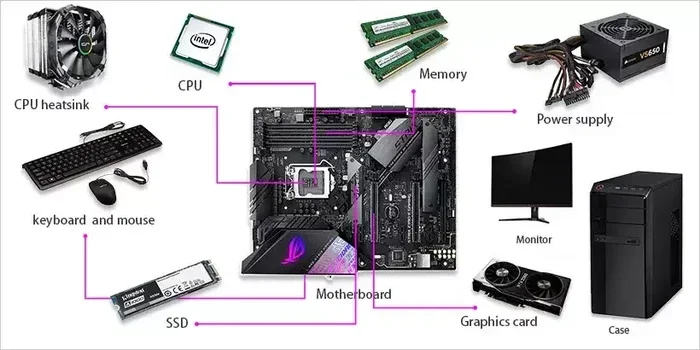
Choosing the right parts for a computer build doesn’t have to be overwhelming. This guide walks you through every major component, from the processor to the power supply, so you can build a system that fits your needs and budget. You’ll learn how to match each part for the best performance and compatibility.
Building a computer from scratch is one of the most rewarding things you can do. Whether you want a machine for gaming, work, or everyday tasks, picking the right parts makes all the difference. But with so many options out there, it’s easy to feel lost.
This guide breaks down every major component you need to choose. We’ll go step by step so you can choose parts for a computer build with confidence. By the end, you’ll know exactly what to buy and why.
Let’s start with the most important question: what do you actually need this computer to do? Your answer shapes every decision that follows.
Key Takeaways
- Start with your use case: Gaming, office work, or content creation each demand different parts.
- The CPU and motherboard must match: Check the socket type before buying anything.
- RAM and storage work together: Pick the right amount of memory and the best drive type for your workflow.
- Don’t forget the power supply: A weak PSU can ruin your entire build.
- Budget wisely: Splurge on the parts that matter most for your tasks and save where you can.
- Compatibility is king: Always double-check that every component works with the others before purchasing.
📑 Table of Contents
Start With Your Use Case and Budget
Before you look at any component, figure out what the computer is for. A gaming rig needs different parts than a machine for office work or video editing. Your use case sets the tone for the entire build.
Gaming Builds
Gaming PCs need a strong processor, a dedicated graphics card, and plenty of RAM. You also want fast storage so your games load quickly. A solid computer components list for gaming always starts with the GPU.
Office and Productivity Builds
If you’re mostly browsing the web, writing documents, and sending emails, you don’t need a pricey graphics card. A decent processor, 8 to 16GB of RAM, and a fast SSD are all you need. These builds are much cheaper and still run smoothly.
Content Creation and Workstation Builds
Video editing, 3D rendering, and music production demand powerful CPUs and lots of RAM. Many creators also benefit from large storage drives and professional-grade graphics cards. Think of this as a PC parts list built for heavy lifting.
Setting a Realistic Budget
Once you know your use case, set a budget. A basic build can run under $500. A mid-range system might cost $800 to $1,200. High-end rigs can go well above $2,000. Your budget helps you decide where to spend more and where to cut costs.
Choosing the Right Processor
The CPU is the brain of your computer. It handles every task you throw at the system, so picking the right one matters a lot. When you build a computer, the processor is the first component you should choose.
Intel vs. AMD
Both Intel and AMD make excellent processors. Intel chips tend to lead in single-core performance, which helps in gaming and everyday tasks. AMD processors often offer more cores at a lower price, making them great for multitasking and content creation.
Understanding Core Counts and Clock Speeds
More cores help with multitasking and heavy workloads. Higher clock speeds mean faster single-thread performance. For most users, a processor with 6 to 8 cores hits the sweet spot. Power users and gamers may want 12 cores or more.
Socket Compatibility
This is where many beginners make mistakes. Your CPU must match the socket on your motherboard. An Intel processor won’t work in an AMD motherboard slot, and vice versa. Always check the motherboard compatibility before you buy anything.
Selecting the Motherboard
The motherboard connects all your parts. It determines what type of processor you can use, how much RAM you can install, and what expansion slots are available. Think of it as the foundation of your system build.
Form Factor Matters
Motherboards come in different sizes called form factors. ATX is the standard full-size board. Micro-ATX and Mini-ITX are smaller and fit in compact cases. Choose a size that matches your case and gives you the features you need.
Expansion Slots and Ports
Look for the number of PCIe slots, USB ports, and M.2 slots. If you plan to add a dedicated graphics card, you need at least one PCIe x16 slot. More USB ports mean more room for peripherals. M.2 slots let you install fast NVMe SSDs directly on the board.
Chipset Considerations
The chipset controls the features of your motherboard. Higher-end chipsets offer more USB ports, better overclocking support, and faster memory compatibility. For most builds, a mid-range chipset gives you everything you need without overspending.
Picking RAM and Storage
Memory and storage are two parts that work closely together. RAM handles your active tasks, while storage holds your files and programs. Getting both right makes your computer feel fast and responsive.
How Much RAM Do You Need?
For everyday tasks, 8GB of RAM works fine. Gaming and light content creation usually need 16GB. Heavy workloads like video editing or 3D modeling benefit from 32GB or more. If you’re unsure, check out this guide on how much RAM do you need for a laptop to understand the basics of memory requirements.
DDR4 vs. DDR5
DDR5 is the newer standard and offers faster speeds. However, DDR4 is still widely available and much cheaper. For most builds today, DDR4 provides excellent value. If you’re building a long-term system, DDR5 is worth the investment.
Storage: SSD vs. HDD
Solid-state drives (SSDs) are much faster than hard disk drives (HDDs). An SSD loads programs and games in seconds. HDDs are slower but offer more storage for less money. The best approach is to use an SSD for your operating system and programs, and an HDD for mass storage if needed.
Adding More Storage Later
Most modern motherboards support multiple drives. You can always add a second SSD down the road. If you want to learn how to add another drive later, check out this guide on how to install a second NVMe M.2 SSD for a step-by-step walkthrough.
Graphics Card and Power Supply
The graphics card and power supply are two parts that can make or break your build. Don’t overlook either one.
Choosing a Graphics Card
Your GPU handles everything visual. For gaming, you want a dedicated card from NVIDIA or AMD. For office work, integrated graphics on your processor may be enough. Match your GPU to your monitor’s resolution and the types of games or apps you use.
Why the Power Supply Matters
A weak or cheap power supply can damage your components. Always buy a PSU with enough wattage for your parts. Look for units from reputable brands with an 80 Plus rating. A reliable power supply unit keeps your build safe and stable.
Calculating Your Power Needs
Add up the power requirements of your CPU, GPU, RAM, and drives. Then add a 20 percent buffer for safety. Online PSU calculators can help with this. It’s better to have a little extra power than not enough.
Cooling and Case Selection
Your computer needs to stay cool to perform well and last a long time. Cooling and case choice often get overlooked, but they matter a lot.
Air Cooling vs. Liquid Cooling
Air coolers are affordable and reliable. They work well for most builds. Liquid cooling looks great and handles heavy heat, but it costs more and can be more complex to install. For a first build, a good air cooler is usually the smart choice.
Case Size and airflow
Your case needs to fit your motherboard and have good airflow. Look for cases with multiple fans and mesh panels. A well-ventilated case keeps temperatures down and extends the life of your parts.
Checking Compatibility Before You Buy
This is the most important step in the entire process. Incompatible parts will waste your money and your time. Always double-check every connection between components.
Use Compatibility Tools
Many websites and tools let you build a parts list and check for conflicts. PCPartPicker is a popular free option. It alerts you if any parts won’t work together. This saves you from costly mistakes.
Common Compatibility Issues to Watch For
- CPU and socket mismatch: Always verify the processor fits the motherboard socket.
- RAM and motherboard support: Check if the board supports your RAM type and speed.
- GPU and case size: Make sure your graphics card fits inside the case.
- PSU wattage: Confirm your power supply can handle all components.
- Cooler and case clearance: Tall coolers may not fit in smaller cases.
What to Do If Something Goes Wrong
Even with careful planning, issues can happen. If your computer runs slowly or freezes after building, don’t panic. There are simple steps you can take to fix common problems. Check out this guide on how to fix computer running slow and freezing to troubleshoot issues quickly and get your build running smoothly.
Putting It All Together
Now that you know what each part does and how they work together, it’s time to make your final choices. Start with a shortlist of parts that fit your budget and use case. Check every piece of compatibility. Then place your order and start building.
Remember, you don’t need the most expensive parts to build a great computer. A well-balanced system with compatible, quality components will serve you well for years. Focus on the parts that matter most for your tasks, and save money where you can.
If you’re new to this, take your time. Read reviews. Watch build videos. Ask questions in forums. The more you learn before you start, the smoother the process will be. Soon enough, you’ll have a computer you built yourself, running exactly the way you want it.
Building a PC is a skill that pays off every single time you turn it on. Enjoy the process, and happy building.
Frequently Asked Questions
What are the most important parts to prioritize in a computer build?
The CPU, motherboard, and GPU matter the most for performance. Start with these three and build around them. Add RAM, storage, and a PSU that match their requirements.
How much does it cost to build a basic computer?
A functional basic build can cost between $400 and $600. This covers a decent processor, 8GB of RAM, a 256GB SSD, and a basic case with PSU. You can spend more as your needs grow.
Can I upgrade parts later after the initial build?
Yes, most builds are designed for future upgrades. You can add more RAM, swap in a bigger storage drive, or upgrade the graphics card later. Just make sure your motherboard supports the new parts.
Do I need an expensive power supply?
Not necessarily, but you do need a reliable one. A quality 550W to 750W PSU from a reputable brand handles most mid-range builds. Avoid cheap, no-name power supplies that could damage your components.
How do I know if my RAM and motherboard are compatible?
Check the motherboard manual for supported RAM types and speeds. Make sure the DDR generation matches (DDR4 or DDR5). Also confirm the maximum RAM capacity your board supports.
Should I buy parts from the same brand?
No, mixing brands is perfectly fine and often beneficial. The key is compatibility, not brand matching. Focus on specs and socket types rather than brand loyalty when you choose parts for a computer build.
=== CONCLUSION ===
Choosing parts for a computer build is easier than it looks. Start with your needs and budget, then pick each component one at a time. The CPU sets the foundation, the motherboard ties everything together, and the GPU handles the heavy visual work. RAM and storage keep your system fast, while the PSU and cooling keep it safe.
Always check compatibility before you buy. Use tools, read specs, and don’t rush. A well-planned build gives you a computer that runs exactly how you want it. Follow this guide, take your time, and enjoy the satisfaction of building something with your own hands.