How to Upgrade a Laptop Ram
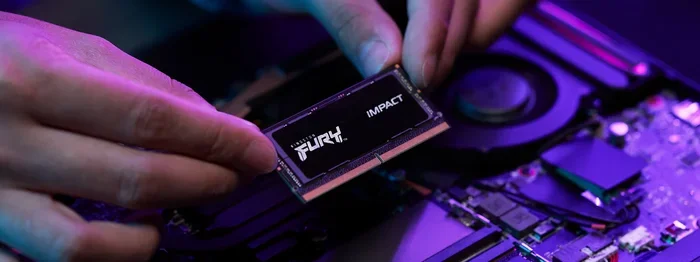
Upgrading your laptop ram is one of the easiest and most affordable ways to make your computer faster. Whether you want to run more apps at once or speed up heavy tasks, adding memory can transform your experience. This guide walks you through everything from checking compatibility to installing new modules.
Is your laptop running slow? Do you find yourself waiting forever for apps to open or tabs to load? You are not alone. Many laptop users face this frustrating problem every day. The good news is that you do not need to buy a brand new computer. A simple how to upgrade a laptop ram process can breathe new life into your machine. In this guide, we will walk you through every single step. You will learn how to check your current memory, find compatible parts, and install them safely. By the end, you will feel confident enough to do it yourself. Let us get started.
RAM stands for Random Access Memory. Think of it as your laptop’s short-term memory. When you open a program or browse a website, your laptop uses RAM to handle the task. The more RAM you have, the more things your laptop can do at the same time. Over time, software gets heavier and demands more memory. What worked fine two years ago might struggle today. Upgrading your RAM is one of the best ways to keep up. It is cheap, fast, and incredibly effective.
Key Takeaways
- Boost Performance: Upgrading your laptop ram helps your system run faster and handle more tasks at once.
- Easy Process: Most laptop ram upgrades are simple and can be done at home in under 30 minutes.
- Check Compatibility First: Not all RAM works with every laptop. Always verify your laptop model and RAM type before buying.
- Save Money: A ram upgrade costs far less than buying a new laptop yet delivers noticeable speed gains.
- Right Tools Matter: A basic screwdriver and anti-static wrist strap are all you need to get started.
📑 Table of Contents
- Why Upgrading Your Laptop RAM Matters
- Understanding Laptop RAM Types
- How to Check Your Current RAM
- How to Choose the Right RAM for Your Laptop
- Tools You Need for the Upgrade
- Step-by-Step Guide to Installing Laptop RAM
- Common Mistakes to Avoid When Upgrading RAM
- Expert Tips to Maximize Your RAM Upgrade
- Conclusion
Why Upgrading Your Laptop RAM Matters
Many people ignore their laptop’s memory until things get really slow. But waiting too long can hurt your productivity. Here is why upgrading your RAM should be on your to-do list. First, more RAM means smoother multitasking. You can have dozens of browser tabs open without any lag. Second, it helps with demanding tasks like video editing or gaming. Third, an upgrade is much cheaper than replacing your entire laptop. A new memory module can cost as little as twenty to fifty dollars. That is a tiny investment for a big speed boost.
Another reason to upgrade is longevity. Technology changes fast. Software updates keep making apps heavier. A laptop that felt fast when you bought it can start to drag within a few years. Rather than replacing it, a laptop memory upgrade can extend its life by years. You also get a better experience when working from home or studying online. Everything feels snappier and more responsive. It really is one of the simplest upgrades you can make.
Signs Your Laptop Needs More RAM
How do you know it is time to upgrade? Look for these common signs. Your laptop takes a long time to start up. Apps freeze or crash frequently. Your browser slows down with multiple tabs open. You hear the fan running loudly even during simple tasks. Your system uses swap memory or virtual memory constantly, which is a red flag. If you notice any of these, your RAM might be holding you back.
Before you buy anything, you should check your laptop RAM first. Knowing what you currently have helps you decide how much more you need. Most modern laptops come with 4GB to 8GB of RAM. For everyday use, 8GB is the minimum. For gaming or creative work, 16GB or more is better. Once you know your current setup, you can plan your upgrade.
Understanding Laptop RAM Types
Not all RAM is the same. Different laptops use different types of memory modules. Understanding the basics helps you buy the right part. Let us break down the most common types you will encounter.
DDR3 vs DDR4 vs DDR5
RAM generations matter a lot. DDR3 is an older standard found in laptops from around 2007 to 2014. It is slower but still works for basic tasks. DDR4 is the current standard for most modern laptops. It offers better speed and efficiency. DDR5 is the newest generation, but it is still rare in laptops. When you are looking to upgrade laptop RAM, DDR4 is the most common option you will find.
SODIMM Modules Explained
Laptops use a special type of RAM module called SODIMM. It is much smaller than the RAM sticks used in desktop computers. SODIMM stands for Small Outline Dual In-Line Memory Module. They come in different speeds and capacities. A typical SODIMM module ranges from 4GB to 32GB. Always check your laptop manual to confirm the SODIMM type it supports.
RAM Speed and Frequency
RAM speed is measured in megahertz or MHz. Common speeds include 2400MHz, 2666MHz, 3200MHz, and 3600MHz. Higher numbers mean faster data transfer. But there is a catch. Your laptop motherboard can only support certain speeds. Installing a faster module will not make it run faster than what your laptop supports. Always match the speed to your laptop’s specifications.
How to Check Your Current RAM
Before you upgrade, you need to know what you are working with. Checking your current RAM is quick and easy. You do not need any special software either. Here is how to do it on different operating systems.
Checking RAM on Windows
On Windows, press the Ctrl + Shift + Esc keys to open Task Manager. Click on the Performance tab. Then select Memory from the left side. You will see your total RAM, speed, and how many slots are in use. This information is very helpful when shopping for new modules. You can also search “about your PC” in the Start menu for a quick overview.
Checking RAM on macOS
Mac users have it even simpler. Click the Apple logo in the top left corner. Select About This Mac. A window will pop up showing your total memory. It also displays the memory type and speed. If your Mac is older, it might have soldered RAM that cannot be upgraded. Check compatibility before spending any money.
How to Choose the Right RAM for Your Laptop
Now comes the fun part. Choosing the right RAM for your laptop. There are a few things to keep in mind so you do not waste your money. Let us walk through the key factors.
Check Your Laptop Model and Specifications
Every laptop has specific RAM requirements. Your model number determines what type of RAM it takes. Look up your laptop brand and model online. The manufacturer’s website will list the supported RAM type, speed, and maximum capacity. You can also use built-in tools to find this information. If you own an HP laptop, you can refer to a guide on how to upgrade RAM on HP laptop for model-specific tips.
Determine How Much RAM You Need
Your usage determines how much RAM you should get. Here is a quick breakdown. 4GB is enough for basic web browsing and word processing. 8GB handles everyday tasks and light multitasking well. 16GB is ideal for gaming, photo editing, and video work. 32GB or more is for professionals running heavy software. Most users will see a big difference just by going from 4GB to 8GB or 8GB to 16GB.
Buy from Trusted Brands
When shopping for RAM, stick with trusted brands. Kingston, Corsair, Crucial, and Samsung are reliable choices. Avoid no-name brands that might not work properly. Check reviews before you buy. A quality memory module will last for years without problems. It is worth spending a little extra for peace of mind.
Tools You Need for the Upgrade
The good news is that upgrading RAM does not require expensive tools. You probably already have everything you need at home. Here is a simple list of what to gather before you start.
- Small Phillips-head screwdriver: Most laptops use tiny Phillips screws. A magnetic tip is very helpful.
- Anti-static wrist strap: This protects your laptop from static electricity damage. It is cheap and easy to use.
- A clean, flat workspace: Use a table with good lighting. Avoid carpets because they create static.
- A soft cloth or mat: Place your laptop on a soft surface to prevent scratches.
- Your new RAM module: Make sure it matches your laptop specifications exactly.
Having everything ready before you start makes the process smooth. You do not want to pause halfway through looking for a screwdriver. Preparation is half the battle.
Step-by-Step Guide to Installing Laptop RAM
Now let us get to the hands-on part. Installing RAM in a laptop is straightforward. Follow these steps carefully and you will be done in no time. If you want a more detailed walkthrough, you can also check out our guide on how to install RAM into a laptop for additional tips.
Step 1: Power Off and Unplug Your Laptop
Turn off your laptop completely. Do not just put it to sleep. Unplug the power cable and disconnect any peripherals. Remove USB drives, external hard drives, and headphones. This ensures your safety and protects your laptop from electrical damage.
Step 2: Remove the Battery (If Possible)
Some laptops have removable batteries. If yours does, take it out carefully. This adds an extra layer of safety. If your battery is built-in, do not worry. Just make sure the laptop is fully powered off and unplugged. You can also hold down the power button for ten seconds to discharge any remaining electricity.
Step 3: Locate the RAM Compartment
Flip your laptop over and look for a small panel on the bottom. It is usually labeled “Memory” or “RAM.” It may have a small icon of a memory chip. Use your screwdriver to remove the screws holding the panel in place. Keep the screws somewhere safe. Gently lift the panel off to reveal the RAM slots inside.
Step 4: Remove the Old RAM (If Necessary)
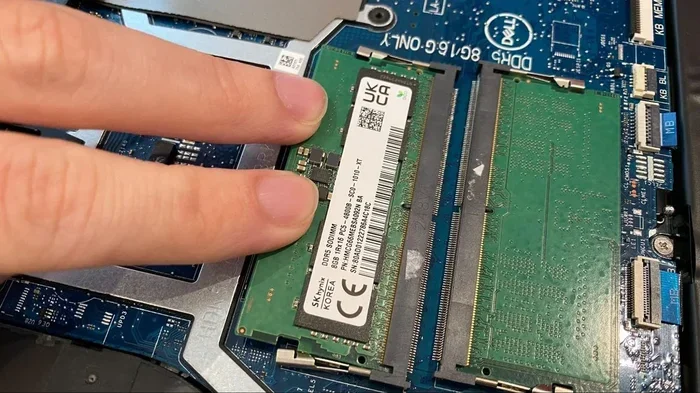
If your laptop already has RAM installed and you want to replace it, you need to remove the old modules first. Look for small metal clips on either side of the RAM stick. Gently push the clips outward. The RAM module will pop up at an angle. Carefully pull it straight out. Do not force it. Place the old module aside safely.
Step 5: Insert the New RAM Module
Take your new RAM module out of its anti-static bag. Align the notch on the bottom of the module with the ridge in the RAM slot. Insert the module at a 30 to 45 degree angle. Push it down firmly until the metal clips on both sides click into place. You should hear a satisfying click. This means the module is seated correctly.
Step 6: Replace the Panel and Power On
Put the bottom panel back on and screw it in securely. Reinsert the battery if you removed it. Plug in your power cable and turn on the laptop. Your system should recognize the new RAM automatically. You can verify this by checking your system information again. If everything looks good, you are all set.
Common Mistakes to Avoid When Upgrading RAM
Even though upgrading RAM is simple, mistakes can happen. Here are some common errors to watch out for. First, buying the wrong type of RAM is the biggest mistake. Always double-check your laptop specifications before purchasing. Second, touching the gold contacts on the RAM module can damage it. Hold the module by the edges only. Third, forcing the RAM into the slot can bend the pins. If it does not slide in easily, check the alignment and try again.
Another mistake is forgetting to ground yourself. Static electricity can silently damage your laptop’s components. Wearing an anti-static wrist strap or touching a metal surface before handling RAM helps prevent this. Also, do not mix different RAM speeds or brands unless absolutely necessary. Matching your modules ensures the best performance and stability.
If you run into any issues after the upgrade, do not panic. Try reseating the RAM module. Sometimes it just needs a little push. You can also run a memory diagnostic tool on Windows to check for errors. Most problems are easy to fix with a little patience.
Expert Tips to Maximize Your RAM Upgrade
Want to get the most out of your new RAM? Here are some expert tips that make a real difference. First, close any unnecessary programs running in the background. This frees up memory for the apps you actually use. Second, disable startup programs that you do not need. Many apps launch automatically and eat up RAM even when you are not using them. Third, consider upgrading your storage drive to an SSD if you have not already. An SSD combined with more RAM creates a massive speed improvement.
You can also adjust your virtual memory settings for better performance. Virtual memory uses your hard drive as extra RAM when you run low. It is not as fast as physical RAM, but it helps. On Windows, go to System Properties and adjust the page file size. Keep in mind that virtual memory is a backup, not a replacement for real RAM. The more physical RAM you have, the less you need to rely on it.
Finally, keep your laptop clean and well-maintained. Dust can build up inside and cause overheating. Overheating can slow down your RAM performance. Use compressed air to clean the vents and fans regularly. A clean laptop runs cooler and faster. These small habits add up over time and keep your system running smoothly.
Conclusion
Upgrading your laptop RAM is one of the simplest and most rewarding things you can do. It costs very little, takes just minutes, and delivers noticeable results. Whether you are a student, a professional, or a casual user, more RAM makes everything smoother. You can browse faster, switch between apps effortlessly, and handle demanding tasks with ease. We have covered everything from understanding RAM types to the actual installation process. You now have all the knowledge you need to upgrade your laptop with confidence. Do not let a slow laptop hold you back any longer. Follow the steps in this guide, upgrade your laptop RAM today, and enjoy a faster, more responsive computing experience. Your laptop will thank you for it.
If you are ready to take the next step, check out our detailed guide on how to add RAM to a laptop for even more practical advice. You will find helpful tips that complement what you have learned here. Happy upgrading.
Frequently Asked Questions
How do I know if my laptop RAM is upgradeable?
Check your laptop’s user manual or visit the manufacturer’s website. Look for information about RAM slots and maximum supported capacity. You can also check your current RAM in Task Manager on Windows or About This Mac on macOS. If your laptop has empty RAM slots or removable modules, it is upgradeable.
Can I mix different brands of RAM in my laptop?
Yes, you can mix brands, but it is not always ideal. Matching the same speed, size, and type of RAM ensures the best performance. Mixing different RAM can sometimes cause compatibility issues or reduce speed. If you must mix, try to match the specifications as closely as possible.
How much does a laptop RAM upgrade cost?
A single RAM module typically costs between twenty and sixty dollars depending on the capacity and type. DDR4 modules are widely available and affordable. Overall, a RAM upgrade is one of the cheapest ways to improve your laptop’s performance.
Is it safe to upgrade laptop RAM myself?
Yes, it is very safe as long as you follow the steps carefully. Make sure your laptop is powered off and unplugged. Use an anti-static wrist strap to prevent static damage. Handle the RAM modules by the edges and avoid touching the gold contacts.
Will upgrading RAM make my laptop faster?
Yes, upgrading RAM can significantly improve your laptop’s speed. It helps with multitasking, app loading, and running demanding programs. If your laptop currently has low RAM, adding more will make a very noticeable difference in everyday performance.
What happens if I install the wrong type of RAM?
If you install incompatible RAM, your laptop may not boot at all. It might also freeze or show error messages during startup. Always verify your laptop’s RAM specifications before purchasing. Check the type, speed, and maximum capacity your laptop supports.