How to Make Someone a Mod on Discord
Making someone a mod on Discord is simple when you know the right steps. This guide walks you through creating a moderator role, setting permissions, and assigning it to trusted members. You will learn how to manage your Discord server with confidence and keep your community safe.
Running a Discord server can be a lot of fun. But as your community grows, you need help managing it. That is where moderators come in. If you have ever wondered how to make someone a mod on Discord, you are in the right place. This guide breaks everything down into simple steps. You will learn how to create roles, assign permissions, and pick the right people for the job. By the end, you will feel confident managing your server like a pro.
Discord moderation is more than just banning bad actors. It is about building a safe and welcoming space. A good Discord moderator helps keep conversations friendly. They enforce server rules and handle disputes fairly. Whether you run a gaming server or a community hub, having the right mods makes all the difference. Let us dive into the process of setting up moderator roles on your Discord server.
Key Takeaways
- Moderator roles keep your Discord server organized and help maintain a positive community environment.
- You need Admin or Manage Server permissions to make someone a mod on Discord.
- Setting the right permissions is critical for effective moderation without giving too much access.
- A good mod should understand server rules and communicate clearly with members.
- Using a reliable mouse and setup makes moderating on Discord much smoother, especially when using tools like How To Use A Mouse On A Laptop for efficient navigation.
- Regularly reviewing mod performance helps keep your server healthy and active.
📑 Table of Contents
What Does a Discord Mod Do?
A Discord moderator is a trusted member who helps manage a server. They enforce rules and keep discussions on track. Mods can warn users, mute or ban members, and delete inappropriate messages. They also help new members feel welcome and answer questions. The role is essential for any growing Discord community.
Moderators use various moderation tools built into Discord. These tools let them manage user behavior effectively. A good mod balances firmness with fairness. They understand that every server administration task requires patience and good judgment. Before you make someone a mod, make sure they understand these responsibilities.
Key Responsibilities of a Discord Mod
- Enforcing server rules consistently and fairly.
- Monitoring chat channels for inappropriate content.
- Warning or muting users who break the rules.
- Banning or kicking members when necessary.
- Helping new members get settled in the server.
- Managing Discord channels and keeping discussions organized.
How to Assign Moderator Roles on Discord
Assigning a moderator role on Discord is straightforward. You need to have Admin or Manage Server permissions first. Once you have that access, you can create and assign roles easily. Here is how to do it step by step.
Step 1: Open Server Settings
Click on your server name at the top left corner. Select “Server Settings” from the dropdown menu. This opens the main dashboard for server administration. Make sure you have the right permissions before proceeding.
Step 2: Create a New Role
Go to the “Roles” section in Server Settings. Click the “+” button to create a new role. Name the role something clear like “Moderator” or “Mod.” Choose a color that stands out. This helps members easily identify who the mods are.
Next, you need to set the permissions for this role. This is the most important part of role management on Discord. You want to give mods enough power to do their job without overstepping boundaries.
Step 3: Assign the Role to a Member
Go back to your server and find the member you want to make a mod. Right-click their name and select “Roles.” Check the box next to your new Moderator role. The member now has mod privileges on your Discord server.
If you are using a mouse to navigate Discord, make sure your setup is comfortable. A smooth How To Make The Mouse On A Laptop Work setup can make the whole process much easier and faster.
Setting Up Moderator Permissions
Permissions are the backbone of Discord moderation. Getting them right ensures your mods can do their job without causing problems. Discord gives you fine-grained control over what each role can do.
Essential Permissions for Moderators
Here are the key permissions you should enable for your mod role:
- Kick Members – Allows mods to remove users temporarily.
- Ban Members – Gives mods the power to permanently remove users.
- Manage Messages – Lets mods delete and edit messages.
- Mute Members – Allows mods to silence users in voice or text.
- Manage Nicknames – Lets mods change member display names.
- View Audit Log – Helps mods track actions taken on the server.
Permissions to Avoid Giving Mods
Not every permission should go to moderators. Here are some you should keep for yourself or other admins:
- Administrator – This gives full control and should be limited.
- Manage Roles – Let only trusted admins handle role changes.
- Manage Server – Keep server-wide settings under admin control.
- Manage Webhooks – Prevents mods from altering automated systems.
Setting the right Discord permissions is like setting up your hardware properly. Just as you would follow How To Install A Mouse On Laptop steps to get your device working right, you need to set permissions carefully for smooth operation.
Best Practices for Discord Moderators
Once you have made someone a mod on Discord, it does not stop there. Good moderation requires ongoing effort and clear communication. Follow these best practices to keep your server running smoothly.
Communicate Clearly with Your Mods
Set clear expectations for your moderators. Let them know what is expected of them. Create a private channel where mods can discuss issues. Regular check-ins help keep everyone on the same page.
Document Your Server Rules
Write down your server rules in a dedicated channel. Make sure every member and mod has access to these rules. Clear rules prevent confusion and make moderation easier for everyone.
Use Moderation Bots
Discord bot commands can automate many moderation tasks. Bots can auto-moderate chats, log messages, and warn users. Popular bots like MEE6, Dyno, and Carl-bot offer powerful moderation tools. These tools save time and reduce human error.
Lead by Example
As a server owner, your behavior sets the tone. Be respectful and fair in all interactions. When mods see you modeling good behavior, they are more likely to follow suit. This creates a positive community management culture.
Common Mistakes When Adding Mods
Many server owners make avoidable mistakes when adding moderators. Learning from these errors can save you headaches down the road.
Choosing Mods Based on Friendship Alone
It is tempting to promote friends to mod. But friendship does not equal good moderation skills. Look for members who are calm, fair, and respected by others. A good mod should be able to handle conflict without taking sides.
Giving Too Many Permissions
Over-permissioning is a common mistake. When mods have too much power, things can go wrong quickly. Stick to the essential permissions listed above. You can always add more later if needed.
Not Providing Training or Guidance
Do not just hand over the mod role and expect the best. Take time to walk your new mod through their duties. Show them how to use moderation tools and handle tricky situations. A little training goes a long way.
Ignoring Mod Feedback
Your mods interact with the community daily. They often see problems before anyone else. Listen to their concerns and take their feedback seriously. This builds trust and makes your user management more effective.
Tools and Tips for Better Moderation
Having the right tools makes Discord moderation much easier. Here are some tips to level up your server management game.
Set Up a Mod Dashboard
Create a private channel or category just for your moderation team. Use this space to share updates, discuss issues, and review actions. A dedicated moderator workspace keeps communication organized.
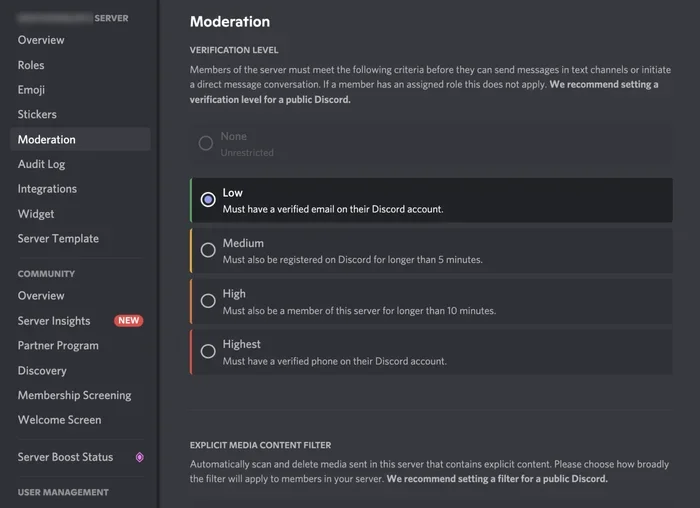
Use Verification Systems
Add a verification step for new members. This can be as simple as a welcome bot that asks users to agree to server rules. Verification reduces spam and keeps trolls out of your Discord server.
Keep Your Mod Team Small
Having too many mods can create confusion. A small, focused team works better than a large, unorganized one. Aim for 3 to 5 active mods for most servers. This ensures accountability and clear decision-making.
Review Mod Performance Regularly
Check in on your mods every few weeks. Are they following the rules? Are they being fair? Regular reviews help maintain a high standard of server administration. If a mod is not performing well, have a private conversation with them.
Just like keeping your laptop running smoothly requires the right setup, effective moderation requires the right tools and habits. Whether you are using a trackpad or a mouse, having a comfortable and functional setup matters. If you ever run into issues with your pointing device while moderating, check out How To Turn On The Mouse On A Laptop to get back on track quickly.
How to Remove Moderator Access
Sometimes you need to remove mod privileges from a member. This might happen if a mod is not performing well or has violated server rules. The process is simple. Go to Server Settings, find the Roles section, and remove the Moderator role from the member. Always communicate openly with the person when removing their mod status. Transparency builds trust within your Discord community.
Conclusion
Making someone a mod on Discord is a straightforward process when you follow the right steps. Start by creating a clear moderator role with appropriate permissions. Choose trusted members who demonstrate fairness and good judgment. Set up your Discord server for success by documenting rules and using moderation bots. Remember that moderation is an ongoing responsibility. Communicate with your mods, review their performance, and keep improving your community management strategy.
With the right approach, your Discord server will thrive. Your moderators will help create a safe and enjoyable space for everyone. Start implementing these steps today and watch your community grow in a positive direction.
Frequently Asked Questions
Can anyone become a mod on Discord?
Yes, but only if you have Admin or Manage Server permissions. You must also trust the person you are promoting. A good mod understands server rules and handles conflicts fairly. Always choose members who are respected and responsible.
How many moderators should a Discord server have?
It depends on the size of your server. For small communities, 2 to 3 mods are usually enough. Larger servers may need 5 to 10 or more. The key is to have enough mods to cover all hours while keeping the team manageable and accountable.
Do Discord mods get paid?
Most Discord mods volunteer their time. Some larger servers or organizations may offer compensation, but this is not common. Mods are usually motivated by a love for the community. If you want to reward them, consider giving them special roles or server perks.
What is the difference between a Discord admin and a mod?
Admins have full control over the server, including changing settings and managing roles. Mods have limited permissions focused on enforcing rules and managing user behavior. Admins oversee the big picture while mods handle day-to-day moderation tasks.
Can a mod ban someone permanently on Discord?
Yes, if the mod role has the “Ban Members” permission enabled. This permission is typically granted to mods as part of their standard toolkit. However, some server owners prefer to keep banning power with admins only. It is a matter of trust and server policy.
How do I promote someone to mod without disrupting the server?
Announce the promotion in a general channel or through a welcome message. Explain why the person was chosen and what their responsibilities are. This keeps things transparent and helps the community accept the new mod. A smooth promotion builds trust and respect for the moderator role.