How to Transfer Photos from Iphone to Pc
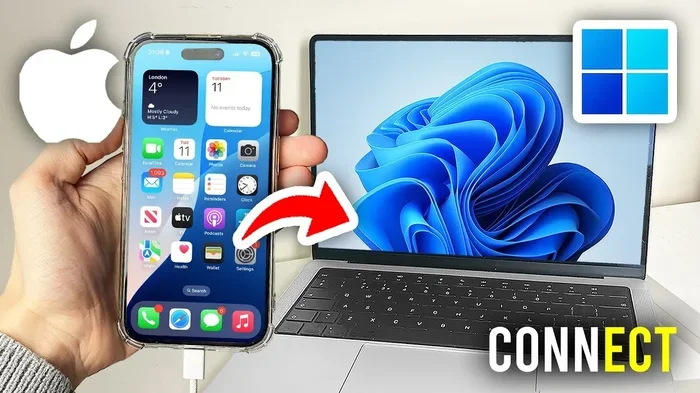
Transferring photos from your iPhone to your PC is simpler than you think. Whether you use a USB cable, iCloud, or wireless methods, you can move your images in minutes. This guide walks you through every method so you can pick what works best for you.
Have you ever wanted to move your iPhone photos to your computer but didn’t know where to start? You are not alone. Millions of people look for an easy way to get their pictures from their phone to their PC every single day.
The good news is that transferring photos from iPhone to PC does not have to be complicated. You have several options, and most of them are free. Whether you prefer using a cable or going wireless, there is a method that fits your style. In this guide, we will walk you through each option step by step.
By the end of this article, you will know exactly how to move your photos safely and quickly. You will also learn tips to keep your photo library organized. Let us dive right in.
Key Takeaways
- USB Cable Method: The fastest and most reliable way to move iPhone photos to a Windows PC.
- iCloud Sync: A great wireless option that keeps your photos updated across devices automatically.
- AirDrop: The best choice if you also use a Mac for seamless photo sharing.
- Third-Party Apps: Apps like OneDrive and Google Drive offer flexible cloud-based transfer options.
- Organization Matters: Keeping your transferred photos sorted saves time and frees up PC storage.
- Multiple Methods Available: You can choose wired, wireless, or cloud-based transfer depending on your needs.
📑 Table of Contents
- Why Transferring iPhone Photos to Your PC Matters
- Method 1: Use a USB Cable to Transfer Photos
- Method 2: Wireless Transfer with iCloud
- Method 3: Use AirDrop (Mac Only)
- Method 4: Use Third-Party Apps and Cloud Services
- Tips to Keep Your Transferred Photos Organized
- Which Transfer Method Should You Choose?
- Common Mistakes to Avoid When Transferring Photos
- Final Thoughts
Why Transferring iPhone Photos to Your PC Matters
Your iPhone is a fantastic camera. It takes stunning pictures every day. But your phone has limited storage space. Over time, all those photos can slow your device down. Moving them to your PC helps you free up space and keep your phone running smoothly.
Your PC also offers a bigger screen for viewing and editing photos. You can organize albums, print pictures, and share them more easily from a computer. Plus, storing photos on your PC gives you a backup. If anything happens to your phone, your memories are safe.
Another reason to transfer is sharing. It is much easier to send a batch of photos from your PC than from your phone. Whether you are sharing with family or editing for a project, your PC makes the workflow better. For more on general photo transfer methods, check out the best way to get photos from iPhone to PC.
Method 1: Use a USB Cable to Transfer Photos
The USB cable method is the most popular way to transfer photos from iPhone to PC. It is fast, reliable, and does not need an internet connection. If you have a Lightning or USB-C cable, you are already halfway there.
Step-by-Step Guide for Windows PC
Follow these simple steps to connect your iPhone to your computer:
- Plug one end of your USB cable into your iPhone.
- Connect the other end to an available USB port on your PC.
- Unlock your iPhone and tap Trust This Computer when prompted.
- On your PC, open the File Explorer or Photos app.
- Navigate to your iPhone under This PC or My Computer.
- Open the DCIM folder to find all your photos.
- Copy and paste the images you want to your PC.
This method works well for large batches of photos. You can transfer hundreds of images in just a few minutes. It also lets you preview photos before copying them. If you want to learn more about importing photos directly, read our guide on the best way to import iPhone photos to PC.
Quick Tips for USB Transfers
- Always use the original cable that came with your iPhone for the best results.
- Avoid disconnecting the cable while files are still copying.
- If your PC does not recognize your iPhone, try a different USB port.
- Close any photo apps on your iPhone before connecting to avoid sync conflicts.
One small downside is that you need your cable every time. But the speed and reliability make up for it. This is the go-to method for most people who transfer photos regularly.
Method 2: Wireless Transfer with iCloud
If you prefer going cable-free, iCloud is a great option. Apple’s cloud service lets you sync your photos across all your devices. As long as you have Wi-Fi, your pictures can appear on your PC automatically.
Setting Up iCloud Photos on Windows
Here is how to get iCloud photos on your Windows computer:
- Download iCloud for Windows from the Microsoft Store.
- Sign in with your Apple ID.
- Open iCloud Settings and toggle on Photos.
- Click Apply to start syncing.
- Your photos will now appear in your PC’s iCloud Photos folder.
Once set up, iCloud handles everything in the background. New photos you take on your iPhone will show up on your PC within minutes. You do not need to do anything manually. This is perfect for people who want a hands-off approach to photo management.
However, iCloud storage is limited on the free tier. You get only 5 GB, which fills up fast if you take many photos. You may need to purchase more storage if your library is large. Still, for casual users, the free tier works just fine.
Pros and Cons of iCloud Transfer
- Pros: Automatic syncing, no cables needed, works across all Apple devices.
- Cons: Limited free storage, requires stable Wi-Fi, slower for large libraries.
Method 3: Use AirDrop (Mac Only)
If you use both an iPhone and a Mac, AirDrop is the easiest way to share photos. It uses Bluetooth and Wi-Fi to send files instantly. No cables, no cloud accounts, no waiting.
To use AirDrop, make sure both devices have it turned on. On your iPhone, open Control Center and tap AirDrop. Choose Contacts Only or Everyone. On your Mac, open Finder and look for AirDrop in the sidebar.
Select the photos you want to send on your iPhone. Tap the Share button and choose AirDrop. Your Mac will appear as a target. Tap it, and the photos transfer in seconds. It really is that simple.
AirDrop works best for small batches of photos. If you need to move thousands of images, a USB cable or iCloud sync is better. For general file sharing between devices, you might also explore the best way to transfer files from PC to PC for broader methods.
Method 4: Use Third-Party Apps and Cloud Services
Not everyone wants to use Apple’s built-in tools. Fortunately, there are many third-party options. Cloud services like OneDrive, Google Drive, and Dropbox let you upload photos from your iPhone and access them on your PC.
Using OneDrive for Photo Transfer
OneDrive is a solid choice for Windows users. It comes built into Windows 10 and 11. Here is how to use it:
- Download the OneDrive app on your iPhone from the App Store.
- Sign in with your Microsoft account.
- Turn on Camera Upload in the app settings.
- Your photos will now upload automatically whenever you are on Wi-Fi.
- Open OneDrive on your PC to view and download your photos.
OneDrive gives you 5 GB of free storage, which is enough for many users. The auto-upload feature means you never have to think about transferring photos manually. It just happens in the background.
Google Drive and Dropbox Alternatives
Google Drive offers 15 GB of free storage, which is more than OneDrive. Dropbox is also a popular choice with easy file syncing. Both apps work on iPhone and PC, making them versatile options.
Each service has its own strengths. OneDrive integrates best with Windows. Google Drive offers more free space. Dropbox is known for fast syncing speeds. You can pick whichever fits your workflow best.
Tips to Keep Your Transferred Photos Organized
Once your photos are on your PC, keeping them organized is important. A messy photo library makes it hard to find the pictures you need. A few simple habits can save you a lot of time.
Start by creating folders for different events or dates. Name them clearly, like “Vacation 2024” or “Family Photos.” This makes searching much easier later. You can also use the Windows Photos app to tag and rate your images.
Regularly cleaning up your PC helps too. Over time, duplicate photos and old files can pile up. Consider running a cleanup tool to remove junk files and free up space. You can learn how to do this effectively in our guide on how to remove junk files from PC.
Quick Organization Tips
- Delete blurry or duplicate photos right after transferring.
- Use descriptive folder names for easy searching.
- Back up your PC photos to an external hard drive regularly.
- Set a monthly reminder to review and organize your library.
- Use tags or ratings to mark your favorite images.
Staying organized takes a little effort, but the payoff is huge. You will always find the photo you need in seconds. Your PC will also run faster with a clean and tidy file structure.
Which Transfer Method Should You Choose?
Every method has its strengths. The right choice depends on your needs and habits. Here is a quick comparison to help you decide.
| Method | Speed | Ease of Use | Best For |
|---|---|---|---|
| USB Cable | Very Fast | Easy | Large batches, no internet needed |
| iCloud | Moderate | Very Easy | Automatic syncing, Apple users |
| AirDrop | Instant | Very Easy | Small batches, Mac users |
| Third-Party Apps | Moderate | Easy | Cloud backup, cross-platform use |
If you transfer photos often and in large amounts, the USB cable method wins. If you want set-it-and-forget-it convenience, iCloud or OneDrive is the way to go. For quick sharing between an iPhone and Mac, AirDrop is unbeatable.
You can also mix methods. Use a cable for big transfers and iCloud for everyday syncing. This gives you the best of both worlds. The key is to pick a system and stick with it so your photos stay organized.
Common Mistakes to Avoid When Transferring Photos
Even simple tasks can go wrong if you are not careful. Here are a few common mistakes to watch out for:
- Using a cheap or damaged cable: This can cause slow transfers or connection issues. Always use a quality cable.
- Forgetting to unlock your iPhone: Your PC will not see your photos if the phone is locked. Always unlock and tap Trust.
- Ignoring file formats: Some older PCs may not support HEIC files. Convert them to JPEG if needed.
- Relying on only one method: Always keep a backup. If one method fails, you do not lose your photos.
- Transferring without checking storage: Make sure your PC has enough free space before starting a large transfer.
Avoiding these simple mistakes saves you time and frustration. A little planning goes a long way in keeping your photo transfers smooth.
Final Thoughts
Transferring photos from iPhone to PC is a task everyone should know how to do. It protects your memories, frees up phone storage, and makes sharing easier. You now have four reliable methods to choose from: USB cable, iCloud, AirDrop, and third-party apps.
Pick the method that fits your lifestyle. Use a cable for speed, iCloud for convenience, AirDrop for quick Mac transfers, and cloud apps for flexibility. The best method is the one you will actually use regularly.
Start today. Pick one method, try it out, and see how easy it is. Once you get into the habit, you will wonder how you ever managed without it. Your photos deserve a safe and organized home, and your PC is the perfect place for that.
Remember, keeping your photos backed up and organized is one of the best things you can do for your digital life. Take a few minutes now to set up your preferred transfer method. Your future self will thank you.
Frequently Asked Questions
What is the fastest way to transfer photos from iPhone to PC?
The USB cable method is the fastest way to move photos from your iPhone to your PC. It does not depend on internet speed and can handle hundreds of photos in minutes. Simply connect your phone, trust the computer, and copy the files from the DCIM folder.
Can I transfer photos from iPhone to PC without a cable?
Yes, you can. iCloud sync, AirDrop, and third-party cloud apps like OneDrive and Google Drive all work wirelessly. You just need a stable Wi-Fi connection. Each method has its own setup process, but all are straightforward and user-friendly.
Do I need to install any software on my PC?
It depends on the method. For USB transfers, Windows File Explorer works out of the box. For iCloud, you need to install iCloud for Windows. For OneDrive or Google Drive, you download their respective apps. Most options are free and easy to set up.
Why are my iPhone photos not showing up on my PC?
This usually happens because the iPhone is locked or you did not tap Trust when prompted. Try unlocking your phone and reconnecting the cable. You can also check if your photos are stored in iCloud rather than on the device itself, which requires enabling iCloud download on your PC.
Is it safe to transfer photos using cloud services?
Yes, major cloud services like iCloud, OneDrive, and Google Drive use strong encryption to protect your data. They are safe for storing and transferring personal photos. Just make sure to use strong passwords and enable two-factor authentication for extra security.
How do I free up space on my iPhone after transferring photos?
After transferring, you can delete photos from your iPhone to free up space. If you use iCloud Photos, you can optimize your iPhone storage to keep smaller versions on the phone while keeping full-size images in the cloud. This gives you the best of both worlds.