Which Hdmi Port Is Best for Ps5
Choosing the right HDMI port for your PS5 is the simplest way to unlock stunning 4K gaming at 120Hz. The best HDMI port depends on your TV or monitor’s capabilities, and using the correct HDMI 2.1 port makes all the difference. This guide walks you through everything you need to know about selecting the right port, setting it up, and avoiding common mistakes.
You just unboxed your PS5, plugged in the HDMI cable, and turned it on. But wait, which HDMI port should you actually use? It sounds like a small detail, but picking the right port can mean the difference between 4K gaming at 120Hz and a blurry, laggy experience.
Most modern TVs come with three or four HDMI ports, and they are not all created equal. Some support the latest HDMI 2.1 standard, while others are stuck on older specs. If you want to get the most out of your console, you need to know which port to use and why it matters.
In this guide, we break down everything you need to know about HDMI ports for PS5. From understanding the different versions to picking the best port on your TV, we cover it all. By the end, you will know exactly how to set up your console for the best possible picture and performance.
Key Takeaways
- HDMI 2.1 is essential: It supports 4K at 120Hz and VRR, which are must-haves for next-gen PS5 gaming.
- Not all ports are equal: Your TV may have multiple HDMI ports, but only one or two support full HDMI 2.1 features.
- Check your TV specs: Look for HDMI 2.1 bandwidth (48 Gbps) on the port label or in the manual.
- Use the right cable: A certified Ultra High Speed HDMI cable is needed to get the full PS5 experience.
- PS5 settings matter: Matching your PS5 output settings to your TV’s capabilities ensures the best picture quality.
- Avoid common mistakes: Plugging into the wrong port or using an older cable limits your gaming performance.
📑 Table of Contents
Understanding HDMI Ports on the PS5
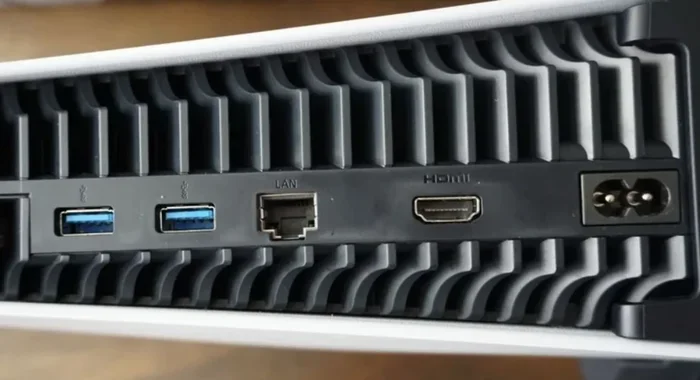
The PS5 uses a single HDMI 2.1 output cable. That is the only port on the console itself. The real question is about the port on your TV or monitor where you plug that cable in. Your display device has multiple HDMI inputs, and they each support different versions and features.
Think of it like this. Your PS5 is ready to send a super-powered signal. But if you plug it into the wrong port on your TV, that signal gets held back. It is like having a sports car but putting it in the slow lane.
What Makes HDMI 2.1 Special
HDMI 2.1 is the latest standard, and it was built with gaming in mind. Here is what it brings to the table:
- 4K at 120Hz: Smooth motion for fast-paced games that make a huge difference in gameplay.
- Variable Refresh Rate (VRR): This reduces screen tearing and stuttering during intense gaming moments.
- Auto Low Latency Mode (ALLM): Your TV automatically switches to game mode for the fastest response time.
- Higher bandwidth: Up to 48 Gbps, which allows for richer colors and higher resolution output.
- HDR support: Enhanced HDR delivers brighter highlights and deeper shadows for more realistic visuals.
All of these features are available on the PS5 right now. But you only get them if you connect through an HDMI 2.1 port on your display. That is why choosing the right port is so important.
HDMI 2.1 vs HDMI 2.0 for PS5
You might be wondering if it really matters. The short answer is yes. Let us compare the two versions side by side so you can see the difference clearly.
| Feature | HDMI 2.0 | HDMI 2.1 |
|---|---|---|
| Max Bandwidth | 18 Gbps | 48 Gbps |
| 4K Support | 4K at 60Hz | 4K at 120Hz |
| VRR | No | Yes |
| ALLM | No | Yes |
| HDR | HDR10 | HDR10 + Dolby Vision |
| Best For PS5 | Basic gaming | Full next-gen experience |
As you can see, HDMI 2.1 is the clear winner for PS5 gaming. If you plug your console into an HDMI 2.0 port, you will be limited to 4K at 60Hz. That is still a great experience, but you miss out on the buttery-smooth 120Hz mode that many PS5 games support.
Some TVs label their ports clearly. You might see “HDMI 2.1” printed right next to the port number. Others do not. In those cases, you need to check the TV manual or the manufacturer website to find out which ports support the newer standard.
Which HDMI Port on Your TV Should You Use
This is the question most people ask, and the answer is simpler than you think. You want to use the port that supports HDMI 2.1 and the highest bandwidth available.
Step-by-Step: Finding the Right Port
Follow these steps to identify the best port on your TV:
- Check the port labels: Look at the back of your TV. Many manufacturers print “HDMI 2.1,” “4K 120Hz,” or “eARC” next to the compatible ports.
- Consult your TV manual: If the labels are unclear, check the manual or search online for your TV model’s HDMI specifications.
- Visit the manufacturer website: Look up your TV model and find the specs page. It will list which ports support HDMI 2.1.
- Test different ports: If you are still unsure, try connecting your PS5 to each port and check the display settings on your console.
On most modern TVs, the HDMI 2.1 ports are usually labeled as HDMI 1 and HDMI 2, or they may be the ports on the side of the TV. Some brands reserve specific ports for certain features. For example, Samsung often designates HDMI 1 and HDMI 4 as their 2.1 ports, while LG may label them differently.
Why Port Placement Matters
Where the port is located on your TV can also affect your setup. Ports on the back of the TV tend to have better signal quality than side-mounted ports. Side ports are convenient, but they can sometimes cause connection issues if the cable is bent or pulled.
If you want a clean setup, consider using high-quality HDMI cables that can handle the bandwidth. A certified Ultra High Speed HDMI cable ensures you get the full 48 Gbps transfer rate without any signal loss.
How to Optimize Your PS5 HDMI Settings
Once you have plugged your PS5 into the right port, you need to make sure the console settings match your TV capabilities. This step is often overlooked, but it can make a big difference in your gaming experience.
Checking Your PS5 Video Output
Go to Settings on your PS5, then select Screen and Video. From there, you can check the current resolution and refresh rate. Here is what to look for:
- Resolution: Set it to 2160p (4K) if your TV supports it.
- VRR: Turn this on to enable Variable Refresh Rate for smoother gameplay.
- 120Hz Output: Make sure this is enabled so your PS5 can output at 120 frames per second.
- HDR: Enable HDR for richer colors and better contrast.
If your TV only has HDMI 2.0 ports, you can still enjoy a great experience. Just set the resolution to 4K at 60Hz and disable 120Hz output. You will still get excellent picture quality, but the frame rate will be capped at 60fps.
For the best results, you should also check if your TV has a dedicated game mode. This mode reduces input lag and makes your controls feel more responsive. Most modern TVs have this feature, and it usually turns on automatically when you use the right HDMI port with ALLM enabled.
Common HDMI Problems and How to Fix Them
Even when you use the right port, you might run into issues. Here are some common problems and their solutions.
No Signal or Black Screen
This usually happens when you plug the cable into an unsupported port or the cable is not fully seated. Try unplugging the HDMI cable and plugging it back in firmly. If that does not work, try a different port or a different cable.
Flickering or Intermittent Display
Flickering often points to a cable quality issue. Make sure you are using a certified Ultra High Speed HDMI cable. Cheap or uncertified cables cannot handle the bandwidth of HDMI 2.1 and will cause display problems.
No 4K or 120Hz Option
If you do not see 4K or 120Hz in your PS5 settings, your TV or the port you are using might not support it. Double-check your TV’s HDMI specifications and try a different port. Also make sure your PS5 software is updated to the latest version.
Audio Issues
Some HDMI ports support eARC, which is needed for advanced audio formats like Dolby Atmos. If you are having audio problems, check that your TV’s audio settings match your setup. You can find more about audio and display connections in our guide on the best HDMI splitter for dual monitors if you use multiple displays.
Do You Need an Expensive HDMI Cable
You do not need to spend a fortune on an HDMI cable, but you do need the right one. For PS5 gaming, look for a cable that is certified as Ultra High Speed HDMI. This certification guarantees that the cable can handle 48 Gbps of bandwidth.
Here are a few tips for choosing the right cable:
- Look for the Ultra High Speed HDMI logo: This is the official certification mark from HDMI Licensing LLC.
- Avoid ultra-thin cables: Thicker cables tend to have better shielding and signal integrity.
- Get the right length: A 6-foot cable works for most setups. Longer cables may lose signal quality.
- Skip the gold-plated hype: Gold plating does not improve HDMI 2.1 performance. Focus on certification instead.
Most people overestimate the importance of expensive cables. A well-certified mid-range cable will perform just as well as a premium one. Save your money for good games instead.
Final Verdict
So, which HDMI port is best for PS5? The answer is straightforward. Use the HDMI 2.1 port on your TV or monitor that supports the highest bandwidth and features like 4K at 120Hz, VRR, and ALLM. This gives you the full next-gen experience that the PS5 was designed to deliver.
Take a few minutes to check your TV’s port specifications. Plug your console into the right port. Adjust your PS5 settings to match. And use a certified Ultra High Speed HDMI cable. These simple steps will transform your gaming experience and make your PS5 look and feel its best.
If you are also looking for the best display setup for your PS5, check out our guides on the best monitors for PS5 gaming and the best gaming monitors for PS5 to find the perfect display for your setup.
The right HDMI port is the foundation of a great gaming setup. Get this part right, and everything else falls into place. Your PS5 deserves the best connection, and now you know exactly how to give it that.
Frequently Asked Questions
Can I use any HDMI port for my PS5?
You can technically plug your PS5 into any HDMI port, but you will not get the full experience unless the port supports HDMI 2.1. Using an HDMI 2.0 port limits you to 4K at 60Hz instead of 4K at 120Hz. Always check which ports on your TV support the latest standard for the best gaming performance.
How do I know if my TV has an HDMI 2.1 port?
Check the labels on the back of your TV or consult the user manual. Many TVs print “HDMI 2.1” or “4K 120Hz” next to the compatible ports. You can also visit the manufacturer website and search for your TV model to find the full specifications.
Do I need a special HDMI cable for PS5?
Yes, you need a certified Ultra High Speed HDMI cable to get the full HDMI 2.1 experience. This type of cable supports 48 Gbps bandwidth, which is required for 4K at 120Hz and other advanced features. Look for the official Ultra High Speed HDMI logo on the packaging.
What happens if I use an HDMI 2.0 cable with PS5?
Your PS5 will still work, but you will be limited to 4K at 60Hz. You will also lose access to features like Variable Refresh Rate and Auto Low Latency Mode. For the best PS5 experience, always use an HDMI 2.1 cable and connect it to an HDMI 2.1 port.
Is HDMI 2.1 worth it for PS5 gaming?
Absolutely. HDMI 2.1 unlocks 4K at 120Hz, smoother gameplay with VRR, and lower input lag with ALLM. These features make a noticeable difference in fast-paced games and make your PS5 feel as responsive as possible. If you have a compatible TV, HDMI 2.1 is a must.
Can I use an HDMI splitter with PS5?
Yes, but you need to make sure the splitter supports HDMI 2.1 bandwidth. Some splitters only support HDMI 2.0 and will limit your PS5 output. Check the splitter specifications carefully before purchasing to ensure it can handle 4K at 120Hz and other advanced features.