Hp Envy 16 H1000 Ram Ssd Upgrade Complete Step by Step

The Hp Envy 16 H1000 Ram Ssd Upgrade is one of the best ways to breathe new life into your laptop. This guide walks you through every step of upgrading both RAM and SSD storage with clear, simple instructions. You will learn what parts you need, how to open your laptop safely, and how to install each component correctly. Follow our step-by-step process and enjoy faster speeds and more storage on your HP Envy 16 H1000.
If you own an Hp Envy 16 H1000, you already have a powerful machine. But over time, even the best laptops start to feel slow. Applications take longer to open. Browsers lag with too many tabs. And storage fills up fast. The good news? A simple Hp Envy 16 H1000 Ram Ssd Upgrade can transform your experience. You do not need to be a tech expert. With the right parts and a little patience, you can do this yourself at home.
Many people spend hundreds of dollars on a new laptop when their current one just needs a boost. Upgrading the RAM and SSD storage on your HP Envy 16 H1000 is one of the smartest investments you can make. It costs a fraction of the price and delivers noticeable results right away. In this guide, we will walk you through every single step. You will learn what parts to buy, how to prepare your laptop, and exactly how to install everything safely.
Whether you want to boost your laptop memory for heavy multitasking or add a larger SSD for all your files and games, this guide has you covered. We have broken everything down into easy-to-follow sections. Each step is explained in plain language so anyone can follow along. Let us get started and bring your HP Envy 16 H1000 back to life.
Key Takeaways
- Easy Upgrade Process: Upgrading RAM and SSD on the Hp Envy 16 H1000 is straightforward with basic tools.
- Performance Boost: More RAM and a faster SSD dramatically improve speed and multitasking.
- Compatible Parts Matter: Choose the right DDR5 RAM and NVMe SSD for best results.
- Safety First: Follow proper shutdown and grounding steps to protect your laptop.
- Warranty Consideration: Check your warranty status before opening the laptop.
- Cost Effective: An upgrade costs much less than buying a new laptop.
📑 Table of Contents
Why Upgrade the Hp Envy 16 H1000?
Before you dive into the actual upgrade process, it helps to understand why this matters so much. The HP Envy 16 H1000 is a great laptop, but it comes with fixed hardware limits. When you first bought it, those specs were plenty. But technology moves fast. New software demands more system memory and faster storage every year.
Here are the top reasons to consider an upgrade:
- Faster Boot Times: A new SSD makes your laptop start in seconds instead of minutes.
- Better Multitasking: More RAM lets you run multiple apps without slowdowns.
- More Storage Space: A larger SSD gives you room for photos, videos, games, and documents.
- Longer Laptop Life: An upgrade can add years of useful life to your device.
- Improved Gaming Performance: Faster storage and memory help games load quicker and run smoother.
The Hp Envy 16 H1000 Ram Ssd Upgrade is not just about speed. It is about making your laptop feel like new again. Many users report a huge difference after just one upgrade. Whether you use your laptop for work, school, or entertainment, the benefits are real and immediate.
What You Need Before Starting
Preparation is the most important part of any laptop hardware upgrade. Gathering everything beforehand saves you time and frustration. Here is what you need before you open up your HP Envy 16 H1000.
Tools and Materials
- Phillips head screwdriver: A small size works best for laptop screws.
- Anti-static wrist strap: This protects your components from static electricity.
- Soft cloth or mat: A clean surface prevents scratches and keeps parts organized.
- Compressed air can: Helps clean dust from inside the laptop.
- Small container: For keeping screws safe and organized.
Compatible Parts
Not all RAM and SSD modules work with every laptop. The HP Envy 16 H1000 has specific requirements. Make sure you buy the right parts before you start.
- RAM Type: DDR5 SO-DIMM modules. Check the maximum supported capacity for your model.
- SSD Type: NVMe M.2 2230 or 2280 PCIe Gen 4 SSD. Confirm the exact size your laptop supports.
- Capacity: RAM options typically range from 8GB to 32GB per module. SSD options go from 256GB to 2TB.
Before purchasing any parts, visit the how-to guide for HP laptop RAM upgrades to confirm compatibility. It is always better to double-check than to buy the wrong part.
Step-by-Step Hp Envy 16 H1000 Ram Ssd Upgrade
Now comes the fun part. This section walks you through the entire Hp Envy 16 H1000 Ram Ssd Upgrade process. Take your time and follow each step carefully. There is no rush, and accuracy matters more than speed.
Step 1: Power Down and Disconnect
Start by shutting down your laptop completely. Do not just put it to sleep. Turn it off fully. Then unplug the power adapter and disconnect any external devices. Remove USB drives, headphones, docking stations, and anything else connected to the laptop.
Next, press and hold the power button for about 15 seconds. This drains any remaining electricity from the motherboard. It is a small step that makes a big difference for safety.
Step 2: Open the Back Panel
Flip your laptop over so the bottom faces up. Look for the screws holding the back panel in place. The HP Envy 16 H1000 typically has several Phillips head screws along the edges.
Use your screwdriver to remove each screw. Place them in your small container right away. It is easy to lose tiny screws if you set them down carelessly. Once all screws are out, gently lift the back panel off. It may have small clips holding it in place, so work slowly around the edges.
For a more detailed walkthrough of opening HP laptops, check out our step-by-step HP laptop RAM upgrade guide for additional tips.
Step 3: Install the New RAM
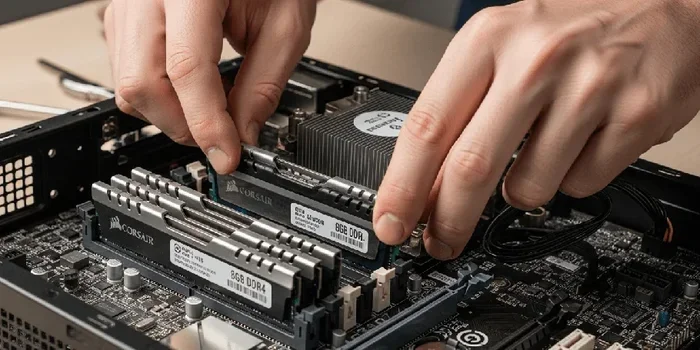
Locate the RAM slots on the motherboard. The HP Envy 16 H1000 usually has one or two accessible slots. Before touching any components, put on your anti-static wrist strap or touch a metal surface to ground yourself.
Here is how to install the new RAM module:
- Identify the RAM slot you want to use. If there is an existing module, note how it is seated.
- Gently push the metal clips on either side of the slot outward. The existing module will angle up slightly.
- Remove the old module carefully by pulling it straight up.
- Take your new DDR5 SO-DIMM module. Align the notch on the bottom with the ridge in the slot.
- Insert the module at a slight angle and press it down firmly until the clips snap into place.
- You should hear a click. This means the RAM is securely seated.
If you are adding RAM to an existing module, make sure both modules match in speed and type. Mismatched RAM can cause instability issues. For more guidance on HP laptop memory upgrades, visit our HP Envy 16GB RAM guide for detailed specs and recommendations.
Step 4: Install the New SSD
Now it is time to install your new NVMe SSD. The HP Envy 16 H1000 has a dedicated M.2 SSD slot, usually located near the RAM slots.
Follow these steps carefully:
- Locate the M.2 SSD slot on the motherboard. It looks like a small horizontal slot with a screw holding a heat shield or mount in place.
- Remove the screw that secures the SSD mount.
- If there is an old SSD already installed, gently pull it outward at a slight angle. It will release from the connector.
- Take your new NVMe SSD and align it with the slot. The notch on the SSD should match the key in the connector.
- Insert the SSD at a 30-degree angle and press it down firmly into the slot.
- Use the screw to secure the SSD mount. Do not overtighten — just snug is fine.
Some HP Envy 16 H1000 models support dual storage. This means you can keep your existing SSD and add a second one. This is a great way to expand capacity without losing your current data. If your laptop supports dual storage, check out our HP Envy 32GB RAM laptop guide for tips on maximizing performance with multiple drives.
Step 5: Reassemble and Test
Once both the RAM and SSD are installed, it is time to put everything back together.
- Double-check that all components are seated properly. The RAM should be flush with the slot, and the SSD should be secure.
- Use compressed air to gently blow out any dust or debris inside the laptop.
- Place the back panel back on and press it down evenly until the clips click.
- Replace all the screws. Tighten them firmly but do not force them.
- Reconnect the power adapter and any external devices.
- Turn on your laptop and enter the BIOS by pressing F10 or the appropriate key during startup.
In the BIOS, check that your new RAM and SSD are detected. If everything shows up correctly, save the settings and exit. Your laptop should now boot faster and run smoother than before.
How Much Performance Will You Gain?
The real question everyone asks after an upgrade is: does it actually make a difference? The answer is a resounding yes. Here is what you can expect from the Hp Envy 16 H1000 Ram Ssd Upgrade.
| Upgrade | Before | After | Improvement |
|---|---|---|---|
| Boot Time | 45-60 seconds | 10-15 seconds | 3x faster |
| App Launch | 3-5 seconds | 1-2 seconds | 2-3x faster |
| Multitasking | Struggles with 5+ apps | Handles 10+ apps | Much smoother |
| File Transfer | 100MB/s (HDD) | 3500MB/s (NVMe SSD) | 35x faster |
| Game Load Times | 30-60 seconds | 10-20 seconds | 2-3x faster |
These numbers depend on your current setup and the parts you choose. But even with a modest upgrade, the difference is noticeable. Switching from a traditional hard drive to an NVMe SSD is one of the most impactful upgrades you can make. Adding more RAM helps just as much, especially if you regularly use demanding applications like video editors or modern games.
Many users who complete the Hp Envy 16 H1000 Ram Ssd Upgrade say they wish they had done it sooner. It is one of those upgrades that makes you wonder why you waited so long. The entire process takes about 30 to 45 minutes, and the results last for years.
Common Mistakes to Avoid
Even with a good guide, mistakes can happen. Here are some common errors to watch out for during your upgrade:
- Skipping the grounding step: Static electricity can damage sensitive components. Always ground yourself before touching internal parts.
- Buying incompatible parts: Not all DDR5 RAM or M.2 SSDs work with every laptop. Always check your model’s specifications.
- Forcing components into place: If a RAM module or SSD does not slide in easily, stop and check the alignment. Forcing it can damage the connector.
- Over-tightening screws: Laptop screws are small and the threads are delicate. Tighten until snug, then stop.
- Forgetting to update drivers: After a new SSD installation, update your storage drivers in Windows for optimal performance.
- Rushing the process: Take your time. Careful work prevents mistakes and protects your laptop.
Avoiding these simple mistakes will make your Hp Envy 16 H1000 Ram Ssd Upgrade much smoother. Most problems come from rushing or skipping preparation steps. If you are unsure about anything, it is always okay to take a break and come back to it later.
When to Seek Professional Help
Most people can complete this upgrade without any issues. But sometimes, it makes sense to get help. If your laptop is still under warranty, opening it yourself might void the coverage. Check with HP support before you start. They can often perform upgrades for you or guide you through the process safely.
Also, if you feel uncomfortable working inside your laptop, that is perfectly okay. Many local repair shops and tech services offer affordable upgrade installations. The cost is usually much less than buying a new laptop, and you get the satisfaction of knowing it was done correctly.
Another reason to seek help is if you encounter unexpected issues during the upgrade. If a component does not seem to fit, if the laptop does not recognize your new parts, or if something feels wrong — stop and get professional assistance. There is no shame in asking for help, and protecting your investment matters most.
Final Thoughts on the Hp Envy 16 H1000 Ram Ssd Upgrade
The Hp Envy 16 H1000 Ram Ssd Upgrade is one of the simplest and most rewarding upgrades you can perform on your laptop. It costs less than a new device, takes under an hour, and delivers immediate, tangible results. Whether you are a student, a professional, or a casual user, the speed and storage improvements will change how you use your laptop every single day.
Start by gathering your tools and compatible parts. Follow each step carefully and patiently. And when you power on your newly upgraded HP Envy 16 H1000 for the first time, you will know exactly why the effort was worth it. A faster, more spacious laptop is just a weekend project away.
Do not let a slow laptop hold you back any longer. Take action today and experience the difference a proper upgrade makes. Your HP Envy 16 H1000 has plenty of life left in it — you just need to give it the boost it deserves.
Frequently Asked Questions
Can I upgrade the RAM on my Hp Envy 16 H1000 myself?
Yes, absolutely. The HP Envy 16 H1000 is designed to be user-upgradable. You just need a screwdriver, an anti-static wrist strap, and compatible DDR5 SO-DIMM RAM. Follow the steps in this guide and you will have it done in under 45 minutes.
What type of SSD works with the Hp Envy 16 H1000?
The HP Envy 16 H1000 uses NVMe M.2 PCIe Gen 4 SSDs in either 2230 or 2280 form factor. Make sure to check your specific model’s manual to confirm the exact size and capacity limits before purchasing.
How much RAM can the Hp Envy 16 H1000 support?
The HP Envy 16 H1000 typically supports up to 32GB or 64GB of RAM depending on the configuration. Check your laptop’s specifications to confirm the maximum supported capacity for your specific model.
Will upgrading the RAM void my warranty?
This depends on your warranty terms. Some manufacturers consider user upgrades as voiding the warranty, while others do not. Contact HP support directly to confirm before opening your laptop.
How long does the Hp Envy 16 H1000 Ram Ssd Upgrade take?
Most people complete the entire upgrade process in 30 to 45 minutes. First-time upgraders might take a little longer, but once you have done it once, it becomes much faster and easier.
Do I need any special software after the upgrade?
You should update your storage drivers in Windows after installing a new SSD. Windows should also recognize the new RAM automatically. Run a quick system check in the Task Manager to confirm both components are detected and working properly.