Does It Matter Which Hdmi Port I Plug Into
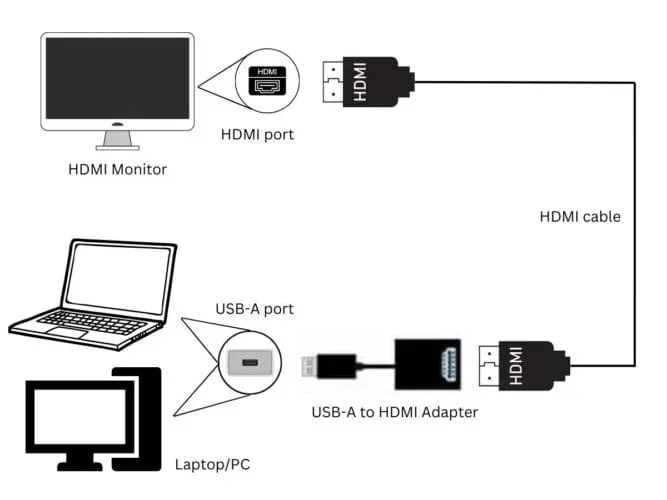
Yes, it absolutely matters which HDMI port you plug into. Different HDMI ports on your TV, monitor, or receiver support different versions, bandwidth speeds, and features. Plugging into the wrong port can mean missing out on 4K resolution, HDR, high refresh rates, and surround sound. Understanding your HDMI port differences ensures you get the best picture and audio quality from your devices.
This is a comprehensive guide about Does It Matter Which Hdmi Port I Plug Into.
Key Takeaways
- HDMI ports are not all the same: Each port may support a different HDMI version with varying capabilities.
- HDMI 2.1 is the current gold standard: It supports 4K at 120Hz, 8K resolution, and higher bandwidth for gaming and ultra HD content.
- Labeling matters: Check your device manual or look for HDMI 1.4, 2.0, or 2.1 labels on the back of your TV or monitor.
- Gaming demands the right port: Using the correct HDMI port reduces input lag and unlocks higher refresh rates for a smoother experience.
- ARC and eARC ports serve a specific purpose: These ports handle audio return to soundbars and receivers, not video output.
- You can use adapters and splitters: But they may limit the features and bandwidth you receive.
[FEATURED_IMAGE_PLACEHOLDER]
Does It Matter Which HDMI Port I Plug Into
The short answer is yes. It really does matter which HDMI port you use. Not every HDMI port on your TV, monitor, or AV receiver is created equal. Some ports are built for basic HD content, while others are designed to handle 4K resolution, high dynamic range, and fast refresh rates.
When you plug your gaming console, streaming stick, or Blu-ray player into the wrong port, you might notice fuzzy images, missing features, or no sound at all. This is a frustrating problem that is easy to avoid once you understand the basics. Let us walk through everything you need to know about HDMI port selection so you never run into these issues again.
Whether you are setting up a home theater, hooking up a PC monitor, or connecting a new console, choosing the right port makes a real difference. The wrong choice can hold back your entire setup. The right choice unlocks the full potential of your devices.
Understanding HDMI Port Versions
HDMI technology has evolved a lot over the years. Each new version brought faster speeds, better picture quality, and new features. Your devices likely have multiple ports, but they may not all support the same version. Here is what you need to know.
HDMI 1.4: The Older Standard
HDMI 1.4 was introduced back in 2009. It supports 1080p resolution and 3D content. It also introduced the ARC (Audio Return Channel) feature, which lets soundbars and receivers send audio back to your TV through a single cable. While HDMI 1.4 still works fine for basic setups, it cannot handle 4K content or high refresh rates above 30Hz.
If you have an older TV with only HDMI 1.4 ports, you will be limited to Full HD. This is fine for casual viewing, but gamers and movie lovers will notice the difference right away. You may also experience input lag when playing fast-paced games because the bandwidth is simply not there.
HDMI 2.0: The 4K Upgrade
HDMI 2.0 arrived in 2013 and was a big step forward. It supports 4K resolution at 60Hz, which means smooth, detailed picture quality for both movies and games. The bandwidth jumped to 18 Gbps, which is enough for HDR (High Dynamic Range) content and multi-channel audio.
Most mid-range TVs and monitors made after 2015 include at least one HDMI 2.0 port. This is usually the port you want to use for your main devices. If your TV has multiple HDMI 2.0 ports, any of them will work well for 4K content at 60Hz.
HDMI 2.1: The Future-Proof Choice
HDMI 2.1 is the newest standard and it is a game changer. It supports bandwidth up to 48 Gbps, which means 4K at 120Hz, 8K at 60Hz, and even 10K resolution in the future. It also introduces features like Variable Refresh Rate (VRR), Auto Low Latency Mode (ALLM), and enhanced eARC for immersive audio formats like Dolby Atmos and DTS:X.
High-end TVs, gaming monitors, and next-gen consoles like the PS5 and Xbox Series X rely on HDMI 2.1. If you have invested in a setup that supports this version, you want to make sure you are using an HDMI 2.1 port to get the full experience. Plugging into an older port will cap your performance.
Why the Right HDMI Port Matters for Gaming
Gamers are the most sensitive group when it comes to HDMI port selection. The wrong port can cause stuttering, reduced frame rates, and noticeable input delay. Here is why choosing correctly is so important.
Modern gaming consoles and PCs output signals that require high bandwidth. If you plug into an HDMI 1.4 port, your device may automatically downgrade to 1080p or limit the refresh rate to 30Hz. This defeats the purpose of having a powerful setup. You want every frame rendered smoothly and without delay.
Many gamers also wonder if they should overclock their monitor to squeeze out extra performance. While that is a valid strategy, it only works if your HDMI port and cable can handle the bandwidth first. Check your port version before tweaking any display settings. If your GPU is working hard and you notice performance drops, it might be related to your connection setup. You can learn more about GPU performance spikes and how to address them in our guide on why does my GPU spike to 100.
Using the correct HDMI port also works hand in hand with your GPU cooling. If your GPU fans always spin at high speeds, it could be because your system is working harder than it needs to due to a bottleneck in your display connection. Making sure your HDMI setup is optimized helps your entire system run more efficiently.
HDMI ARC and eARC Ports Explained
You may have noticed a port labeled ARC or eARC on the back of your TV. These are special ports designed for audio, not video. Understanding their purpose helps you avoid common setup mistakes.
ARC stands for Audio Return Channel. It allows your TV to send audio back to a soundbar or AV receiver through the same HDMI cable you use for video input. This eliminates the need for a separate audio cable. eARC, or Enhanced Audio Return Channel, supports higher-quality audio formats including Dolby Atmos and uncompressed surround sound.
Here is the key point: ARC and eARC ports are not meant for your primary video source. If you plug your gaming console into the ARC port, you will likely get no picture or limited functionality. Always use a standard HDMI port for your video devices and reserve the ARC/eARC port for your audio equipment.
Common Mistakes People Make With HDMI Ports
Even tech-savvy users make mistakes when setting up their HDMI connections. Here are the most common errors and how to avoid them.
- Assuming all ports are identical: This is the number one mistake. Just because a TV has four HDMI ports does not mean they all support the same features. Check your manual or look for version labels.
- Using a cheap cable: A high-quality HDMI port paired with a low-quality cable will bottleneck your setup. Always use certified cables that match your port version.
- Ignoring firmware updates: Sometimes a simple firmware update on your TV or device can unlock HDMI 2.1 features on a port that previously seemed limited.
- Plugging into the wrong port on your receiver: AV receivers often have multiple HDMI inputs labeled for different purposes. Read the labels carefully.
- Forgetting about cable length: Longer HDMI cables can degrade signal quality. Keep cables as short as possible for the best performance, especially with HDMI 2.1.
Another mistake people make is not checking if their device supports the features they want. For example, if you bought a 4K monitor but only plugged into an HDMI 1.4 port, you will not get the full 4K experience. Similarly, if you are curious about whether upgrading your computer hardware could improve your overall display experience, our article on does SSD improve CPU performance explores how different components affect your system.
How to Identify Which HDMI Port Supports What
Figuring out which HDMI port does what does not have to be complicated. Here are the easiest ways to find out.
- Check the device manual: Most manufacturers list the HDMI version for each port in the user guide. Look for a section called “Specifications” or “Connectivity.”
- Look for labels on the TV or monitor: Some brands print the HDMI version right next to the port. You might see “HDMI 2.1,” “HDMI 2.0,” or “ARC” printed on the back panel.
- Visit the manufacturer website: If the manual is missing, search for your model number online. The support page usually lists port details.
- Check your TV settings: Some TVs display the HDMI version when you select a port in the settings menu. Navigate to “Input” or “Source” and look for the version info.
Once you know which port is which, label them with small stickers if needed. This saves you time every time you rearrange your setup. It is a small step that pays off big.
Quick Tips for Getting the Best HDMI Experience
Follow these simple tips to make sure you are getting the most out of every HDMI connection.
- Always plug your primary device into the HDMI port that supports the highest version.
- Use certified premium HDMI cables that match your port standard.
- Enable the correct settings on your TV, such as switching to HDMI 2.1 mode if available.
- Keep your device firmware and TV software up to date.
- If you are using a soundbar, connect it to the eARC port for the best audio quality.
- Avoid using HDMI splitters or extenders unless necessary, as they can reduce signal quality.
For those who want to push their display settings further, it is worth understanding whether your monitor’s overclocking capabilities are worth the effort. Our guide on is overclocking your monitor worth it dives deep into this topic and helps you decide if it is right for your setup.
Conclusion
So does it matter which HDMI port you plug into? The answer is a clear yes. Your HDMI port choice directly impacts your picture quality, refresh rate, audio return, and overall viewing experience. Taking a few minutes to understand which port supports which version can save you from frustration and help you get the most out of your expensive equipment.
Start by identifying the HDMI versions on your TV or monitor. Then match your devices to the correct ports. Use high-quality cables and keep your firmware updated. These small steps add up to a significantly better setup. Whether you are gaming, watching movies, or working from home, the right HDMI port makes all the difference.
Do not let a simple cable connection hold you back from the quality your devices are capable of delivering. Take control of your setup today and enjoy the best possible picture and sound every time you turn on your screen.
Frequently Asked Questions
What happens if I plug my device into the wrong HDMI port?
You may experience reduced resolution, lower refresh rates, missing HDR support, or no audio. The device will usually still work, but it will not perform at its best. Always check which HDMI version each port supports before connecting your primary devices.
Can I use any HDMI cable with any HDMI port?
Physically, yes, all HDMI cables fit into all HDMI ports. However, the features you receive depend on the port version and the cable quality. A cheap or old cable may not support the bandwidth needed for 4K or HDMI 2.1 features.
Does the HDMI port I use affect input lag?
Yes, it can. Older HDMI versions have lower bandwidth, which may force your device to process the signal differently. This can increase input lag, especially during fast-paced gaming. Using the correct HDMI port for your device ensures the lowest possible latency.
Is HDMI 2.1 backward compatible with older devices?
Yes, HDMI 2.1 is fully backward compatible. You can plug an older device into an HDMI 2.1 port and it will work. However, the device will only operate at the capabilities of its own HDMI version, not the port version.
Do all HDMI ports on a soundbar support eARC?
No, typically only one port on a soundbar or AV receiver is labeled eARC. This port is specifically designed for high-quality audio return from your TV. Using any other port will limit your audio format support.
How can I tell if my HDMI cable supports 4K at 120Hz?
Look for an Ultra High Speed HDMI cable, which is certified for HDMI 2.1. Standard HDMI cables may not have enough bandwidth for 4K at 120Hz. Check the cable packaging for the HDMI version rating before purchasing.