Nvme Pcie M.2 Ssd
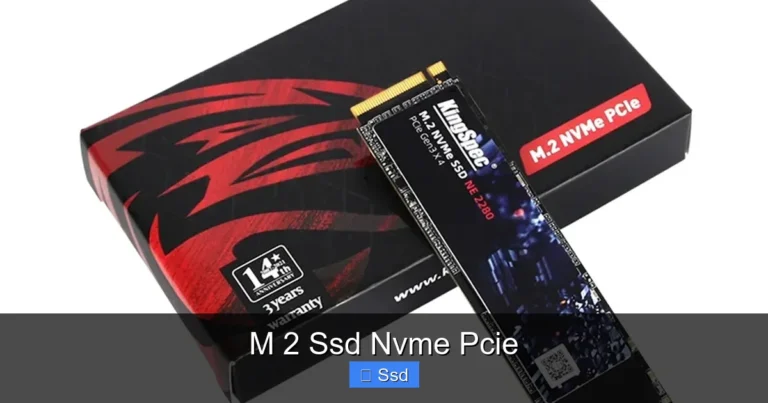
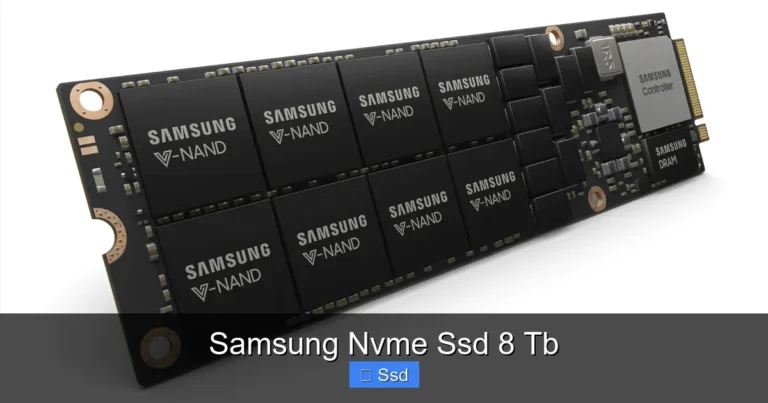
The NVMe PCIe M.2 SSD is a ultra-fast storage solution that uses the PCIe lane and NVMe protocol to deliver blazing read and write speeds. Unlike older SATA drives, this compact M.2 form factor fits directly into your motherboard and slashes boot times and file transfers. Whether you are a gamer, creator, or everyday user, understanding PCIe NVMe M.2 technology helps you get the most from your system.
If you have been shopping for a new solid state drive, you have probably seen the term NVMe PCIe M.2 SSD thrown around a lot. And honestly, it can feel confusing at first. What does all that tech jargon actually mean? Why does it matter? And most importantly, do you need one?
Let us break it down in plain English. A NVMe PCIe M.2 SSD is a type of storage drive that uses the PCIe interface and the NVMe protocol to move data at incredible speeds. It is tiny, fast, and has become the go-to choice for anyone who wants a serious performance boost in their computer. Whether you are building a new PC or upgrading an old one, this guide covers everything you need to know.
Key Takeaways
- Blazing Speeds: NVMe PCIe M.2 SSDs offer dramatically faster read and write speeds compared to traditional SATA SSDs.
- Compact Design: The M.2 form factor is tiny and mounts directly onto the motherboard, saving space in your PC.
- PCIe Generations Matter: PCIe Gen3, Gen4, and Gen5 offer different speed tiers that affect real-world performance.
- Compatibility Is Key: Not all motherboards support NVMe M.2 slots, so always check before buying.
- Use Cases Vary: Gaming, video editing, and general productivity all benefit from NVMe storage upgrades.
- Price Per GB Is Dropping: These drives are becoming more affordable, making them a smart upgrade for any user.
📑 Table of Contents
What Is an NVMe PCIe M.2 SSD?
Let us start with the basics. NVMe stands for Non-Volatile Memory Express. It is a communication protocol designed specifically for flash storage. It tells the drive how to talk to your computer. PCIe stands for Peripheral Component Interconnect Express. It is the pathway the drive uses to send and receive data. And M.2 is the physical shape and size of the drive itself.
Together, these three pieces create a storage drive that is both small and incredibly fast. A traditional hard drive spins a disk to read data. An NVMe PCIe M.2 SSD has no moving parts at all. It uses flash memory chips to access data almost instantly. This is why boot times drop from minutes to seconds and games load in a fraction of the time.
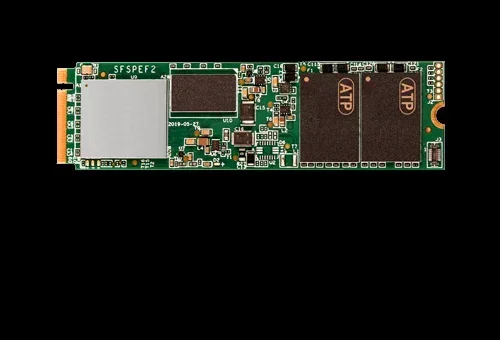
The M.2 form factor looks like a small stick of gum. It plugs directly into a slot on your motherboard. There is no cable to manage. No extra power connector needed. Just slide it in and you are done. This makes it perfect for laptops and small form factor PCs where space is tight.
How Does NVMe PCIe M.2 Technology Work?
To really understand the speed advantage, you need to know how data travels. A SATA SSD uses the AHCI protocol, which was designed back when spinning drives were the norm. It has a bottleneck that limits speeds to around 550 MB per second. That is fine for basic tasks, but it holds back flash storage from reaching its full potential.
An NVMe PCIe M.2 SSD bypasses that bottleneck completely. It uses the PCIe lane, which was originally built for graphics cards and high-speed components. This means data can travel much faster between the drive and the processor. Here is a quick look at the difference:
- SATA III SSD: Up to 550 MB/s read and write speeds.
- NVMe PCIe Gen3 M.2 SSD: Up to 3,500 MB/s read speeds.
- NVMe PCIe Gen4 M.2 SSD: Up to 7,000 MB/s read speeds.
- NVMe PCIe Gen5 M.2 SSD: Up to 14,000 MB/s read speeds.
As you can see, the generational jump makes a huge difference. A Gen5 NVMe M.2 SSD like the Crucial T705 can move data at speeds that would have seemed impossible just a few years ago.
Benefits of Upgrading to an NVMe PCIe M.2 SSD
So why should you care about these speed numbers? Because they translate into real, noticeable improvements in your daily computing experience. Here are the biggest benefits:
1. Lightning Fast Boot Times. Your operating system loads in seconds, not minutes. You can go from pressing the power button to being at your desktop in under 10 seconds on most systems.
2. Faster Game Load Times. Open-world games with massive environments benefit the most. Textures stream in quicker, and you spend less time staring at loading screens. A PCIe NVMe M.2 SSD can dramatically reduce the time it takes to travel between areas in your favorite games.
3. Quick File Transfers. Moving large files, video projects, or backups takes a fraction of the time. What used to take 10 minutes on a SATA drive might take just 30 seconds on a fast NVMe drive.
4. Better Multitasking. Because the drive can access data so quickly, switching between applications feels snappier. You can have dozens of browser tabs, a video editing program, and a game all running at once without slowdowns.
5. No Cables or Extra Space. The M.2 form factor is incredibly compact. You do not need to worry about SATA cables or mounting brackets. It slots right into the motherboard and stays cool with a small heatsink or the motherboard itself.
NVMe PCIe M.2 SSD Generations Explained
Not all NVMe PCIe M.2 SSDs are created equal. The PCIe generation your drive uses plays a big role in its speed. Here is a simple breakdown of what each generation means for you.
PCIe Gen3 NVMe M.2 SSD
This is the older but still very capable generation. Most Gen3 NVMe M.2 SSDs offer read speeds around 3,500 MB/s. They are more affordable than newer options and still provide a massive upgrade over SATA drives. If you are on a budget, a Gen3 PCIe M.2 SSD is a great place to start.
PCIe Gen4 NVMe M.2 SSD
Gen4 doubled the bandwidth of Gen3. You can expect read speeds of around 7,000 MB/s on most Gen4 NVMe M.2 SSDs. The Crucial P310 1TB is a popular example of a solid Gen4 drive that delivers great performance at a reasonable price. Gen4 is currently the sweet spot for most users who want speed without paying a premium.
PCIe Gen5 NVMe M.2 SSD
This is the newest generation on the market. Gen5 drives offer up to 14,000 MB/s read speeds. They are still relatively expensive and are best suited for enthusiasts, content creators, and professionals who work with massive files daily. The Crucial T705 2TB and Crucial T705 4TB are excellent examples of Gen5 drives that push the boundaries of storage speed.
| Generation | Max Read Speed | Typical Use | Price Range |
|---|---|---|---|
| PCIe Gen3 | ~3,500 MB/s | Budget upgrades | Low |
| PCIe Gen4 | ~7,000 MB/s | Gaming, general use | Medium |
| PCIe Gen5 | ~14,000 MB/s | Enthusiast, professional | High |
How to Choose the Right NVMe PCIe M.2 SSD
Buying the right drive can feel overwhelming with so many options available. Here are the key factors to consider before you make a purchase.
Check Your Motherboard Compatibility
Not every motherboard has an M.2 slot that supports NVMe. Some only support SATA M.2 drives, which are slower. Open your motherboard manual or check the specs online to confirm that your board has a PCIe NVMe M.2 slot. Look for keywords like “M.2 2280 PCIe Gen3/4/5” to make sure you are getting the right drive.
Consider Your Storage Needs
NVMe M.2 SSDs come in various capacities. For most users, a 1TB drive hits the sweet spot between price and performance. If you are a gamer, 2TB gives you room for several large titles. Professionals working with video or large datasets might want a 4TB drive like the Crucial T705 4TB for plenty of headroom.
Think About Your Budget
prices have dropped significantly over the past few years. A 1TB NVMe PCIe M.2 SSD can be found for a very reasonable price now. You do not need to spend a fortune to get a serious speed boost. Focus on the generation and capacity that match your needs and budget.
Look at Endurance and Warranty
Every SSD has a rated lifespan based on how much data you can write to it each day. This is called TBW or Terabytes Written. Most consumer NVMe drives come with a 5-year warranty. Higher-end models offer better endurance, which matters if you are constantly writing large files or running intensive workloads.
Common Mistakes to Avoid When Buying an NVMe PCIe M.2 SSD
Even experienced builders sometimes make mistakes when choosing or installing an NVMe M.2 SSD. Here are a few pitfalls to watch out for.
Mistake 1: Buying a Gen5 Drive for a Gen3 Motherboard. If your motherboard only supports PCIe Gen3, a Gen5 drive will still work but will be limited to Gen3 speeds. You would be paying for speed you cannot use.
Mistake 2: Ignoring the M.2 Key Type. M.2 slots come in different key types, like B-key and M-key. Most NVMe SSDs use the M-key. Make sure your slot matches the drive you are buying.
Mistake 3: Skipping the Driver Update. Some NVMe drives, especially the WD Blue NVMe M.2 SSD, benefit from updated drivers for optimal performance. Always check the manufacturer’s website for the latest software after installation.
Mistake 4: Overheating Without a Heatsink. Fast NVMe drives can generate a lot of heat. Many motherboards include a heatsink on the M.2 slot. If yours does not, consider buying a separate M.2 heatsink or an NVMe M.2 enclosure that provides cooling.
Installing Your NVMe PCIe M.2 SSD
The installation process is surprisingly simple, even if you are new to PC building. Here is a quick step-by-step guide.
- Locate the M.2 Slot. Find the M.2 slot on your motherboard. It is usually labeled and located near the CPU or RAM slots.
- Remove the Standoff Screw. There is a small screw holding the M.2 slot in place. Keep it somewhere safe.
- Insert the Drive. Align the notch on the M.2 SSD with the key in the slot. Gently push the drive down at a 30-degree angle until it seats properly.
- Secure with the Screw. Lower the drive flat and tighten the small screw to hold it in place. Do not overtighten.
- Boot and Initialize. Restart your computer and enter BIOS or UEFI to make sure the drive is detected. Then initialize and format it through your operating system.
That is it. In less than 10 minutes, you can have a brand new NVMe PCIe M.2 SSD running in your system. The performance difference will be immediate and noticeable.
Final Thoughts
The NVMe PCIe M.2 SSD has revolutionized the way we think about computer storage. It is fast, compact, and easier to install than ever before. Whether you are upgrading an old laptop or building a new gaming rig, this type of drive delivers real-world performance that you can feel every single day. From booting up your operating system in seconds to loading massive game worlds without a hitch, the benefits are hard to ignore.
If you have been putting off a storage upgrade, now is the perfect time. Prices are competitive, options are abundant, and the speed difference compared to older drives is night and day. Pick the right capacity for your needs, make sure your motherboard supports it, and enjoy the incredible speed that only a PCIe NVMe M.2 SSD can deliver.
Frequently Asked Questions
What is the difference between NVMe and PCIe in an M.2 SSD?
NVMe is the communication protocol the drive uses to talk to your system, while PCIe is the physical interface or pathway the data travels on. An NVMe PCIe M.2 SSD uses both together to achieve speeds far beyond what older SATA drives can offer. Think of PCIe as the highway and NVMe as the traffic system that keeps data moving efficiently.
Can I use an NVMe M.2 SSD in a laptop?
Yes, most modern laptops support NVMe M.2 SSDs. Check your laptop’s manual or specs to confirm it has an M.2 slot that supports PCIe NVMe. The compact size of M.2 drives makes them ideal for laptops where space is limited.
Do I need a heatsink for my NVMe M.2 SSD?
It depends on your workload and motherboard. High-speed drives like Gen4 and Gen5 NVMe SSDs can get warm under heavy use. Many motherboards include a built-in heatsink. If yours does not, adding one can help maintain consistent speeds during long tasks like file transfers or gaming sessions.
Is a PCIe Gen5 NVMe M.2 SSD worth the extra cost?
For most everyday users, a Gen4 NVMe M.2 SSD is more than enough. Gen5 drives shine for professionals who work with huge files, such as video editors or data scientists. If you are a gamer, Gen4 offers excellent performance at a better price point.
How do I know if my motherboard supports NVMe M.2 SSDs?
Check your motherboard’s manual or look up its specifications online. Look for mentions of “M.2 PCIe” or “NVMe support” in the specs. Some boards have both SATA and NVMe M.2 slots, so make sure you are using the right one for your drive.
Can I install an NVMe M.2 SSD alongside a regular hard drive?
Absolutely. Many PCs use both an NVMe M.2 SSD for the operating system and fast applications, and a larger traditional hard drive or SATA SSD for bulk storage. This combination gives you the best of both worlds: speed and capacity.