Orico M.2 Nvme Ssd Enclosure
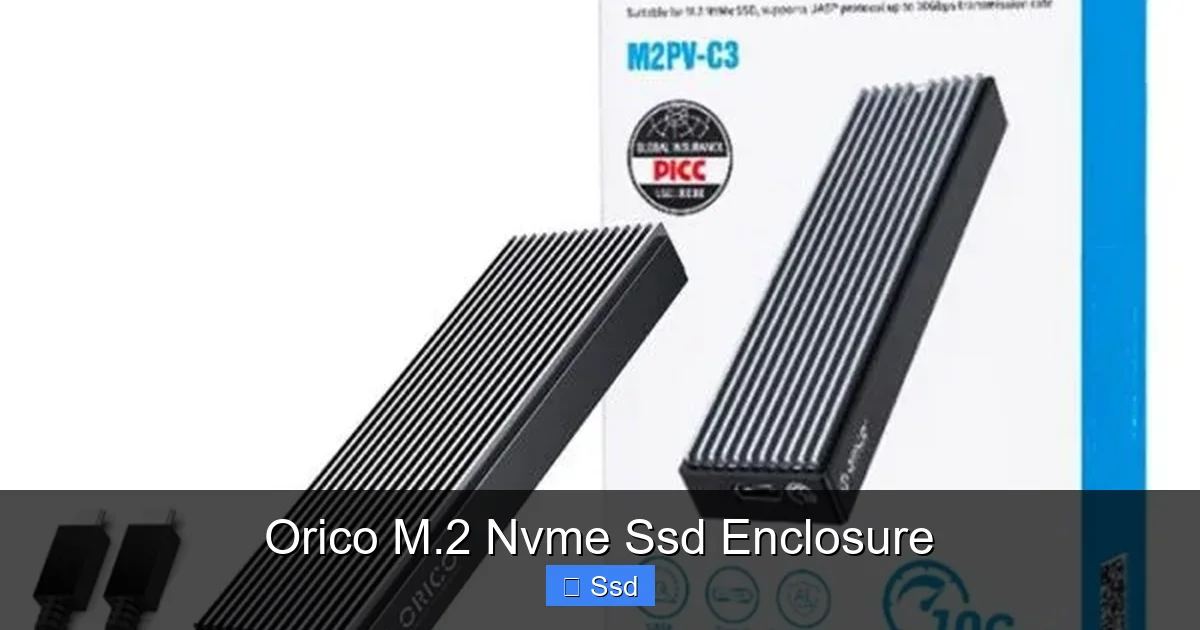
The Orico M.2 NVMe SSD enclosure is a simple, affordable tool that breathes new life into your old M.2 solid-state drives. It converts your internal SSD into a high-speed, portable external drive via USB 3.2 Gen2. With sturdy aluminum builds, effective passive cooling, and plug-and-play simplicity, it’s the perfect solution for upgrading laptops, creating fast backup drives, or building a portable gaming library without breaking the bank.
Key Takeaways
- Cost-Effective Upgrade: Repurpose old or spare M.2 NVMe SSDs into ultra-fast external storage, saving money compared to buying new pre-built external SSDs.
- Plug-and-Play Simplicity: No technical expertise needed; typically requires just screwing in the SSD and connecting a USB-C cable to your computer.
- Significant Speed Boost: Leverages USB 3.2 Gen2 for read/write speeds up to 10Gbps, far surpassing traditional external HDDs and even many SATA-based external SSDs.
- Effective Thermal Management: The aluminum casing acts as a heatsink, with many models including thermal pads to dissipate heat and maintain performance during sustained transfers.
- Universal Compatibility: Works with Windows, macOS, Linux, PlayStation, and Xbox, making it a versatile tool for data transfer, game storage, and system backups across devices.
- Portability & Durability: Compact, lightweight aluminum designs are highly durable and easy to carry, ideal for on-the-go professionals and content creators.
- Check Compatibility First: Ensure your M.2 SSD is NVMe (not SATA) and matches the enclosure’s supported key (M+B or M) and length (e.g., 2280).
📑 Table of Contents
- What Exactly Is an NVMe Enclosure? Your SSD’s New Portable Home
- Why Choose the Orico M.2 NVMe SSD Enclosure? Standout Features
- Your Step-by-Step Guide: Installing an SSD into the Orico Enclosure
- Real-World Performance: What Speeds Can You Actually Expect?
- Who Exactly Needs an Orico M.2 NVMe SSD Enclosure? Practical Use Cases
- Long-Term Care & Troubleshooting: Keeping Your Enclosure Happy
- The Verdict: Is the Orico M.2 NVMe SSD Enclosure Worth It?
What Exactly Is an NVMe Enclosure? Your SSD’s New Portable Home
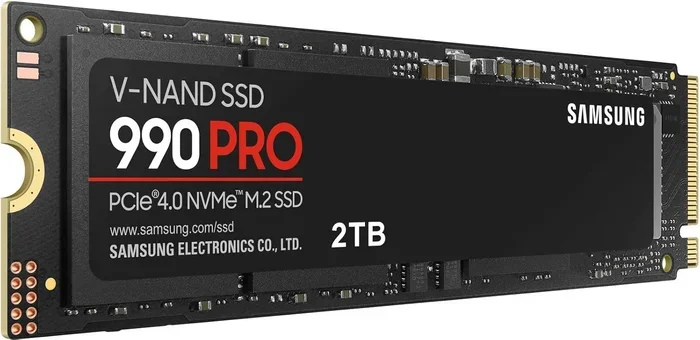
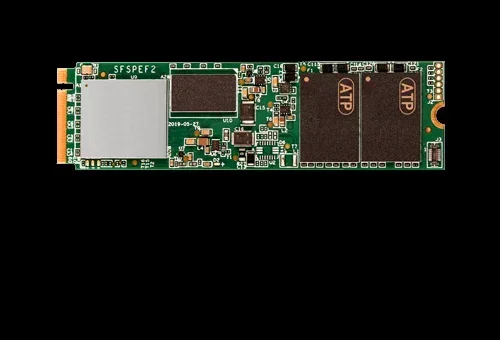
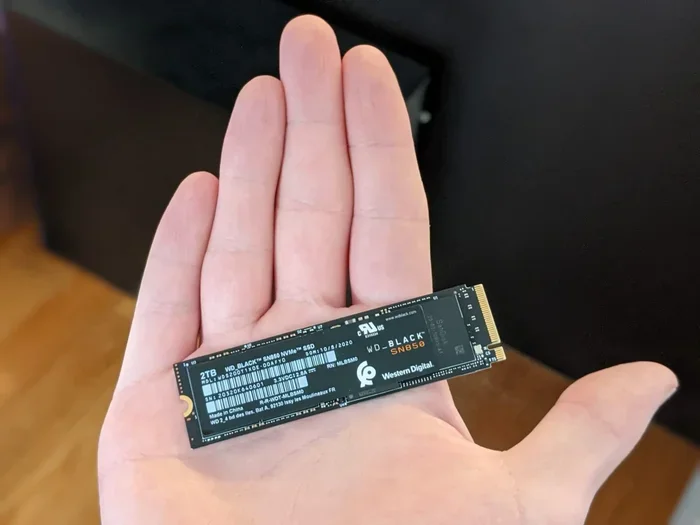
Let’s start with the basics. Inside your modern laptop or desktop, you might have an M.2 NVMe SSD. It’s that small, stick-of-gum-shaped drive that makes your computer boot in seconds and load games almost instantly. But what happens when you upgrade to a bigger internal SSD? That old, perfectly good drive often gets tucked away in a drawer, forgotten. That’s where an NVMe SSD enclosure comes in. Think of it as a protective, pocket-sized case with a built-in translator. It takes the high-speed language your internal NVMe SSD speaks (PCIe) and converts it into a universal language any computer understands: USB.
The Orico M.2 NVMe SSD enclosure is a specific, popular brand of this translator case. It’s not a drive itself. It’s a tool. You buy the enclosure, you insert your own compatible M.2 NVMe SSD into it, and you seal it up. Then, you plug it into your computer’s USB port—usually USB-C for the best speeds—and voilà! That once-internal drive is now a blazing-fast, portable external SSD. It’s one of the smartest, most sustainable upgrades you can make in the storage world.
NVMe vs. SATA M.2: Why This Matters for Your Enclosure
This is the most critical compatibility check. Not all M.2 drives are created equal. There are two main types: NVMe (PCIe) and SATA. NVMe drives are the speedsters, using the PCIe bus for massive bandwidth. SATA M.2 drives are slower, using the older SATA bus, but they’re still common in budget laptops. The Orico M.2 NVMe SSD enclosure is designed specifically for NVMe drives. It will NOT work with a SATA M.2 SSD. You need to check your old drive’s label. Look for “NVMe,” “PCIe,” or “NGFF.” If it says “SATA” or “mSATA,” you need a different, SATA-specific M.2 enclosure. Using the wrong one is like trying to plug a USB-A cable into a Lightning port—it just won’t fit or work.
Why Choose the Orico M.2 NVMe SSD Enclosure? Standout Features
The market is full of enclosures, so why does Orico consistently rank as a top choice? It’s a blend of smart engineering, reliable build quality, and thoughtful design that caters to both novices and power users. Let’s break down what makes these little aluminum boxes so special.
Build Quality & Design: Aluminum All the Way
Most Orico NVMe enclosures are CNC-machined from a single block of aluminum. This isn’t just for a premium look and feel (though it feels great in the hand). Aluminum is an excellent conductor of heat. Your fast NVMe SSD generates heat, especially during large file transfers. The aluminum case acts as a massive passive heatsink, drawing that heat away from the SSD controller and memory chips. This is crucial. An overheating SSD will throttle its speed to cool down, meaning you get slower transfer rates. The Orico’s metal body helps prevent this thermal throttling, keeping your drive performing at its peak for longer. You’ll often find models with an anodized finish in space gray, silver, or black, matching your Apple or PC aesthetic perfectly.
The Cooling Solution: More Than Just a Metal Box
Many higher-end Orico models, like the popular TBU series, take cooling a step further. They include a slim, copper or aluminum thermal pad inside. You place this pad directly on top of the SSD’s memory chips before screwing the drive into the PCB. This pad creates a direct thermal pathway from the hot chips to the aluminum case, dramatically improving heat dissipation. For users regularly moving 50GB+ video project files or game libraries, this active thermal management isn’t a gimmick; it’s a performance necessity. You’ll notice less drive slowdown during marathon copying sessions.
Connectivity & Speed: USB 3.2 Gen2 is the Sweet Spot
You’re buying an NVMe enclosure for speed, and Orico delivers. The vast majority of their enclosures use a JMS583 or similar controller chip that supports USB 3.2 Gen 2 (10 Gbps). This is the practical sweet spot. The theoretical max speed of a single-lane PCIe 3.0 NVMe SSD is about 3,500 MB/s. USB 3.2 Gen 2’s 10 Gbps (about 1,250 MB/s real-world) isn’t enough to fully saturate a top-tier NVMe drive, but it’s a massive leap over USB 3.0 (5 Gbps) and infinitely faster than any hard drive. For almost all external storage tasks—4K video editing, game loading, large backups—this speed is more than sufficient. The enclosure connects via a USB-C port, which is reversible and future-proof. It almost always includes a USB-C to C cable and a USB-C to A adapter for older computers.
Tool-Free vs. Tooled Designs: Which Orico to Pick?
Orico offers both styles. The tool-free models have a sliding or hinged lid. You simply push the SSD into a slot on the internal PCB, and a spring-loaded mechanism holds it in place. This is incredibly convenient for frequent drive swaps. The tool-required models use one or two tiny screws (usually included with a mini screwdriver) to secure the SSD to the board. This connection is often more secure and can provide slightly better contact for the thermal pad. For a drive you’ll install once and forget, the tooled version is fine. If you plan to regularly change drives (e.g., swapping between a 1TB and 2TB SSD), the tool-free version is worth the small premium.
Your Step-by-Step Guide: Installing an SSD into the Orico Enclosure
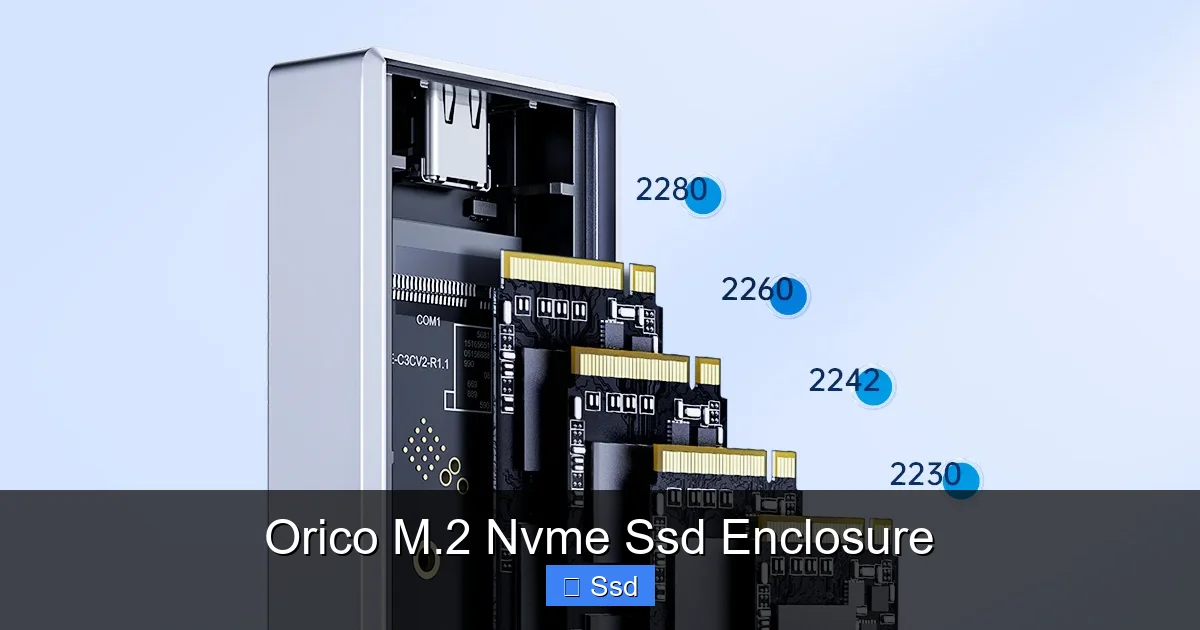
Don’t be intimidated. The process is remarkably simple and takes less than two minutes. Here’s a detailed walkthrough for a typical tooled Orico enclosure, like the TBU series.
Visual guide about Orico M.2 Nvme Ssd Enclosure
Image source: cdn.webshopapp.com
- Gather Your Tools: Your Orico enclosure, your M.2 NVMe SSD (check compatibility!), and the small screwdriver that came in the box.
- Open the Enclosure: Locate the two small screws on the back or sides. Unscrew them and gently pry open the aluminum clamshell case. You’ll see a small PCB (the circuit board) inside.
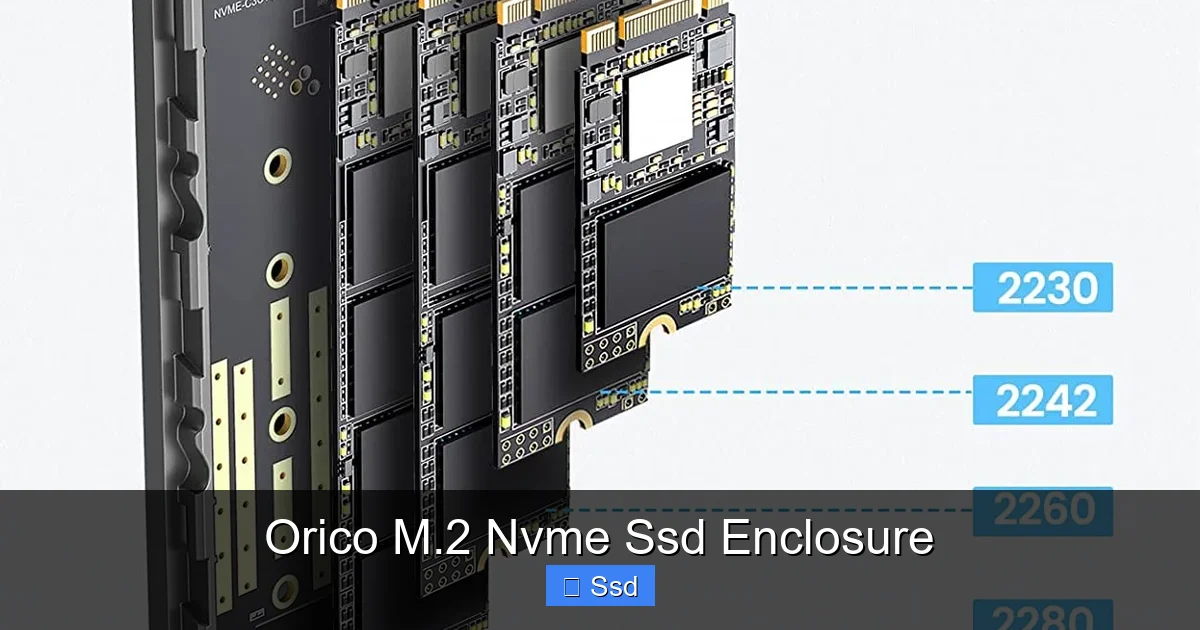
- Prepare the SSD: Identify the notch on your M.2 SSD. This is the key. The socket on the Orico’s PCB will have a matching key (usually M-key for NVMe). Gently angle the SSD into the slot at about a 30-degree degree until it sits flush.
- Secure the SSD: Lay the included thermal pad (if your model has one) directly onto the top chips of the SSD. Then, take the small screw and gently tighten it through the hole in the SSD and into the standoff on the PCB. Don’t overtighten; snug is perfect. This screw pulls the SSD down, ensuring perfect contact with the PCB’s connector and the thermal pad.
- Close It Up: Snap the two halves of the aluminum case back together, ensuring the internal PCB isn’t pinched. Reinsert and tighten the outer screws.
- Connect and Format: Plug the USB-C cable into the enclosure and your computer. Your OS will detect a new, unformatted drive. You’ll need to format it (usually as exFAT for cross-platform use or APFS/NTFS for single-OS performance). This is done in Disk Management (Windows) or Disk Utility (macOS). Warning: Formatting erases all data. Ensure your SSD is blank or you’ve backed up its previous contents.
That’s it! You now have a portable NVMe SSD. For tool-free models, steps 3 and 4 are replaced by simply sliding the SSD into the channel until it clicks.
Real-World Performance: What Speeds Can You Actually Expect?
Theoretical numbers are fun, but real-world results matter. Using a mid-range NVMe SSD (like a Crucial P3 or WD Blue SN570) inside an Orico USB 3.2 Gen2 enclosure, here’s what you can typically expect:
Visual guide about Orico M.2 Nvme Ssd Enclosure
Image source: torogipro.com
- Sequential Read: 900 – 1,050 MB/s
- Sequential Write: 800 – 950 MB/s
These are sustained speeds for large, single files (like a 50GB movie file or a game install). You will not see the 3,500 MB/s your SSD can do inside a computer. The USB 3.2 Gen2 bottleneck is real. However, this is still 5-10x faster than a traditional external hard drive and generally matches or beats most external SATA SSDs on the market.
4K Random Read/Write: The Hidden Performance Metric
This is where it gets interesting. 4K random speed measures how fast the drive can read and write thousands of tiny files—think operating system files, game texture packs, or a folder full of documents. This metric is crucial for system responsiveness and game loading. An NVMe drive in an enclosure will still absolutely destroy a hard drive here, with 4K read speeds often in the 20-40 MB/s range (vs. 0.5-1 MB/s for HDDs). While lower than the internal NVMe’s 50+ MB/s, it’s still incredibly snappy for an external drive. Your operating system will feel responsive even when booted from the external NVMe enclosure (though we don’t officially recommend this for daily driver OS use due to potential boot quirks).
The Heat Factor: Does Your Drive Get Too Hot?
Yes, it can. During a 100GB file copy, the SSD’s temperature can spike to 70-80°C. Without the Orico’s aluminum heatsink, it could throttle down to 300-400 MB/s. With the heatsink (and especially with the thermal pad), temperatures might peak at 60-70°C, and speeds remain much more stable. The takeaway? For quick file transfers of a few GB, heat isn’t a big deal. For sustained, heavy workloads, the Orico’s cooling design is actively preserving your performance. Just avoid leaving the enclosure on a soft surface like a bed or couch where vents can be blocked.
Who Exactly Needs an Orico M.2 NVMe SSD Enclosure? Practical Use Cases
This isn’t a product for everyone. But for the right person, it’s a game-changer. Here are the perfect scenarios:
The Laptop Upgrader
You have an older laptop with a slow hard drive or a small, failing SSD. Instead of buying an expensive, pre-built external SSD, you buy a cheap, high-capacity NVMe SSD (prices have plummeted) and an Orico enclosure. For under $100 total, you have a 2TB external drive that’s faster than 90% of external SSDs on store shelves. You use it to clone your old drive, then swap in the new, larger internal SSD. Your old drive is now your super-fast backup or portable drive. It’s the ultimate circular economy hack for tech.
The Content Creator on the Move
Video editors, photographers, and music producers working with massive project files need speed. Carrying a RAID array is overkill and fragile. An Orico NVMe enclosure holding a 4TB NVMe SSD is a rugged, single-cable solution. Edit 4K video directly from the drive (if your laptop’s USB controller is fast enough), move project folders between studio and home, or create a master backup archive that’s still fast enough to access. The aluminum case protects against minor bumps, and the speed means less time waiting for renders to load.
The Console Gamer with Storage Issues
Your PlayStation 5 or Xbox Series X/S ran out of internal space. Official expansion cards are expensive. Both consoles now support external USB storage for playing backward-compatible PS4/Xbox One games and for archiving PS5/Xbox Series X|S games. An Orico NVMe enclosure + a fast 1TB or 2TB NVMe SSD is a fraction of the cost of proprietary solutions. You get faster load times than a standard external HDD, and you can easily move the drive between a PC and console. Just format it for the console’s file system when needed.
The IT Pro & Data Hoarder
Need to securely wipe dozens of old company laptops? Grab an Orico enclosure, pop the SSDs out, and have a dedicated, high-speed drive for forensic tools or backup images. For personal use, it’s perfect for creating a fast, encrypted Time Machine backup drive for a Mac (using Disk Utility’s encryption option) or a regular, scheduled backup for a Windows PC. Its small size makes it easy to store a “grab and go” emergency backup of your most critical documents.
Long-Term Care & Troubleshooting: Keeping Your Enclosure Happy
Your Orico M.2 NVMe SSD enclosure is a simple tool, but a little care goes a long way.
Preventing and Managing Heat
As discussed, heat is the enemy of speed. Always use the thermal pad if provided. Store the enclosure in a well-ventilated area. If you’re doing a massive transfer, don’t stack other devices on top of it. For extreme workloads, some users even add a small, stick-on heatsink to the top of the aluminum case, but this is usually overkill. The built-in design is 95% effective for typical use.
Connection Issues: When Your Computer Won’t See It
First, try a different USB-C cable. Cheap, non-compliant cables are the #1 cause of connection failures. Use the one that came with the Orico or a certified high-speed cable. Next, try a different USB port, preferably directly on the computer, not a hub. On Windows, check Disk Management to see if the drive is detected but just needs a drive letter assigned. On macOS, check Disk Utility. If the drive spins up (you feel a slight vibration or hear a faint click) but doesn’t show up, it could be a faulty enclosure PCB or an SSD that’s reached its write endurance limit.
Physical Maintenance: Dust and Connector Care
The USB-C port can collect pocket lint and dust. Use a can of compressed air to gently blow it out every few months. Don’t use metal objects. The aluminum case can get scratched. If you want to keep it pristine, consider a thin silicone sleeve or just be mindful of where you toss it. The internal SSD connection is solid once screwed down, but if you frequently swap drives, check that the contact pins on the enclosure’s PCB aren’t getting bent.
The Verdict: Is the Orico M.2 NVMe SSD Enclosure Worth It?
Absolutely. In the world of storage upgrades, it represents near-perfect value. For the price of a nice dinner, you can unlock the latent potential of a component you already own or buy a new, high-capacity SSD for a fraction of the cost of a branded external drive. The Orico M.2 NVMe SSD enclosure delivers on its promises: it’s fast, cool, durable, and stupidly easy to use. Its limitations are those of the USB 3.2 Gen2 interface itself, not the enclosure’s engineering. You’re getting 95% of the speed of an internal NVMe drive in a pocket-sized, rugged package. Whether you’re a student needing more space for projects, a gamer expanding console storage, a professional managing large media files, or just someone who hates seeing good tech go to waste, this little gadget is a must-have in your tech toolkit. It turns a component into a tool, and that’s the mark of a truly great product.
Frequently Asked Questions
Can I use a SATA M.2 SSD in an Orico NVMe enclosure?
No. Orico NVMe enclosures are specifically designed for M.2 SSDs that use the NVMe (PCIe) protocol. SATA M.2 SSDs have a different electrical interface and will not work. You need a separate SATA M.2 enclosure for those drives. Always check your SSD’s specifications before purchasing an enclosure.
Will my NVMe SSD overheat and throttle in the Orico enclosure?
It can during very long, sustained transfers (e.g., moving 200GB+ of data). However, the Orico’s all-aluminum design is specifically meant to act as a heatsink. Most models also include a thermal pad to transfer heat from the SSD chips to the case. This effectively manages heat for typical use, preventing significant throttling in most scenarios. Just avoid covering the enclosure during heavy use.
What is the real-world speed I can expect from an Orico NVMe enclosure?
>With a good USB 3.2 Gen2 enclosure and a mid-range NVMe SSD, expect consistent sequential read/write speeds of 900-1050 MB/s. This is the practical limit of the USB 3.2 Gen2 (10 Gbps) interface. It’s not as fast as the SSD inside your PC (which can hit 3,500+ MB/s), but it’s 5-10 times faster than a traditional external hard drive and competitive with most external SATA SSDs.
Is it better to buy an Orico enclosure + separate SSD or a pre-built external SSD?
For most people, buying the enclosure and SSD separately is the smarter value play. You get to choose the exact capacity and quality of SSD you want, often for a lower total cost. Pre-built external SSDs charge a premium for the brand, warranty, and convenience. The separate route gives you more flexibility and better long-term value, as you can reuse the enclosure with future SSDs.
Can I use the Orico NVMe enclosure as a boot drive for my computer?
Technically, yes, many computers can boot from a USB device. However, it’s not recommended for a primary, daily-driver operating system. Boot performance can be inconsistent across different motherboards and BIOS versions. It’s perfect for a portable OS, a recovery drive, or a Linux live USB, but for your main Windows or macOS install, an internal NVMe SSD is always the more reliable and faster choice.
Does the Orico enclosure work with game consoles like PlayStation and Xbox?
Yes, both current-gen (PS5, Xbox Series X|S) and previous-gen (PS4, Xbox One) consoles support external USB storage for playing backward-compatible games and storing/archiving games. Format the drive to the console’s required file system (exFAT or proprietary). For PS5/Xbox Series X|S, note that you cannot play next-gen optimized games directly from the external NVMe drive; you must transfer them to the internal SSD first. However, the fast speed of the NVMe enclosure makes that transfer much quicker than using a hard drive.