Pcie M 2 Nvme Ssd
A PCIe M.2 NVMe SSD is the fastest storage upgrade for modern PCs, using the PCIe bus and NVMe protocol for blazing speeds far beyond old SATA SSDs. It plugs directly into your motherboard via a small M.2 slot, eliminating cables. While great for gaming and professional workloads, ensure your motherboard supports it and consider heatsinks for sustained performance. It’s the essential upgrade for a snappy, responsive system.
You’re building a new PC, or maybe you’re just tired of your old computer feeling sluggish. You hear the term “PCIe M.2 NVMe SSD” thrown around as the must-have upgrade. But what does that even mean? Is it just marketing jargon, or is it a real, tangible upgrade you can feel? Let’s cut through the noise. Think of your computer’s storage like a warehouse. For years, we used slow, clunky forklifts (Hard Disk Drives). Then came the efficient pallet jacks (SATA SSDs). A PCIe M.2 NVMe SSD is like installing a high-speed, automated conveyor belt system directly into the heart of your warehouse. It’s the fastest, most direct way to move data in and out of your system today.
This isn’t about incremental gains. Upgrading from a traditional hard drive or even a SATA SSD to an NVMe drive is one of the most perceptible performance boosts you can give a modern computer. Boot times shrink, games load in seconds, large files transfer in a flash, and the entire system feels instantaneously responsive. But to truly understand why, we need to unpack that technical name. “PCIe” is the highway. “M.2” is the physical shape. “NVMe” is the super-efficient driver. Together, they create a storage powerhouse. In this guide, we’ll walk through everything you need to know, from the underlying technology to buying the right one and installing it yourself.
Key Takeaways
- Form Factor & Interface: An M.2 NVMe SSD is a stick-of-gum-sized drive that connects to your motherboard’s M.2 slot using the high-speed PCIe bus, not SATA cables.
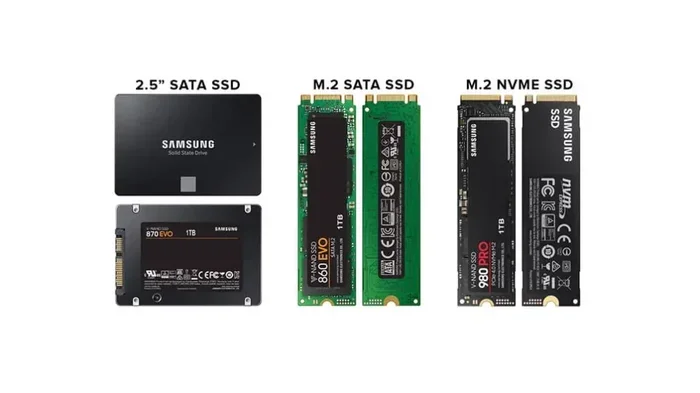
- NVMe vs. SATA: NVMe is a modern protocol designed for flash memory, offering 3-6x faster sequential speeds and massively lower latency than the older SATA interface used by 2.5″ SSDs.
- PCIe Generations Matter: Speed depends on your PCIe generation (3.0, 4.0, 5.0). A PCIe 4.0 NVMe SSD is twice as fast as PCIe 3.0, and PCIe 5.0 doubles it again, but your motherboard and CPU must support the generation.
- Heat is Real: High-performance NVMe drives generate significant heat. A motherboard heatsink or an aftermarket heatsink is often necessary to prevent thermal throttling and maintain top speeds.
- Check Compatibility: Not all M.2 slots support NVMe. Some are SATA-only. Always check your motherboard manual to see if your M.2 slot supports PCIe/NVMe and which PCIe generation it runs at.
- Capacity & Price: For most users, a 1TB NVMe SSD offers the best balance of price and performance. Prices have dropped dramatically, making them the default choice for boot and primary storage drives.
- Installation is Simple: Installing an M.2 NVMe SSD usually involves screwing one small screw. No power or data cables are needed. Just ensure it’s seated properly and secured.
📑 Table of Contents
- What Exactly is a PCIe M.2 NVMe SSD?
- The Tech Behind the Speed: PCIe Lanes & NVMe Protocol
- Why Upgrade? Real-World Benefits Over SATA SSDs
- Buying Your First NVMe Drive: A Practical Guide
- Installation & Setup: It’s Easier Than You Think
- The Future is Fast: PCIe 5.0 and Beyond
- Conclusion: The Clear-Cut Winner for Modern Systems
What Exactly is a PCIe M.2 NVMe SSD?
Let’s dissect the name, because each part is crucial. It’s not a single thing, but a combination of three technologies working in perfect harmony.
Decoding the Name: PCIe, M.2, and NVMe
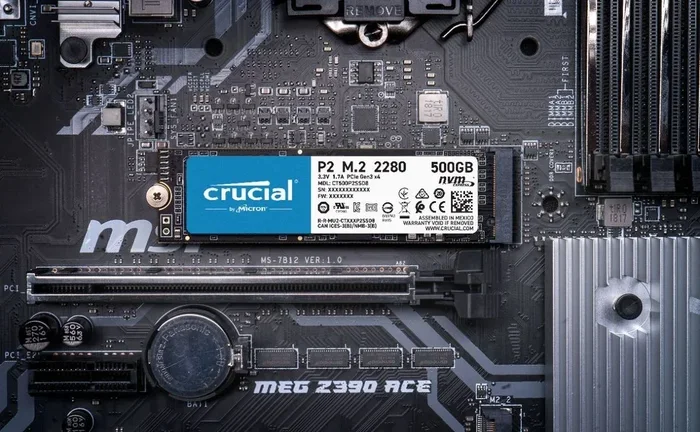
M.2 is the physical form factor. It’s a small, slender card, about the size of a stick of gum. It has a notch (or “key”) on one end that determines what type of interface it uses. This is a massive shift from the 2.5-inch boxy SSDs that need a power cable and a SATA data cable. The M.2 form factor allows for a clean, cable-free installation directly onto the motherboard.
PCIe (Peripheral Component Interconnect Express) is the communications highway. It’s the same high-speed bus your graphics card uses. Instead of the slower SATA bus (capped at ~550 MB/s), an NVMe SSD uses the PCIe lanes, offering vastly more bandwidth. A modern PCIe M.2 NVMe SSD on a PCIe 4.0 x4 link can theoretically hit speeds of up to 8,000 MB/s—over 14 times faster than SATA’s limit.
NVMe (Non-Volatile Memory Express) is the most important part: the protocol. It’s a software standard, a set of rules, written specifically for flash memory (like SSDs). The old SATA protocol was designed for spinning hard drives decades ago. It’s like using a horse-and-buggy traffic system for a Formula 1 car. NVMe is streamlined for flash. It has massively reduced latency (the delay before data transfer begins) and can handle thousands of simultaneous commands, making it incredibly efficient for multitasking and loading many small files.
The Evolution of Storage: From HDD to SATA SSD to NVMe
To appreciate the leap, look at the timeline. For decades, the Hard Disk Drive (HDD) was king. It was slow, mechanical, and fragile. The first major revolution was the SATA SSD. Replacing moving parts with NAND flash memory made storage 5-10x faster in real-world use. Boot times dropped from a minute to 15 seconds. But SATA became a bottleneck. Enter the PCIe M.2 NVMe SSD. It wasn’t just faster NAND; it was a complete overhaul of how the CPU talks to the storage. The jump from a good SATA SSD to a mid-range NVMe SSD can feel like going from a country road to a German autobahn. Everything just… happens.
The Tech Behind the Speed: PCIe Lanes & NVMe Protocol
So how do we get from “fast” to “blisteringly fast”? It’s all about the pathway and the rules of the road.
Visual guide about Pcie M 2 Nvme Ssd
Image source: content.crucial.com
PCIe Lanes: The Data Superhighway
Your CPU has a limited number of PCIe lanes. These are dedicated, point-to-point connections. A typical consumer CPU might have 16 lanes for the graphics card and 4 lanes for storage. An M.2 NVMe SSD typically uses x4 lanes, meaning it has four separate data channels to communicate with the CPU. More lanes = more data flowing at once. The generation of PCIe (3.0, 4.0, 5.0) determines the speed limit of each lane. PCIe 4.0 doubles the bandwidth of PCIe 3.0. This is why a PCIe 4.0 NVMe drive can hit speeds around 7,000 MB/s, while a PCIe 3.0 drive tops out around 3,500 MB/s. Your motherboard and CPU must both support the PCIe generation to get those speeds. A PCIe 4.0 SSD will work in a PCIe 3.0 slot, but it will be limited to PCIe 3.0 speeds.
NVMe: The Optimized Instruction Set
Imagine two delivery companies. Both use the same trucks (PCIe lanes). But one company (SATA) has a complicated, old-fashioned dispatch system with lots of paperwork and single-file loading. The other company (NVMe) uses a real-time GPS app, parallel loading bays, and can dispatch multiple trucks at once. NVMe’s command queue can have up to 65,535 entries (vs. 32 for SATA) and supports multiple queues. This means it can handle the chaotic, random read/write requests of an operating system and applications with extreme efficiency. The result? Not just higher top speeds, but dramatically lower latency—the time it takes to start reading a file. This is why you feel the system is more “responsive” even if a benchmark doesn’t show a huge sequential speed increase over SATA for some tasks.
Why Upgrade? Real-World Benefits Over SATA SSDs
Benchmarks are great, but what does this mean for you when you’re actually using your computer?
Gaming: Shorter Load Times, Smoother Streaming
This is the most noticeable win for gamers. Open world games like Red Dead Redemption 2 or Cyberpunk 2077 have to stream textures, models, and audio from storage as you move. A faster PCIe M.2 NVMe SSD reduces pop-in and loading screens. You’ll spend less time staring at “Loading…” and more time playing. For competitive games, the difference in loading into a match can be the difference between getting a good spot or spawning late. While frame rates aren’t directly affected (that’s the GPU’s job), the overall experience is smoother and more immersive.
Content Creation & Productivity: Handling Massive Files
If you work with video editing, 3D rendering, large Photoshop files, or compiling code, NVMe is a game-changer. Exporting a 4K video, loading a massive project file, or compiling a large codebase can take minutes less. The high sequential read/write speeds shine here, moving huge chunks of data quickly. The low latency also helps with applications that access many small files simultaneously, like loading a complex software suite or a browser with hundreds of tabs.
General System Responsiveness: The “Feeling” of Speed
This is the subtle but constant benefit. Booting into Windows or macOS feels instantaneous. Launching applications happens with barely a pause. Opening documents, searching files, even browsing the web with a cache on the SSD feels snappier. The operating system is constantly reading and writing small system files. The low queue depth and high random read/write performance of NVMe makes every click and keystroke feel more immediate. It’s the single biggest upgrade for making an older or mid-range system feel premium and lag-free.
Space and Cable Management: The Clean Build
Let’s not forget the practical perk. An M.2 SSD mounts directly to the motherboard. No power cables from the PSU, no SATA data cables to route. This creates a dramatically cleaner interior, which is better for airflow and aesthetics. In small form factor builds (like Mini-ITX), this cable-free design is almost a necessity, freeing up precious space and simplifying the build process immensely.
Buying Your First NVMe Drive: A Practical Guide
The market is crowded. Here’s how to cut through the specs and buy the right drive for your needs and budget.
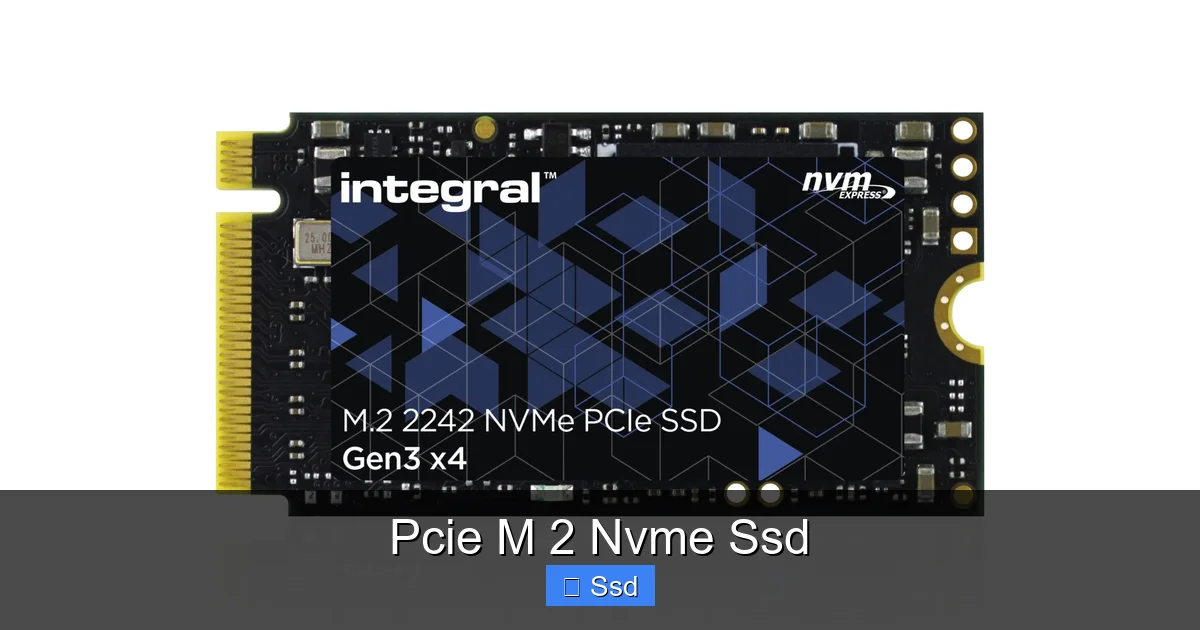
Visual guide about Pcie M 2 Nvme Ssd
Image source: integralmemory.com
Key Specs to Understand (And Ignore)
You’ll see numbers like 7,000 MB/s and 1,000,000 IOPS. For most users, the sequential speeds (the big number) matter most for large file transfers. But don’t get caught up in chasing the absolute highest number. The real-world difference between a 5,000 MB/s drive and a 7,000 MB/s drive for gaming or general use is often negligible. Focus instead on reliable brands (Samsung, WD, Crucial, SK Hynix, Sabrent), good cache configurations (a DRAM cache or a good Host Memory Buffer cache helps with sustained performance), and strong customer reviews regarding longevity and consistency. TBW (Terabytes Written) is a warranty metric—a 600TBW rating on a 1TB drive is excellent and means the drive is rated to write 600TB of data before warranty expires, which is far more than a typical user will ever reach.
PCIe Generation: Match Your System
This is the first compatibility check. What PCIe generation does your motherboard support? An Intel 10th/11th/12th Gen or AMD Ryzen 3000/5000/7000 series system likely supports PCIe 4.0. Older systems (Intel 6th-9th Gen, AMD Ryzen 1000/2000) are typically PCIe 3.0. Buying a PCIe 4.0 drive for a PCIe 3.0 system is fine—it’s backward compatible—but you’ll pay for performance you can’t use. Conversely, buying a PCIe 3.0 drive for a PCIe 4.0 system leaves performance on the table. Check your motherboard’s specs page.
Capacity: The Sweet Spot is 1TB
Prices per gigabyte have plummeted. A 512GB drive is now often too small for a modern OS, a handful of AAA games, and your work files. The 1TB capacity is the new sweet spot. It offers ample space, and the price per GB is very competitive. 2TB offers great value if you have large media libraries or many games. Avoid going below 512GB for a primary drive.
Heat & The Heatsink Question
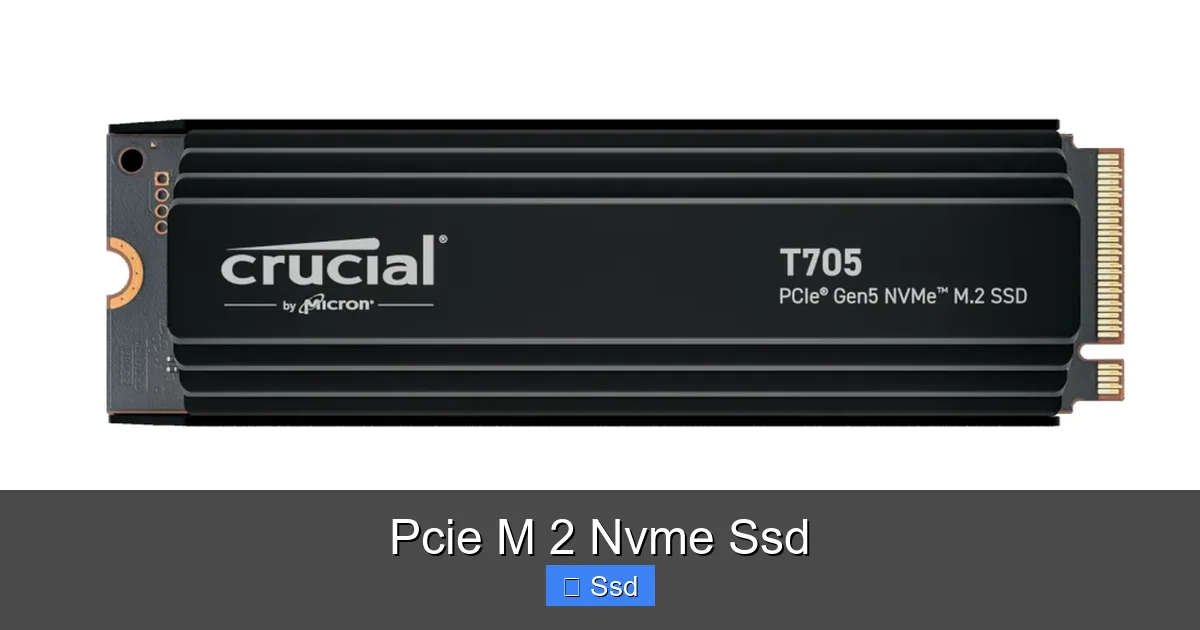
High-performance NVMe drives, especially PCIe 4.0 and 5.0 models, get hot. Thermal throttling can slow them down significantly under sustained loads. Many motherboards now come with pre-installed M.2 heatsinks (a metal plate, often with a heatpipe, that screws onto the drive). This is usually sufficient. If your motherboard doesn’t have one, or if you’re pushing the drive hard (constant video rendering), consider an aftermarket heatsink. Some drives also come with their own heatsinks. Just ensure the combined thickness fits under your GPU if the slot is located beneath it.
Installation & Setup: It’s Easier Than You Think
Physically installing an M.2 NVMe SSD is one of the simplest upgrades in PC building. No cables, just a screw.
Step-by-Step Physical Installation
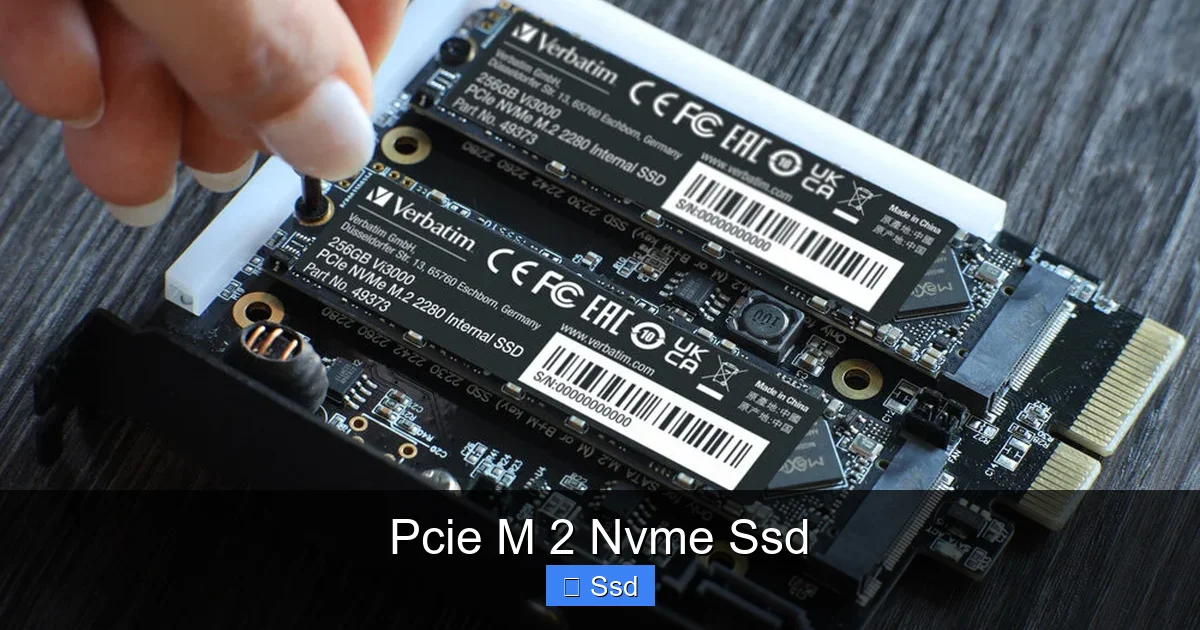
First, power down and unplug your PC. Open the case. Locate the M.2 slot on your motherboard (it’s usually near the PCIe slots or the CPU). If there’s a heatsink or screw covering it, remove that. Gently insert the drive at a slight angle (about 30 degrees) into the slot. The notch on the drive should align with the key in the slot. Press it down flat. You’ll feel it click into place. Find the tiny screw that came with your motherboard (or drive) and secure the other end of the drive to the standoff. That’s it. Reassemble and power on.
Initial Setup in Your Operating System
When you first boot, your system might not show the new drive. You need to initialize and format it.
- In Windows: Press Win + X and select “Disk Management.” You should see a new disk labeled “Not Initialized.” Right-click it and choose “Initialize Disk” (use GPT partition style). Then right-click the unallocated space and “New Simple Volume.” Follow the wizard, assign a drive letter, and format it (use NTFS).
- In macOS: The drive should appear in Disk Utility (Applications > Utilities). Select it, click “Erase,” choose GUID Partition Map and APFS or Mac OS Extended format.
Once formatted, your new PCIe M.2 NVMe SSD will appear in File Explorer or Finder, ready for your games, apps, and files.
The Future is Fast: PCIe 5.0 and Beyond
We’re not done evolving. PCIe 5.0, launched with Intel’s 12th Gen and AMD’s Ryzen 7000 series, doubles the bandwidth again to a theoretical 16,000 MB/s for an x4 drive. The first consumer PCIe 5.0 NVMe SSDs are hitting the market. Do you need one? Probably not yet. The real-world performance gains for most tasks over a good PCIe 4.0 drive are minimal, and they run extremely hot, requiring substantial active cooling (fans). The main beneficiaries right now are extreme professional workloads with massive, sustained sequential reads/writes. For the vast majority, a high-end PCIe 4.0 drive is more than enough for the next 5+ years. The future will also bring advancements in NAND technology (like 200+ layer TLC/QLC) and more efficient controllers, pushing speeds and densities further while managing heat better.
Conclusion: The Clear-Cut Winner for Modern Systems
The PCIe M.2 NVMe SSD has transitioned from a high-end enthusiast component to the standard, default storage choice for any new PC build or major upgrade. Its combination of blistering speed, minimal latency, compact form factor, and ease of installation makes it a no-brainer. The performance uplift from a SATA SSD is tangible in boot times, application launches, and file transfers. The upgrade from an old hard drive is nothing short of transformative. When buying, match the PCIe generation to your system, get at least 1TB from a reputable brand, and don’t ignore cooling. Install it, format it, and experience the immediate, day-to-day responsiveness that makes your computer feel fast and modern. It’s the single most effective upgrade you can make today.
Frequently Asked Questions
Is a PCIe M.2 NVMe SSD compatible with my older motherboard?
It depends. Your motherboard must have an M.2 slot that supports the PCIe protocol (some older M.2 slots only support SATA). Check your motherboard manual or specifications online. Even if it’s an older PCIe 3.0 slot, a modern NVMe SSD will work, just at PCIe 3.0 speeds.
Do I need a heatsink for my NVMe SSD?
For most mainstream PCIe 4.0 drives, a simple motherboard-provided heatsink is sufficient. High-end PCIe 4.0 and all PCIe 5.0 drives generate significant heat and can thermally throttle without a heatsink. If your motherboard lacks one and you do sustained heavy workloads (video editing), an aftermarket heatsink is a smart investment.
What’s the main difference between an NVMe SSD and a SATA SSD?
The difference is the interface and protocol. A SATA SSD uses the older SATA bus (max ~550 MB/s) and AHCI protocol. An NVMe SSD uses the much faster PCIe bus and the streamlined NVMe protocol, offering 3-6x higher speeds and much lower latency, resulting in a more responsive system.
Can I use an NVMe SSD as a secondary drive?
Absolutely. While many use it as a fast boot drive, you can install games, applications, or work projects on it. Just be mindful of capacity. A 1TB NVMe is perfect as a primary drive for OS and key apps/games, with a larger, cheaper SATA SSD or HDD for bulk storage.
Will an NVMe SSD improve my FPS in games?
Not directly. Frame rate is determined primarily by your GPU and CPU. However, NVMe SSDs drastically reduce or eliminate loading screens and texture pop-in, creating a smoother, more immersive experience. In some open-world games, it can also reduce stuttering caused by streaming assets from storage.
How long do PCIe M.2 NVMe SSDs last?
Very long. NAND flash has a finite number of write cycles, but modern drives have enormous endurance ratings (often 600 TBW or more for a 1TB drive). For a typical user who writes 20-50GB per day, it would take many years, likely longer than the drive’s useful life, to reach that limit. They are generally as reliable as SATA SSDs.