500gb M 2 Nvme Ssd
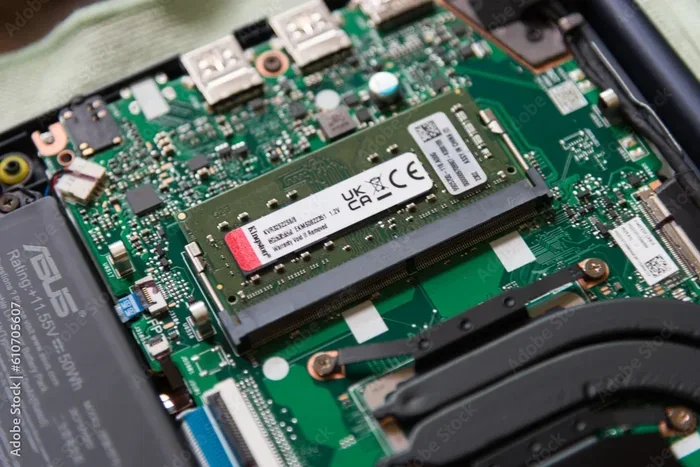
The 500GB M.2 NVMe SSD delivers blazing-fast storage in a compact form factor perfect for laptops and desktops. This guide covers speeds, prices, compatibility, and the top picks to help you decide if a 500GB NVMe drive is right for you. Whether you are upgrading a boot drive or adding game storage, this article has you covered.
A 500GB M.2 NVMe SSD is one of the best upgrades you can make to any computer. It makes your system feel faster, loads applications in a snap, and takes up almost no space inside your PC case. If you have been thinking about upgrading your storage, this is the guide you need.
In this article, we will break down everything you need to know about the 500GB NVMe M.2 solid state drive. We will cover speeds, prices, compatibility, and the best options available right now. By the end, you will know exactly which drive to buy and why.
Key Takeaways
- Blazing Speeds: A 500GB M.2 NVMe SSD offers read speeds up to 3,500 MB/s, far outpacing traditional SATA drives.
- Compact Form Factor: The M.2 2280 shape factor fits easily into most modern laptops and desktops.
- Great Value: 500GB strikes a sweet spot between capacity and affordability for most users.
- Perfect for Boot Drives: An NVMe SSD dramatically reduces boot and load times for your operating system.
- Check Compatibility First: Always confirm your motherboard supports NVMe M.2 slots before purchasing.
- Consider Your Needs: 500GB works well for OS and essential apps, but gamers may want 1TB or more.
📑 Table of Contents
What Is a 500GB M.2 NVMe SSD?
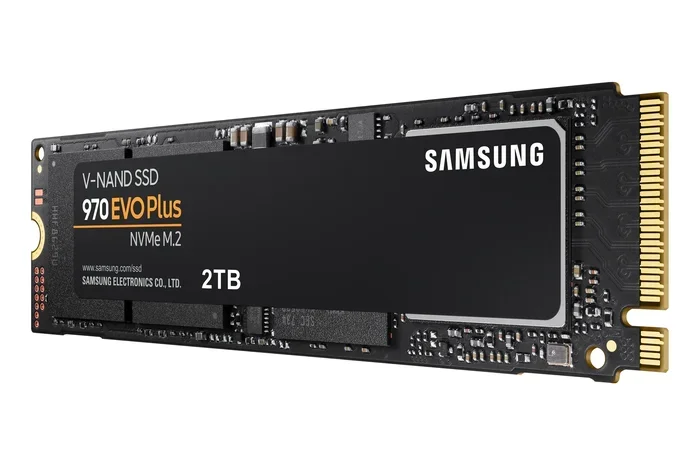
A 500GB M.2 NVMe SSD is a type of solid state drive that uses the M.2 form factor and the NVMe protocol over PCIe. Unlike older SATA SSDs, NVMe drives communicate directly with the CPU through the PCIe bus. This means much faster data transfer and lower latency.
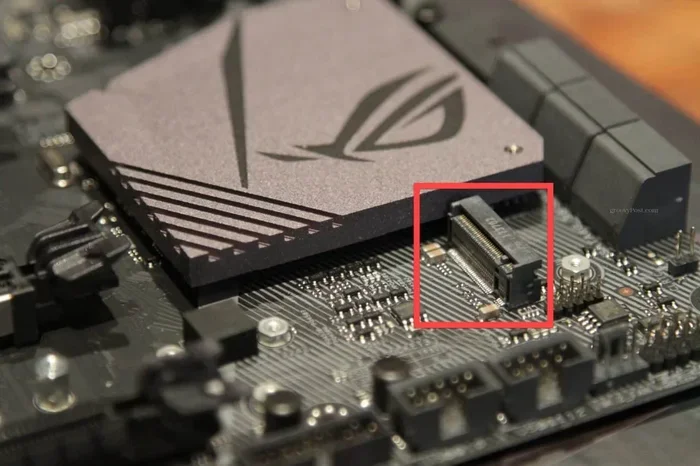
The M.2 part refers to the physical shape of the drive. It is a small, flat stick that plugs straight into your motherboard. The most common size is the M.2 2280, which is 22 millimeters wide and 80 millimeters long. Most modern motherboards have at least one M.2 slot for exactly this type of drive.
How Does NVMe Differ from SATA?
This is a question many people ask. The short answer is speed. A standard SATA SSD tops out around 550 MB/s. A 500GB NVMe M.2 SSD can hit 3,500 MB/s or even higher on PCIe Gen 4. That is a massive difference. Your operating system, games, and programs will load much faster on an NVMe drive.
Here is a quick comparison:
- SATA SSD: Up to 550 MB/s read, 500 MB/s write
- NVMe M.2 SSD: Up to 3,500 MB/s read, 3,000 MB/s write (Gen 3)
- NVMe M.2 SSD (Gen 4): Up to 7,000 MB/s read, 5,000 MB/s write
As you can see, the speed gap is enormous. If you are still using a SATA drive, switching to a 500GB M.2 NVMe SSD will feel like a completely new computer.
Why Choose a 500GB Capacity?
Storage capacity matters a lot when picking an SSD. The 500GB size has become very popular because it balances cost and usefulness. It is not too small and not too expensive. For many users, 500GB is the perfect amount of space.
Here is what 500GB can comfortably hold:
- Windows or macOS operating system (about 30-50GB)
- 5 to 10 large applications or games
- Several hundred gigabytes of documents and media
- Room left over for future updates and files
If you mainly use the drive as a boot drive for your operating system and essential programs, 500GB is plenty. However, if you store a large game library or lots of video files, you might want to look at a 1TB M.2 NVMe SSD instead.
Best Uses for a 500GB NVMe Drive
The 500GB size works great for several different scenarios. Here are the most common ones:
- OS Boot Drive: Install your operating system on the NVMe drive for the fastest boot times and responsiveness.
- Laptop Upgrade: Many laptops only have room for one M.2 slot. A 500GB NVMe drive gives you plenty of speed and space.
- Budget Gaming Setup: Store your most-played games on the NVMe drive for quick load times.
- Content Creation: Video editors and designers benefit from the fast read/write speeds when working with large files.
- Secondary Storage: Pair a 500GB NVMe drive with a larger HDD for the best of both worlds.
Top 500GB M.2 NVMe SSDs to Consider
Not all NVMe SSDs are the same. Some are faster, some are cheaper, and some offer better endurance. Here are some of the best options in the 500GB M.2 NVMe SSD category that you should look at.
Crucial P3 500GB NVMe SSD
The Crucial P3 500GB NVMe SSD is a fantastic budget option. It uses PCIe Gen 3 and delivers solid read speeds of up to 3,500 MB/s. The drive uses QLC NAND memory, which means it is more affordable but slightly slower for sustained writes than TLC drives.
Key highlights include:
- Read speeds up to 3,500 MB/s
- Compact M.2 2280 form factor
- No need for a separate power cable
- Affordable price point for NVMe speeds
WD Blue SN570 NVMe SSD
The WD Blue NVMe M.2 SSD is another excellent choice. It is a TLC-based drive that offers reliable performance and good endurance. The SN570 is one of the most popular NVMe drives on the market for a reason. It delivers consistent speeds without breaking the bank.
This drive is ideal for everyday users who want a smooth experience without spending too much. It also runs cool and quiet, which is a big plus for laptop users.
Kingston NV2 500GB NVMe SSD
The Kingston NV2 is a cost-effective NVMe drive that punches above its price. It uses PCIe Gen 3 and offers read speeds up to 2,000 MB/s. While not the fastest option, it is a solid choice for users on a tight budget who still want the benefits of NVMe technology.
How to Install a 500GB M.2 NVMe SSD
Installing a 500GB M.2 NVMe SSD is surprisingly simple. You do not need any special tools or technical skills. Most people can do it in under 10 minutes.
Here is a step-by-step guide:
- Turn off your computer and unplug it from the power source.
- Open your PC case or laptop access panel.
- Locate the M.2 slot on your motherboard. It looks like a small slot with a tiny screw.
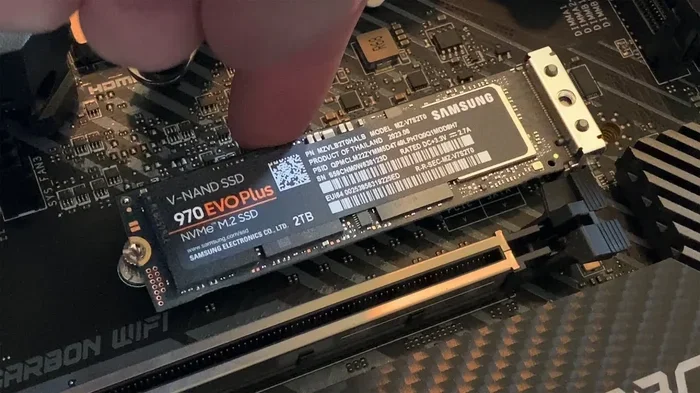
- Insert the NVMe SSD at a 30-degree angle into the slot.
- Press the drive down gently and secure it with the small screw.
- Close your case and boot up your computer.
- Go into your BIOS or operating system to initialize the new drive.
That is it. Your new NVMe M.2 PCIe SSD is ready to use. If you want to clone your old drive, you can use free software like Macrium Reflect or Clonezilla to transfer everything over without reinstalling your operating system.
Quick Tips for Installation
- Always ground yourself before touching components to avoid static damage.
- Do not force the drive into the slot. It should slide in smoothly.
- Make sure your motherboard BIOS is updated to the latest version for best NVMe compatibility.
- If your system does not recognize the drive, check that it is fully seated in the slot.
500GB NVMe SSD Price and Value
One of the best things about NVMe technology is that prices have dropped significantly. A 500GB M.2 NVMe SSD can be found for as low as $30 to $50 depending on the brand and model. This makes it an incredibly affordable upgrade that delivers a huge performance boost.
When comparing prices, look at these factors:
- Sequential Read/Write Speeds: Faster speeds cost a little more but make a big difference.
- NAND Type: TLC drives are faster and more durable than QLC drives but cost slightly more.
- Warranty: Look for drives with at least a 3-year warranty for peace of mind.
- Brand Reputation: Established brands like Crucial, WD, Samsung, and Kingston offer reliable products.
For most users, the sweet spot is around $40 for a 500GB NVMe drive. At that price, it is one of the best value upgrades you can make to any computer.
Common Mistakes to Avoid When Buying a 500GB NVMe SSD
Even though installing an NVMe SSD is straightforward, there are some common mistakes people make. Avoiding these will save you time and money.
Not Checking Motherboard Compatibility
This is the number one mistake. Not all motherboards support NVMe M.2 drives. Some older boards only have M.2 slots that support SATA SSDs. Before buying, check your motherboard manual to confirm it has an NVMe-compatible M.2 slot. You can also look up your motherboard model online to find this information quickly.
Confusing M.2 SATA with M.2 NVMe
M.2 drives come in two types: SATA and NVMe. They look the same physically but work very differently. An M.2 SATA drive will not give you the speed benefits of NVMe. Make sure you are buying a PCIe NVMe M.2 SSD and not a SATA version.
Ignoring Thermals
NVMe SSDs can run hot, especially during heavy workloads. Some drives come with heatsinks included. If your motherboard has an M.2 heatsink, you may not need a separate one. But for high-performance drives, a heatsink can help maintain top speeds and extend the lifespan of the drive.
Buying More Than You Need
While it is tempting to buy the largest drive available, 500GB is often the perfect size for many users. If you only need a boot drive or a drive for essential applications, there is no need to spend extra on 1TB or 2TB unless you have the storage needs to justify it.
500GB NVMe SSD vs Other Storage Options
Still not sure if a 500GB NVMe M.2 SSD is right for you? Let us compare it to other common storage options.
| Storage Type | Read Speed | Write Speed | Price (approx.) | Best For |
|---|---|---|---|---|
| 500GB NVMe M.2 SSD | 3,500 MB/s | 3,000 MB/s | $35-$50 | OS boot, gaming, fast apps |
| 500GB SATA SSD | 550 MB/s | 500 MB/s | $30-$40 | Budget upgrade |
| 500GB HDD | 150 MB/s | 100 MB/s | $20-$25 | Mass storage |
| 1TB NVMe M.2 SSD | 3,500 MB/s | 3,000 MB/s | $60-$80 | Gaming, large file storage |
As you can see from the comparison table, the 500GB NVMe drive offers the best balance of speed and price for most users. It is significantly faster than a SATA SSD or HDD while staying affordable.
Final Thoughts
A 500GB M.2 NVMe SSD is an outstanding upgrade for almost any computer. It brings NVMe speeds to your system in a tiny, easy-to-install package. Whether you are building a new PC or upgrading an older one, this type of drive will transform your computing experience.
The 500GB capacity hits the sweet spot for most users. It gives you enough room for your operating system, essential applications, and several games without costing a fortune. With prices continuing to drop, there has never been a better time to make the switch to NVMe storage.
If you are ready to upgrade, pick one of the drives we covered in this guide. Your computer will thank you. And if you want to explore larger capacity options, check out our guides on NVMe PCIe M.2 SSDs or 1TB M.2 NVMe SSDs for more options.
Frequently Asked Questions
Is a 500GB NVMe SSD enough for gaming?
Yes, a 500GB NVMe SSD is enough for gaming if you are selective about which games you install. Most modern games range from 30 to 100GB each, so you can comfortably fit 5 to 10 games. Use the drive for your most-played titles and store the rest on a larger HDD or secondary drive.
Can I use a 500GB M.2 NVMe SSD as my only drive?
Absolutely. Many people use a single 500GB NVMe SSD as their only storage drive. It works great for the operating system, applications, and a reasonable game library. Just make sure you manage your storage and offload large files to cloud storage or an external drive when needed.
What is the difference between M.2 SATA and M.2 NVMe?
The physical shape is the same, but the technology is different. M.2 SATA uses the older SATA interface and maxes out around 550 MB/s. M.2 NVMe uses the PCIe bus and can reach speeds of 3,500 MB/s or higher. Always check which type your motherboard supports before buying.
Do I need a heatsink for a 500GB NVMe SSD?
Most 500GB NVMe SSDs run cool enough that a heatsink is not necessary. However, if you plan on doing heavy workloads like video editing or large file transfers for extended periods, a heatsink can help maintain consistent performance. Many motherboards include M.2 heatsinks built in.
How long does a 500GB NVMe SSD last?
A typical 500GB NVMe SSD can last 5 to 10 years under normal use. The lifespan depends on the NAND type and your daily write workload. Most drives have an endurance rating of 150 to 300 TBW (terabytes written), which is more than enough for everyday use.
Can I upgrade from a 500GB to a 1TB NVMe SSD later?
Yes, upgrading is very easy. You can install the new 1TB drive, clone your existing 500GB drive to it, and swap them out. Most users find the process takes less than 30 minutes. Just make sure your motherboard has an available M.2 slot for the new drive.