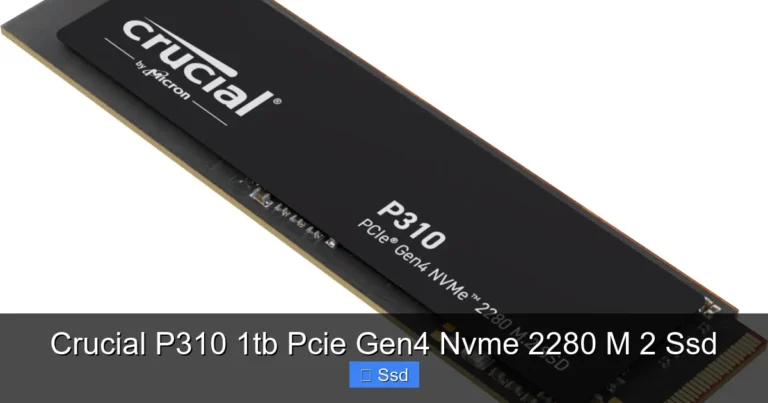
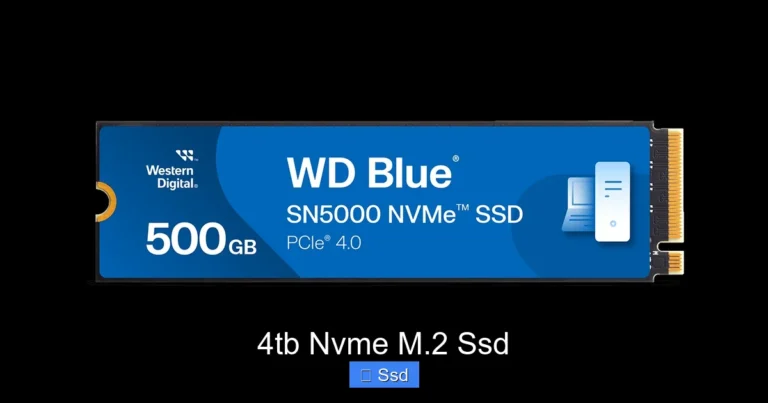
Ssd M.2 Nvme 1tb
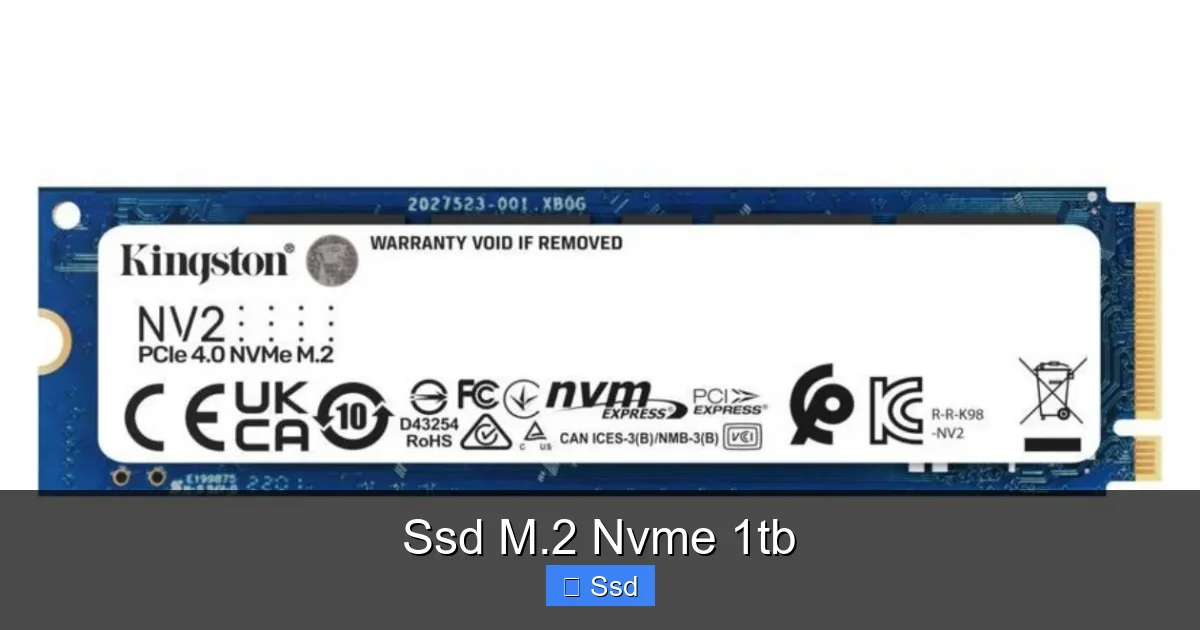
A 1TB M.2 NVMe SSD is the modern performance sweet spot for most PC builders and upgraders. It connects directly to your motherboard via a fast PCIe lane, offering sequential read/write speeds 5-7x faster than older SATA SSDs. This translates to near-instant boot times, rapid game/application loading, and smooth file transfers, all in a compact, power-efficient gumstick form factor. For a massive responsiveness boost, it’s the single best upgrade you can make today.
You’re staring at your computer, waiting for it to boot. That spinning wheel or loading bar feels like it’s mocking you. You’ve heard whispers about this thing called an “NVMe SSD” that makes everything instant. But what does it actually mean, and is a 1TB M.2 NVMe SSD the right upgrade for you? Let’s cut through the jargon and get practical.
Think of your computer’s storage as a warehouse. A traditional Hard Disk Drive (HDD) is like a librarian who has to walk down endless aisles to find a single book. A SATA SSD is that same librarian, but now on a very fast electric scooter. An M.2 NVMe SSD? That’s teleportation. It bypasses the old, slow highways (the SATA bus) and connects directly to the computer’s central expressway (the PCIe bus) via a tiny, sleek port on your motherboard. The result? Your system wakes up in seconds. Games load before you can finish your first sip of coffee. Large files copy in a blink. This is the difference you feel every single day.
This article is your complete, no-nonsense guide to the 1TB M.2 NVMe SSD. We’ll demystify the specs, walk through who needs one, how to choose the right model, and even how to install it yourself. By the end, you’ll know exactly why this little stick of silicon is one of the most impactful upgrades you can make in 2024 and beyond.
Key Takeaways
- NVMe vs. SATA: M.2 NVMe SSDs use the PCIe bus, offering vastly higher speeds (up to 7,000 MB/s) than SATA SSDs (max ~550 MB/s) for a noticeable real-world performance jump.
- Form Factor: The “M.2” is a physical size and connector type. A 1TB drive is typically 22mm wide and 80mm long (2280), fitting most modern desktops and laptops.
- Capacity Sweet Spot: 1TB provides ample space for an operating system, dozens of AAA games, and a large media/photos library without the premium cost of 2TB+ models.
- Motherboard Compatibility: You need a motherboard with an M.2 slot that supports NVMe (PCIe). Most boards from the last 6-7 years do, but always check your manual.
- Thermals Matter: High-speed NVMe drives can get hot and throttle. Ensure your motherboard has an M.2 heatsink or plan for airflow to maintain peak speeds.
- Not Just for Gaming: While gamers love the load time reductions, content creators (video editing, 3D rendering) and professionals working with large datasets see the biggest productivity gains.
- Future-Proofing: A quality 1TB NVMe drive will remain a competent primary drive for years, handling OS and application loads with ease long after SATA SSDs feel sluggish.
📑 Table of Contents
- What Exactly Is an M.2 NVMe SSD? Breaking Down the Buzzwords
- NVMe vs. SATA SSD: Is the Speed Difference Worth It?
- Who Needs a 1TB M.2 NVMe SSD? Ideal Use Cases
- How to Choose the Right 1TB M.2 NVMe SSD: Key Specs Decoded
- How to Install Your 1TB M.2 NVMe SSD: A Simple, Step-by-Step Guide
- Future Trends: What’s Next for NVMe Storage?
- Conclusion: The Clear-Case Upgrade
What Exactly Is an M.2 NVMe SSD? Breaking Down the Buzzwords
Let’s dissect the phrase “SSD M.2 NVMe 1TB” piece by piece. It’s a lot of acronyms, but each one tells an important part of the story.
SSD: The Fundamental Upgrade
SSD stands for Solid-State Drive. Unlike HDDs with spinning platters and moving read heads, SSDs store data on flash memory chips. This means no moving parts, resulting in faster speeds, silent operation, better durability against shock, and lower power consumption. An SSD is non-negotiable for a modern, responsive PC.
M.2: The Physical Form Factor
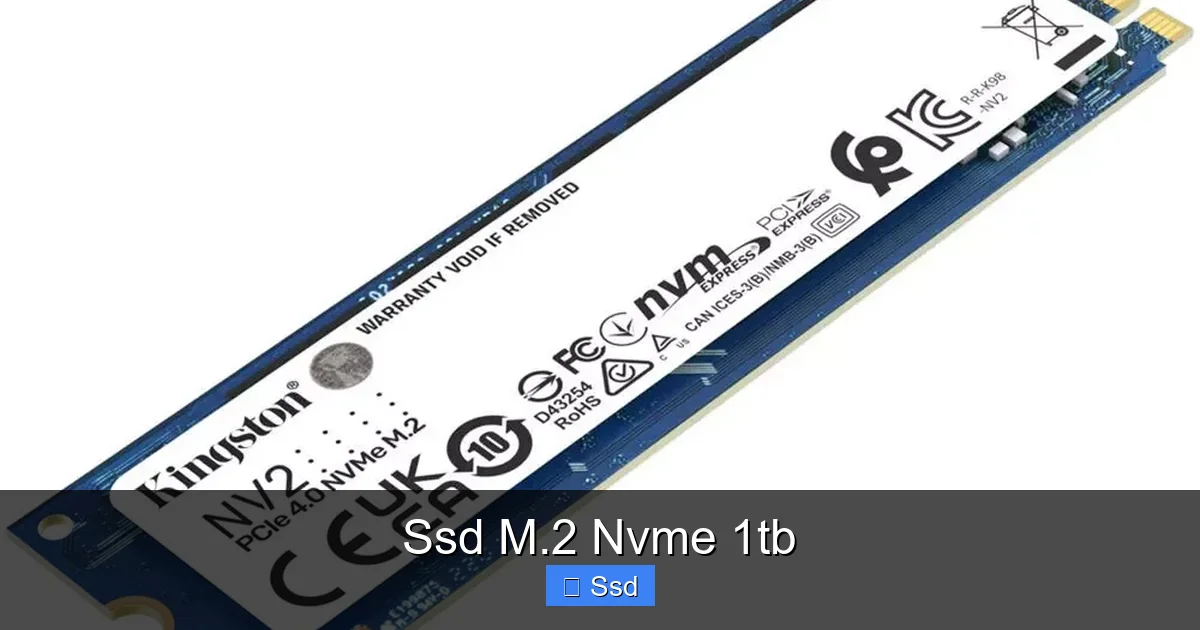
M.2 is a specification for the physical shape, size, and connector type. It’s a slender, flat card that plugs directly into a dedicated slot on your motherboard. The most common size for consumer SSDs is 2280, which means 22mm wide and 80mm long. It’s a huge space-saver compared to the 2.5” boxy shape of SATA SSDs, making it ideal for compact laptops and clean desktop builds. The M.2 slot can support multiple protocols (like SATA and PCIe), so the key is what’s inside that M.2 shape.
NVMe: The High-Speed Protocol
This is the magic sauce. NVMe (Non-Volatile Memory Express) is the communication protocol, or the language, the SSD uses to talk to your computer. It was designed specifically for flash memory, taking full advantage of the massive parallelism modern NAND chips offer. Crucially, NVMe drives connect via the PCIe (Peripheral Component Interconnect Express) bus, the same super-fast highway used by your graphics card. This is why they are so much faster than SATA SSDs, which are limited by the older SATA interface designed for hard drives.
1TB: The All-Important Capacity
This is the storage space. 1 Terabyte (TB) equals about 1,000 Gigabytes (GB). For context, a modern AAA game can be 80-150GB. The Windows 10/11 OS with updates is 40-60GB. Your core applications (Office, browsers, creative suites) might use another 50-100GB. A 1TB drive gives you a comfortable buffer. You can install your OS, 5-10 large games, a significant photo/video library, and still have 300-400GB free for future installs and system overhead. It’s the practical capacity for most power users and a great starting point for gamers.
So, an SSD M.2 NVMe 1TB is a 1-terabyte, gumstick-shaped solid-state drive that uses the ultra-fast PCIe bus to communicate with your system. It’s not just an incremental upgrade; it’s a paradigm shift in storage speed.
NVMe vs. SATA SSD: Is the Speed Difference Worth It?
This is the most common question. The numbers on paper are staggering, but do they matter in real life? Let’s compare.
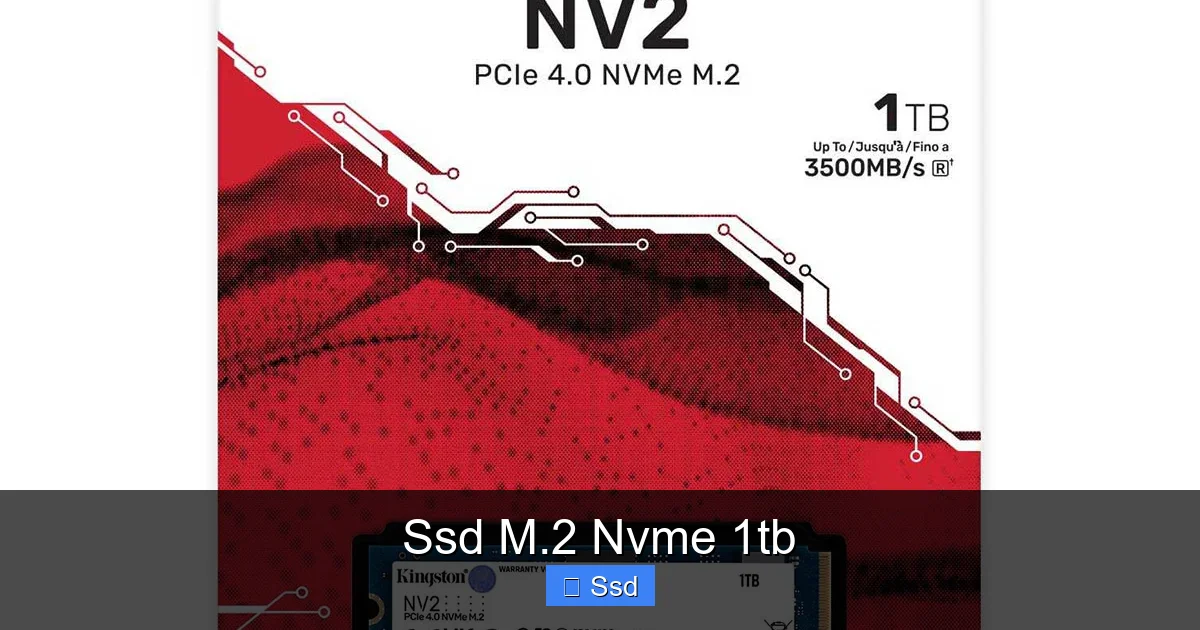
Visual guide about Ssd M.2 Nvme 1tb
Image source: nimavi.com
The Spec Sheet Chasm
A top-tier SATA SSD maxes out at around 550 MB/s for both reads and writes. A current-gen PCIe 4.0 NVMe SSD (like those from the last few years) can hit 7,000 MB/s read and 5,000-6,000 MB/s write. That’s a theoretical 10-13x difference! Even an older PCIe 3.0 NVMe drive (still very common) offers 3,500 MB/s, a 6x jump over SATA.
Real-World Impact: Where You’ll Actually Feel It
Those sequential speeds (moving one huge file) are impressive, but the biggest performance win comes from 4K Random Read/Write speeds. This measures how quickly the drive can access thousands of tiny files—the core of loading an operating system, a game level, or a software project. Here, NVMe’s advantage is even more pronounced.
- Boot Times: Going from a SATA SSD to NVMe might shave 3-5 seconds off a Windows boot. From an HDD? You’re looking at 15-30 seconds saved. It’s the difference between making coffee and having it ready.
- Game Loading: This is where NVMe shines. Open-world games with massive, streaming environments (like Red Dead Redemption 2, Cyberpunk 2077, Microsoft Flight Simulator) see the most dramatic reductions in “pop-in” and travel time between areas. You’ll load into matches in competitive games like Valorant or CS:GO faster than most opponents. The difference over SATA is often 2-5 seconds per level, which feels huge in practice.
- File Transfers & Productivity: Copying a 100GB game folder or a large video project? An NVMe drive can complete the task in a fraction of the time of a SATA drive. For video editors, photographers, and engineers working with large asset libraries, this translates directly into saved minutes and hours every single day.
The Verdict: For a primary OS and application drive, the jump from HDD to any SSD is night-and-day. The jump from SATA to NVMe is a significant, perceptible upgrade in load times and file operations, especially for gaming and professional workloads. Given the small price premium today, NVMe is almost always the recommended choice for a new build or major upgrade.
Who Needs a 1TB M.2 NVMe SSD? Ideal Use Cases
This specific configuration isn’t for everyone, but it’s the best all-arounder for a huge segment of users.
Visual guide about Ssd M.2 Nvme 1tb
Image source: bip.cl
The Competitive Gamer & Enthusiast
If you play modern, asset-heavy games, this is your top pick. Faster load times mean less waiting and more playing. A 1TB capacity holds your core library of 5-10 favorite titles plus the OS. It’s the heart of a modern gaming PC.
The Content Creator & Professional
Video editors, 3D artists, music producers, and software developers work with massive files. An NVMe drive drastically reduces project load times, accelerates timeline scrubbing, and speeds up export/rendering when used as a scratch disk. The 1TB capacity is perfect for active projects while a larger, slower HDD or SATA SSD archives finished work.
The General Power User & Student
You multitask with 50 browser tabs, run Office suites, photo editing apps, and maybe a few games. Your current system feels “fine” but you know it could be snappier. A 1TB NVMe as your primary drive will make your entire daily computing experience feel smoother and more instantaneous. It’s the single best “quality of life” upgrade.
The Laptop Upgrader
Many modern ultrabooks and gaming laptops come with a single M.2 slot, often filled with a slower or smaller-capacity SSD. Replacing it with a 1TB NVMe drive is one of the most effective upgrades you can make to an older laptop, breathing new life into it for years.
Who Should Think Twice?
If your use case is purely storage—you have a massive media server, or you store decades of raw footage—then a high-capacity HDD or a larger SATA SSD (which are often cheaper per GB) is more economical. The NVMe’s value is in its speed, not raw bulk storage.
How to Choose the Right 1TB M.2 NVMe SSD: Key Specs Decoded
Walking into a store or browsing online, you’ll see models with confusing numbers and marketing terms. Here’s what actually matters.
1. PCIe Generation: PCIe 3.0 vs. 4.0 vs. 5.0
This is the most critical spec. It determines the theoretical speed ceiling of the lane your drive is plugged into.
- PCIe 3.0: The workhorse. Max speed ~3,500 MB/s. Still incredibly fast and perfectly adequate for 95% of users. Often found on budget-friendly, reliable drives. Great value.
- PCIe 4.0: The current mainstream sweet spot. Max speed ~7,000 MB/s. Requires a motherboard with PCIe 4.0 support (AMD Ryzen 3000+ / Intel 11th Gen+). The speed difference over PCIe 3.0 is noticeable in large file transfers and top-tier gaming/creative workloads.
- PCIe 5.0: The bleeding edge. Max speed ~14,000 MB/s. Only available on the latest Intel 13th/14th Gen and AMD Ryzen 7000-series platforms. Drives are expensive and often run very hot. For most, the performance gain over PCIe 4.0 isn’t yet worth the cost and thermal management hassle.
Tip: Don’t buy a PCIe 4.0 drive if your motherboard only supports PCIe 3.0—it will work, but at the slower 3.0 speeds. Check your motherboard’s spec sheet first.
2. The Controller & NAND: The Brains and the Memory
The controller is the SSD’s processor. Brands like Samsung (in-house), Phison, and Silicon Motion are top-tier. The NAND is the actual storage chips. Look for drives using TLC (3-bit per cell) or MLC (2-bit per cell). Avoid QLC (4-bit) for a primary OS drive, as it can slow down significantly when the drive is nearly full. Most quality 1TB NVMe drives today use TLC, which offers an excellent balance of speed, endurance, and cost.
3. Sustained Write Speeds & SLC Cache
All NVMe drives have an SLC cache—a small, fast portion of the drive used for temporary writes. When you copy a huge file (larger than the cache), the drive’s write speed can drop to its “sustained” speed, which is often much slower. For most users, this only matters for multi-hundred-GB transfers. If you regularly move huge files (like raw 8K video), research a drive’s sustained write performance.
4. Endurance (TBW) & Warranty
Endurance is measured in Terabytes Written (TBW). A 1TB drive with a 600 TBW rating means the manufacturer guarantees it can write 600TB of data before the memory cells are likely to wear out. For a typical user, writing 50-100GB a day, this is a 15-30 year lifespan. Don’t stress over TBW, but a higher number indicates better quality NAND and a more robust warranty (usually 5 years).
5. Heatsink & Thermal Throttling
High-speed NVMe drives generate heat. Excessive heat causes “thermal throttling,” where the drive deliberately slows down to protect itself. Many motherboards now include M.2 heatsinks (a metal plate that dissipates heat). Some drives (like Samsung’s 980 Pro) come with their own heatsink. If your motherboard lacks one, consider a drive with a built-in heatsink or buy an aftermarket one. Good airflow in your case is essential.
6. Brand Trust & Software
Stick with reputable brands known for reliability and good support: Samsung, Western Digital (WD), Crucial (Micron), SK Hynix, Seagate, and Sabrent. Check if they offer useful management software (like Samsung Magician or WD Dashboard) for firmware updates, drive health monitoring, and optimization tools.
Practical Shopping List: For a compatible motherboard, prioritize a PCIe 4.0 TLC drive from a reputable brand with at least a 5-year warranty. If on a tight budget or on an older platform, a PCIe 3.0 TLC drive is still an phenomenal upgrade.
How to Install Your 1TB M.2 NVMe SSD: A Simple, Step-by-Step Guide
Installing an M.2 drive is one of the easiest PC upgrades you can do. No cables, just a single screw. Here’s how.
Before You Begin: The Golden Rules
- BACK UP YOUR DATA! If you’re replacing an old drive, back up everything important to an external drive or cloud storage.
- Discharge Static: Touch the metal case of your powered-off PC or use an anti-static wrist strap.
- Power Down Completely: Shut down your PC, unplug the power cable, and press the power button once to discharge residual power.
The Installation Process
Step 1: Locate the M.2 Slot. Open your PC’s side panel. The M.2 slot is a short, horizontal slot, usually located between the PCIe slots (where your graphics card is) or near the CPU. Consult your motherboard manual if unsure.
Step 2: Prepare the Slot. You’ll see a small screw holding a standoff (a tiny spacer) near the slot. Unscrew it and remove the standoff. This standoff is what you’ll screw your new drive into, but it needs to move to the correct position for your 2280-length drive. Most slots have multiple holes for different lengths (2230, 2242, 2260, 2280). Find the hole that aligns with the hole on your 1TB drive (it’s always at the end of the drive, on the side with the label/stickers). Screw the standoff into that hole.
Step 3: Insert the Drive. Hold the drive by the edges. Identify the notch on the drive’s connector (the gold part). This notch aligns with a key in the M.2 slot. Gently but firmly push the drive into the slot at a slight angle (about 30 degrees) until it clicks into place and is sitting flat against the motherboard.
Step 4: Secure the Drive. Lower the drive flat onto the motherboard. Use the tiny screw you removed earlier to secure the drive’s mounting hole to the standoff. Do not overtighten! Snug it until it’s secure. Overtightening can damage the drive’s PCB.
Step 5: (Optional but Recommended) Install a Heatsink. If your motherboard has a built-in M.2 heatsink, install it now according to its instructions. If you bought an aftermarket heatsink, apply thermal pads (usually included) to the drive’s NAND chips and controller, then attach the heatsink.
Step 6: Reassemble and Boot. Close your PC, plug in the power, and turn it on. Your new drive won’t have an operating system yet, so your old drive (if still present) should boot normally. If this is a fresh install, you’ll need to boot from a USB installer to install Windows onto the new NVMe drive.
Future Trends: What’s Next for NVMe Storage?
The 1TB M.2 NVMe SSD is the present, but the future is already knocking.
PCIe 5.0: The Speed Demon Arrives
PCIe 5.0 doubles the bandwidth of PCIe 4.0, theoretically allowing for 14,000 MB/s+ drives. We’re already seeing early PCIe 5.0 consumer SSDs. The challenge? Heat. These drives require massive, active (fan-cooled) heatsinks to avoid throttling, adding cost and complexity. For now, the real-world performance benefit over a fast PCIe 4.0 drive for most tasks is minimal. It’s a solution looking for a problem, but it will become mainstream as platforms and games/apps evolve to leverage the bandwidth.
Increasing Capacities at Better Prices
The cost per gigabyte for NVMe drives continues to fall. 2TB is becoming the new “sweet spot” for many, and 4TB models are entering the consumer market. The 1TB drive will remain a crucial, cost-effective entry point for high performance, but more users will naturally gravitate towards higher capacities as prices drop.
The Rise of Hybrid & Cached Storage
We’re seeing more sophisticated storage solutions. Some systems use a small, ultra-fast NVMe drive as a cache for a larger, slower HDD. Intel’s Optane memory (now discontinued for consumers) was a pioneer in this space. In the future, we may see software or hardware solutions that intelligently manage data between different tiers of storage (NVMe, SATA SSD, HDD) automatically, giving users the best of all worlds without manual management.
Form Factor Evolution: Beyond M.2
While M.2 will dominate for years, we’re also seeing the emergence of new form factors like E1.S (for enterprise/cloud) and further miniaturization for ultra-thin devices. For the average desktop and laptop user, the 2280 M.2 form factor is secure for the foreseeable future.
The Bottom Line: A quality 1TB M.2 NVMe SSD you buy today will be a fantastic, relevant component for the next 5-7 years. The performance it delivers is so far beyond what most software currently demands that you’re buying headroom. By the time PCIe 4.0 feels slow, PCIe 5.0/6.0 and new form factors will be affordable and mature.
Conclusion: The Clear-Case Upgrade
Let’s bring it all home. The SSD M.2 NVMe 1TB is not a speculative piece of future tech; it’s the established, best-value performance storage solution available right now. It delivers a tangible, daily-use improvement in system responsiveness that no other single component upgrade can match. The boot times, the application launches, the game load screens—it transforms the user experience from “okay” to “instant.”
The 1TB capacity hits the perfect balance. It’s large enough to be your sole drive for an OS, your main software suite, and a healthy library of games or projects, eliminating the constant storage anxiety of a 512GB drive. Yet it avoids the significant cost premium of 2TB and 4TB models.
The installation is a 5-minute, tool-free (or single-screw) process. The compatibility is excellent for any system built in the last half-decade. The price, while higher than SATA, has come down dramatically, making the performance leap accessible to virtually everyone building or upgrading a PC.
If your computer still uses an HDD, this is the upgrade that will feel like a new machine. If you’re on a SATA SSD, this is the upgrade that will make that SATA drive feel like the limiting factor it always was. For the vast majority of users—gamers, creators, professionals, and enthusiasts—a 1TB M.2 NVMe SSD is the definitive, no-regrets choice for your next storage purchase. It’s the foundation of a fast, modern, and frustration-free computing experience.
Frequently Asked Questions
Is a 1TB NVMe SSD enough for gaming?
For most gamers, yes. A 1TB drive comfortably holds the Windows OS, core gaming platforms (Steam, Epic), and 5-10 modern AAA titles (which average 80-150GB each). You’ll need to manage your library actively if you play dozens of large games, but for a core selection, 1TB is a practical and popular sweet spot.
Will an NVMe SSD work in an older computer?
It depends. Your motherboard must have an M.2 slot that supports PCIe (NVMe). Many motherboards from the Intel 6th Gen (Skylake) and AMD Ryzen 1000 series onward have M.2 slots. However, older boards might only support SATA protocol in that slot. Always check your motherboard’s manual or specifications online before purchasing.
Do I need a heatsink for my M.2 NVMe SSD?
It’s highly recommended, especially for PCIe 4.0 and 5.0 drives. These SSDs can reach high temperatures (70-80°C+) under sustained loads, which can cause thermal throttling (speed reduction). Many modern motherboards include M.2 heatsinks. If yours doesn’t, consider a drive with a built-in heatsink or purchase an aftermarket one to maintain peak performance.
How long do NVMe SSDs last? Is 1TB enough?
Modern NVMe SSDs are very durable. Their lifespan is measured in Terabytes Written (TBW). A typical 1TB consumer NVMe drive has a TBW rating of 600-1,200 TB. At a heavy usage of 100GB written per day, that’s a lifespan of 16-33 years. For normal use, the drive will likely be obsolete due to technology changes long before it wears out. 1TB capacity is sufficient for a primary drive for most users, as explained above.
Can I use an NVMe SSD as my only drive?
Absolutely. An NVMe SSD is an excellent, high-performance choice for a single-drive system holding both your operating system and all your files/games. Just ensure the 1TB capacity meets your long-term storage needs. If you have a massive media archive, you might pair it with a secondary, larger HDD for bulk storage.
Why is my NVMe SSD slower than advertised?
There are a few common reasons. First, ensure your motherboard’s M.2 slot is running at the correct PCIe generation (e.g., PCIe 4.0). Second, if the drive is more than ~80% full, performance can drop, especially on QLC-based drives. Third, thermal throttling from inadequate cooling will cause speed reduction. Finally, the advertised speeds are maximum sequential speeds; real-world performance, especially with small files, will be lower but still vastly superior to SATA. Use a tool like CrystalDiskMark to benchmark your drive’s actual performance.