How to Add Extra Ram to Laptop
Boost your laptop’s speed and multitasking power by learning how to add extra RAM. This guide walks you through checking compatibility, gathering tools, installing the memory, and testing the upgrade—so you can enjoy smoother performance without a costly new device.
Key Takeaways
- Check compatibility first: Verify your laptop’s maximum RAM capacity, type, and slot configuration before buying.
- Gather the right tools: A small Phillips screwdriver, anti‑static wrist strap, and a clean workspace make the upgrade painless.
- Backup data: Although rare, a memory install can cause boot issues; back up important files beforehand.
- Follow safety steps: Power down, unplug, and discharge static to protect sensitive components.
- Install the module correctly: Align the notch, insert at a 30‑degree angle, and lock it down gently.
- Verify the upgrade: Use BIOS or Windows tools to confirm the new RAM is recognized and running at the correct speed.
- Enjoy the performance boost: Expect faster app launches, smoother gaming, and better multitasking after the upgrade.
📑 Table of Contents
Introduction: Why Adding Extra RAM Matters
Imagine trying to juggle three balls while a fourth one keeps rolling onto the floor. That’s what your laptop feels like when it runs out of memory. Programs, browsers, and games all compete for RAM, and when the supply runs low, the system starts swapping data to the hard drive. The result? Lag, stutters, and a frustrated user.
Adding extra RAM is one of the cheapest, most effective ways to give your laptop a new lease on life. Unlike a CPU upgrade, which often requires a whole new motherboard, a memory upgrade is usually a simple plug‑in job. In this article we’ll walk you through the entire process of how to add extra RAM to a laptop, from the moment you open the box to the moment you run a benchmark and see the difference.
1. Planning Your Upgrade
1.1 Identify Your Laptop Model
The first step in how to add extra RAM to a laptop is to know exactly what you have. Look for the model number on a sticker under the bottom panel or in the system information window (Windows: Win + Pause → System). Write it down; you’ll need it when searching for compatible memory.
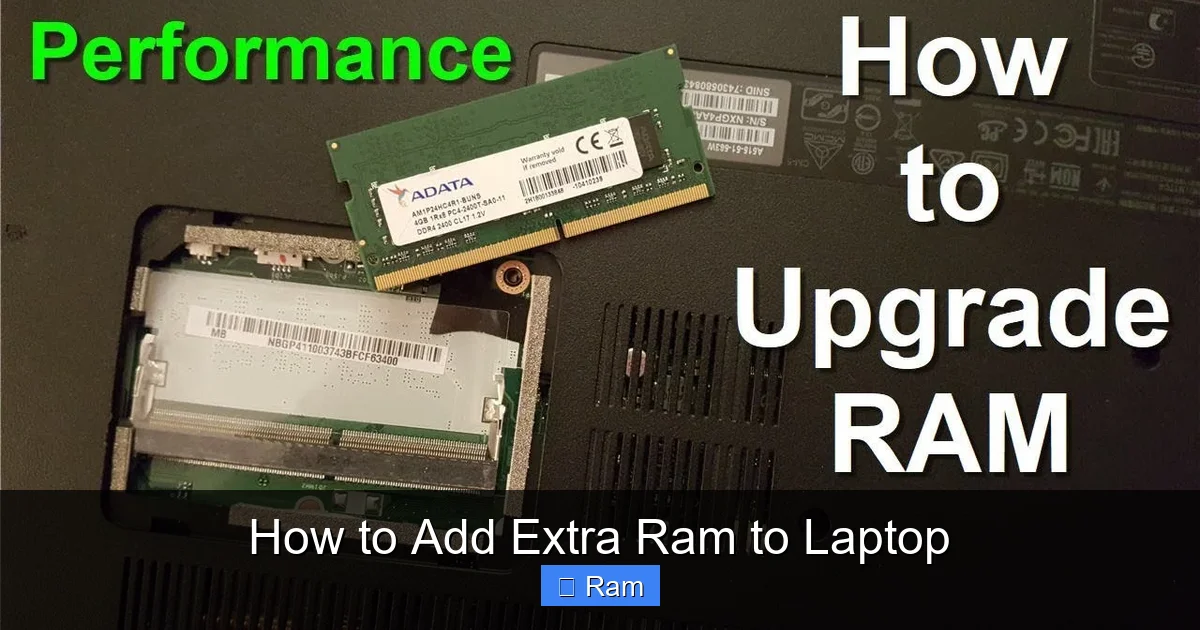
Visual guide about How to Add Extra Ram to Laptop
Image source: i.ytimg.com
1.2 Check Maximum Supported RAM
Every laptop has a limit set by the motherboard and BIOS. Visit the manufacturer’s support page, enter your model, and locate the “Memory Specification” section. You’ll see two important numbers:
- Maximum capacity: the total amount of RAM the laptop can handle (e.g., 16 GB).
- Module size limit: the largest single stick the slots accept (e.g., 8 GB per slot).
If your laptop already has 8 GB in a single 8 GB stick and the max is 16 GB, you can add another 8 GB module.
1.3 Determine RAM Type and Speed
Laptops typically use DDR3, DDR4, or the newer DDR5 modules. The type is not interchangeable, so double‑check. Speed is measured in MHz (e.g., 2400 MHz for DDR4‑2400). While you can install a slower module, the system will run at the lowest common speed.
1.4 Count the Slots
Open the maintenance manual (often a PDF on the manufacturer’s site) and find the “Memory” section. It will show whether you have one or two slots and whether any are already occupied. If both slots are full, you’ll need to replace one of the existing sticks with a larger one.
1.5 Choose the Right Module
When you’ve gathered the specs, shop at reputable retailers. Look for “Laptop DDR4 8 GB 2666 MHz SODIMM” (or the appropriate type). Pay attention to the brand’s warranty and return policy—memory can be faulty, and a quick swap is easier when you can return it.
2. Preparing Your Workspace and Tools
2.1 Create a Static‑Free Environment
Static electricity can destroy delicate laptop components. Work on a wooden or anti‑static mat, and wear an anti‑static wrist strap clipped to a grounded object. If you don’t have a strap, touch a metal part of the laptop chassis frequently to discharge static.

Visual guide about How to Add Extra Ram to Laptop
Image source: r2.community.samsung.com
2.2 Gather Essential Tools
- Small Phillips #00 screwdriver (most laptops use tiny screws).
- Plastic prying tool or spudger (to open clips without scratching).
- Anti‑static wrist strap (optional but recommended).
- Soft cloth or microfiber towel (to keep dust off the internals).
- Compressed air can (to blow away any debris after opening).
2.3 Backup Important Data
While a RAM upgrade rarely corrupts data, it’s smart to back up critical files to an external drive or cloud service. This step gives you peace of mind before you power down the machine.
3. Removing the Existing Bottom Panel
3.1 Power Down and Unplug
Shut down Windows completely (do not just sleep). Disconnect the power adapter, any USB devices, and the battery if it’s removable. A laptop with a sealed battery will stay powered only by the capacitor charge, which is negligible.
Visual guide about How to Add Extra Ram to Laptop
Image source: static.techspot.com
3.2 Locate and Remove Screws
Turn the laptop over and locate the screws holding the bottom panel. Some models use hidden screws under rubber feet or stickers—gently peel them back with a spudger. Keep the screws organized (e.g., in a small dish) and note which ones are longer; you’ll need to replace them in the same spots.
3.3 Pry Open the Bottom Cover
Insert a plastic pry tool at a corner and gently work your way around the perimeter. The clips are designed to snap, so you’ll hear a faint “click.” If you meet resistance, double‑check for any missed screws. Once the clips release, lift the panel off.
3.4 Locate the RAM Slots
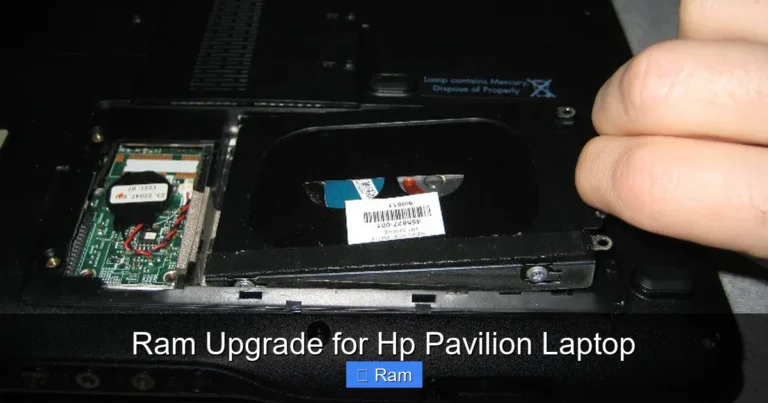
Inside, you’ll see one or two long, thin slots with a metal retaining clip on one side. The existing memory module (if any) will be seated at an angle, held in place by the clip.
4. Installing the New RAM Module
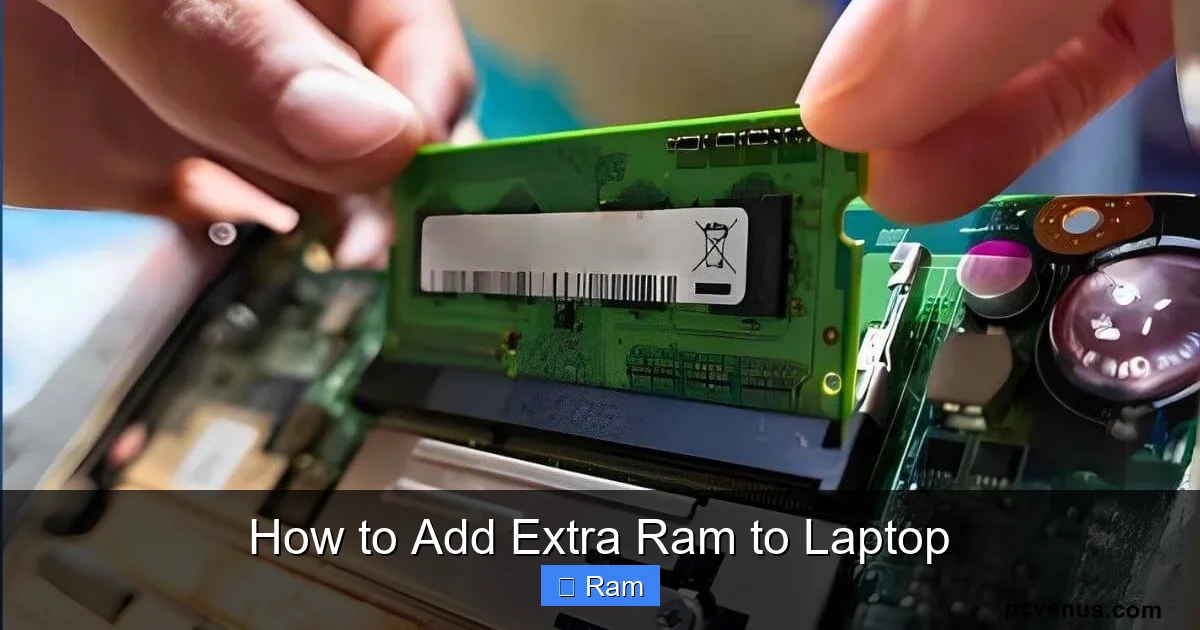
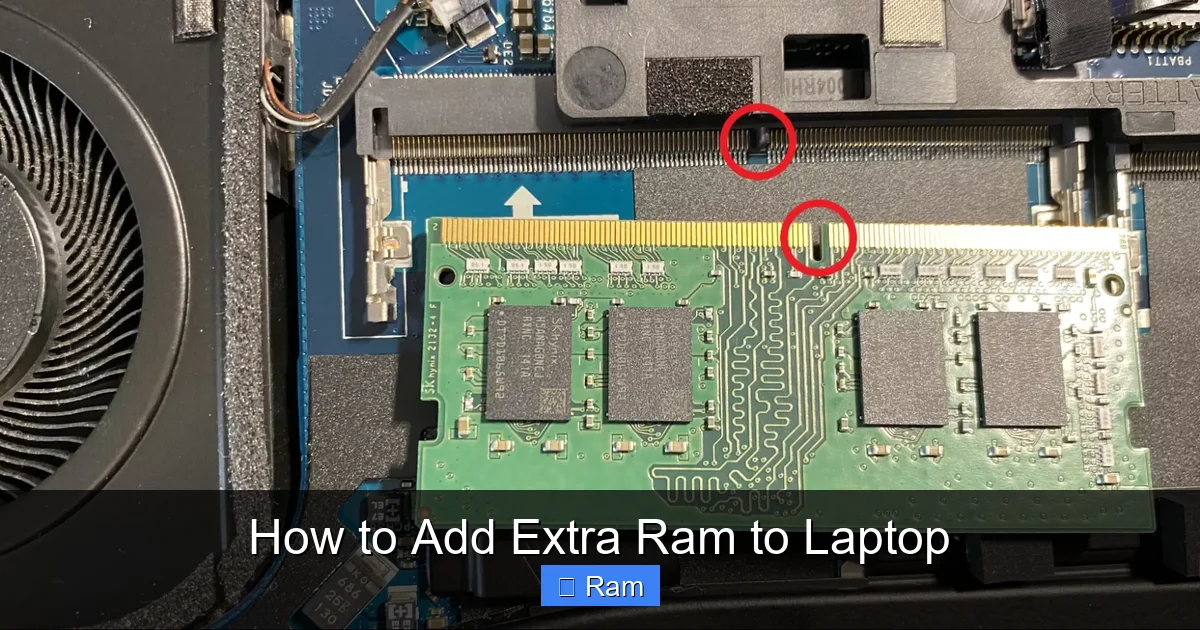
4.1 Align the Notch
Each SODIMM module has a single notch that must line up with a ridge in the slot. This prevents you from inserting it upside‑down. Hold the module by the edges; do not touch the gold contacts.
4.2 Insert at a 30‑Degree Angle
Slide the module into the slot at about a 30‑degree angle, applying gentle pressure until the contacts are fully seated. You’ll feel a slight resistance as the pins snap into place.
4.3 Lock the Module Down
Push the retaining clip gently toward the module until it clicks into place. The module should now lie flat and parallel to the motherboard.
4.4 If Replacing an Existing Stick
Push the retaining clip outward to release the old module, lift it out, and follow the same insertion steps with the new, larger stick.
4.5 Double‑Check Everything
Make sure the module is fully seated, the clip is locked, and no foreign objects (screws, dust) are in the slot. A loose stick can cause boot failures.
5. Reassembling and Testing the Upgrade
5.1 Re‑attach the Bottom Panel
Place the cover back onto the chassis, line up the clips, and press firmly until they snap. Replace all screws in their original positions and tighten them just enough to hold the panel—don’t over‑tighten.
5.2 Power On and Enter BIOS
Turn the laptop back on and immediately press the BIOS key (often F2, Del, or Esc depending on the brand). In the BIOS/UEFI menu, navigate to the “System Information” or “Memory” section. Verify that the total RAM matches the amount you installed.
5.3 Check in the Operating System
In Windows, right‑click Computer → Properties or open Task Manager → Performance → Memory. In macOS, click the Apple menu → About This Mac. Both should display the new total.
5.4 Run a Quick Benchmark
Download a free tool like UserBenchmark or CPU-Z. Run a memory test to ensure the module is operating at the correct speed and without errors.
5.5 Troubleshooting Common Issues
- Computer won’t boot: Power down, reseat the RAM, and verify the clip is locked.
- Only part of the RAM is recognized: Check for mixed speeds or mismatched capacities; use identical modules when possible.
- Frequent crashes: Run a MemTest86 bootable test to identify faulty sticks.
6. Tips for Maximizing Performance After the Upgrade
6.1 Update the BIOS
Some laptops need a BIOS update to recognize newer, higher‑capacity modules. Visit the manufacturer’s support site, download the latest BIOS, and follow the provided flashing instructions.
6.2 Adjust Virtual Memory (Paging File)
With more RAM, you can reduce the size of the paging file. In Windows, go to System Properties → Advanced → Performance Settings → Advanced → Virtual memory. Set a custom size (e.g., 1 GB minimum, 2 GB maximum) or let the system manage it.
6.3 Keep Drivers Current
Chipset drivers control how the motherboard communicates with RAM. Install the latest chipset driver from the laptop maker’s website to ensure optimal compatibility.
6.4 Clean Dust Regularly
More RAM can generate a bit more heat, especially in thin ultrabooks. Use compressed air to clear vents every few months, preventing thermal throttling.
6.5 Pair RAM Upgrade with SSD
If you still run a mechanical hard drive, consider adding an SSD for a double‑boost: faster storage and more memory. The combination dramatically reduces load times.
Conclusion
Knowing how to add extra RAM to a laptop empowers you to extend the life of a device you already love. By checking compatibility, preparing a static‑free workspace, installing the module carefully, and verifying the upgrade, you can enjoy smoother multitasking, quicker app launches, and better overall performance—all for a fraction of the cost of a new computer. Remember to keep your BIOS up to date, maintain a clean interior, and pair the memory boost with other upgrades like an SSD for maximum impact. Happy upgrading!
Frequently Asked Questions
Can I mix different brands of RAM when upgrading?
Yes, you can mix brands as long as the modules share the same type (DDR4, DDR5, etc.), speed, and voltage. However, using identical sticks often yields the most stable performance.
Do I need to remove the battery before installing RAM?
If your laptop has a removable battery, take it out. For sealed‑battery models, disconnect the power adapter and press the power button for a few seconds to discharge any residual charge.
How do I know if my laptop uses DDR3 or DDR4 memory?
Check the specifications on the manufacturer’s website or look at the label on the existing RAM module. DDR3 modules have 204 pins, while DDR4 have 260 pins.
Will adding more RAM improve gaming performance?
Yes, especially if the game was previously limited by memory. More RAM allows larger textures and smoother frame rates, but you’ll also need a decent GPU for the biggest gains.
What should I do if the laptop only detects half of the installed RAM?
First, reseat the module to ensure a proper connection. If the issue persists, verify that the module’s capacity does not exceed the slot’s per‑slot limit and that the BIOS supports the total amount.
Is it safe to upgrade RAM on a water‑cooled laptop?
Yes, but be extra careful not to disturb the cooling pipes or fans. Avoid applying excessive force and ensure all connectors remain secure after the upgrade.