What Is Exe
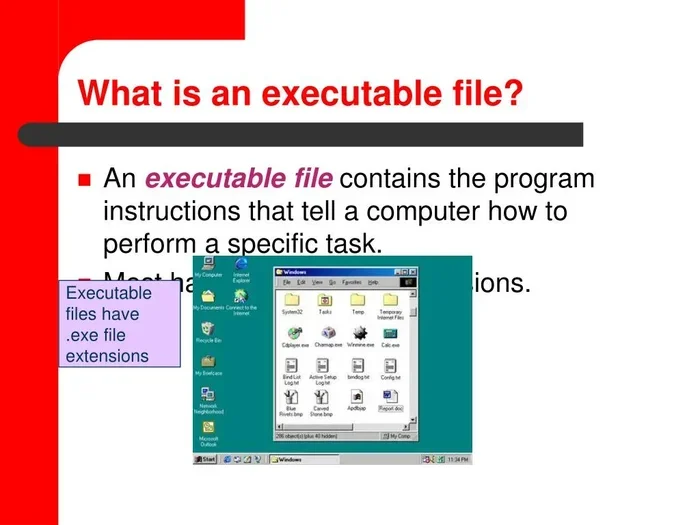
An exe file is a Windows executable program that runs software on your laptop. The .exe extension tells your computer to launch an application or installer. Understanding exe files helps you manage programs, troubleshoot issues, and keep your system safe from malware.
Every Windows laptop user has seen a file ending in .exe. You double-click it, and something happens. A program opens. An installer runs. A game launches. But what exactly is an exe file, and how does it work behind the scenes? This guide breaks it all down in simple terms.
Whether you are a student, a casual user, or someone who just wants to understand your laptop better, this article covers everything you need to know about executable files. We will explore what they are, how they work, how to stay safe, and why they matter for your daily computing experience.
Key Takeaways
- Exe stands for executable: It is the file format that runs programs on Windows laptops and desktops.
- .exe files launch software: Double-clicking an exe file starts the installation or application on your system.
- Security matters: Not all exe files are safe. Always scan downloads with antivirus software before opening.
- Exe files use system resources: Running programs consume RAM and CPU power on your laptop.
- You can create exe files: Developers package software into exe format using compilers and build tools.
- File association is key: Windows uses file extensions like .exe to know which program opens a file.
📑 Table of Contents
What Is an Exe File?
An exe file is short for an executable file. It is a type of computer file that tells your Windows system to run a program. When you see a file name ending in .exe, it means that file contains instructions your laptop can follow to start a software application.
Think of an exe file like a recipe card. The card contains step-by-step instructions. Your laptop reads the file and follows those instructions to open a program, install software, or run a process. Without executable files, your laptop would just sit there doing nothing.
The .exe extension is used by the Windows operating system. It stands for “executable.” This format has been a core part of Windows since the early days of MS-DOS. Every program you install on a Windows laptop comes in this format. That includes your web browser, games, office tools, and system utilities.
How Exe Files Work on Your Laptop
When you double-click an exe file, several things happen in seconds. First, Windows checks the file type. It sees the .exe extension and knows this is a program. Then the operating system loads the file into your laptop’s memory. The CPU starts reading the instructions inside the file.
The executable file tells your system what resources it needs. It may ask for a certain amount of RAM. It may need access to your graphics card or storage drive. Your laptop allocates those resources and starts running the program. All of this happens in the background before the program window appears on your screen.
Portable exe files work a bit differently. They do not need installation. You just click them, and the program runs. These are handy for USB drives and shared folders. You can carry a portable app from laptop to laptop without leaving files behind.
Why Are Exe Files Important?
Exe files are the backbone of the Windows software ecosystem. Almost every program you use on a laptop starts as an executable. Without them, you could not install new software or run existing applications.
Here is why exe files matter so much:
- Software installation: Setup files use the .exe format to guide you through the installation process.
- Program execution: Every app you open on your laptop is launched by an executable file.
- System tools: Built-in Windows utilities like Task Manager and Disk Cleanup are also exe files.
- Updates and patches: Software updates often come as exe installers that replace old files with new ones.
- Custom applications: Businesses and developers create custom exe programs for specific tasks.
In short, exe files make your laptop useful. They are the bridge between software code and the user experience you see on your screen every day.
How to Safely Open Exe Files
Not every exe file is safe. Some can contain malware or viruses that harm your laptop. This is why you need to be careful before opening any executable file, especially ones you downloaded from the internet.
Steps to Stay Safe
- Check the source: Only download exe files from trusted websites or official app stores.
- Scan with antivirus: Use a reliable antivirus program to scan the file before opening it.
- Check the file name: Fake files often have misleading names like “setup_free_game.exe.” Look for the real developer name.
- Read reviews: If a file comes from a lesser-known site, check online reviews first.
- Enable Windows Defender: Keep your built-in protection turned on. It helps block dangerous executable files.
Following these steps keeps your laptop safe. If a file looks suspicious, do not open it. Delete it and run a full system scan instead.
Exe Files and System Resources
Every exe file you run uses your laptop’s resources. This includes RAM, CPU power, and storage space. Understanding this helps you manage your system better.
When you open a program, the executable file loads into your laptop’s memory. Larger programs use more RAM. Simple apps like Notepad use very little. Heavy games or video editing software can eat up a lot of memory. This is why having enough RAM on your laptop matters.
If your laptop feels slow when opening exe files, it might be running low on memory. You can check what is using your resources by opening Task Manager. It shows you which programs and processes are active and how much memory they consume.
For most users, having enough memory ensures that exe files run smoothly. If you want to learn more about how much memory your laptop needs, check out our guide on what the RAM on a laptop means for performance.
Common Exe File Errors
Sometimes exe files cause problems. You might see error messages when trying to open a program. Here are a few common ones:
- “File not found”: The system cannot locate the executable file. It may have been moved or deleted.
- “Access denied”: Your user account does not have permission to run the file.
- “Corrupt file”: The exe file is damaged and cannot execute properly.
- “Compatibility mode”: An older program may not work with your current Windows version.
Most of these errors have simple fixes. You can try running the file as an administrator, reinstalling the program, or checking for Windows updates.
How Exe Files Are Created
Developers create exe files using programming tools and compilers. When someone writes software, they write code in languages like C++, Python, or C#. A compiler then converts that code into a binary executable file that Windows can run.
The process involves several steps:
- Writing the code: The developer writes the program instructions using a programming language.
- Compiling: A compiler translates the code into machine language that your laptop’s processor understands.
- Linking: The compiler connects the code with necessary libraries and resources.
- Packaging: The final output is a .exe file ready for installation or direct execution.
This is why you cannot open an exe file in a text editor and read the source code. The file contains compiled binary data, not human-readable instructions. Only your laptop’s processor can interpret it.
If you are curious about how your laptop handles different types of software, understanding exe files is a great starting point. It also helps you appreciate the work that goes into building every application you use.
Exe Files vs Other File Types
Not every file on your laptop is an executable. There are many file types, and each serves a different purpose. Here is how exe files compare to some common ones:
| File Type | Extension | Purpose |
|---|---|---|
| Executable File | .exe | Runs programs and applications |
| Document File | .pdf, .docx | Stores text and images |
| Image File | .jpg, .png | Stores photos and graphics |
| Audio File | .mp3, .wav | Stores music and sound |
| Video File | .mp4, .avi | Stores video content |
| Compressed File | .zip, .rar | Packages multiple files together |
The key difference is that only .exe files can run programs directly. Other file types need a specific application to open them. For example, a PDF file needs a PDF reader, and an MP3 file needs a music player.
Some file types can be dangerous too. For instance, a .bat file is a batch script that can run commands on your system. But .exe files are the most common way software runs on Windows laptops.
Tips for Managing Exe Files on Your Laptop
Keeping your laptop organized and safe involves smart management of exe files. Here are some practical tips:
- Create a downloads folder: Keep all your exe files in one place until you are ready to install or scan them.
- Delete old installers: Once you install a program, you do not need the original exe file anymore. Free up space by deleting it.
- Use a dedicated download folder: This makes it easy to find and manage files later.
- Check file sizes: A suspiciously small or large exe file could be a red flag for malware.
- Keep your system updated: Windows updates improve security and help your laptop handle executable files more safely.
Good file habits keep your laptop running smoothly. They also reduce the risk of accidentally running harmful programs.
Another important aspect of laptop care is understanding how much memory your system needs. Having the right amount of RAM ensures that exe files and applications run without slowdowns. If you are unsure about your current setup, our article on what is good RAM for a laptop can help you find the right configuration.
Final Thoughts
Exe files are a fundamental part of using a Windows laptop. They power every program, installer, and utility on your system. Understanding what they are and how they work gives you more control over your computing experience.
Always be cautious when opening executable files from unknown sources. Keep your antivirus active and your system updated. With the right knowledge and habits, you can use exe files safely and confidently every day.
Your laptop is a powerful tool, and exe files are what make it come alive. Treat them with respect, manage them wisely, and they will serve you well for years to come.
Frequently Asked Questions
What does exe stand for?
Exe stands for “executable.” It is a file extension used by the Windows operating system to identify program files that can run on your laptop.
Can an exe file harm my laptop?
Some exe files can contain malware or viruses. Always scan downloaded files with antivirus software and only open them from trusted sources.
How do I open an exe file on Windows?
Simply double-click the .exe file on your laptop. Windows will recognize the file type and launch the program or installer automatically.
Are exe files only for Windows?
The .exe format is specific to Windows. Other operating systems like macOS and Linux use different executable formats.
Can I delete an exe file after installing a program?
Yes, once a program is installed, you can safely delete the original exe installer file to free up disk space on your laptop.
What is the difference between an exe file and a regular file?
A regular file stores data like text or images. An exe file contains instructions that tell your laptop’s processor to run a program or application.