What Is Mts in Ram
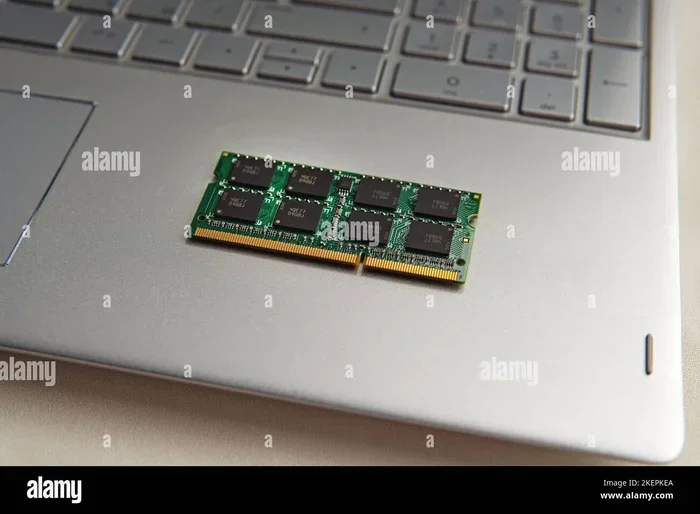
MTS stands for Megatransfers Per Second, and it measures how fast your laptop RAM moves data. Understanding what is Mts in Ram helps you pick the right memory for better performance. Higher MTS means faster data transfer and smoother multitasking on your laptop.
This is a comprehensive guide about What Is Mts In Ram.
Key Takeaways
- MTS measures RAM speed: It tells you how many million data transfers happen every second.
- Higher MTS equals better performance: Faster memory means quicker load times and smoother multitasking.
- DDR4 and DDR5 have different MTS ranges: DDR5 typically offers much higher MTS than DDR4.
- MTS is not the same as MHz: They measure different things, even though both relate to speed.
- Check compatibility before upgrading: Not every laptop supports high MTS RAM modules.
- Real-world impact matters: Higher MTS helps with gaming, video editing, and heavy workloads.
[FEATURED_IMAGE_PLACEHOLDER]
When you shop for laptop RAM, you see a lot of confusing numbers and abbreviations. One term that pops up often is MTS. If you have ever wondered what MTS means and why it matters for your laptop, you are in the right place.
What is Mts in Ram is a question many people ask when they want to upgrade their laptop memory or buy a new machine. MTS stands for Megatransfers Per Second. It is a unit that measures how fast your RAM can move data in and out of the memory module. The higher the number, the faster your RAM works.
Think of it like a highway. More lanes and faster speed limits mean more cars can move through at once. Similarly, higher MTS means your RAM can handle more data transfers every second. This directly impacts how fast your laptop runs programs, opens files, and switches between tasks.
In this guide, we will break down everything you need to know about MTS in RAM. We will cover what it means, how it affects performance, and how to choose the right speed for your needs. Whether you are a student, a gamer, or a professional, understanding RAM speed can make a real difference.
What Does MTS Stand For in RAM?
MTS stands for Megatransfers Per Second. It is the standard unit used to measure the data transfer rate of modern computer memory. Every time your RAM reads or writes data, that counts as a transfer. MTS tells you how many millions of those transfers happen in one second.
For example, if your RAM is rated at 3200 MT/s, it means it can handle 3,200 million transfers every single second. That is a lot of data moving back and forth. This number is printed on the memory module’s spec sheet and is one of the most important figures to look at when buying RAM.
Why MTS Matters for Your Laptop
Your laptop relies on RAM to handle everything you do. When you open a browser, run an app, or edit a document, the data goes through your memory. Faster MTS means less waiting time. Your programs load quicker, and your system feels more responsive.
If you want to know more about what RAM actually does inside a laptop, check out our guide on What Does The Ram Do In A Laptop. It explains the role of memory in simple terms.
Here are some key reasons why MTS matters:
- Faster app loading: Programs open quicker with higher transfer rates.
- Smoother multitasking: You can switch between heavy apps without lag.
- Better gaming performance: Games load faster and run more smoothly.
- Improved video editing: Large files process more quickly.
MTS vs MHz: What Is the Difference?
One of the most confusing parts about RAM specs is the difference between MTS and MHz. Many people use these terms interchangeably, but they are not the same thing. Understanding this difference helps you make better buying decisions.
MHz (Megahertz) measures the clock speed of the memory. It tells you how many cycles the RAM completes per second. MTS (Megatransfers Per Second) measures how many data transfers happen per second. In DDR memory, each clock cycle handles two transfers. This is why DDR RAM can achieve higher MTS than its MHz rating.
For instance, DDR4-3200 RAM runs at 1600 MHz but achieves 3200 MT/s. The “DDR” stands for Double Data Rate, which means two transfers per cycle. That is why the MTS number is always double the MHz number in DDR memory.
| Spec | Measures | Example |
|---|---|---|
| MHz | Clock cycles per second | 1600 MHz |
| MT/s | Data transfers per second | 3200 MT/s |
| Relationship | MT/s = 2 x MHz in DDR RAM | DDR4-3200 = 1600 MHz |
So when you see numbers like 4800, 5600, or 6400, those are MTS values. They represent the real-world data transfer speed of your memory module. This is the number that matters most when comparing RAM performance.
Common MTS Speeds in Modern RAM
RAM comes in different generations, and each generation supports different MTS ranges. Knowing these ranges helps you understand what to look for when upgrading or buying a new laptop.
DDR4 MTS Speeds
DDR4 is still one of the most common types of RAM found in laptops today. It typically comes in the following MTS speeds:
- 2133 MT/s — Entry-level DDR4 speed
- 2400 MT/s — Common in budget laptops
- 2666 MT/s — A solid mid-range option
- 3200 MT/s — Popular for performance builds
- 3600 MT/s — High-speed DDR4 for demanding tasks
Most everyday laptops come with 2400 or 2666 MT/s RAM. These speeds are perfectly fine for browsing, office work, and light use. But if you are into gaming or creative work, you will want to aim for 3200 MT/s or higher.
DDR5 MTS Speeds
DDR5 is the newest generation of RAM, and it offers significantly higher MTS speeds right out of the box:
- 4800 MT/s — Base DDR5 speed
- 5200 MT/s — Common DDR5 speed
- 5600 MT/s — Popular performance option
- 6000 MT/s and above — Enthusiast-grade DDR5
DDR5 RAM delivers much better bandwidth than DDR4. If you are building or buying a modern laptop, DDR5 with high MTS is a great choice. To learn more about how much RAM your laptop really needs, check out our article on What Amount Of Ram Is Good On A Laptop.
How Does MTS Affect Laptop Performance?
The MTS rating of your RAM directly affects how fast your laptop handles data. But the real-world impact depends on what you use your laptop for. Let us break it down by use case.
Everyday Use and Browsing
If you mostly use your laptop for browsing the web, watching videos, and working on documents, you may not notice a huge difference between 2400 MT/s and 3200 MT/s. Basic tasks do not require extreme memory bandwidth. However, faster RAM still helps your system feel snappier overall.
Gaming
Gamers benefit a lot from higher MTS. Modern games constantly stream large textures and assets from memory. Faster RAM means less stuttering, shorter load times, and smoother frame rates. If you are a serious gamer, aim for at least 3200 MT/s with DDR4 or 5600 MT/s with DDR5.
Content Creation and Video Editing
If you edit videos, work with large images, or use 3D modeling software, high MTS RAM is a game-changer. These applications move massive amounts of data through memory. Faster transfer rates mean quicker rendering times and smoother playback. For professionals, every bit of bandwidth counts.
Programming and Development
Developers often run multiple virtual machines, containers, and heavy IDEs at the same time. Higher MTS RAM handles these workloads better. You will experience fewer slowdowns when compiling code or running complex builds.
Machine Learning and Data Science
For those working with machine learning or large datasets, memory bandwidth is critical. Training models and processing data require constant, rapid access to memory. Higher MTS can significantly reduce processing time in these scenarios.
How to Check Your RAM’s MTS Rating
Wondering what MTS speed your current laptop RAM is running at? There are a few easy ways to find out.
Method 1: Use Task Manager (Windows)
Right-click on your taskbar and open Task Manager. Go to the Performance tab and click on Memory. Look at the bottom of the window. You will see the speed listed in MHz. To get MTS, simply double that number. For example, if it shows 1600 MHz, your RAM is running at 3200 MT/s.
Method 2: Use Command Prompt
Open Command Prompt and type wmic memorychip get speed. This will show you the speed of each installed memory module. Again, double the number to get the MTS value.
Method 3: Check the Sticker or Manual
Many laptops have a sticker on the bottom that lists the RAM specs. You can also check your laptop’s user manual or the manufacturer’s website for detailed memory information.
If you want to upgrade your RAM, make sure you know what is compatible. Check out our guide on How To Know What Ram Is Compatible With My Laptop before making any purchases.
Tips for Choosing the Right MTS Speed
Not all laptops can handle high MTS RAM. Here are some tips to help you make the right choice.
- Check your laptop’s specs first: Some laptops have a maximum supported RAM speed. Buying faster RAM than your laptop supports will not give you any benefit.
- Match both modules: If your laptop has two RAM slots, install matching modules with the same MTS rating. Mixing different speeds can cause both to run at the slower speed.
- Consider your workload: If you do basic tasks, 2400–2666 MT/s is plenty. For gaming or creative work, aim for 3200 MT/s or higher.
- Future-proof when possible: If you plan to keep your laptop for several years, investing in higher MTS RAM now can extend its useful life.
- Balance RAM size and speed: Having enough capacity matters just as much as speed. Make sure you have adequate RAM for your needs before focusing only on MTS.
For more guidance on choosing the right RAM size, read our article on What Is A Good Ram Size For A Laptop. It covers everything from 8GB to 64GB options.
Common Mistakes When Upgrading RAM Speed
Many people make mistakes when upgrading their laptop RAM. Here are a few to avoid:
- Buying incompatible RAM: Always verify the RAM type (DDR4 vs DDR5) and form factor (SO-DIMM for laptops) before purchasing.
- Ignoring XMP or DOCP profiles: These BIOS settings allow your RAM to run at its rated MTS speed. Without enabling them, your RAM may run at a lower default speed.
- Overlooking thermal limits: Very high MTS RAM can generate more heat. Make sure your laptop has adequate cooling.
- Assuming higher MTS fixes everything: RAM speed is just one factor. Having enough RAM capacity and a fast storage drive also matter greatly.
Expert Insights on RAM Speed and MTS
Industry experts agree that MTS is one of the most overlooked specs when buying or upgrading laptop RAM. While most people focus on how much RAM they have (8GB, 16GB, 32GB), the speed at which that RAM operates can have a surprisingly large impact on day-to-day performance.
According to hardware benchmarks, upgrading from 2400 MT/s to 3200 MT/s can improve gaming frame rates by 5–15 percent in some titles. For content creation workflows, the gains can be even more noticeable, especially when working with large files in programs like Adobe Premiere Pro or DaVinci Resolve.
However, experts also caution that diminishing returns apply. Going from 5600 MT/s to 6400 MT/s may not feel much different in most real-world tasks. The biggest jumps in performance come from moving to the next generation of RAM or upgrading from slower to moderate speeds.
If you are wondering whether 8GB or 16GB of RAM is enough for your needs, our article on Is 8 Gb Ram Good For Laptop can help you decide.
Conclusion
What is Mts in Ram is a simple but important concept that affects every aspect of your laptop’s performance. MTS, or Megatransfers Per Second, measures how fast your memory moves data. Higher MTS means faster speeds, smoother multitasking, and better performance in demanding applications.
Whether you are using DDR4 or DDR5 RAM, understanding MTS helps you make smarter buying and upgrading decisions. Match your RAM speed to your workload, check compatibility before purchasing, and always enable XMP profiles in your BIOS to get the full benefit of your memory.
Take some time today to check your current RAM speed. If it is lower than what you need, a simple RAM upgrade can breathe new life into your laptop. Faster memory is one of the most cost-effective ways to improve your computing experience.
Frequently Asked Questions
What does MT/s stand for in RAM?
MT/s stands for Megatransfers Per Second. It measures how many million data transfers your RAM can handle every second. Higher MT/s means faster memory performance.
Is higher MTS always better for a laptop?
Higher MTS is generally better, but it depends on your laptop’s compatibility and your workload. If your laptop only supports 2400 MT/s, buying 3200 MT/s RAM will not give you any benefit. Always check your laptop’s maximum supported speed first.
What is the difference between MTS and MHz in RAM?
MHz measures clock cycles per second, while MTS measures actual data transfers per second. In DDR RAM, each cycle handles two transfers, so MTS is always double the MHz value. For example, DDR4-3200 runs at 1600 MHz and 3200 MT/s.
Can I mix RAM with different MTS speeds?
You can mix RAM with different MTS speeds, but both modules will run at the slower speed. For best performance, always install matching RAM modules with the same MTS rating in both slots.
How much MTS do I need for gaming?
For gaming, 3200 MT/s with DDR4 or 5600 MT/s with DDR5 is a solid choice. These speeds provide smooth performance in most modern games without overspending on memory bandwidth.
Does MTS affect RAM capacity?
No, MTS does not affect how much data your RAM can hold. MTS only measures how fast data moves. Capacity is measured in gigabytes (GB). You need both sufficient capacity and good MTS speed for optimal performance.