What Is Asus Armoury Crate
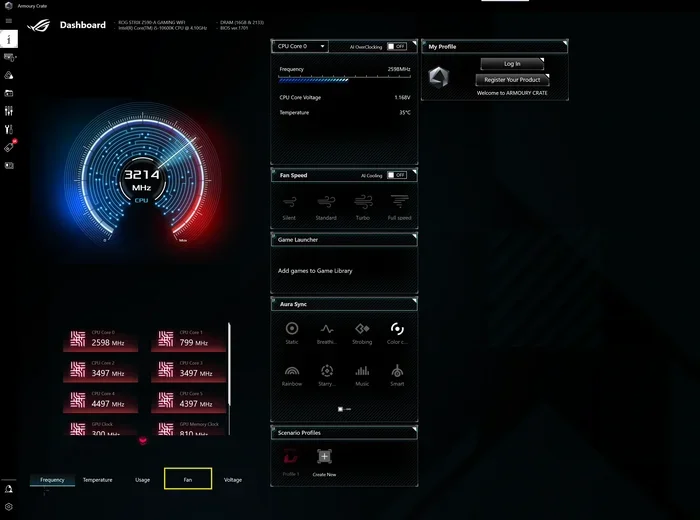
Asus Armoury Crate is a free system management software built by ASUS for its laptops and desktops. It lets you control fan speeds, adjust RGB lighting, and switch between performance profiles all in one place. Whether you have a gaming rig or a business laptop, Asus Armoury Crate gives you a simple dashboard to fine-tune your system. This tool is especially useful for ASUS ROG and TUF laptop owners who want deeper control over their hardware.
If you own an ASUS laptop, you have probably seen the Armoury Crate icon in your system tray. Maybe you have wondered what it does. Or perhaps you have heard people talk about it and want to know if it is worth using. Either way, you are in the right place.
Asus Armoury Crate is a software utility made by ASUS for its lineup of laptops, desktops, and motherboards. Think of it as a command center for your machine. It brings together tools that let you manage fan speeds, tweak lighting, and switch between different performance modes. Instead of jumping between five different apps, you get everything in one clean interface.
For many users, this software is a game-changer. Gamers love the ability to push their laptop into Turbo mode when they need maximum power. Professionals prefer the Silent profile during work hours to keep things quiet. And creators appreciate the fine control over system resources. No matter who you are, Asus Armoury Crate has something to offer.
Key Takeaways
- All-in-one control: Armoury Crate combines fan control, lighting, and performance modes into a single app.
- Easy to use: The interface is beginner-friendly, with preset profiles for different use cases.
- Customizable RGB: You can sync and customize keyboard and lighting effects across ASUS devices.
- Performance profiles: Switch between Silent, Performance, and Turbo modes with one click.
- Fan curve tuning: Adjust how your laptop cools itself based on your workload.
- Free software: Armoury Crate costs nothing and is available from the ASUS website.
- System monitoring: Keep an eye on temperatures, fan speeds, and power usage in real time.
📑 Table of Contents
What Does Asus Armoury Crate Do?
At its core, Asus Armoury Crate serves as a central hub for managing your ASUS device. It pulls together several smaller utilities into one package. This means you no longer need separate tools for fan control, lighting, and performance settings.
The software is designed to work with a wide range of ASUS products. From budget-friendly VivoBook models to high-end ROG gaming laptops, Armoury Crate covers them all. It also works with ASUS desktop motherboards and mini PCs, making it a versatile tool for the entire ecosystem.
Performance Profiles
One of the standout features of Asus Armoury Crate is its performance profiles. These are preset modes that adjust how your laptop uses its hardware. Each mode changes the CPU power limit, fan behavior, and system noise level.
Here are the main profiles you will find:
- Silent Mode: Keeps your laptop as quiet as possible. Fan speeds stay low, and the CPU power is limited. Great for watching movies or typing documents.
- Performance Mode: Balances power and noise. Your laptop runs cooler than Turbo mode but faster than Silent. This is the sweet spot for everyday use.
- Turbo Mode: Unleashes maximum performance. Fans spin up, and the CPU pushes to its limits. Ideal for gaming, video editing, or heavy multitasking.
- Custom Mode: Lets you build your own profile from scratch. You choose the fan curve, power limits, and lighting settings.
Switching between these modes takes just one click. The dashboard shows your current mode clearly, so you always know what your laptop is doing.
Fan Control and Cooling
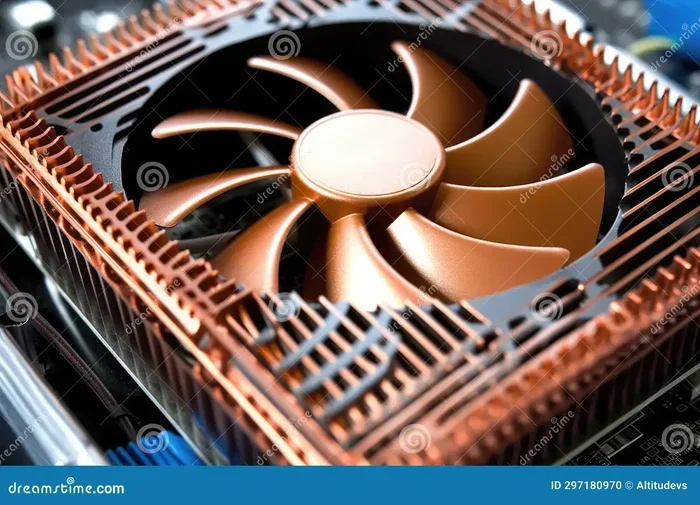
Thermal management is one of the most important aspects of any laptop. Asus Armoury Crate gives you detailed control over your fan curves. You can see real-time temperature readings and adjust how aggressively the fans respond to heat.
For example, if you notice your laptop gets hot during gaming sessions, you can create a custom fan curve that ramps up the fans earlier. This keeps temperatures in check without relying on the default settings. If you want to learn more about keeping your laptop cool, check out our guide on the best CPU cooler options available.
The fan control panel also shows you individual temperature readings for different components. You can monitor your CPU, GPU, and SSD temperatures all in one place. This makes it much easier to spot potential overheating issues before they become a problem.
RGB Lighting and Aesthetics
If your ASUS laptop has keyboard backlighting or RGB accents, Armoury Crate lets you take full control. You can choose from a wide range of colors, lighting effects, and sync patterns.
The lighting editor is intuitive and fun to use. You can create profiles that match your mood or your setup. Some users like a subtle glow for work, while others go all out with colorful wave effects for gaming. The software supports per-key customization, which means you can light up specific keys differently if you want.
You can also sync lighting across multiple ASUS devices. If you have a laptop, a mouse, and a headset from ASUS, they can all share the same lighting theme. This creates a polished, unified look for your entire desk setup.
Who Should Use Asus Armoury Crate?
Asus Armoury Crate is not just for gamers. While it is a popular choice among the gaming community, it has value for many types of users. Let us look at who benefits the most from this software.
Gamers
For gamers, Asus Armoury Crate is almost essential. The Turbo mode pushes your laptop to deliver the best frame rates and smoothest gameplay. The fan control feature ensures your system stays cool even during long gaming sessions. And the RGB lighting adds a visual flair that many gamers enjoy.
If you are building or upgrading a gaming setup, it is also worth checking how much RAM is good on a laptop for gaming. Pairing enough memory with Armoury Crate’s performance tuning gives you the best possible experience.
Students and Professionals
Students and office workers benefit from the Silent and Performance modes. During lectures or meetings, Silent mode keeps your laptop nearly noiseless. When you need to crunch numbers or run presentations, Performance mode gives you the boost you need without unnecessary fan noise.
Content Creators
Video editors, graphic designers, and music producers often run demanding software for hours. Asus Armoury Crate helps them manage thermal output and system resources efficiently. The custom profile option is especially useful here, as creators can set up a profile tailored to their specific workflow.
How to Install and Set Up Asus Armoury Crate
Getting started with Asus Armoury Crate is straightforward. The software is free and available directly from ASUS. Here is a quick walkthrough of the setup process.
- Visit the ASUS support website and enter your laptop model number.
- Navigate to the Drivers and Utilities section.
- Download the Armoury Crate installer for your operating system.
- Run the installer and follow the on-screen prompts.
- Launch the app and sign in with your ASUS account (optional but recommended).
- Explore the dashboard and choose a default performance profile.
Once installed, the software runs in the background and starts automatically with Windows. You can minimize it to the system tray and access it whenever you need to make changes. The first time you open it, the app walks you through the key features with a brief tutorial.
One thing to keep in mind is that Armoury Crate does require a stable internet connection for the initial setup and profile downloads. After that, most features work offline without any issues. If your laptop came with Armoury Crate pre-installed, you may already have it ready to go.
Common Issues and How to Fix Them
Like any software, Asus Armoury Crate can sometimes have issues. Here are the most common problems users face and how to solve them.
Armoury Crate Won’t Open
If the app fails to launch, try restarting your laptop first. Sometimes a simple reboot fixes the issue. If that does not work, try reinstalling the software. You can uninstall it from the Control Panel, download the latest version from the ASUS website, and install it fresh.
Fan Control Not Responding
In some cases, the fan curve adjustments may not take effect immediately. This can happen if another software is also controlling the fans. Make sure no other fan control utilities are running. Also, check that your laptop’s BIOS is up to date, as outdated firmware can cause conflicts.
High Battery Usage
Some users report that Armoury Crate uses more battery than expected. This is usually because the app runs monitoring processes in the background. You can reduce the impact by switching to a simpler profile or disabling unnecessary lighting effects. For tips on extending your laptop’s battery life, consider learning about what good RAM is for a laptop and how it affects overall system efficiency.
Software Updates Causing Glitches
ASUS releases regular updates for Armoury Crate. While these updates often bring improvements, they can occasionally introduce bugs. If you notice strange behavior after an update, check the ASUS forums or support page for known issues. Rolling back to a previous version is also an option if the problem persists.
Is Asus Armoury Crate Worth It?
The short answer is yes. Asus Armoury Crate is a free tool that gives you meaningful control over your laptop’s performance, cooling, and aesthetics. For ASUS laptop owners, it is practically a must-have piece of software.
It removes the guesswork from system management. Instead of digging through BIOS settings or using third-party tools, you get a polished, user-friendly interface that works right out of the box. The performance profiles alone save a lot of time and effort, especially for users who switch between different use cases throughout the day.
Of course, no software is perfect. Some users have reported occasional bugs or bloat. And if you prefer minimal software on your system, you might find Armoury Crate unnecessary. But for most ASUS laptop owners, the benefits far outweigh any minor drawbacks.
If you are looking to protect your investment and keep your laptop running smoothly for years, Armoury Crate is a great starting point. Pair it with smart habits like proper ventilation and regular maintenance, and your laptop will thank you. To learn more about maximizing your laptop’s lifespan, take a look at our article on the best investment for lifespan of PC.
Asus Armoury Crate vs. Other System Management Tools
There are other system management tools out there, but Asus Armoury Crate stands out for ASUS device owners. Here is how it compares to a few alternatives.
| Feature | Asus Armoury Crate | Generic Third-Party Tools |
|---|---|---|
| Device Compatibility | ASUS laptops and desktops only | Works with most brands |
| Fan Control | Yes, with custom curves | Varies by tool |
| RGB Lighting | Yes, full customization | Limited or none |
| Performance Profiles | Built-in presets | Manual configuration needed |
| Cost | Free | Often paid |
| Ease of Use | Very beginner-friendly | Can be complex |
The table above shows why Armoury Crate is a strong choice for ASUS users. It offers a level of integration that generic tools simply cannot match. You get native support, seamless updates, and a cohesive experience across your ASUS devices.
That said, if you use a non-ASUS laptop, you will need to look at other options. Tools like MSI Afterburner, SpeedFan, or manufacturer-specific software from Dell or HP can fill similar roles for their respective brands.
Final Thoughts on Asus Armoury Crate
Asus Armoury Crate is more than just a bloatware app. It is a powerful, free tool that gives ASUS laptop owners real control over their system. From fan curves to RGB lighting to performance profiles, it covers the essentials in a clean and accessible interface.
Whether you are a gamer chasing maximum frames, a student who needs a quiet machine for studying, or a professional who relies on their laptop for creative work, Armoury Crate has something to offer. The best part is that it costs nothing and comes pre-installed on most modern ASUS devices.
Take some time to explore the features, experiment with different profiles, and find the setup that works best for you. Your laptop will run cooler, quieter, and faster with the right configuration. And that is exactly what Asus Armoury Crate is designed to help you achieve.
Remember, keeping your laptop optimized is an ongoing process. Regularly updating your software, monitoring temperatures, and adjusting settings based on your workload will go a long way. If you want to dive deeper into laptop optimization, check out our guide on what the RAM on a laptop does and how it impacts your daily performance.
Frequently Asked Questions
What is Asus Armoury Crate used for?
Asus Armoury Crate is used to manage fan speeds, RGB lighting, and performance profiles on ASUS laptops and desktops. It gives users a single dashboard to control how their system behaves under different workloads.
Is Asus Armoury Crate free to download?
Yes, Armoury Crate is completely free. You can download it from the ASUS support website for any compatible ASUS device. There are no hidden fees or premium tiers.
Can I uninstall Asus Armoury Crate?
Absolutely. You can uninstall Armoury Crate through your system’s Control Panel or Settings app. However, keep in mind that removing it means you will lose access to the built-in fan control, lighting, and profile features.
Does Asus Armoury Crate work on all ASUS laptops?
Most modern ASUS laptops support Armoury Crate, including ROG, TUF, ZenBook, and VivoBook models. Older models may require a different ASUS utility. Always check the ASUS website for your specific model.
Is Asus Armoury Crate safe to use?
Yes, it is a legitimate ASUS application. It is digitally signed and regularly updated by ASUS. As with any software, always download it from the official ASUS website to ensure you get a safe, genuine version.
Can Asus Armoury Crate improve laptop performance?
It can help optimize performance by letting you switch to Turbo mode and fine-tune fan curves. However, it does not magically make your hardware faster. It simply helps your existing components run more efficiently.