What Is Microsoft Office Visio Viewer
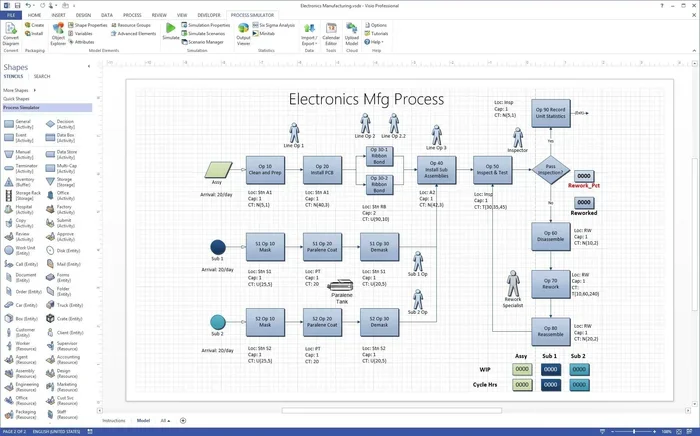
Microsoft Office Visio Viewer is a free, lightweight application that lets you open, view, and print Visio diagrams without needing the full Visio license. It supports the latest .vsdx file format and works on Windows devices, making it easy for teams to share and review technical drawings, flowcharts, and network diagrams. Whether you are a student, IT professional, or project manager, this tool simplifies how you access Visio content.
Have you ever received a Visio file and wondered how to open it without buying the full software? Microsoft Office Visio Viewer solves that problem. It is a free tool designed to let you open, view, and print diagrams created in Microsoft Visio. You do not need a paid license or the full Visio application installed on your computer.
This tool is especially useful for people who receive technical drawings, flowcharts, or network diagrams regularly. Instead of asking the sender to export the file to a different format, you can simply use the viewer. It keeps the original file intact and displays it exactly as the creator intended.
In this guide, we will walk you through everything you need to know about Visio Viewer. We will cover what it does, how it works, system requirements, and why it remains a valuable tool for many professionals. By the end, you will understand exactly when and how to use this application in your daily workflow.
Key Takeaways
- Free Viewing Tool: Visio Viewer lets anyone open and read Visio files without purchasing the full Microsoft Visio application.
- No Editing Allowed: It is designed strictly for viewing, so you cannot make changes to diagrams, which protects the original file integrity.
- Supports .vsdx Format: The viewer works with modern Visio file formats and maintains the visual quality of vector graphics.
- Lightweight and Fast: It installs quickly and runs smoothly on most Windows systems without heavy resource usage.
- Great for Collaboration: Teams can share Visio files more easily when recipients do not need a full Visio license to view them.
- Print and Zoom Features: You can print diagrams at full scale and zoom in on specific details for closer inspection.
📑 Table of Contents
- What Is Microsoft Office Visio Viewer?
- How Visio Viewer Differs from Full Microsoft Visio
- System Requirements for Visio Viewer
- Who Benefits from Using Visio Viewer?
- How to Download and Install Visio Viewer
- Limitations You Should Know About
- Visio Viewer vs. Alternative Ways to View Visio Files
- Tips for Getting the Most Out of Visio Viewer
- Conclusion
What Is Microsoft Office Visio Viewer?
Microsoft Office Visio Viewer is a standalone application developed by Microsoft. Its primary purpose is to display Visio diagram files. Think of it as a window into your Visio drawings. You can look at every detail, from simple flowcharts to complex network layouts, without needing the full Visio suite.
The viewer was created to make Visio files more accessible. Not everyone on a team needs to edit a diagram. Sometimes, you just need to look at it. That is where this tool shines. It removes the barrier of cost and software complexity, letting anyone view professional-quality diagrams with ease.
Key Features of Visio Viewer
Visio Viewer comes packed with features that make diagram viewing simple and efficient. Here are the main capabilities you get:
- Full-Scale Viewing: Zoom in and out of diagrams without losing quality. The viewer preserves the vector graphics so lines and shapes stay sharp.
- Print Support: Print diagrams at actual size or scale them to fit specific paper dimensions. This is helpful for large-format printing of technical drawings.
- Multi-Page Navigation: If your Visio file contains multiple pages, you can navigate between them easily within the viewer interface.
- File Compatibility: The viewer supports the modern .vsdx format introduced with Visio 2013 and later versions. It also handles older file formats in many cases.
- No Installation of Full Visio: You do not need to install the complete Microsoft Visio application. The viewer is a separate, lightweight program.
How Visio Viewer Differs from Full Microsoft Visio
Many people confuse Visio Viewer with the full Microsoft Visio application. They serve very different purposes. Understanding the difference helps you choose the right tool for your needs.
The full Visio application is a powerful diagramming software. It lets you create, edit, format, and collaborate on drawings. You have access to thousands of shapes, templates, and stencils. If you build diagrams for a living, the full version is what you need.
Visio Viewer, on the other hand, is a read-only tool. You cannot edit, modify, or save changes to a diagram through the viewer. Its sole job is to display files accurately. This makes it ideal for stakeholders, clients, and team members who only need to review diagrams.
| Feature | Visio Viewer | Full Microsoft Visio |
|---|---|---|
| View Diagrams | Yes | Yes |
| Edit Diagrams | No | Yes |
| Create New Diagrams | No | Yes |
| Print Diagrams | Yes | Yes |
| Cost | Free | Paid License |
| System Resources | Lightweight | Heavier |
| File Formats Supported | .vsdx and older | .vsdx, .vsd, and more |
If your team uses Microsoft Office Visio for creating diagrams, adding Visio Viewer to your workflow can be a game-changer. It ensures that everyone on the team can access and review files without extra cost or complexity.
System Requirements for Visio Viewer
One of the best things about Visio Viewer is that it does not demand powerful hardware. It is designed to run on standard Windows computers. Here is what you need to run it smoothly.
Operating System: Visio Viewer works on Windows 10, Windows 11, and older versions of Windows. It is not available for macOS or Linux natively. If you use a Mac, you may need a Windows compatibility layer or virtualization software.
Processor and Memory: Because the viewer is lightweight, it runs well even on modest hardware. You do not need a high-end processor or large amounts of RAM. A basic modern computer handles it without any issues.
Disk Space: The installation footprint is small. It takes up minimal storage space compared to the full Visio suite. This makes it easy to deploy across many machines in an office environment.
For most users, the setup process is straightforward. You download the installer from the Microsoft website, run it, and the viewer is ready to use within minutes. It integrates well with the Windows ecosystem and appears as a standard application in your programs list.
Who Benefits from Using Visio Viewer?
Visio Viewer is not just for IT professionals or engineers. A wide range of users find value in this free tool. Here are some groups that benefit the most:
Project Managers
Project managers often receive diagrams that map out workflows, timelines, and resource allocations. Using Microsoft Office Visio Viewer, they can quickly review project plans without needing to open the full Visio application. This speeds up the review process and keeps everyone on the same page.
For teams managing complex projects, having a lightweight viewer available on every team member’s computer ensures no one is left out of the review loop. It supports better project management communication and collaboration.
IT and Network Administrators
IT teams create detailed network diagrams, server layouts, and infrastructure maps. These diagrams are often shared with stakeholders who do not have Visio licenses. The viewer allows them to inspect the diagrams, verify connections, and understand the network architecture at a glance.
Students and Educators
In educational settings, students frequently receive Visio files as part of coursework. Not every student can afford a full Visio license. Visio Viewer bridges this gap, giving every student access to view and study the diagrams provided by their instructors.
Clients and External Stakeholders
When you share diagrams with clients or external partners, you want them to see exactly what you created. Sending a Visio file with a viewer ensures they can open it without friction. It also protects your original work from accidental edits.
How to Download and Install Visio Viewer
Getting started with Visio Viewer is simple. Follow these steps to have it running on your Windows computer:
- Visit the Microsoft Download Center: Search for “Microsoft Office Visio Viewer” on the official Microsoft website. Always download from trusted sources to avoid security risks.
- Select Your Version: Choose the version that matches your system architecture (32-bit or 64-bit). Most modern Windows systems run the 64-bit version.
- Download the Installer: Click the download link and save the installer file to your computer.
- Run the Installer: Double-click the downloaded file and follow the on-screen prompts. The installation process is quick and requires no complex configuration.
- Open a Visio File: Once installed, you can right-click any Visio file and choose to open it with Visio Viewer, or launch the viewer directly and browse to your file.
After installation, Visio Viewer integrates with your Windows file system. You can double-click any Visio diagram file and it will open in the viewer automatically. The experience feels native and seamless.
Limitations You Should Know About
While Visio Viewer is a fantastic free tool, it does come with limitations. Being aware of these helps set the right expectations.
- No Editing Capability: You cannot modify diagrams in any way. Every change requires the full Visio application.
- Windows Only: There is no native version for macOS, Linux, or mobile devices. This limits its use in mixed-technology environments.
- No Collaboration Features: Unlike the full Visio application, the viewer does not support real-time co-authoring or commenting.
- Limited File Format Support: While it handles .vsdx files well, some older or specialized Visio formats may not display correctly.
- No Shape Data Extraction: You cannot extract or export shape data from diagrams. The viewer only displays what is visually present.
These limitations are by design. Visio Viewer is not meant to replace the full Visio application. It is a complementary tool that fills a specific niche: making Visio files viewable by anyone, anywhere, without cost.
Visio Viewer vs. Alternative Ways to View Visio Files
There are other ways to open Visio files besides using the dedicated viewer. Let us compare a few common alternatives.
Converting to PDF: Many people convert Visio files to PDF before sharing them. This works well for static viewing, but it does not preserve the interactive elements of a diagram. You also lose the ability to zoom into specific shapes with the same clarity as the original vector format.
Using the Full Visio Application: If you have a Visio license, you can open files in the full application. This gives you editing power but comes at a cost. Not everyone on a team needs editing capabilities, so this approach can be wasteful.
Using Web-Based Viewers: Microsoft offers online options through SharePoint and OneDrive that allow you to view Visio files in a browser. These web-based tools have improved over the years, but they require an internet connection and a Microsoft account. Visio Viewer works offline and does not require any account.
Each approach has its place. For quick, free, offline viewing of Visio files, the dedicated Visio Viewer remains one of the best options available.
Tips for Getting the Most Out of Visio Viewer
Here are some practical tips to help you use Visio Viewer more effectively in your daily work:
- Keep Your Viewer Updated: Microsoft occasionally releases updates that improve compatibility and fix bugs. Check for updates periodically to ensure the best experience.
- Use Keyboard Shortcuts: Learn the zoom and navigation shortcuts to move through large diagrams faster. This saves time when reviewing complex drawings.
- Organize Files Before Sharing: If you are sending Visio files to others, make sure they know to use Visio Viewer. Include a brief note with the download link so recipients can set it up quickly.
- Pair with Microsoft Office Guide: If you use other Microsoft Office tools alongside Visio, understanding how they work together can boost your productivity. Check out the Microsoft Office Guide for tips on integrating these tools into your workflow.
- Print Test Pages: Before printing important diagrams, do a test print to make sure the scaling and layout look correct. The viewer gives you control over print settings that can save paper and ink.
For teams that rely heavily on diagrams and visual planning, becoming proficient with the Microsoft Office ecosystem, including Visio Viewer, can significantly improve your output. You can learn more about building these skills through the How To Become Proficient In Microsoft Office resource.
Conclusion
Microsoft Office Visio Viewer is a simple yet powerful tool that fills an important gap in the Microsoft Office ecosystem. It gives everyone the ability to view Visio diagrams for free, without needing a full Visio license or complex setup. Whether you are reviewing a network map, checking a flowchart, or inspecting a technical drawing, this viewer delivers a clean and reliable experience.
The tool is lightweight, easy to install, and works on virtually any modern Windows computer. Its limitations are clear and intentional. It is not meant to replace the full Visio application. Instead, it complements it by making diagrams accessible to a wider audience.
If you work with diagrams regularly or receive them from colleagues and clients, installing Visio Viewer is one of the easiest productivity improvements you can make. It removes friction from the review process and ensures that everyone can see your work exactly as you intended.
Download it today, share it with your team, and experience how a free, simple tool can make a big difference in how you work with Visio diagrams every day.
Frequently Asked Questions
Is Microsoft Office Visio Viewer completely free?
Yes, Visio Viewer is a free application from Microsoft. You do not need to purchase a license or subscribe to any service to download and use it. It is available directly from the Microsoft website at no cost.
Can I edit a Visio file using Visio Viewer?
No, Visio Viewer is a read-only application. It allows you to view and print diagrams but does not provide any editing tools. To make changes to a Visio file, you need the full Microsoft Visio application.
What file formats does Visio Viewer support?
Visio Viewer primarily supports the .vsdx format used by modern versions of Visio. It may also support older .vsd files in many cases. Always check the official Microsoft documentation for the most up-to-date format compatibility.
Can I use Visio Viewer on a Mac?
Visio Viewer is designed for Windows operating systems. There is no native Mac version. If you use a Mac, you can run Visio Viewer using virtualization software like Parallels or Boot Camp, or use Microsoft’s web-based alternatives for viewing Visio files.
Do I need an internet connection to use Visio Viewer?
No, Visio Viewer works offline once installed. You do not need an internet connection to open, view, or print Visio files. This makes it ideal for environments with limited or no connectivity.
How is Visio Viewer different from opening Visio files in a web browser?
Visio Viewer is a dedicated desktop application that provides a full-featured viewing experience. Web-based viewers in OneDrive or SharePoint require an internet connection and a Microsoft account. Visio Viewer works offline, runs locally, and does not require any account or login.