What Is Realtek Card Reader Software
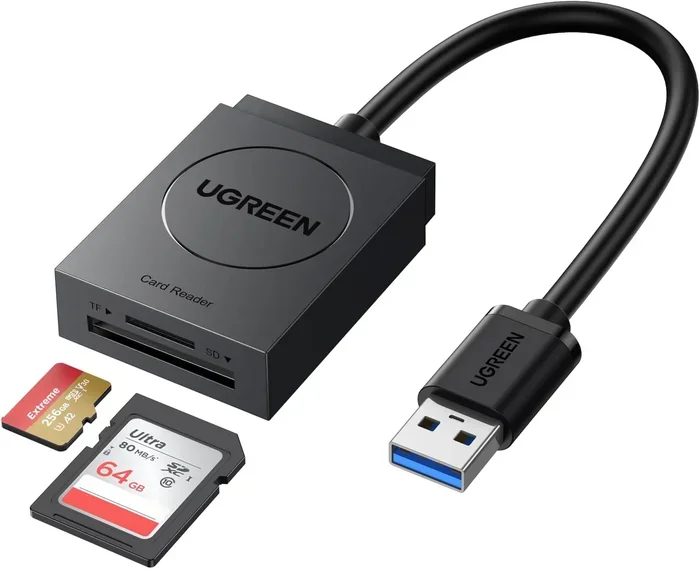
Realtek Card Reader Software is the driver and utility package that allows your computer to read SD cards, microSD cards, and other memory cards through a built-in or external card reader. It acts as the bridge between your memory card and your operating system, making file transfers quick and seamless. Without it, your PC cannot recognize or access data stored on flash memory cards.
Have you ever plugged an SD card into your laptop and wondered why your computer would not recognize it? More than likely, you are missing the right software. Realtek Card Reader Software is the hidden program that makes all the difference. It is the piece of software that tells your computer how to talk to memory cards. Without it, your SD card is just a small piece of plastic with tiny chips inside.
In this guide, we will break down everything you need to know about Realtek Card Reader Software. We will cover what it does, how to install it, common problems, and how to keep it running smoothly. Whether you are a student transferring photos or a professional moving files between devices, this article has you covered.
Key Takeaways
- What It Does: Realtek Card Reader Software enables your computer to detect and communicate with memory cards like SD, microSD, and SDHC cards.
- Easy Installation: You can install the software through Device Manager, Realtek’s official website, or Windows Update.
- Common Issues: Problems like card reader not working or unrecognized cards are often fixed by updating the driver or checking the port.
- System Compatibility: The software works across Windows 10, Windows 11, and some Linux distributions. Make sure your laptop RAM supports the software requirements.
- Storage Connection: Card readers work alongside your PC’s storage, such as NVMe SSDs, to manage data efficiently.
- Regular Updates Matter: Keeping the driver updated ensures compatibility with the latest memory card formats and improves performance.
📑 Table of Contents
- What Is Realtek Card Reader Software?
- How Does Realtek Card Reader Software Work?
- How to Install Realtek Card Reader Software
- Common Problems with Realtek Card Reader Software
- System Requirements for Realtek Card Reader Software
- How to Update Realtek Card Reader Software
- Benefits of Using Realtek Card Reader Software
- Is Realtek Card Reader Software Safe?
- Tips to Keep Your Card Reader Working Smoothly
- How Realtek Card Reader Software Compares to Other Solutions
- Final Thoughts on Realtek Card Reader Software
What Is Realtek Card Reader Software?
Realtek Card Reader Software is a driver program developed by Realtek Semiconductor. Realtek is a well-known company that makes chipsets for computers. Their card reader driver helps your PC understand memory cards. When you insert an SD card or a microSD card into your laptop, the software kicks in. It creates a connection between the card and your operating system.
Think of it like a translator. Your computer speaks one language, and your memory card speaks another. The Realtek driver translates between them. It lets you open, copy, move, and delete files on the card. Most modern laptops come with this software pre-installed. However, sometimes it gets deleted, corrupted, or outdated. When that happens, your card reader stops working.
Who Makes Realtek?
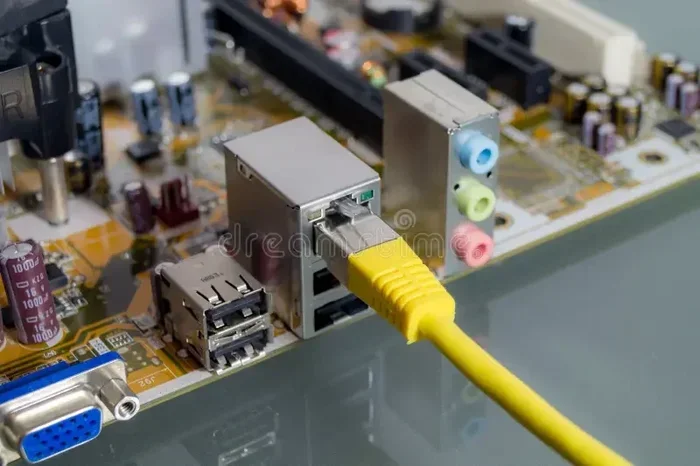
Realtek Semiconductor Corp is a Taiwanese company. They have been making audio and network chipsets for decades. Their components are found in millions of motherboards worldwide. The card reader driver is just one part of their large product lineup. They also make audio drivers, Ethernet drivers, and webcam drivers. Their card reader software is trusted by major laptop brands like HP, Dell, Lenovo, and ASUS.
How Does Realtek Card Reader Software Work?
The software works at a very low level on your computer. It sits between your hardware and your operating system. When you plug in a card, the hardware sends a signal. The Realtek driver picks up that signal. It then tells Windows or your operating system what kind of card it is. After that, the system assigns a drive letter. You can then see the card in File Explorer.
The whole process happens in seconds. You do not need to do anything special. Just insert the card, and the driver handles the rest. This is why it is so important to keep the software updated. An outdated driver can slow down this process or break it entirely.
The Role of Drivers in Hardware Communication
Drivers are small programs that help your computer use hardware. Every piece of hardware needs a driver. Your mouse, keyboard, and monitor all need drivers. The card reader is no different. The Realtek driver specifically handles memory card protocols. It supports formats like FAT32, exFAT, and NTFS. These are the file systems that memory cards use to store data.
Without the correct driver, your computer cannot read these file systems. That is why you get the dreaded message saying the card is not recognized. Updating the driver fixes this almost every time.
How to Install Realtek Card Reader Software
Installing the Realtek card reader driver is simple. You have a few different methods to choose from. Pick the one that feels most comfortable to you. Each method works well, and they all achieve the same goal.
Method 1: Through Device Manager
This is the easiest method for most users. Here is how you do it:
- Right-click on the Start button.
- Select Device Manager from the menu.
- Look for “Universal Serial Bus controllers” or “Disk drives.”
- Find your card reader device.
- Right-click on it and select “Update driver.”
- Choose “Search automatically for drivers.”
- Windows will find and install the latest driver.
This method works well because Windows already has many Realtek drivers built in. It also ensures you get a driver that is compatible with your version of Windows.
Method 2: From the Realtek Website
If Device Manager does not find the right driver, you can go directly to the source. Visit Realtek’s official website. Navigate to the driver download section. Search for “Card Reader” or “SD Card Reader.” Select your operating system. Download the installer file. Run the file and follow the on-screen prompts.
This method gives you the most control. You can choose the exact version of the driver you want. It is also helpful if your PC manufacturer has not updated the driver yet.
Method 3: Through Windows Update
Windows Update often includes driver updates. To check for driver updates through Windows Update:
- Go to Settings > Update & Security.
- Click on Windows Update.
- Select “Check for updates.”
- Look for optional driver updates.
- Install any Realtek card reader driver updates listed.
This method is the most hands-off. It works well for users who prefer not to manually search for drivers.
Common Problems with Realtek Card Reader Software
Even though Realtek card reader software is reliable, problems do happen. Here are the most common issues and how to fix them.
Card Reader Not Recognizing the SD Card
This is the number one complaint. You insert the card, and nothing happens. The first thing to check is the physical connection. Try a different SD card. If that card works, the problem is with the first card. If no cards work, the problem is with the reader or the driver.
Next, open Device Manager. Look for any yellow warning signs. A yellow triangle means the driver has a problem. Right-click the device and select “Uninstall device.” Then restart your computer. Windows will reinstall the driver automatically.
Slow Transfer Speeds
If your files are taking forever to copy, the driver might be outdated. Old drivers do not support newer card speeds. SD cards now come in UHS-I and UHS-II formats. These require updated drivers to work at full speed. Updating the Realtek driver often fixes this issue.
Also, make sure your laptop has enough processing power to handle fast transfers. If your system is low on RAM for a laptop, file transfers can slow down significantly. Consider upgrading your memory if you work with large files often.
Driver Conflicts After Windows Updates
Windows updates can sometimes overwrite or break existing drivers. This is a known issue with Realtek card reader software. After a major Windows update, your card reader might stop working. The fix is simple. Go back to Device Manager and update the driver. You can also roll back to a previous driver version if the new one causes issues.
System Requirements for Realtek Card Reader Software
Before installing the software, make sure your system meets the basic requirements. The good news is that the requirements are very modest. Most modern computers easily meet them.
- Operating System: Windows 10 (64-bit), Windows 11, or compatible Linux distributions.
- Processor: Any modern Intel or AMD processor will work.
- RAM: At least 2GB of RAM is recommended. For smoother overall performance, check what amount of RAM is good on a laptop for your specific needs.
- Free Storage: About 50MB of free space for the driver files.
- USB Port: A working USB port or built-in card slot.
These requirements are very low. Even older laptops should be able to run the Realtek card reader driver without any issues. The software is designed to be lightweight and efficient.
How to Update Realtek Card Reader Software
Keeping your driver updated is important. Updates fix bugs, improve speed, and add support for new card types. Here is how to update the software.
- Open Device Manager.
- Find your card reader under “Universal Serial Bus controllers.”
- Right-click and select “Update driver.”
- Choose “Search automatically for updated driver software.”
- Follow the prompts to complete the update.
You should also check Realtek’s website periodically. They release updates regularly. Setting a reminder to check every few months is a good habit. This keeps your card reader running at its best.
When to Update vs. When to Reinstall
Updating is enough most of the time. But if you are having persistent issues, a clean reinstall works better. Uninstall the current driver first. Restart your computer. Then install the latest version from scratch. This clears out any corrupted files that might be causing problems.
Benefits of Using Realtek Card Reader Software
There are many reasons why Realtek card reader software is a great choice. Here are the main benefits.
- Wide Compatibility: It supports SD, microSD, SDHC, and SDXC cards. This covers almost every memory card on the market.
- Fast Transfer Speeds: Updated drivers support high-speed card formats. You can transfer large files quickly.
- Easy to Use: The software works automatically. You do not need special technical skills.
- Reliable Brand: Realtek has years of experience in chipset manufacturing. Their drivers are trusted worldwide.
- Free to Use: The driver is free. You do not need to pay for it. Just download and install.
These benefits make Realtek one of the most popular card reader driver brands. It is built into many laptops right from the factory. That is how well-known and trusted the brand is.
Is Realtek Card Reader Software Safe?
Yes, it is completely safe. Realtek is a legitimate semiconductor company. Their drivers are digitally signed by Microsoft. This means they have been verified as safe and trustworthy. You will not find malware or viruses in the official Realtek driver.
However, you should always download from the official Realtek website or through Windows Update. Avoid third-party download sites. Some of these sites bundle extra software or even malware with the driver. Stick to official sources to stay safe.
If you are unsure about downloading drivers, Device Manager is your safest option. It only shows you verified, Microsoft-signed drivers. This is the most secure way to update your Realtek card reader software.
Tips to Keep Your Card Reader Working Smoothly
A little maintenance goes a long way. Here are some simple tips to keep your card reader in great shape.
- Eject the card properly: Always use the “Safely Remove Hardware” option before pulling out a card.
- Keep your drivers updated: Check for updates every few months. This prevents compatibility issues.
- Clean the card slots: Dust can build up over time. Use compressed air to clean the slots gently.
- Use quality memory cards: Cheap cards can cause errors. Stick to trusted brands like SanDisk, Samsung, or Kingston.
- Avoid removing the card during transfers: This can corrupt files and damage the card.
Following these tips will extend the life of your card reader. It will also keep your memory cards safe from data loss. Prevention is always better than fixing problems after they happen.
How Realtek Card Reader Software Compares to Other Solutions
There are other card reader solutions out there. Some laptops use generic Windows drivers. Others use brand-specific drivers from HP, Dell, or Lenovo. How does Realtek compare?
Generic Windows drivers work fine for basic tasks. But they often lack support for newer card formats. Brand-specific drivers are optimized for specific hardware. Realtek drivers fall somewhere in between. They are widely compatible and regularly updated. They offer a good balance of performance and ease of use.
If your laptop uses a Realtek card reader, sticking with their official driver is the best choice. It ensures full compatibility and the best performance. Third-party alternatives may work, but they can introduce instability.
Final Thoughts on Realtek Card Reader Software
Realtek Card Reader Software is an essential piece of software for anyone who uses memory cards with their computer. It is small, free, and does a big job. Without it, your SD cards, microSD cards, and other flash memory cards would be useless on your PC.
Installing and updating the driver is straightforward. Even if you are not tech-savvy, you can handle it. Use Device Manager for the easiest route, or download directly from Realtek for more control. Keep the driver updated, and your card reader will work flawlessly for years.
Remember, most card reader problems are driver-related. Before you panic about hardware failure, try updating or reinstalling the driver. In most cases, that simple fix solves the problem. Take care of your card reader software, and it will take care of your data.
If you are running into issues with your computer’s overall performance, it might be worth checking if your system has enough resources. A well-maintained system with updated drivers and sufficient memory makes all the difference in how smoothly everything runs, including your Realtek Card Reader Software.
Frequently Asked Questions
Do I need Realtek Card Reader Software if I already have a built-in card slot?
Yes, you do. The built-in slot is just the hardware. The software is what tells your computer how to use it. Without the Realtek driver, the slot will not work. Windows may sometimes install a generic driver, but the Realtek-specific driver offers better performance and compatibility.
Can I use Realtek Card Reader Software on Windows 11?
Absolutely. Realtek card reader software is fully compatible with Windows 11. You can install it through Device Manager, Windows Update, or directly from the Realtek website. Always make sure you download the version that matches your operating system for the best results.
Why does my SD card keep showing up as a blank drive?
This usually means the driver is not working correctly. Try updating the Realtek card reader driver through Device Manager. If that does not fix it, the SD card itself might be formatted incorrectly or damaged. Try the card on another device to rule out a hardware problem with the card.
How often should I update my Realtek card reader driver?
Every two to three months is a good routine. You should also update after any major Windows update, since those can sometimes break existing drivers. If you notice any issues with your card reader, updating the driver should always be your first step.
Is Realtek Card Reader Software different from a USB card reader?
Yes, they are different. Realtek software is a driver for a built-in card reader slot on your laptop or desktop. A USB card reader is a separate external device. Both need drivers to work, but the Realtek driver is specifically designed for integrated card reader hardware on your motherboard.
Can I uninstall Realtek Card Reader Software if I do not use memory cards?
You can uninstall it, but it is not recommended. The driver takes up very little space and does not slow down your system. If you ever need to use a memory card in the future, having the driver already installed saves you time and trouble. It is better to leave it in place.