What Is the Difference Between Reply Forward in Email
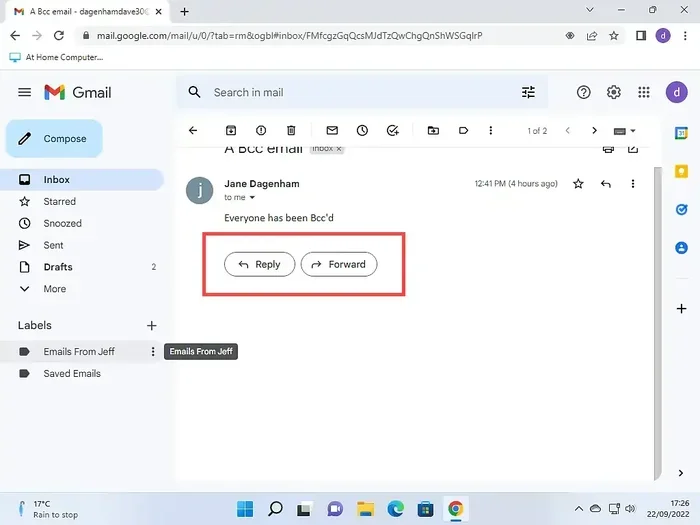
Understanding the difference between reply and forward in email is essential for clear communication. When you hit reply, your message goes back to the original sender only. When you forward an email, you send it to someone new who was not part of the original conversation. Each option serves a different purpose, and using the right one keeps your email threads organized and professional.
Key Takeaways
- Reply sends your message back to the original sender only. It does not include anyone else on the thread.
- Forward shares the email with a new recipient outside the conversation. The full message history is included.
- Reply All lets you respond to everyone on the original email chain. Use it carefully to avoid cluttering inboxes.
- Knowing when to use each option improves your email etiquette. It shows professionalism and respect for others.
- Misusing reply or forward can cause privacy issues or confusion. Always think before you click.
- Different email clients handle reply and forward slightly differently. Explore your settings for the best experience.
📑 Table of Contents
Understanding Reply and Forward in Email
Email is a part of daily life for millions of people. Whether you use it for work or personal matters, you likely hit the reply or forward button every day. But do you really know what each one does? Many people use these features without thinking twice. However, understanding the difference between reply forward in email can save you from awkward moments and miscommunication.
When you receive an email, you have several options for responding. You can reply to the sender, reply to everyone, or forward the message to someone else. Each option has a specific purpose. Using the right one keeps your conversations clear and your information safe. This guide will walk you through everything you need to know about reply vs forward in email.
What Does Reply Mean in Email?
The reply function sends your response back to the original sender. It does not include anyone else who was copied on the original message. When you click reply, your email client creates a new message addressed only to that person. The original email thread usually appears above your new message as a reference.
How the Reply Button Works
When you press the reply button, your email client pulls the sender’s address from the email header. It places that address in the “To” field of your new message. The original message content appears below your new text, creating a threaded conversation. This makes it easy to see what you are responding to.
Most email clients also include the original subject line. Some even add “Re:” at the beginning of the subject. This helps you and the recipient keep track of the conversation. You can then type your response above or below the quoted message, depending on your settings.
When to Use Reply
You should use reply when you only need to respond to the original sender. This is the most common option for one-on-one conversations. For example, if a coworker sends you a message asking for a file, hitting reply is the right move. You do not need to include their boss or other team members.
Use reply when the conversation is private between you and the sender. It keeps the communication focused and avoids cluttering other people’s inboxes. This is also the safest option when the email contains sensitive information. Think of reply as your go-to for direct, personal responses.
What Does Forward Mean in Email?
The forward function sends the email to someone who was not part of the original conversation. When you forward a message, you create a new email that includes the full content of the original. The new recipient gets to see everything the original sender wrote, along with any replies that came before.
How the Forward Button Works
When you click the forward button, your email client opens a new message window. The original email appears as an attachment inside this new message. You can then type a note to the new recipient before sending. The “To” field is empty, so you must add the new recipient’s address yourself.
One important thing to know: forwarding an email passes along the entire message history. This includes all previous replies and the original sender’s address. You need to be careful about who you share this information with. Sometimes, the original sender did not want their email shared with others.
When to Use Forward
You should use forward when you want to share an email with someone who was not part of the original conversation. For example, if your boss sends you instructions and you need your teammate to know about them, forwarding is the right choice.
Use forward when the information is not private. If the original email contains personal or confidential details, think twice before sharing it. Always consider whether the new recipient needs to see the full message history. Forwarding is essentially a way to share email content with someone who missed the original conversation.
Reply vs Forward: Key Differences
Understanding the difference between reply and forward is simple once you see them side by side. Each option serves a different purpose and reaches different people. Here is a quick breakdown of the main differences.
| Feature | Reply | Forward |
|---|---|---|
| Recipient | Original sender only | New person you choose |
| Message Content | Your new response only | Full original email plus your note |
| Thread History | Stays within the original thread | Creates a new thread |
| Privacy Level | Higher (only sender sees it) | Lower (new person sees everything) |
| Common Use | Answering a direct question | Sharing information with others |
The table above shows that reply and forward are not interchangeable. They serve different roles in email communication. Using the wrong one can lead to confusion or even privacy breaches. Always pause for a moment and ask yourself who needs to see this message before you click a button.
Reply All: The Middle Ground
There is a third option that many people use: reply all. This function sends your response to every person on the original email chain. That includes the sender and everyone else who was copied (CC) or blind copied (BCC).
Reply all is useful when you want everyone on the thread to see your response. For example, if a team is planning a meeting and someone asks about the date, replying to all lets everyone see the answer at once. However, reply all can also cause inbox clutter if used too often.
Be careful with reply all. Every time you use it, everyone in the thread gets your message. If your response is not relevant to all recipients, you should just use reply instead. This is one of the most common email etiquette mistakes people make. A good rule of thumb is to ask yourself, “Does everyone on this chain need to see my response?” If the answer is no, skip reply all.
Email Etiquette for Replying and Forwarding
Good email etiquette matters more than most people think. How you reply or forward an email says a lot about your professionalism. Here are some tips to keep your email communication clean and respectful.
Tips for Replying
- Keep your response short and clear. People appreciate concise replies that get straight to the point.
- Quote only what you need. Remove unnecessary parts of the original message to keep things tidy.
- Use a clear subject line. If the topic has changed, update the subject so recipients know what to expect.
- Proofread before sending. A quick read can catch typos and errors that might cause confusion.
- Respond in a timely manner. Try to reply within 24 hours when possible to keep conversations moving.
Tips for Forwarding
- Add a personal note. Explain why you are sharing the email so the new recipient understands the context.
- Check for sensitive information. Remove any private details before forwarding to protect everyone involved.
- Ask permission if needed. If the email contains someone’s personal story or data, get their okay first.
- Clean up the thread. Remove unnecessary replies before you forward to keep the message concise.
- Use BCC for large groups. This protects the privacy of all recipients by hiding their email addresses.
Common Mistakes with Reply and Forward
Many people make avoidable mistakes when using reply and forward. Here are the most common ones:
- Replying instead of forwarding. This keeps important information from reaching the right person.
- Forwarding without checking. You might accidentally share private or embarrassing content with the wrong person.
- Using reply all unnecessarily. This clutters everyone’s inbox with emails they do not need to read.
- Forgetting to remove old recipients. When forwarding, consider whether everyone on the original thread needs to see it.
- Not adding context when forwarding. The new recipient may not understand why you are sharing the email without a brief explanation.
Avoiding these mistakes will make you a better email communicator. It also shows respect for other people’s time and privacy. Small habits like these set you apart in any professional setting.
How Your Email Client Handles Reply and Forward
Different email clients handle reply and forward in slightly different ways. Gmail, Outlook, Yahoo Mail, and Apple Mail all offer these features. While the basic functions are the same, the layout and options may vary.
In Gmail, you will find the reply button at the bottom of each email. The forward button sits right next to it. Outlook places these buttons in the toolbar at the top. Apple Mail shows them in the action menu at the top of the message window. Each client also offers keyboard shortcuts to speed up your workflow. Pressing “R” usually triggers reply, while pressing “F” usually triggers forward.
Most modern email clients also let you customize how reply and forward behave. You can choose to show the original message below your new text or above it. You can also set default behaviors for each action. Check your email client’s settings to explore these options and find what works best for you.
Understanding how your specific email client works helps you use reply and forward more efficiently. Take a few minutes to explore the settings in your own email app. You might discover features you did not know existed.
Further Reading
If you enjoyed learning about email basics, you might also be interested in other tech topics. For instance, understanding RMS power in speakers helps you choose the right audio equipment for your setup. Similarly, knowing about ohm ratings in speakers ensures you match your speakers to the right amplifier. If you are curious about speaker configurations, check out the difference between coaxial and component speakers to understand which type suits your needs. For those interested in computer hardware, learning about the difference between SSD and NVMe can help you pick the right storage for your system. And if you want to dive deeper into speaker setups, explore what sets 3-way and 2-way speakers apart to make an informed choice.
Frequently Asked Questions
Can I forward an email without showing the original sender?
Yes, most email clients let you remove the original message before forwarding. Simply delete the quoted text from the original email before you hit the forward button. This gives you a clean email that only shows your new message and any notes you add.
Is it safe to forward work emails to a personal account?
It depends on your company’s policy. Many organizations have strict rules about moving work emails to personal accounts. Always check with your IT department or manager before forwarding work emails outside your organization. This protects both you and your employer from potential security issues.
What is the difference between reply and reply all?
Reply sends your message to only the original sender. Reply all sends your message to everyone on the email chain, including all CC and BCC recipients. Use reply all only when your response is relevant to the entire group and everyone needs to see it.
Can I edit the original email when I forward it?
Yes, you can add notes or remove parts of the original message when forwarding. However, be careful about altering the original content, especially if it contains important details. It is usually best to keep the original message intact and add your own notes above or below it for clarity.
Why does my forwarded email show the wrong sender name?
This happens when the original sender’s email client displays a display name that differs from their actual email address. The forwarded email preserves the original header information. You can check the actual email address by looking at the full email header details in your client.
Should I use reply or forward when sending an email to a new team member?
Use forward when you want a new team member to see the full context of a conversation. Include a brief note explaining what the email is about. This helps the new team member understand the background without having to ask extra questions or search through old threads.
=== CONCLUSION ===
Conclusion
The difference between reply and forward in email is straightforward but important. Reply sends your message back to the original sender. Forward shares the email with a new person who was not part of the conversation. Using the right option keeps your communication clear, organized, and professional.
Remember to think before you click. Consider who needs to see your message and whether the content is appropriate to share. Good email habits take practice, but they make a big difference over time. Start applying these tips today and you will notice cleaner inboxes and fewer misunderstandings.
Email is a powerful tool when used correctly. Understanding basic functions like reply and forward is the first step toward mastering email communication. Keep learning, keep practicing, and you will become an email pro in no time. The small effort you put into getting this right pays off every single day.