Why Is My Hdmi Output Not Working
When your HDMI output stops working, it can be frustrating and confusing. This guide walks you through the most common reasons your HDMI output is not working and gives you clear, step-by-step fixes. From loose cables to driver issues, you will find practical solutions that actually work.
You sit down to enjoy your favorite movie or finish an important presentation. You plug in the HDMI cable. And then… nothing. Your screen stays dark. This is exactly what happens when your HDMI output is not working. It is a common problem that affects laptops, desktops, and gaming consoles every single day. The good news is that most causes are easy to fix at home without any special tools or technical skills.
In this guide, we will explore every reason your HDMI output might fail. We will cover cable problems, software issues, port damage, and more. By the end, you will know exactly what to check and how to get your display back up and running. Let us dive right in.
Key Takeaways
- Loose or damaged cables are the number one cause of HDMI output failures.
- Graphics driver updates can quickly resolve display output issues on your laptop or PC.
- Wrong source input settings on your TV or monitor often cause a “no signal” error.
- Port damage or dust buildup can block the HDMI connection even if the cable looks fine.
- HDMI version mismatches between devices may cause compatibility problems with display output.
- Restarting devices is a simple but often overlooked fix for HDMI handshake errors.
📑 Table of Contents
Why Is My HDMI Output Not Working? Common Causes
Understanding the root cause is the first step toward a fix. Several things can interrupt your HDMI signal between devices. Below are the most common reasons people face this issue.
Loose or Faulty HDMI Cables
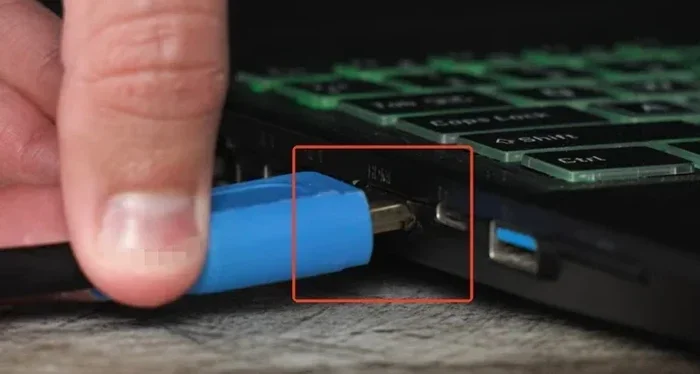
A loose connection is the simplest reason your HDMI output is not working. Over time, cables can wear out, bend, or break inside. If the cable does not make full contact with the port, no signal will pass through. This happens often when cables are plugged in at an angle or pulled frequently.
Try unplugging the cable and plugging it back in firmly. Listen for a click if your HDMI port has a locking tab. If the cable looks frayed or bent, replace it with a new one. A new cable costs very little and solves the problem more often than you might think.
Incorrect Display Source Input
Sometimes the issue is not with your computer or laptop at all. Your TV or monitor needs to be set to the correct input source. If your monitor is set to HDMI 1 but you plugged the cable into HDMI 2, you will see a blank screen.
Use the source or input button on your TV remote to cycle through available options. Select the HDMI port where your cable is connected. This simple step fixes the problem for many users who think their HDMI output is not working when it actually is.
Graphics Driver Issues
Your computer relies on graphics drivers to send a signal through the HDMI port. If these drivers are outdated, corrupted, or missing, your display output will fail. This is especially common after a Windows update or when you install a new operating system.
Go to your device manager and check for display adapter warnings. You can also visit your GPU manufacturer’s website, such as NVIDIA or AMD, to download the latest drivers. Updating your graphics driver often brings an immediate fix for HDMI output problems.
HDMI Port Damage or Dust
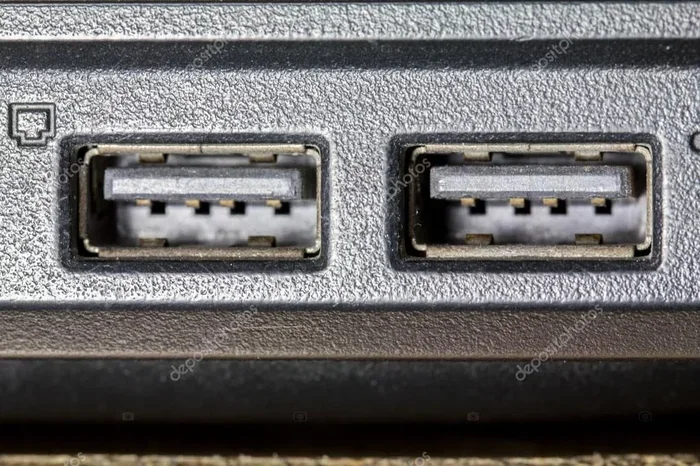
Dust and lint can build up inside your HDMI port over time. This debris blocks the tiny pins inside the connector and prevents a proper connection. In other cases, the port itself may be physically damaged from frequent plugging or accidental impact.
Use a flashlight to inspect the port for dirt or bent pins. Gently clean it with compressed air or a soft brush. If the pins are bent, you may need a port replacement, which a technician can handle for you.
HDMI Version Compatibility Problems
Not all HDMI cables and ports are created equal. Older HDMI versions may not support the resolution or refresh rate your device is trying to output. For example, HDMI 1.4 may struggle with 4K content, while HDMI 2.0 handles it smoothly. If your devices use different HDMI versions, this mismatch can cause your HDMI output is not working even though everything looks fine at first glance.
Check the HDMI version supported by both your source device and your display. You can usually find this information in the device manual or on the manufacturer’s website. Using a cable that matches or exceeds both devices’ specifications is the best approach.
How to Troubleshoot Your HDMI Output Step by Step
Now that you know the common causes, let us walk through the troubleshooting process. Follow these steps in order to identify and fix the issue.
Step 1: Check the Cable Connection
Start with the basics. Unplug the HDMI cable from both ends. Inspect it for visible damage. Plug it back in firmly and make sure it clicks into place. This sounds too simple, but it resolves the issue for a surprising number of users.
Step 2: Try a Different Cable or Port
If the cable looks fine but you still have no signal, swap it out. Use a different HDMI cable to rule out a faulty cable. You should also try a different HDMI port on your device. Sometimes one port stops working while others remain functional.
Step 3: Adjust Your Display Settings
On Windows, right-click your desktop and select Display Settings. Look for the detect button under the Multiple Displays section. On a Mac, go to System Settings and check your displays. Sometimes the operating system fails to detect the external output automatically, and a manual refresh fixes it.
Step 4: Update or Reinstall Graphics Drivers
Open your device manager and expand the Display Adapters section. Right-click your GPU and select Update Driver. If that does not work, uninstall the driver and restart your computer. Windows will automatically reinstall a fresh driver during boot.
Many users find that driver updates fix their HDMI output is not working problem instantly. It is one of the most overlooked solutions, so make sure you give it a try.
HDMI Output Problems on Specific Devices
Different devices can cause unique HDMI output challenges. Here is what to look for based on your setup.
Laptop HDMI Output Not Working
Laptops are especially prone to HDMI output issues because the port is used less frequently and can collect dust. On a laptop, the problem often relates to function key settings. Many laptops require you to press a combination like Fn plus an F-key to toggle the external display. Check your laptop manual for the correct shortcut.
Also, some laptops have both HDMI and USB-C ports for display output. Make sure you are using the right port and the right type of cable or adapter. Using a USB-C to HDMI adapter with an HDMI cable can sometimes cause confusion about which output is active.
Desktop PC HDMI Output Not Working
On desktop PCs, the issue often relates to the graphics card rather than the motherboard. If your PC has a dedicated GPU, make sure the HDMI cable is plugged into the graphics card port, not the motherboard port. Plugging into the wrong port is a very common mistake that many users make.
If you recently built or upgraded your PC, the GPU drivers may not be fully installed yet. Download the latest drivers directly from the GPU manufacturer’s website and install them before testing your HDMI output again.
Console or Media Player HDMI Output Not Working
Gaming consoles and media players like Roku or Apple TV can also experience HDMI output failures. Power cycling the device often fixes this. Unplug the console from power, wait 30 seconds, and plug it back in. This resets the HDMI handshake and refreshes the connection between devices.
You should also check your TV firmware. Some TV manufacturers release updates that improve HDMI compatibility. An outdated TV firmware version can cause intermittent signal loss or a complete lack of output from your console.
Quick Tips to Prevent HDMI Output Problems
Prevention is always easier than troubleshooting. Here are some simple habits that keep your HDMI connections working smoothly.
- Use high-quality cables. Cheap HDMI cables may not support the bandwidth you need for higher resolutions.
- Avoid bending cables at sharp angles. This can damage the internal wiring over time.
- Keep ports clean. Use compressed air to blow out dust from HDMI ports every few months.
- Update drivers regularly. Set a reminder to check for graphics driver updates once a month.
- Label your cables. If you use multiple HDMI cables, label them so you always know which one goes where.
- Power cycle devices when in doubt. A simple restart can clear temporary glitches that block HDMI output.
These small habits go a long way. They save you time and prevent the frustration of dealing with a dead HDMI output again.
When to Seek Professional Help
Most HDMI output issues resolve with the steps above. But sometimes the problem runs deeper. If you have tried multiple cables, different ports, and updated drivers without success, it may be time to consult a professional. A damaged HDMI port on your motherboard or graphics card requires specialized tools to repair. Similarly, if your display panel itself has a hardware fault, no cable change will fix it.
Before seeking help, make sure you have ruled out the simplest causes. Many repair shops appreciate when customers have already done basic troubleshooting. It saves time and often saves money too.
Also, keep in mind that some laptop issues can overlap with HDMI problems. For example, if you notice that your mouse is not working on your laptop alongside display issues, there could be a broader hardware or connection problem that needs professional diagnosis. Similarly, if you experience your mouse stopping unexpectedly while your HDMI output fails, it might point to a USB or motherboard issue rather than a simple cable fault.
Final Thoughts
A non-functioning HDMI output does not have to be a permanent problem. In most cases, the fix is quick, simple, and costs nothing. Start with the cable and port. Move to display settings and driver updates. Work through each step methodically, and you will likely find the solution.
Remember that technology can be unpredictable. Even the best cables and devices can develop issues over time. What matters is that you now have the knowledge to troubleshoot effectively. The next time your HDMI output is not working, you will know exactly what to do. Stay patient, follow the steps, and your display will be back to normal in no time.
Frequently Asked Questions
Why does my HDMI output show no signal even with a new cable?
Try a different HDMI port on your device or check your display source input settings. Sometimes the port itself or the TV input is set incorrectly, causing a no-signal error even with a brand-new cable.
Can a damaged HDMI port cause output failure?
Yes, a damaged or dusty HDMI port can completely block the signal. Inspect the port for bent pins or debris and clean it gently with compressed air. If the port is physically broken, professional repair may be needed.
Do I need to update my graphics driver for HDMI output?
Outdated or corrupted graphics drivers are a very common cause of HDMI output issues. Updating or reinstalling your GPU driver often resolves the problem quickly and restores your display connection.
Why does my HDMI output work on one device but not another?
This usually points to an HDMI version mismatch or a compatibility issue. Check the HDMI version supported by both devices and ensure your cable meets the required standard for the resolution you want to display.
How do I fix HDMI handshake errors?
Power cycling both devices usually fixes HDMI handshake errors. Unplug both the source device and the display from power, wait 30 seconds, and plug them back in. This resets the connection and refreshes the signal.
Can an HDMI adapter cause output problems?
Yes, low-quality or incompatible adapters can block your HDMI output. Always use adapters from reputable brands and make sure they support the resolution and version your devices require for proper display output.
=== CONCLUSION ===
Dealing with an HDMI output that is not working can disrupt your entire day. Whether you are working, gaming, or watching a movie, a blank screen is never welcome. But as we have covered in this guide, the causes are usually simple and the fixes are within reach.
Start with the cable and connection. Move to source input settings. Update your graphics drivers. Clean your ports. And remember that prevention through good habits keeps your HDMI connections reliable for the long term. You now have a full troubleshooting toolkit to handle any HDMI output issue that comes your way.