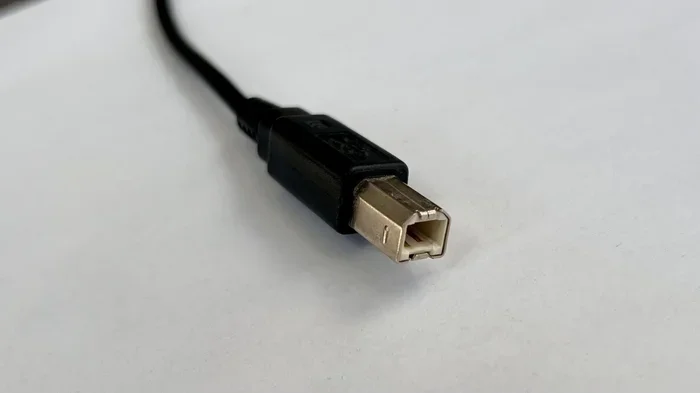
Why Is My Usb Device Driver Not Detected
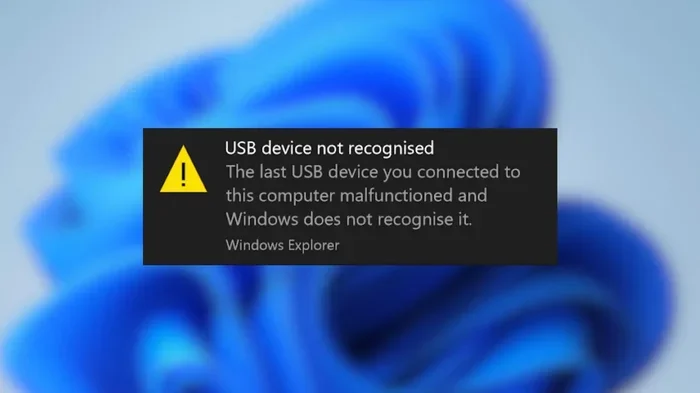
Why Is My Usb Device Driver Not Detected? It is a frustrating problem that stops your USB devices from being recognized by your computer. The most common causes include outdated drivers, damaged ports, or software conflicts. This guide walks you through easy, proven solutions you can try right now to fix the issue and get your devices back online.
You plug in your USB device, wait a few seconds, and nothing happens. No notification, no sound, no new drive showing up. This is the moment many of us dread, especially when we need that device right away. The error message, if there is one, usually says something vague like “USB device not recognized” or simply leaves you staring at a blank screen. Understanding Why Is My Usb Device Driver Not Detected is the first step toward fixing it and getting back to work.
The good news is that this problem is very common, and it is almost always fixable. Whether you are dealing with a USB flash drive, an external hard drive, a webcam, or a mouse, the reasons behind the detection failure tend to overlap. In this article, we will explore every major cause and walk you through clear, step-by-step solutions. You do not need to be a tech expert to follow along.
Let us start by understanding what a USB device driver actually does, because that knowledge makes everything else much easier to grasp.
Key Takeaways
- Driver issues are the #1 cause: Outdated or corrupted USB drivers are the most common reason your device goes undetected.
- Windows Device Manager is your best friend: It lets you quickly spot driver errors and reinstall or update drivers with just a few clicks.
- Hardware problems matter too: A damaged USB cable or port can mimic a driver problem, so always check physical connections first.
- Simple fixes work more often than you think: Restarting your computer or unplugging and replugging the device solves the issue in many cases.
- Windows Update keeps drivers current: Regularly running Windows Update ensures your system has the latest driver support.
- Third-party driver tools can help: Trusted driver update utilities can scan and fix missing or outdated drivers automatically.
📑 Table of Contents
- What Is a USB Device Driver and Why Does It Matter?
- Common Reasons Your USB Device Driver Is Not Detected
- How to Fix “USB Device Driver Not Detected” on Windows
- When the Problem Is Hardware, Not Software
- Preventing USB Driver Detection Problems in the Future
- When to Seek Professional Help
- Final Thoughts
What Is a USB Device Driver and Why Does It Matter?
A USB device driver is a small piece of software that acts as a translator between your computer and the USB device you plug in. Your operating system speaks one language, and your device speaks another. The driver bridges that gap so both can understand each other. Without the correct driver, your computer simply does not know that a device is connected.
Think of it like a translator at a conference. If the translator is absent or not doing their job, communication breaks down completely. That is exactly what happens when a USB driver fails or goes missing. The device is physically connected, but the computer cannot detect it because the software layer that enables communication is broken.
Several things can cause a driver to stop working properly. A Windows update can sometimes overwrite or corrupt existing drivers. Installing new software might create conflicts. Or the driver might simply be outdated and no longer compatible with your current system. Whatever the reason, the result is the same: your device sits there, plugged in, doing absolutely nothing.
Common Reasons Your USB Device Driver Is Not Detected
Before jumping into fixes, it helps to understand what might be causing the problem in the first place. Here are the most common reasons your USB device driver not detected issue keeps showing up.
1. Outdated or Corrupted Drivers
This is the number one cause of USB detection problems. Over time, drivers can become outdated as your operating system receives updates. A corrupted driver file can also prevent your computer from recognizing the device at all. Sometimes a simple Windows update can overwrite a working driver and break things in the process.
2. Damaged or Faulty USB Cable or Port
It sounds simple, but a damaged USB cable or a loose port can make it look like a driver problem when it is really a hardware issue. If the cable has frayed wires or the port is dusty or bent, the connection may be intermittent or fail entirely. Your computer then reports that no device is present, even though the driver is perfectly fine.
3. Power Management Settings
Windows has a feature that turns off USB devices to save power. Sometimes this setting is too aggressive and disconnects your device even when you are actively using it. This power-saving behavior can interfere with driver detection and cause your device to disappear unexpectedly.
4. Software Conflicts
Certain software programs can conflict with USB drivers. Antivirus programs, virtualization software, and even some gaming peripherals come with their own drivers that may clash with the standard Windows USB drivers. These conflicts can prevent new devices from being detected or cause existing ones to stop working.
5. Operating System Issues
Sometimes the problem lies within the operating system itself. A corrupted system file, a failed Windows update, or a registry error can all prevent USB drivers from loading properly. These issues are less common but can be stubborn to fix without the right approach.
If you have been dealing with related issues like a USB mouse not working on your laptop, the driver detection problem could be the root cause behind that too.
How to Fix “USB Device Driver Not Detected” on Windows
Now that we know the common causes, let us get into the fixes. Follow these steps in order, and most users find that their USB device starts working again by the third or fourth step.
Step 1: Unplug and Replug the Device
This sounds too simple to work, but it does. Unplug your USB device, wait about ten seconds, and plug it back into a different port if possible. This resets the connection and often forces Windows to re-detect the device and reload the driver. It is the fastest fix and should always be your first attempt.
Step 2: Restart Your Computer
A fresh restart clears out temporary glitches and resets the USB subsystem. Many users have reported that a simple restart solved their driver detection issue immediately. Save your work, restart, and then plug the device back in to see if it is recognized.
Step 3: Check Device Manager for Errors
Windows Device Manager is the central hub for all your hardware drivers. Here is how to use it:
- Right-click the Start button and select Device Manager.
- Look for a yellow triangle with an exclamation mark next to any device under the Universal Serial Bus controllers section.
- Also check under “Disk drives” or “Other devices” if your USB storage device is not showing up.
- Right-click the problematic device and select Update Driver.
- Choose “Search automatically for drivers” and let Windows do its work.
If Device Manager shows your device with a generic name or under “Unknown Devices,” that is a strong sign the driver is missing or corrupted. Right-click and select “Uninstall device,” then restart your computer. Windows will automatically reinstall the driver when it detects the device again.
For users who have also experienced their mouse not showing up on the laptop, checking Device Manager is usually the key step that reveals the underlying driver problem.
Step 4: Update Windows and Drivers Manually
Keeping your system up to date is one of the best ways to prevent driver issues. Go to Settings > Update & Security > Windows Update and check for updates. Install any pending updates and restart your computer. This often brings in the latest driver versions that fix compatibility issues.
You can also visit the manufacturer’s website for your USB device and download the latest driver directly. This is especially helpful for specialized devices like webcams, audio interfaces, or gaming peripherals that need custom drivers beyond what Windows provides.
Step 5: Disable USB Selective Suspend
This power management feature can sometimes interfere with driver detection. Here is how to turn it off:
- Open the Control Panel and go to Power Options.
- Click “Change plan settings” next to your active power plan.
- Select “Change advanced power settings.”
- Expand the USB settings section.
- Set USB selective suspend to “Disabled.”
- Click OK and restart your computer.
This prevents Windows from automatically turning off your USB devices to save power, which can sometimes cause detection failures.
Step 6: Run the Windows USB Troubleshooter
Windows includes a built-in troubleshooter specifically designed to fix USB-related problems. To access it, go to Settings > Update & Security > Troubleshoot > Additional troubleshooters > USB. Run the troubleshooter and follow the on-screen prompts. It will automatically detect and attempt to fix common USB driver issues.
When the Problem Is Hardware, Not Software
It is easy to assume every USB detection problem is a driver issue, but hardware problems are surprisingly common. Before spending hours troubleshooting software, take a moment to check the physical side of things.
Inspect Your USB Cable
Look closely at the cable for any visible damage. Frayed ends, bent connectors, or signs of wear and tear can all prevent a proper connection. If you have a spare cable, try swapping it out. A new cable often solves the problem instantly.
Try a Different USB Port
Not all USB ports are created equal. A damaged or dirty port can prevent your device from being detected. Try plugging your device into a different port on the same computer. If you are using a laptop, try ports on both sides if available. If you are on a desktop, try ports on the front and back of the tower.
Test the Device on Another Computer
This is the best way to rule out a hardware failure. Plug your USB device into a different computer. If it works there, the problem is with your computer, not the device. If it does not work on any computer, the device itself may be faulty and need replacement.
For users who have also struggled with a laptop mouse not working, testing the mouse on another computer can quickly tell you whether the issue is a driver problem or a hardware defect.
Preventing USB Driver Detection Problems in the Future
Once you have fixed the issue, you will want to keep it from coming back. Here are some simple habits that help maintain healthy USB driver performance.
- Keep Windows updated at all times. Microsoft regularly releases driver updates that fix bugs and improve compatibility.
- Avoid unplugging devices while data is being transferred. This can corrupt driver files and lead to detection failures.
- Use quality USB cables and hubs. Cheap cables can cause intermittent connections that confuse the driver system.
- Scan your computer regularly for malware. Some viruses specifically target USB drivers and system files.
- Create a system restore point before updating drivers. This gives you a safety net if a new driver causes problems.
- Clean your USB ports regularly. Dust and debris can build up and interfere with the physical connection, leading to detection issues that look like driver problems.
Taking these small precautions can save you a lot of frustration down the road and keep your USB devices working reliably every single day.
When to Seek Professional Help
Most USB driver detection issues can be resolved at home using the steps above. However, there are times when professional help is the right move. If you have tried every solution and your device still does not appear, there may be a deeper system issue at play. A corrupted operating system, a failing motherboard USB controller, or a serious registry problem might require advanced troubleshooting.
If your computer is still under warranty, contact the manufacturer before attempting any major fixes. Opening up your computer or making system-level changes could void your warranty. A professional technician can diagnose hardware-level USB controller failures safely and get your system back to normal without risk.
Final Thoughts
Dealing with a USB device driver that is not detected can be incredibly frustrating, but it is almost always a solvable problem. The key is to work through the fixes methodically, starting with the simplest solutions and moving to more advanced troubleshooting only if needed. Most of the time, a driver update, a Device Manager reset, or a simple cable swap does the trick.
Remember that Why Is My Usb Device Driver Not Detected is one of the most common tech issues people face, and you are not alone in dealing with it. The solutions in this guide cover the vast majority of scenarios, whether your problem is software-related or hardware-related. Keep your drivers updated, handle your USB devices with care, and you will minimize the chances of running into this problem again.
Now that you know exactly what to do, go ahead and try these steps. Your USB device is probably just waiting for you to give it the right nudge to start working again.
Frequently Asked Questions
Why does my USB device keep showing as not detected even after reinstalling the driver?
This usually points to a hardware issue rather than a software problem. Try using a different USB cable or port, and test the device on another computer. If the problem persists across multiple systems, the device itself may be faulty and need replacement.
Can a Windows update cause USB drivers to stop working?
Yes, absolutely. Windows updates can sometimes overwrite existing drivers with incompatible versions. This is a known issue that many users experience. Rolling back the driver through Device Manager or waiting for a patch from Microsoft usually resolves it.
Is it safe to download USB drivers from third-party websites?
It can be risky. Always try to download drivers directly from the device manufacturer’s official website. Third-party driver update tools may bundle unwanted software or provide outdated drivers that cause more problems than they solve.
How do I know if the USB port is damaged or if it is a driver issue?
Try plugging a different USB device into the same port. If that device also fails to connect, the port is likely the problem. If the other device works fine, the issue is probably with the original device’s driver or cable.
What should I do if my USB device is detected but not functioning properly?
Detection without functionality often means the driver is installed but the wrong version is being used. Go to Device Manager, right-click the device, select Update Driver, and choose the latest version. You can also try uninstalling the driver and restarting your computer to force a fresh installation.
Do I need to install drivers for every USB device I connect?
Most modern USB devices use plug-and-play drivers built into Windows. However, specialized devices like gaming controllers, audio interfaces, and certain webcams require custom drivers that you need to install manually from the manufacturer’s website.