2tb Nvme M 2 Ssd
A 2TB NVMe M.2 SSD is the current sweet spot for high-capacity, blisteringly fast storage. It uses the PCIe bus to deliver speeds orders of magnitude faster than old SATA SSDs or hard drives, transforming system boot times, game loads, and file transfers. Choosing the right one involves understanding PCIe generations (4.0 vs. 5.0), checking your motherboard’s M.2 slot compatibility, and considering factors like heat management. For most users, a PCIe 4.0 2TB NVMe drive offers the best value, while enthusiasts and professionals may look to emerging PCIe 5.0 options for peak performance.
Remember the days of waiting for your computer to boot? Or loading a game level, staring at a progress bar while you made a sandwich? If you’re still using a hard drive or even an older SATA SSD, those frustrating pauses are a thing of the past. The simple act of upgrading to a 2TB NVMe M.2 SSD is arguably the single most transformative upgrade you can make to a modern PC or laptop. It’s not just an incremental improvement; it’s a quantum leap in responsiveness that you feel in every single click and keystroke. But with so many options, specs, and jargon, how do you pick the right one? This guide will cut through the noise. We’ll walk you through everything you need to know about these incredibly fast storage drives, from what the terms actually mean to which models are the best bang for your buck in 2024.
Key Takeaways
- Massive Speed Leap: A 2TB NVMe M.2 SSD offers read/write speeds from 5,000 MB/s to over 12,000 MB/s, dwarfing SATA SSDs (~550 MB/s) and making HDDs obsolete for system storage.
- Form Factor & Interface: “M.2” refers to the small, gumstick-shaped physical form factor. “NVMe” refers to the fast communication protocol over the PCIe bus. Ensure your motherboard has an available M.2 slot that supports NVMe.
- PCIe Generation Matters: PCIe 4.0 (current mainstream) is plenty fast for gaming and general use. PCIe 5.0 (newer) is roughly twice as fast but often runs hotter and costs more, with fewer real-world benefits yet.
- Capacity Value: The 2TB capacity point provides an excellent balance of ample space for OS, dozens of AAA games, and large media files without the premium cost of 4TB+ models.
- Heat is the Enemy: High-performance NVMe SSDs generate significant heat. A motherboard with an integrated heatsink or an aftermarket heatsink is recommended for sustained performance, especially with PCIe 4.0/5.0 drives.
- Not All M.2 Slots Are Equal: Some motherboard M.2 slots share bandwidth with other ports (like SATA or other PCIe lanes). Check your manual to avoid disabling ports when installing your 2TB NVMe M.2 SSD.
- Future-Proofing: Investing in a reputable brand with good endurance ratings (TBW – Total Bytes Written) and a solid warranty (5+ years) ensures your 2TB drive will last through multiple PC builds.
📑 Table of Contents
- Understanding the Jargon: What is a 2TB NVMe M.2 SSD?
- The Unmatched Performance: Why Speed Matters in Real Life
- PCIe 4.0 vs. PCIe 5.0: Which Generation Do You Need?
- Your Essential Buying Guide: What to Look For
- Installation & Heat Management: The Practical Steps
- Top Contenders: Recommended 2TB NVMe M.2 SSDs (2024)
- Future-Proofing Your Investment: Will It Last?
- Conclusion: The Clear Choice for Modern Computing
Understanding the Jargon: What is a 2TB NVMe M.2 SSD?
Let’s break down that mouthful of a name. Each part describes a different characteristic of the drive.
2TB: The Capacity
This is the straightforward part. 2 Terabytes (TB) equals roughly 2,000 Gigabytes (GB) of storage. For context, this is enough space for your operating system (Windows/macOS/Linux), a large library of modern games (which can easily be 80-150GB each), a significant collection of photos and videos, and your essential work applications, all with room to spare. It’s the capacity sweet spot for power users and enthusiasts who want speed without immediately maxing out their budget on a 4TB or 8TB drive.
M.2: The Physical Form Factor
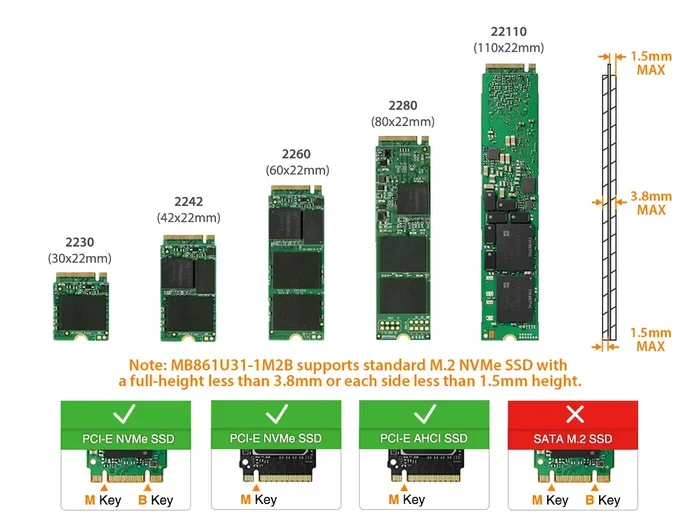
Gone are the days of 2.5-inch wide, boxy SSDs that needed cables. The M.2 form factor is a tiny, gumstick-shaped card that plugs directly into a dedicated slot on your motherboard (or is soldered into some laptops). It’s about the size of a few sticks of gum, saving immense space in compact cases and simplifying cable management. There are different lengths (e.g., 2242, 2260, 2280, 22110), but the vast majority of consumer 2TB drives are the 2280 standard (22mm wide, 80mm long). Always check your motherboard’s manual to confirm supported lengths.
NVMe: The High-Speed Protocol
This is the magic. NVMe stands for Non-Volatile Memory Express. It’s a communication protocol designed specifically for the super-fast flash memory in SSDs. Older SATA SSDs, even in the M.2 form factor, use the older AHCI protocol, which was built for slow spinning hard drives and has a speed limit of about 550 MB/s. NVMe uses the PCI Express (PCIe) lanes on your motherboard, allowing for vastly higher bandwidth. A 2TB NVMe M.2 SSD isn’t just a small SSD; it’s a direct pipeline to your system’s fastest data highway.
The Unmatched Performance: Why Speed Matters in Real Life
Spec sheets can be dizzying with numbers like 7,000 MB/s read and 5,000 MB/s write. But what does that actually mean for you? It means your entire computing experience becomes fluid.
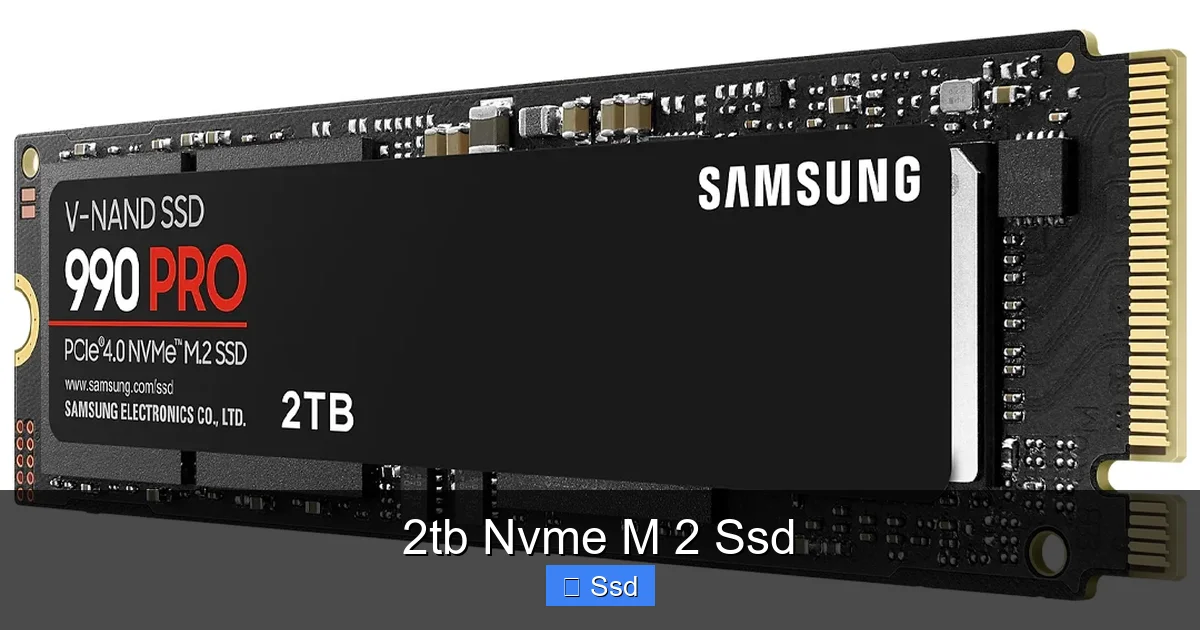
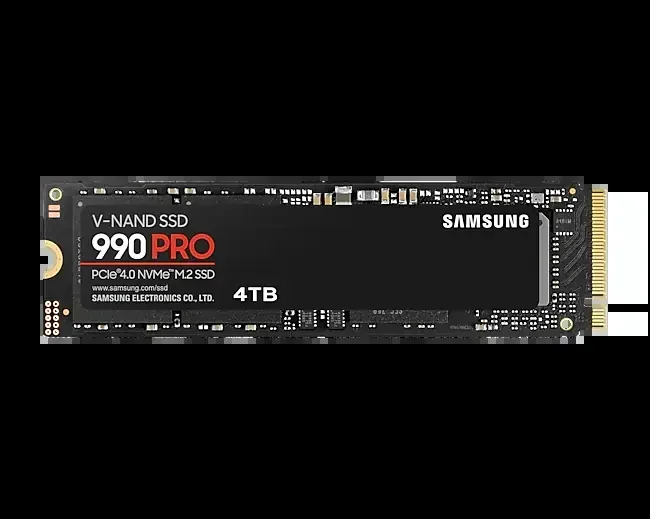
Visual guide about 2tb Nvme M 2 Ssd
Image source: files.pccasegear.com
Boot Times & System Responsiveness
With a 2TB NVMe drive, your operating system loads in seconds, not tens of seconds. Opening applications, from web browsers to complex video editors, is virtually instantaneous. You’ll experience a noticeable reduction in the tiny micro-stutters that can happen when a system is reading data from storage. It makes an old, sluggish-feeling PC feel brand new again.
Game Loading & Level Streaming
This is where gamers feel the biggest win. Open-world games with massive, seamless environments (like *Red Dead Redemption 2* or *Cyberpunk 2077*) rely on constantly streaming assets from storage. A fast 2TB NVMe M.2 SSD eliminates or drastically reduces pop-in, where textures and objects load late. Loading screens become brief interruptions instead of coffee-break opportunities. For competitive gamers, getting into the match faster is a tangible advantage.
Creative Workflows & Large File Transfers
If you work with 4K/8K video, high-resolution photo batches, or large project files, storage speed is a bottleneck. A PCIe 4.0 NVMe drive can move a 100GB project folder in a fraction of the time a SATA SSD or HDD would. Scrubbing through high-bitrate footage in an editor becomes smoother. Rendering and exporting times can see modest improvements as assets are read and written more quickly.
Practical Example: Copying a 50GB folder from one 2TB NVMe drive to another might take 2-3 minutes on a fast PCIe 4.0 drive. The same copy on a top-tier SATA SSD could take 15-20 minutes. On a hard drive? An hour or more.
PCIe 4.0 vs. PCIe 5.0: Which Generation Do You Need?
This is the biggest decision point for new buyers in 2024. The “generation” refers to the version of the PCIe standard your drive uses. Most current systems support PCIe 4.0, while the latest Intel 15th Gen and AMD Ryzen 8000+ platforms also support PCIe 5.0.
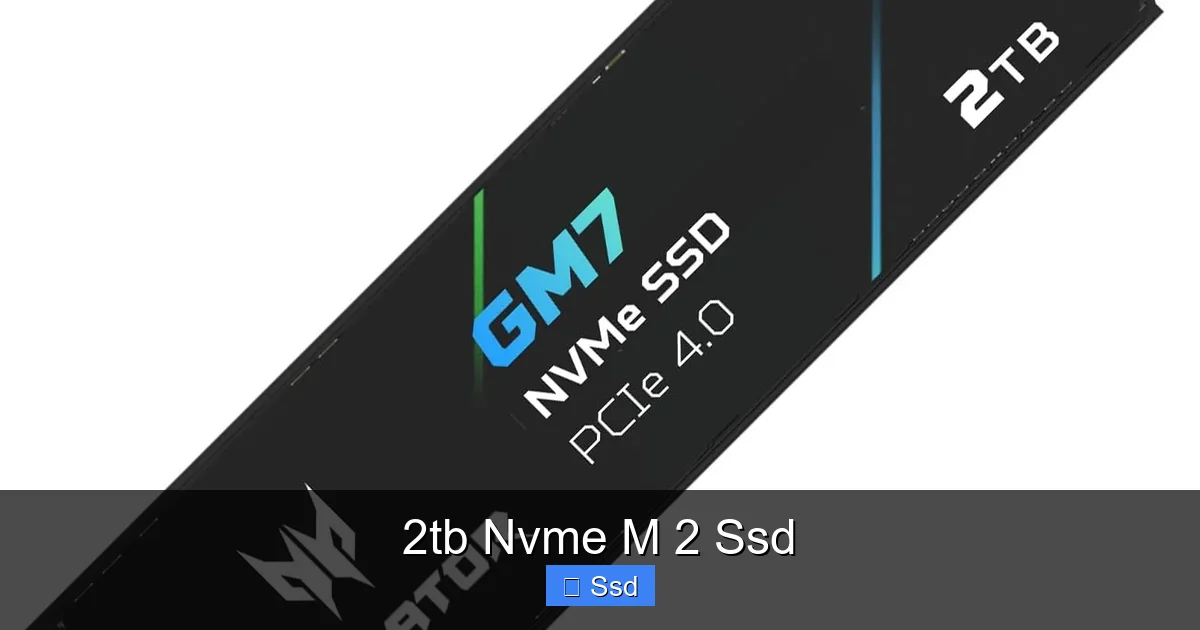
Visual guide about 2tb Nvme M 2 Ssd
Image source: m.media-amazon.com
PCIe 4.0: The Sweet Spot of Value and Performance
Drives using PCIe 4.0 dominate the market for a reason. They offer staggering speeds—typically 5,000 to 7,500 MB/s sequential read and 4,000 to 7,000 MB/s sequential write. For 99% of users, including hardcore gamers and content creators, this is more than enough. The performance leap from SATA to PCIe 4.0 is monumental (10x+), while the leap from PCIe 4.0 to 5.0, on paper, is about 2x. In real-world applications like game loading or boot times, the difference between a top PCIe 4.0 drive and a PCIe 5.0 drive is often negligible—sometimes just a second or two. PCIe 4.0 drives are also cheaper, run cooler, and are widely compatible with motherboards from the last 4-5 years.
PCIe 5.0: The bleeding Edge with Caveats
PCIe 5.0 doubles the bandwidth, with early 2TB drives hitting 10,000+ MB/s read and 9,000+ MB/s write. However, they come with significant trade-offs. They require a motherboard with PCIe 5.0 support (Intel 13th/14th/15th Gen, AMD Ryzen 7000/8000/9000 series). They generate much more heat, almost always requiring a robust motherboard heatsink or an expensive aftermarket one to prevent thermal throttling (where the drive slows down to cool off). They are also substantially more expensive. As of now, there are very few games or applications that can truly saturate a PCIe 4.0 drive, let alone a PCIe 5.0 one. The performance gain is primarily seen in synthetic benchmarks and very specific professional workloads like massive database operations or continuous 8K video capture.
Verdict: For a general user or gamer building on a compatible platform, a high-quality PCIe 4.0 2TB NVMe M.2 SSD is the best, most rational choice. Consider PCIe 5.0 only if you have a specific, proven professional need for the absolute maximum sequential speeds and are prepared to manage the heat and cost.
Your Essential Buying Guide: What to Look For
Not all 2TB NVMe M.2 SSDs are created equal. Beyond the PCIe generation, several key specs determine quality, longevity, and real-world performance.
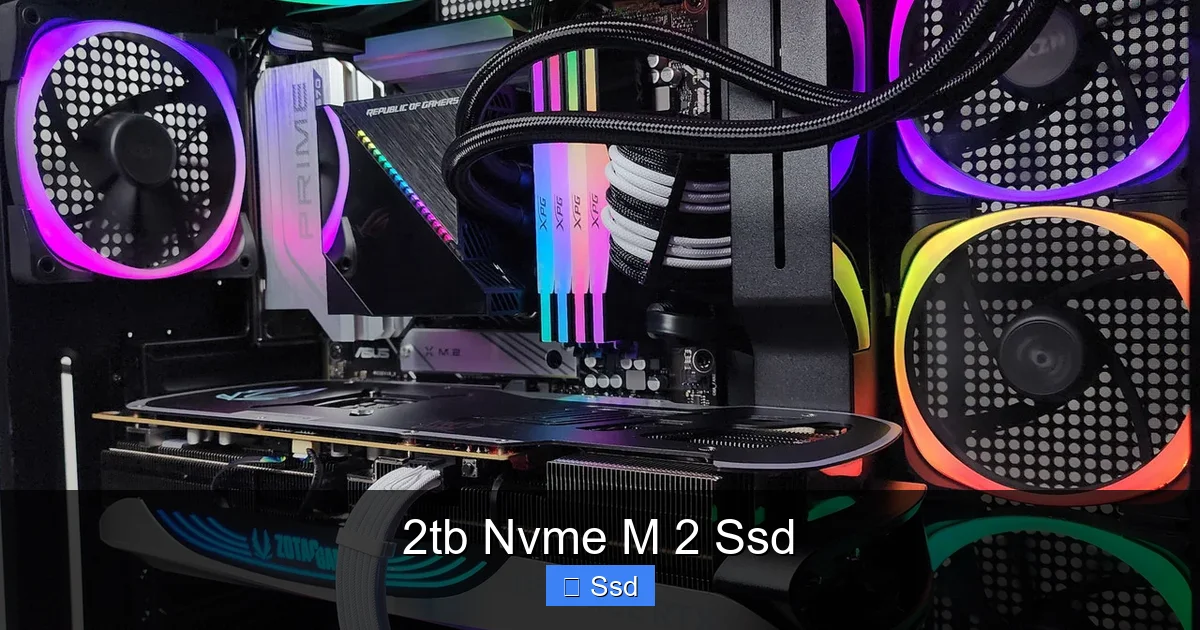
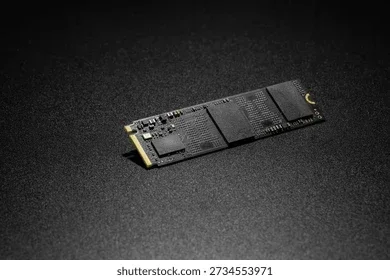
Visual guide about 2tb Nvme M 2 Ssd
Image source: cdn11.bigcommerce.com
The Controller & NAND Flash: The Heart of the Drive
The controller is the drive’s brain, managing data flow. Brands like Phison, Silicon Motion, and Samsung’s in-house controllers are top-tier. The NAND flash is the actual memory chips. The type matters: TLC (3-bit per cell) is the standard for good performance and endurance. QLC (4-bit) is cheaper but can have slower write speeds and lower endurance, especially when the drive is nearly full. For a primary 2TB drive, prioritize TLC-based models.
Speed Ratings: Read the Fine Print
Advertised speeds (e.g., 7,000 MB/s) are almost always *sequential* read/write speeds—best-case scenarios for transferring one huge, uncompressed file. The more important metric for everyday feel is *random read/write* speed (measured in IOPS – Input/Output Operations Per Second). This determines how quickly the drive can access many small files, which is what the OS and games do constantly. Reputable review sites will test this. A drive with great sequential speeds but poor random performance can feel sluggish.
Endurance (TBW) & Warranty
Endurance is measured in Total Bytes Written (TBW). It’s the total amount of data you can write to the drive over its lifespan before the memory cells wear out. A 2TB consumer NVMe drive should have a TBW of at least 1,200 TBW (terabytes written), with many offering 1,200-2,400 TBW or more. The warranty period (usually 5 years) is also a good proxy for the manufacturer’s confidence in the drive’s longevity. Don’t worry about wearing out a modern 2TB NVMe drive with normal use; you’ll likely replace it due to obsolescence before it fails.
DRAM Cache: Helpful, But Not Always Mandatory
Many SSDs include a small, fast DRAM chip as a cache to store a map of where data is located, speeding up access. This is a performance plus, especially for sustained workloads. However, modern SSDs can use a portion of their own NAND flash with smart algorithms (Host Memory Buffer – HMB) to achieve similar results. A DRAM-less drive isn’t inherently bad, but a DRAM-equipped drive is often a sign of a higher-end model. For a primary 2TB system drive, a DRAM cache is a nice bonus.
Installation & Heat Management: The Practical Steps
Physically installing your new 2TB NVMe M.2 SSD is incredibly simple, but a couple of considerations are critical.
Step-by-Step Installation
1. Power Down: Completely shut down your PC and unplug the power cable. 2. Open the Case: Remove the side panel. 3. Locate the M.2 Slot: Find the long, narrow slot on your motherboard, often with a small screw at one end. Consult your manual if unsure. 4. Remove the Screw: Unscrew and remove the retaining screw. 5. Insert the SSD: Hold the SSD by the ends. Insert it at a slight angle (about 30 degrees) into the slot, ensuring the notch on the drive’s connector aligns with the key in the slot. 6. Secure It: Push the SSD down flat and screw it in place with the retaining screw. Do not overtighten. 7. Reassemble & Boot: Close the case, plug in, and boot. You’ll need to initialize and format the new drive in your OS’s disk management utility.
The Critical Importance of a Heatsink
Under heavy, sustained workloads (like a long video export or a game with an open world), a high-performance NVMe drive can get very hot. When it exceeds a certain temperature (often around 70-80°C), it will throttle—intentionally slow down—to protect itself. This erases the performance benefit. Many modern motherboards now come with a large, chunky metal heatsink that covers the M.2 slot. Always use it if your drive and motherboard provide one. If your motherboard’s heatsink is small or non-existent, consider buying an aftermarket M.2 heatsink (a simple aluminum or copper plate with thermal pads) or a drive that comes with its own integrated heatsink (like many Samsung 980 Pro models). Proper airflow in your case is also essential.
Top Contenders: Recommended 2TB NVMe M.2 SSDs (2024)
The market is competitive, but a few models consistently stand out for their blend of performance, value, and reliability. Here are top picks across different use cases.
The All-Rounder Champion: Samsung 980 Pro (PCIe 4.0)
Still the gold standard for a reason. It offers exceptional sequential and random performance, excellent heat management with its included heatsink version, top-tier Samsung reliability, and a 5-year warranty with 1,200 TBW. It’s a no-brainer for a high-end gaming PC or workstation. The WD Black SN850X is a very close competitor, often slightly cheaper, and also comes with a heatsink option. You can’t go wrong with either.
The Value Powerhouse: Crucial P5 Plus / Kingston KC3000 (PCIe 4.0)
For those who want near-flagship performance without the flagship price, these drives are fantastic. They use the same high-end Phison controller as more expensive drives and offer speeds that are imperceptibly slower in real-world use. The Crucial P5 Plus is a consistent best-seller for its price-to-performance ratio. The Kingston KC3000 often has excellent endurance ratings. These are the perfect choices for mainstream builds where every dollar counts.
The PCIe 5.0 Preview: Crucial T705 / WD Black SN850X (PCIe 5.0)
If you have a new Intel or AMD platform and want to experience the cutting edge, these are the leaders. The Crucial T705 is currently one of the fastest on the market. Be prepared: they run extremely hot. You must use the motherboard’s integrated heatsink or an aggressive aftermarket solution. For now, they are a luxury for early adopters and professionals with specific, sequential-throughput-heavy tasks.
The Budget Workhorse: Crucial P3 Plus (PCIe 4.0)
This is a QLC-based drive, so its sustained write speeds can drop once the SLC cache is full. However, for a secondary game drive or a general storage drive where you’re not constantly writing 100GB files, it’s an incredible value. It still massively outpaces any SATA drive and is perfect for bulk game storage on a budget.
Future-Proofing Your Investment: Will It Last?
You’re spending good money on a 2TB NVMe M.2 SSD, so you want it to be relevant for years. Here’s how to future-proof your purchase.
Controller & Firmware Longevity
Buy from a major brand (Samsung, WD/Crucial, Kingston, Seagate, SK Hynix). They invest in better controllers and provide firmware updates that improve performance, stability, and power management over the drive’s life. A no-name brand might use an older controller that won’t receive updates.
Consider Your Motherboard’s Future
If you’re buying today for a new build, a PCIe 4.0 drive will be perfectly fast for the next 5+ years. If you’re buying for a system you might upgrade the CPU/motherboard on in the next 2-3 years, a PCIe 4.0 drive is a safe bet—it will work in both current and next-gen platforms (PCIe is backward compatible). Buying a PCIe 5.0 drive now ties you to a very new platform, as older boards won’t support it.
The 2TB Capacity Advantage
Storage needs always grow. A 1TB drive fills up surprisingly fast with modern games and 4K media. A 2TB drive gives you breathing room. This extra space also helps with SSD longevity, as the drive’s wear-leveling algorithms work more efficiently with more free blocks (the “over-provisioning” effect). You don’t need to stress about keeping 20% free space all the time.
Conclusion: The Clear Choice for Modern Computing
The journey to understanding the 2TB NVMe M.2 SSD reveals one simple truth: it’s the ultimate storage upgrade for nearly everyone. The combination of massive, affordable capacity and mind-bending speed removes a fundamental frustration from computing. You stop thinking about your storage and just *use* your computer. The delays are gone. The wait is over.
For the vast majority of users building or upgrading a PC today, the path is clear: purchase a reputable, TLC-based PCIe 4.0 2TB NVMe M.2 SSD from a brand like Samsung, WD, or Crucial. Ensure your motherboard has a compatible M.2 slot, use the provided heatsink, and enjoy the blistering-fast new experience. It’s an investment in your time and patience that pays off every single day. The future of storage isn’t just fast; it’s already here, and it fits in the palm of your hand.
Frequently Asked Questions
Is a 2TB NVMe M.2 SSD worth it over a 1TB model?
Yes, for most power users and gamers. The price per gigabyte is often better at 2TB, and the extra space prevents you from constantly managing files or uninstalling games to make room. The performance is identical to the 1TB model from the same series.
Will a 2TB NVMe M.2 SSD work in my old computer?
It depends. You need a motherboard with an M.2 slot that supports the NVMe protocol (most do from the last ~6 years). Check your motherboard manual. If it only has SATA M.2 slots or no M.2 slot at all, you cannot use this type of drive and would need a SATA SSD or a PCIe adapter card.
Do I need to buy a separate heatsink for my 2TB NVMe M.2 SSD?
Check if your motherboard already has a metal heatsink covering the M.2 slot. If it does, use it—it’s designed for your drive. If your motherboard has a small or plastic heatsink, or none at all, and you buy a high-performance PCIe 4.0 or any PCIe 5.0 drive, an aftermarket M.2 heatsink is a smart, inexpensive purchase to prevent thermal throttling.
What’s the difference between a 2TB NVMe M.2 SSD and a 2.5-inch SATA SSD?
The speed difference is enormous. A SATA SSD is maxed out at about 550 MB/s. A NVMe M.2 SSD starts around 5,000 MB/s. The NVMe drive is also smaller, uses no cables, and is typically more expensive per GB. For a secondary, bulk storage drive, a SATA SSD is fine. For your operating system and primary games/apps, an NVMe drive is vastly superior.
Can I use a PCIe 5.0 2TB NVMe M.2 SSD in a PCIe 4.0 motherboard slot?
Yes, PCIe is backward compatible. A PCIe 5.0 drive will work in a PCIe 4.0 slot, but it will be limited to PCIe 4.0 speeds. You would be paying a premium for a drive that cannot reach its full potential. It’s generally not recommended unless you have a very specific future upgrade plan.
How long will a 2TB NVMe M.2 SSD last?
Extremely long under normal use. Modern drives have TBW (Total Bytes Written) ratings of 1,200 to 2,400+ TB. If you wrote 50GB to the drive every single day, it would take well over 60 years to reach that limit. You will likely replace the drive due to capacity or speed needs long before it fails from wear.