Ssd Nvme M 2 2280
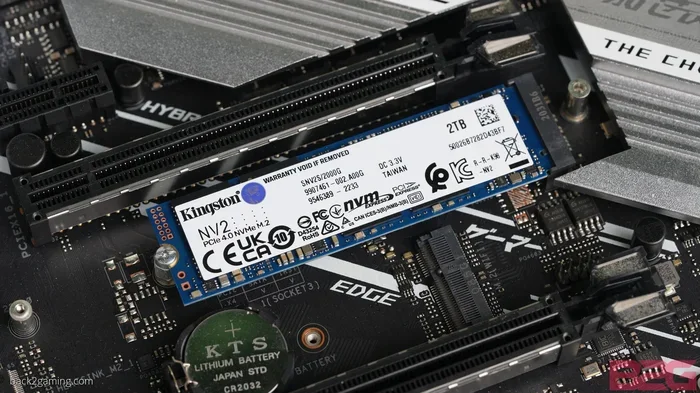
The SSD NVMe M 2 2280 is one of the most popular and powerful storage options for modern computers. This compact drive delivers blazing fast speeds in a small form factor that fits most laptops and desktops. Whether you are upgrading an old PC or building a new one, understanding the SSD NVMe M 2 2280 helps you make the right choice.
The SSD NVMe M 2 2280 has changed the way we think about computer storage. These small drives pack a huge punch. They are fast, reliable, and fit into almost any modern PC. If you have ever wondered what makes these drives so special, you are in the right place.
In this guide, we will break down everything you need to know. From understanding the form factor to picking the right brand, we cover it all. The SSD NVMe M 2 2280 is the go-to choice for gamers, creators, and everyday users alike. Let us dive in.
Key Takeaways
- Compact Size: The M 2 2280 form factor is tiny but packed with performance.
- Blazing Speeds: NVMe protocol offers much faster speeds than traditional SATA drives.
- Wide Compatibility: Most modern PCs and laptops support the SSD NVMe M 2 2280.
- Multiple Brands: Kingston, Crucial, Samsung, and WD Blue all offer great options.
- Easy Installation: Setting up an M 2 SSD is simple and takes just minutes.
- Great Value: You get high performance at reasonable prices today.
📑 Table of Contents
What Is SSD NVMe M 2 2280?
The term SSD NVMe M 2 2280 might look confusing at first. But each part of the name tells you something important. Let us break it down piece by piece.
Understanding the Name
SSD stands for Solid State Drive. Unlike old hard drives with spinning disks, SSDs use flash memory. This means no moving parts. No noise. And much faster speeds.
NVMe stands for Non-Volatile Memory Express. It is a communication protocol designed specifically for SSDs. NVMe bypasses the older SATA limitations and talks directly to your CPU through the PCIe bus. The result is dramatically faster read and write speeds.
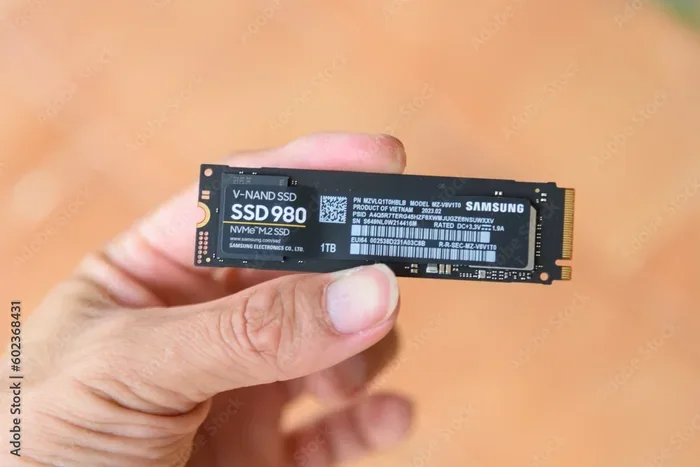
M 2 refers to the form factor. M 2 is a small circuit board that plugs directly into your motherboard. It looks like a stick of gum. There is no cable needed.
2280 is the physical size. The number 22 means 22 millimeters wide. The number 80 means 80 millimeters long. This is the most common M 2 size on the market today.
So when you see SSD NVMe M 2 2280, you know exactly what you are getting. A fast solid state drive in a compact M 2 shape that uses the NVMe protocol and measures 22 by 80 millimeters.
Why Choose M 2 2280 Form Factor?
The M 2 2280 size has become the standard for modern storage. Here is why so many people choose it.
Small But Mighty
The M 2 2280 is tiny. It takes up almost no space inside your computer. This makes it perfect for laptops where every millimeter counts. Even desktop users love the clean look of a drive that slots directly into the motherboard.
No Cables Needed
Traditional SSDs require SATA cables and power connectors. The M 2 drive plugs straight into the slot. No cables. No clutter. Just a simple push-and-lock installation.
Faster Than SATA
Most M 2 drives use the NVMe protocol. This means they run over PCIe lanes instead of the older SATA interface. SATA III tops out around 550 MB/s. A good NVMe M 2 SSD can reach speeds over 3,500 MB/s. That is more than six times faster.
Great for Laptops and Desktops
Whether you have a slim laptop or a full-size desktop tower, the M 2 2280 fits both. Most motherboards made after 2018 come with at least one M 2 slot. Check your motherboard manual to confirm.
Top Brands and Models for SSD NVMe M 2 2280
Not all NVMe drives are created equal. Some brands offer better value. Others focus on peak performance. Here are some of the top options in the SSD NVMe M 2 2280 market.
Kingston NV2
The Kingston NV2 is a popular budget-friendly option. It offers solid NVMe speeds at a very low price point. The Kingston NV2 1TB is a great entry-level drive for everyday users. It handles browsing, office work, and light gaming with ease.
Crucial P310
The Crucial P310 1TB brings PCIe Gen4 speeds to an affordable package. Crucial is a trusted name in the storage world. The P310 delivers reliable performance for work and play. It is one of the best value NVMe drives available right now.
Samsung 970 EVO Plus
The Samsung 970 EVO Plus has been a favorite for years. It offers excellent sustained write speeds and a five-year warranty. Samsung uses high-quality V-NAND flash memory. This drive is a strong choice for users who need consistent performance over time.
WD Blue NVMe
The WD Blue NVMe M 2 SSD is another solid contender. WD Blue drives are known for reliability and quiet operation. They offer good speeds for everyday tasks and come in several capacity options.
How to Choose the Right SSD NVMe M 2 2280
Picking the right drive can feel overwhelming. There are so many options. Here are the key factors to consider when choosing your SSD NVMe M 2 2280.
Capacity
How much storage do you actually need? For most users, 1TB is the sweet spot. It gives you enough room for your operating system, programs, and a good collection of files. If you work with large video files or games, consider a 1TB NVMe M 2 SSD or even larger.
Here is a quick look at common capacity options:
- 500GB: Good for basic use and budget builds.
- 1TB: The best balance of price and space for most users.
- 2TB: Great for gamers and content creators with large libraries.
- 4TB: Ideal for professionals who need massive storage.
Speed and Protocol
Look for PCIe Gen3 or Gen4 NVMe drives. Gen4 is faster but Gen3 still offers excellent performance for most tasks. The SSD NVMe M 2 2280 drives on the market today easily outperform older SATA SSDs.
Endurance and Warranty
Check the TBW rating. This stands for Terabytes Written. It tells you how much data you can write before the drive is expected to wear out. A higher TBW means a longer-lasting drive. Most quality NVMe drives come with a three to five year warranty.
Price
NVMe prices have dropped significantly in recent years. You can get a reliable 1TB NVMe M 2 SSD for a very reasonable price. Set a budget and look for the best value within that range.
Installation and Setup Tips
Installing an SSD NVMe M 2 2280 is one of the easiest upgrades you can do. You do not need to be a tech expert. Here is how to get started.
Check Compatibility First
Before buying, open your computer case or check your laptop specifications. Confirm your motherboard has an M 2 slot that supports NVMe. Some M 2 slots only support SATA SSDs. Look for slots labeled M Key or B+M Key that support PCIe NVMe.
Step-by-Step Installation
Follow these simple steps to install your new drive:
- Power off your computer and unplug it from the wall.
- Open the case or locate the M 2 slot on your laptop motherboard.
- Insert the SSD NVMe M 2 2280 at a 30-degree angle into the slot.
- Press the drive down gently until it seats flat.
- Secure it with the small screw that came with your motherboard.
- Close the case and power on your PC.
Enable NVMe in BIOS
After installation, you may need to enable the NVMe drive in your BIOS settings. Restart your computer and press the BIOS key during boot (usually F2 or Delete). Look for the storage configuration section and make sure NVMe mode is enabled.
Initialize and Format
Once Windows boots, go to Disk Management. You should see your new drive listed. Initialize it with GPT partition style and format it as NTFS. Your M 2 NVMe SSD is now ready to use.
Common Mistakes to Avoid
Even with a simple installation, some common mistakes can cause problems. Here is what to watch out for.
Buying the Wrong Form Factor
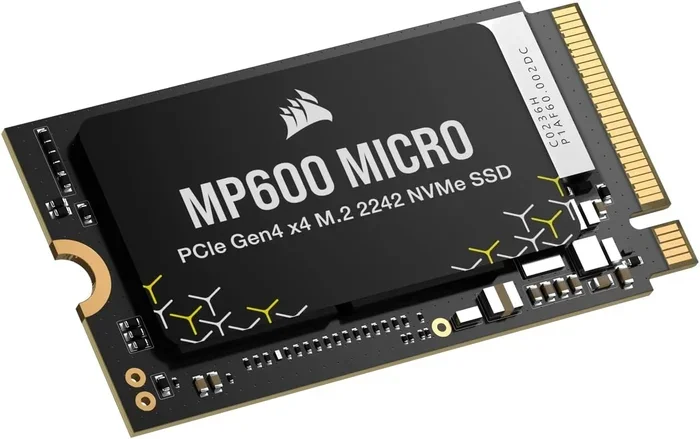
Not all M 2 drives are the same size. The 2280 is the most common, but 2230 and 2242 drives also exist. Always double-check that your motherboard supports the 2280 size before purchasing.
Ignoring Cooling
NVMe drives can get hot under heavy load. While many SSD NVMe M 2 2280 drives come with a small heatsink, some do not. If you are doing intensive work like video editing or running large game loads, consider adding a passive heatsink or a fan-directed cooling solution.
Skipping the BIOS Check
Some users install the drive but never check the BIOS settings. If NVMe mode is disabled, your system may not recognize the drive at full speed. Always verify the settings after installation.
Forgetting to Back Up Data
Before any hardware change, back up your important files. Even though installing an M 2 drive is straightforward, accidents can happen. A simple backup saves a lot of headaches.
Expert Insights on SSD NVMe M 2 2280 Performance
We asked storage experts what they think about the current state of NVMe M 2 SSD technology. Their insights are worth noting.
“The gap between NVMe and SATA has never been wider,” says one expert. “A modern PCIe Gen4 SSD NVMe M 2 2280 can deliver sequential read speeds over 7,000 MB/s. That is simply amazing for the price.”
Another expert points out that for most everyday users, the real-world difference between Gen3 and Gen4 is smaller than the numbers suggest. “If you are not moving huge files constantly, a Gen3 NVMe drive will serve you perfectly well,” they explain.
The consensus is clear. The SSD NVMe M 2 2280 format offers the best balance of speed, size, and value. It is the ideal choice for almost any storage upgrade.
Key Takeaways
- Compact and Fast: The SSD NVMe M 2 2280 combines a tiny form factor with NVMe speeds that leave old SATA drives behind.
- Easy to Install: No cables, no adapters. Just plug it in and go.
- Wide Brand Selection: Kingston, Crucial, Samsung, and WD Blue all offer excellent options at various price points.
- Great for Upgrades: Whether you have a laptop or desktop, the M 2 2280 fits most modern systems.
- Affordable Now More Than Ever: Prices have dropped significantly, making high-speed NVMe storage accessible to everyone.
- Check Compatibility: Always confirm your motherboard supports NVMe M 2 before buying.
- Consider Cooling: Heatsinks or proper airflow help maintain peak performance during heavy workloads.
Conclusion
The SSD NVMe M 2 2280 is the best storage upgrade most people can make today. It is fast, compact, and surprisingly affordable. Whether you are tired of slow boot times or need more space for your growing file collection, this form factor delivers.
With so many great brands and models available, there has never been a better time to switch. Pick a drive that fits your budget and needs, follow the simple installation steps, and enjoy the difference that NVMe M 2 SSD speed makes in your daily computing.
Do not let outdated storage hold you back. Upgrade to an SSD NVMe M 2 2280 and experience your computer the way it was meant to be.
Frequently Asked Questions
What does 2280 mean in SSD NVMe M 2 2280?
The 2280 refers to the physical dimensions of the drive. It is 22 millimeters wide and 80 millimeters long. This is the most common M 2 size used in laptops and desktops today.
Can I use an M 2 SATA SSD in an NVMe slot?
No. M 2 slots come in different key types. NVMe slots use the M Key and support PCIe-based drives. SATA M 2 drives use the B Key. Always check what your motherboard slot supports before buying.
Is an SSD NVMe M 2 2280 faster than a regular SSD?
Yes, significantly faster. NVMe drives use the PCIe bus instead of SATA, offering speeds that can be five to seven times faster than traditional SATA SSDs for sequential reads and writes.
Do I need a heatsink for my M 2 NVMe drive?
It depends on your workload. For light everyday use, most drives run cool without a heatsink. For heavy tasks like video editing or extended gaming sessions, a heatsink helps maintain optimal speeds and prevents thermal throttling.
How do I know if my laptop supports M 2 NVMe SSDs?
Check your laptop manual or look up the motherboard specifications online. Look for M 2 slots that support NVMe or PCIe. Most modern laptops from 2019 onward include at least one M 2 NVMe slot.
What is the best capacity for an SSD NVMe M 2 2280?
For most users, 1TB offers the best value. It gives you enough space for your operating system, applications, and a solid library of files. If you are a heavy gamer or work with large media files, consider 2TB or more.