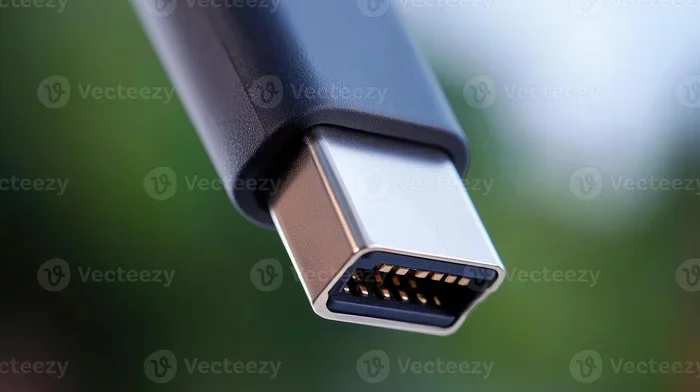
Is Usb 2 0 the Same as Usb a 2

No, USB 2.0 and USB A 2 are not the same thing. USB 2.0 refers to a data transfer protocol version, while USB A 2 describes a Type A connector used in the USB 2.0 standard. Understanding this difference helps you choose the right cable and port for your devices.
Have you ever looked at a USB cable and wondered, “Is USB 2.0 the same as USB A 2?” It is a really common question. Many people mix up USB versions with connector types. The short answer is no. They are two different things that work together but serve different purposes.
USB 2.0 is a protocol version. It tells you how fast data moves through the cable. USB Type A is a connector shape. It describes the physical plug that goes into your device. When someone says “USB A 2,” they usually mean a Type A connector built for the USB 2.0 standard. Once you understand this simple distinction, choosing the right cable becomes much easier.
This guide breaks everything down in plain language. You will learn what each term means, how they compare, and why it matters for your everyday devices. Whether you are connecting a mouse, charging a phone, or transferring files, this knowledge will save you time and money.
Key Takeaways
- USB 2.0 is a protocol version: It defines the data transfer speed and technical specifications of the connection.
- USB Type A is a connector shape: It refers to the physical plug and port design, not the speed or version.
- USB A 2 simply means a Type A connector used with USB 2.0: The two terms describe different aspects of the same standard.
- USB 2.0 offers up to 480 Mbps transfer speed: This is much slower than USB 3.0 and newer versions.
- Backward compatibility matters: USB 2.0 devices work in USB 3.0 ports, but speeds drop to USB 2.0 levels.
- Knowing the difference prevents buying mistakes: You need the right connector type and version for your needs.
📑 Table of Contents
- What Is USB 2.0?
- What Is USB Type A?
- Is USB 2.0 the Same as USB A 2?
- USB 2.0 vs USB 3.0: How Do They Compare?
- Why Does This Distinction Matter?
- Common USB Connector Types You Should Know
- Quick Tips for Choosing the Right USB Cable
- Common Mistakes People Make with USB Connections
- Expert Insights on USB Standards
- Conclusion
What Is USB 2.0?
USB 2.0 is a universal serial bus standard released in April 2000. It replaced the original USB 1.1 and brought a big jump in data transfer speed. The official maximum speed for USB 2.0 is 480 megabits per second. That is about 60 megabytes per second in real-world use.
USB 2.0 is also called “High Speed USB.” This name can be confusing because it sounds fast. But compared to modern USB 3.0 and USB 3.1 standards, USB 2.0 is quite slow. Still, it remains widely used today. Many devices still rely on this older standard because it works well for basic tasks.
Key Features of USB 2.0
- Maximum transfer speed: 480 Mbps
- Connector types: Type A, Type B, Mini-A, Mini-B, Micro-A, Micro-B
- Power output: Up to 2.5 watts at 5 volts
- Backward compatible: Works with USB 1.1 devices
- Hot-swappable: Plug and play without restarting your computer
USB 2.0 supports plug and play functionality. This means your computer detects the device automatically. You do not need to restart or install special drivers in most cases. This made USB 2.0 a huge improvement over older connection standards.
What Is USB Type A?
USB Type A is the flat, rectangular connector you see on almost every computer, wall charger, and hub. It is the most recognizable USB shape in the world. When you think of a standard USB plug, you are picturing a Type A connector.
USB Type A is not a version or a speed standard. It is purely a physical design. The Type A connector can be used with USB 1.1, USB 2.0, USB 3.0, and even USB 3.1 and USB 3.2. The connector shape stays the same. What changes is the internal wiring and the data transfer capability.
Types of USB Type A Connectors
- Standard USB Type A: The full-size port found on desktops and laptops
- USB Type A on hubs: Often found on external hubs for connecting multiple devices
- USB Type A on chargers: Common on phone and tablet chargers
So when you plug a USB cable into your laptop, you are likely using a USB Type A port. The speed of that connection depends on whether the port supports USB 2.0, USB 3.0, or a newer version. The shape alone does not tell you the speed.
Is USB 2.0 the Same as USB A 2?
Now we get to the heart of the question. Is USB 2.0 the same as USB A 2? The answer is no. They describe two completely different aspects of USB technology.
USB 2.0 is the version. It defines the protocol, the maximum speed, and the power delivery capabilities. USB A 2 is a shorthand way of saying “USB Type A connector used in the USB 2.0 standard.” The “A” refers to the connector shape, and the “2” refers to the version number.
Think of it this way. USB 2.0 is like the engine in a car. USB Type A is like the shape of the steering wheel. You can have a USB Type A connector with a USB 2.0 engine, or a USB Type A connector with a USB 3.0 engine. The steering wheel shape stays the same, but the engine inside changes the performance.
This distinction matters because many people buy cables or adapters based on shape alone. They assume all Type A ports are the same speed. That is not true. A USB 3.0 Type A port is much faster than a USB 2.0 Type A port, even though they look identical.
USB 2.0 vs USB 3.0: How Do They Compare?
Understanding the difference between USB versions helps clarify why USB 2.0 and USB A 2 are not the same. Let us compare the two most common standards side by side.
Speed Comparison
The biggest difference between USB 2.0 and USB 3.0 is speed. USB 2.0 tops out at 480 Mbps. USB 3.0 can reach speeds up to 5 Gbps. That means USB 3.0 is roughly ten times faster than USB 2.0 in theory. In real-world use, you can expect about five times faster transfers.
Power Delivery
USB 3.0 also delivers more power than USB 2.0. USB 2.0 provides up to 2.5 watts. USB 3.0 can supply up to 4.5 watts. This extra power helps charge devices faster and supports more power-hungry peripherals.
Connector Compatibility
Here is where it gets interesting. USB 3.0 Type A ports are backward compatible with USB 2.0 devices. You can plug a USB 2.0 cable into a USB 3.0 port. It will work. But the speed will be limited to USB 2.0 levels. The connection automatically adjusts to the slower standard.
This is why knowing your port version matters. If you have a USB 3.0 port on your computer, you can still use your old USB 2.0 devices. But you will not get the faster speeds unless your cable and device both support USB 3.0.
Why Does This Distinction Matter?
You might be thinking, “Does this really matter for everyday use?” The answer is yes, especially if you deal with data transfers or peripherals that need fast connections.
For example, if you connect a USB mouse to your computer, USB 2.0 is perfectly fine. A mouse uses very little data. You will not notice any speed difference. But if you are transferring large video files from an external drive, the version of the USB standard makes a huge difference.
Similarly, when you are shopping for a new laptop, the number and type of USB ports matter a lot. Check out the best time to purchase a laptop if you want to make sure you get a model with the right ports for your needs. Modern laptops often mix USB 2.0 Type A ports with USB 3.0 Type A ports. They look the same but perform very differently.
Another common scenario is buying replacement cables. If you grab a cheap USB 2.0 cable when your device needs USB 3.0, you will be stuck with slow transfer speeds. Always check the specification on the cable packaging. Look for the “Hi-Speed USB” label for USB 2.0 or the “SuperSpeed USB” label for USB 3.0.
Common USB Connector Types You Should Know
USB connectors come in several shapes and sizes. Each one serves a specific purpose. Here is a quick breakdown of the most common types you will encounter.
USB Type A
This is the classic rectangular connector. It is found on computers, chargers, and hubs. USB Type A connectors are used across all USB versions from 1.1 to 3.2. They are not reversible, meaning you have to plug them in the right way.
USB Type B
USB Type B is a square-shaped connector. It is commonly found on printers and scanners. It connects to a Type A port on the computer using a standard USB cable.
USB Type C
USB Type C is the newest and most versatile connector. It is small, reversible, and supports the fastest USB speeds. Many modern laptops and phones now use USB Type C. This connector can handle data, video, and power through a single cable.
Mini and Micro USB
These smaller connectors were common on older phones and cameras. Mini USB has been largely replaced by Micro USB. Micro USB itself is now being replaced by USB Type C on newer devices.
When someone says “USB A 2,” they are specifically referring to the Type A connector used in the USB 2.0 standard. It does not describe a new or different connector. It is just a way of combining the connector name with the version number.
Quick Tips for Choosing the Right USB Cable
Shopping for USB cables can be confusing. There are so many options on the market. Here are some quick tips to help you pick the right one every time.
- Check the speed rating: Look for “Hi-Speed USB” (USB 2.0) or “SuperSpeed USB” (USB 3.0) printed on the cable.
- Match the connector to your port: Make sure the plug shape fits your device. USB Type A, Type C, and Micro USB are not interchangeable.
- Buy from reputable brands: Cheap cables often do not meet the advertised speed standards.
- Consider your use case: For charging only, USB 2.0 is fine. For large file transfers, go with USB 3.0 or higher.
- Look for the USB-IF certification: This logo means the cable has been tested and meets official standards.
If you are upgrading your storage or need faster data transfers, you might want to look into SSD options that connect via USB. The speed of your USB connection directly affects how quickly you can move files to and from external drives.
Common Mistakes People Make with USB Connections
Even tech-savvy people make mistakes when it comes to USB connections. Here are a few to avoid.
Assuming All Type A Ports Are the Same Speed
This is the biggest mistake. A USB 2.0 Type A port and a USB 3.0 Type A port look identical. But the speed difference is massive. Always check your device specifications to know which version your port supports.
Using the Wrong Cable for the Job
Not all USB cables are created equal. A USB 2.0 cable will not give you USB 3.0 speeds, even if you plug it into a USB 3.0 port. The cable itself must support the faster standard.
Ignoring Power Limitations
USB 2.0 can only supply 2.5 watts of power. If you try to charge a power-hungry device through USB 2.0, it may charge very slowly or not at all. USB 3.0 and USB Type C ports provide more power and are better suited for charging.
Forcing a Connector
Never force a USB plug into a port. If it does not fit, you may have the wrong connector type. Damaging a port can be costly and frustrating. Take a moment to check the shape before plugging in.
Expert Insights on USB Standards
Industry experts agree that the confusion between USB versions and connector types is one of the most common consumer misunderstandings. The USB Implementers Forum (USB-IF) is the organization that oversees USB standards. They have worked hard to create clear naming conventions, but the market has not always followed suit.
The introduction of USB Type C has helped simplify things in some ways. Because Type C is reversible and supports the newest speeds, it is easier to identify. But Type A ports remain everywhere, and the version confusion persists.
When in doubt, check the device manual or look for the USB logo on the port. The USB 2.0 logo looks like a trident. The USB 3.0 logo is the same trident with the number “SS” (SuperSpeed) next to it. These symbols tell you exactly what version your port supports.
Conclusion
Is USB 2.0 the same as USB A 2? No, they are not the same. USB 2.0 is a data transfer protocol version that defines speed and power capabilities. USB Type A is a physical connector shape that can be used with multiple USB versions. When combined as “USB A 2,” it simply means a Type A connector designed for the USB 2.0 standard.
Understanding this difference helps you make smarter purchasing decisions. It helps you choose the right cables, adapters, and devices for your needs. The next time you see a USB port or cable, you will know exactly what it means and what to expect from its performance.
Take a moment to check the USB ports on your own devices now. See if you can identify which ones are USB 2.0 and which are USB 3.0. This small bit of knowledge will serve you well every time you connect a new device or buy a replacement cable.
Whether you are a casual user or a tech enthusiast, knowing your USB standards keeps your devices running smoothly. It saves you from slow transfers, compatibility headaches, and wasted money on the wrong cables. Share this knowledge with friends and family who might be confused by the same question.
Frequently Asked Questions
Can I plug a USB 2.0 device into a USB 3.0 port?
Yes, you can. USB 3.0 ports are backward compatible with USB 2.0 devices. The connection will work, but the speed will be limited to USB 2.0 levels. Your device will function normally, just at the slower speed.
How can I tell if my USB port is 2.0 or 3.0?
Look for the USB logo next to the port. USB 2.0 ports have the standard trident logo. USB 3.0 ports have the trident logo with “SS” (SuperSpeed) printed next to it. You can also check your computer or laptop manual for port specifications.
Do USB 2.0 cables work with USB 3.0 devices?
Yes, USB 2.0 cables physically fit into USB 3.0 ports and devices. However, the connection will only run at USB 2.0 speeds. To get USB 3.0 speeds, you need a cable that is specifically rated for USB 3.0.
Is USB Type A the same as USB 2.0?
No. USB Type A is a connector shape, while USB 2.0 is a protocol version. A USB Type A connector can be used with USB 1.1, USB 2.0, USB 3.0, and newer standards. The connector shape does not determine the speed.
What does “USB A 2” mean exactly?
“USB A 2” is informal shorthand for a USB Type A connector used with the USB 2.0 standard. It is not an official term. The “A” refers to the connector shape, and the “2” refers to the USB version number.
Should I still use USB 2.0 devices today?
For simple peripherals like keyboards, mice, and basic storage, USB 2.0 is still perfectly fine. However, for large file transfers or high-speed devices, upgrading to USB 3.0 or USB Type C is highly recommended. The speed difference is significant for data-heavy tasks.