Does Apple Have a Usb Port

Yes, Apple devices do have USB ports, but the type depends on the device and model. Newer MacBooks use USB-C ports, while older models may use USB-A. iPhones and iPads rely on Lightning or USB-C depending on the generation. This guide breaks down every Apple product line so you know exactly what to expect.
Does Apple have a USB port? The short answer is yes. But the full answer is a bit more layered than that. Apple has used several different port types over the years, and the port your device has depends on its age, model, and purpose. Whether you are trying to charge your phone, connect an external drive, or hook up a monitor, knowing which USB port your Apple device has matters a lot.
This guide walks you through every Apple product line. We will cover MacBooks, iPhones, iPads, and even Apple accessories. You will learn which ports are on which devices, what they do, and how to connect your favorite USB gear. No jargon. No confusion. Just clear, practical info you can use right away.
Key Takeaways
- Modern MacBooks use USB-C: All MacBook Pro and MacBook Air models since 2015 feature USB-C or Thunderbolt ports.
- iPhones switched to USB-C: The iPhone 15 and newer models replaced Lightning with USB-C for universal compatibility.
- iPads offer mixed options: Some iPads use USB-C while older models still rely on Lightning cables.
- Adapters solve most problems: You can use USB adapters to connect older USB-A devices to newer Apple products.
- Thunderbolt adds speed: Many Apple USB-C ports support Thunderbolt, giving you faster data transfer and video output.
- Not all Apple devices are the same: Always check your specific model before buying cables or accessories.
📑 Table of Contents
- Understanding USB Ports on Apple Devices
- Which Apple Devices Have USB Ports
- How to Connect USB Devices to Apple Products
- The Future of USB on Apple Devices
- Common Problems and Solutions
- Quick Tips for Apple USB Port Users
- Expert Insights on Apple USB Connectivity
- Key Takeaways
- Frequently Asked Questions
- Final Thoughts
Understanding USB Ports on Apple Devices
Apple has gone through several changes when it comes to USB ports. For a long time, Apple used its own proprietary connector called Lightning. More recently, the company has shifted toward the USB-C standard across most of its product line. Understanding these changes helps you make better buying decisions.
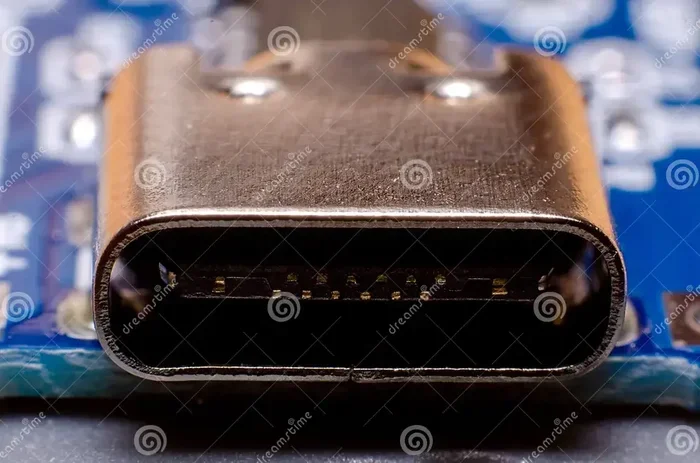
A USB port is the slot on your device where you plug in a cable. That cable can do many things at once. It can charge your battery. It can transfer files between devices. It can even connect you to external displays or storage drives. The type of port your Apple device has determines what you can plug in and how fast data moves.
The Shift From Lightning to USB-C
For years, Apple used the Lightning connector on iPhones and some iPads. Lightning was small, reliable, and worked well. But it was also proprietary. That meant you could not use the same cable for other devices easily. The European Union pushed for a universal charging standard, and Apple eventually made the switch.
Starting with the iPhone 15 in 2023, all iPhones now use USB-C. This is the same connector you find on many Android phones, laptops, and tablets. The shift to USB-C makes life simpler. One cable fits more devices. You can share chargers with friends. And you can connect your phone to a wider range of accessories.
On the iPad side, things are mixed. Newer iPad Pro and iPad Air models use USB-C. But older iPad models and the base iPad still use Lightning. So if you are shopping for an iPad, check the port type before you buy.
Which Apple Devices Have USB Ports
Let us break this down by device type. This way, you can quickly find the info you need for your specific Apple product.
MacBooks
All modern MacBooks use USB-C ports. The MacBook Air and MacBook Pro lines have used USB-C since 2015. These ports also support Thunderbolt technology, which means they offer very fast data transfer speeds and can connect to external monitors.
Older MacBooks, like the MacBook from 2015 or earlier, had USB-A ports. USB-A is the classic rectangular port you find on most computers. If you have an older MacBook, you may still have USB-A slots. But newer models only have USB-C.
Here is a quick look at MacBook port history:
- MacBook (2015 and older): USB-A and MagSafe charging
- MacBook (2016-2019): USB-C only, with Thunderbolt 3
- MacBook Air (M1 and newer): Two USB-C / Thunderbolt ports
- MacBook Pro (M1 and newer): Three or four USB-C / Thunderbolt ports
iPhones
Up until the iPhone 14, every iPhone used a Lightning port. The iPhone 15, 16, and newer models now use USB-C. This change was a big deal for Apple users. It means you can now plug your iPhone into the same charger and cable you use for your laptop or tablet.
If you have an older iPhone, you will need a Lightning cable. If you have a newer iPhone, you need a USB-C cable. The good news is that USB-C cables are everywhere now. You can find them at almost any store.
iPads
The iPad lineup is split right now. The iPad Pro and iPad Air models use USB-C. The base iPad (10th generation) also uses USB-C. But older iPad models, including the iPad 9 and earlier, still use Lightning.
If you want to connect your iPad to an external hard drive or a camera, USB-C makes this much easier. You can plug in a M-2 Nvme Ssd To Usb 3.1 Adapter or a similar device and transfer files directly. This is a game-changer for anyone who works with large files on their iPad.
Apple Accessories and Peripherals
Apple makes a few accessories that use USB ports too. The Magic Keyboard and Magic Mouse connect via Bluetooth, but they can also charge through USB. The Magic Trackpad works the same way. Even the Apple Pencil charges through a USB-C or Lightning connector depending on the generation.
If you use an external M-2 Nvme To Usb C Ssd Enclosure with your iPad or MacBook, you get fast and reliable storage on the go. These enclosures let you turn a small NVMe SSD into a portable USB-C drive. They are perfect for photographers, video editors, and anyone who needs extra space.
How to Connect USB Devices to Apple Products
Connecting a USB device to an Apple product is usually straightforward. But the exact steps depend on the port type and the device you are trying to connect.
Using USB-C on MacBooks
MacBooks with USB-C ports can connect to a wide range of devices. You can plug in a Sandisk Extreme Portable 2Tb External Usb C Nvme Ssd directly and start transferring files. You can also connect monitors, keyboards, mice, and even eGPUs through a single USB-C cable.
Some tips for connecting USB devices to your MacBook:
- Use the right cable. USB-C cables are reversible, so you cannot plug them in wrong.
- Check the speed. Thunderbolt 3 and 4 cables support faster data transfer than standard USB-C.
- Use a hub or dock if you need more ports. A USB-C docking station lets you connect multiple devices at once.
- Avoid cheap cables. Low-quality cables may not charge your device or transfer data reliably.
Using Adapters for Older Devices
If your Apple device has USB-C but your accessory has a USB-A plug, you need an adapter. Apple sells its own USB-C to USB-A adapter. There are also many third-party options. These small adapters are inexpensive and very handy.
For example, you might want to connect a Car Camera Cable Usb Port to your MacBook for transferring footage. If the camera uses a USB-A cable, a simple adapter solves the problem instantly.
Similarly, you can use a Nvme Ssd To Usb Adapter to connect an internal NVMe SSD to your MacBook as an external drive. This is a great budget option for anyone who needs extra storage without buying a new enclosure.
Connecting USB Devices to iPhones and iPads
On iPhones and iPads, things work a bit differently. Newer iPhones with USB-C can connect to external drives, cameras, and other accessories. Apple even added support for external drives in iOS 13, so you can plug in a USB-C flash drive and browse its contents right from your phone.
Older iPhones with Lightning can also connect to USB devices, but you need a Lightning to USB adapter. Apple sells this adapter, and it works with most standard USB cables and devices.
The Future of USB on Apple Devices
Apple has made a clear move toward USB-C across its entire product line. With the iPhone switch to USB-C, the company is now aligned with the broader industry. This means fewer cables, fewer adapters, and less clutter in your bag.
Looking ahead, we can expect even faster USB standards to appear on Apple devices. USB4 is already rolling out on some MacBooks, and it offers speeds up to 40 Gbps. Thunderbolt 5 is on the horizon too. These standards mean you can do more with a single cable. You can charge your laptop, connect a monitor, and transfer huge files all at the same time.
Apple may also drop Lightning entirely from its product line. The iPad line is already moving toward USB-C. It is only a matter of time before Lightning disappears completely from Apple devices. When that happens, the USB port will be the only wired connection you need for all your Apple gear.
Common Problems and Solutions
Even though USB ports are simple in theory, real-world use can come with some headaches. Here are the most common problems Apple users face and how to fix them.
Device Not Recognized
If you plug in a USB device and your Mac or iPad does not recognize it, try these steps. First, check the cable. A damaged cable is the most common cause. Try a different cable if you have one. Next, try a different USB port on your device. Sometimes one port works and another does not.
If the device still does not show up, restart your Apple device. A simple reboot can fix many connection issues. You should also check for any macOS or iPadOS updates. Apple often releases fixes for connectivity bugs in software updates.
Slow Data Transfer
If your files are copying slowly, the cable or port might be the issue. Standard USB-C cables are slower than Thunderbolt cables. If you need fast speeds, make sure you are using a Thunderbolt-certified cable. Also, check the device you are connecting. An older external drive may limit your speed no matter what cable you use.
Charging Issues
Some USB ports on Apple devices are designed for data transfer only. These ports may not charge your device. On MacBooks, the Thunderbolt ports can charge your laptop, but some older models had separate charging ports. Always check your device manual to know which ports support charging.
Quick Tips for Apple USB Port Users
- Keep a USB-C to USB-A adapter in your bag at all times. You never know when you will need it.
- Label your cables so you always know which one is Thunderbolt and which one is standard USB-C.
- Buy a good-quality M-2 Nvme Ssd In Usb Enclosures for fast portable storage on the go.
- Clean your USB ports regularly. Dust and lint can build up and cause connection problems.
- Use Apple-certified cables and accessories for the best performance and safety.
Expert Insights on Apple USB Connectivity
Apple engineers have always prioritized design over function when it comes to ports. The shift from USB-A to USB-C was not just about following industry trends. It was about making devices thinner, lighter, and more versatile. Every port on a modern MacBook serves multiple purposes. A single USB-C port can charge your laptop, output video to a monitor, and transfer data at blazing speeds.
The move to USB-C also benefits Apple users who work across multiple platforms. If you use a Windows laptop at the office and a MacBook at home, USB-C means you can share cables and accessories between both machines. This kind of cross-platform compatibility was nearly impossible when Apple used its own proprietary connectors.
For professionals who work with large media files, the Thunderbolt support on Apple USB-C ports is a huge advantage. Connecting an external Sandisk Extreme Portable 2Tb External Usb C Nvme Ssd Black to a MacBook Pro gives you blazing-fast read and write speeds. You can edit 4K video directly from an external drive without any lag. This kind of performance was not possible with older USB standards or proprietary Apple connectors.
Key Takeaways
- Apple devices do have USB ports: Modern MacBooks, iPhones, and iPads use USB-C, while older models may use USB-A or Lightning.
- USB-C is the present and future: Apple has fully embraced USB-C across its product line, and the Lightning connector is being phased out.
- Thunderbolt adds serious power: Many Apple USB-C ports support Thunderbolt, giving you fast data speeds and video output in one cable.
- Adapters are your best friend: A simple USB-C to USB-A adapter lets you connect older devices to new Apple products.
- External storage is easy: You can connect external SSDs, hard drives, and enclosures directly to your Apple devices using USB-C.
- Check your model: Not all Apple devices are the same. Always verify the port type before buying cables or accessories.
- Stay updated: Apple software updates often improve USB compatibility and fix connectivity issues.
Frequently Asked Questions
Do all MacBooks have USB-C ports?
Yes, all MacBooks sold since 2016 use USB-C ports. Older MacBooks from 2015 or earlier may have USB-A ports. The M1 and newer MacBook Air and MacBook Pro models only have USB-C or Thunderbolt ports.
Can I connect a USB-A device to a MacBook with USB-C?
Absolutely. You just need a USB-C to USB-A adapter or a USB hub with USB-A ports. These adapters are inexpensive and widely available. They let you connect older keyboards, mice, flash drives, and other USB-A devices to your modern MacBook.
Why did Apple switch from Lightning to USB-C?
Apple switched to USB-C because of EU regulations requiring a universal charging standard. But the switch also brings real benefits. USB-C is faster, more versatile, and compatible with millions of devices worldwide. You can now use one cable for your phone, laptop, tablet, and many accessories.
Can I use any USB-C cable with my Apple device?
Most USB-C cables work fine for charging and basic data transfer. But if you need Thunderbolt speeds or want to connect an external display, you need a Thunderbolt-certified cable. Not all USB-C cables are created equal, so check the specs before you buy.
Do iPads still use Lightning cables?
Some older iPads still use Lightning, but most newer models have switched to USB-C. The iPad Pro, iPad Air, and iPad 10th generation all use USB-C. Only older iPad models, like the iPad 9 and earlier, still use Lightning.
What is the difference between USB-C and Thunderbolt on Apple devices?
USB-C is a connector shape. Thunderbolt is a technology that runs through USB-C cables. Thunderbolt offers much faster data speeds and can connect to external displays and storage devices. All Thunderbolt ports look like USB-C, but not all USB-C ports support Thunderbolt. On modern MacBooks, the USB-C ports do support Thunderbolt.
Final Thoughts
So, does Apple have a USB port? The answer is a clear yes. Apple has fully adopted the USB standard, and USB-C is now the go-to port on almost every Apple device. From MacBooks to iPhones to iPads, you will find USB-C connectors that handle charging, data transfer, and video output all in one.
The days of proprietary connectors are fading fast. Apple made the smart move to embrace a universal standard, and it benefits all of us. Whether you are a casual user or a professional who relies on Apple gear every day, understanding your USB options helps you get the most out of your devices.
Keep a few adapters on hand, invest in quality cables, and explore the wide world of USB accessories. Your Apple devices are more connected and capable than ever before. Embrace the USB-C era and enjoy the simplicity it brings to your digital life.