Does Usb C to Hdmi Work with Android
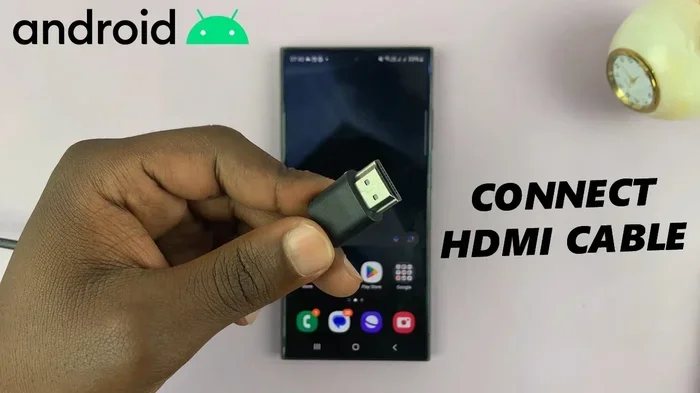
Yes, USB C to HDMI does work with most modern Android devices. This simple connection lets you mirror your phone or tablet screen to a TV or monitor using a USB C to HDMI adapter or cable. In this guide, we break down compatibility, setup steps, and top picks so you can get it working fast.
Have you ever wanted to show something on your Android phone to a bigger screen? Maybe a movie, a presentation, or your favorite photos. The good news is that USB C to HDMI makes this pretty simple. But does it really work with every Android device? Let us walk you through everything you need to know.
The short answer is yes. Most modern Android phones and tablets support USB C to HDMI output. You just need the right adapter or cable. However, not all devices work the same way. Some need special cables, while others work with a simple plug-and-play adapter. We will cover all of that in this guide so you do not waste time or money on the wrong setup.
Key Takeaways
- Broad Compatibility: Most Android phones and tablets released after 2018 support USB C to HDMI output natively or with a simple adapter.
- Two Main Methods: You can use a direct USB C to HDMI cable or a USB C docking station for expanded connectivity.
- MHL and Alt Mode Matter: Check if your device supports MHL or DisplayPort Alt Mode, as this determines how you connect.
- Not All Cables Are Equal: Cheap adapters may fail. Choose certified USB C to HDMI adapters for reliable performance.
- USB C Does More Than Video: The same port can charge your device, transfer data, and output video simultaneously with the right hub.
📑 Table of Contents
- What Is USB C to HDMI and How Does It Work?
- Which Android Devices Support USB C to HDMI?
- USB C to HDMI vs. Wireless Alternatives
- Common Problems and How to Fix Them
- Best USB C to HDMI Adapters for Android
- Can You Use a USB C Hub Instead of a Dedicated Adapter?
- Quick Tips for the Best Experience
- Final Thoughts
What Is USB C to HDMI and How Does It Work?
USB C to HDMI is a connection method that sends video and audio from your Android device to a TV, monitor, or projector. The USB Type-C port on your phone carries a digital signal that an adapter converts into an HDMI signal your display can read.
This technology relies on something called DisplayPort Alt Mode. When your phone supports this mode, it can push video through the USB C port. Some older devices use MHL technology instead. Both achieve the same goal but work differently under the hood.
How the Connection Works Step by Step
- Plug a USB C to HDMI adapter into your Android device.
- Connect an HDMI cable from the adapter to your TV or monitor.
- Switch your display to the correct HDMI input.
- Your Android screen should mirror on the bigger display automatically.
It really is that simple in most cases. The whole process takes less than a minute once you have the right gear.
Which Android Devices Support USB C to HDMI?
Not every Android device handles USB C to HDMI the same way. Compatibility depends on your phone model, the version of Android you run, and the hardware inside the device.
Phones That Work Out of the Box
Most flagship phones from Samsung, Google, OnePlus, and Motorola support direct HDMI output through USB C. Here are some popular examples:
- Samsung Galaxy S series (S20 and newer)
- Google Pixel phones (Pixel 3 and newer)
- OnePlus devices (OnePlus 8 and newer)
- Samsung Galaxy Note series (Note 20 and newer)
These devices typically support DisplayPort Alt Mode, which means they can output video natively without extra software.
Devices That May Need Extra Help
Some budget phones or older models may not support video output over USB C. If your device does not mirror automatically, try these steps:
- Check if your phone has a USB C to HDMI setting in the display menu.
- Download a third-party screen mirroring app from the Play Store.
- Make sure your adapter supports your specific phone model.
Also keep in mind that some devices sold in certain regions may have different hardware. Always check your phone specs before buying an adapter.
USB C to HDMI vs. Wireless Alternatives
You have options beyond a wired connection. Let us compare the two approaches so you can pick what works best for you.
| Feature | USB C to HDMI | Wireless Mirroring |
|---|---|---|
| Connection Type | Wired | Wi-Fi or Bluetooth |
| Latency | Near zero | Slight delay |
| Video Quality | Full HD or 4K | Compressed, varies |
| Setup Difficulty | Very easy | Moderate |
| Reliability | Very high | Depends on signal |
| Extra Cost | Adapter or cable | Usually free |
USB C to HDMI gives you the best picture quality and zero lag. That makes it ideal for watching movies or giving presentations. Wireless options like Chromecast or Miracast are more convenient but can suffer from slight delays and lower resolution.
If you need a rock-solid connection for gaming or detailed presentations, a wired USB C to HDMI setup is the clear winner. You can also use a USB C docking station to connect multiple devices at once, including external drives and chargers.
Common Problems and How to Fix Them
Even with the right adapter, you might run into issues. Here are the most common problems and simple fixes.
No Signal on the TV
This is the number one complaint. If your TV shows no signal, try these steps:
- Make sure the HDMI cable is firmly plugged in at both ends.
- Switch your TV to the correct HDMI input channel.
- Try a different USB C port on your phone if available.
- Restart your Android device and try again.
Video Works but No Audio
Sometimes the video appears but you get no sound. This usually happens because the audio output is still set to your phone speakers. To fix this:
- Go to Settings > Sound > Output and select the HDMI display.
- Check that your USB C to HDMI adapter supports audio pass-through.
- Adjust the volume on your phone, not the TV remote.
Adapter Not Recognized
If your phone does not detect the adapter at all, the adapter might be incompatible. Not all adapters work with all phones. Look for adapters that specifically list your phone model as supported. Brands like Anker, Belkin, and Samsung make reliable options.
Best USB C to HDMI Adapters for Android
Not all adapters are created equal. Here is what to look for when shopping.
What Makes a Good Adapter
- 4K support: Make sure the adapter handles at least 1080p, ideally 4K.
- USB C power delivery: A good adapter can charge your phone while outputting video.
- Plug-and-play: No drivers or apps needed for most setups.
- Build quality: Metal housings last longer than plastic ones.
If you want a simple and reliable option, a direct USB C to HDMI cable works great for most users. These cables have the adapter built into one end, so there is less to carry around. For more flexibility, a USB C hub gives you HDMI output plus extra ports for charging and data transfer.
Some users also pair their adapter with a USB C SSD enclosure or external drive to access files on a big screen. This is especially handy for content creators who need to review footage or presentations on a larger display.
Can You Use a USB C Hub Instead of a Dedicated Adapter?
Yes, you can. A USB C hub often includes an HDMI port along with USB A ports, SD card readers, and charging ports. This is a great option if you want more than just a video connection.
The main advantage is versatility. One small hub replaces multiple cables and adapters. You can plug in a flash drive, charge your phone, and output video to a TV all at the same time. Just make sure the hub supports video output before you buy it.
Keep in mind that some hubs may not support 4K resolution or high refresh rates. Check the specs carefully if video quality matters to you. A basic hub works fine for everyday use, but power users may want a dedicated adapter for the best performance.
Quick Tips for the Best Experience
- Always use a certified adapter to avoid compatibility issues.
- Keep your Android software updated for the best display support.
- Use a high-quality HDMI cable rated for the resolution you need.
- Close background apps before mirroring to reduce lag.
- Test your setup before an important meeting or presentation.
Final Thoughts
USB C to HDMI works with Android in most cases, and the setup is incredibly straightforward. Whether you want to watch a movie on your TV, share a presentation at work, or just enjoy your photos on a bigger screen, the right adapter gets the job done. Pick a quality adapter that matches your device, follow the setup steps above, and you will be casting to a big screen in minutes.
The technology has come a long way. What used to require special docks and complicated setups now works with a simple cable or adapter. As long as your Android device was made in the last few years, there is a very good chance it supports this feature right out of the box.
If you run into any trouble, refer back to the troubleshooting tips above. And remember, the best adapter is one that fits your specific needs, whether that is a simple cable for casual use or a full-featured hub for work and play.
Frequently Asked Questions
Can all Android phones use USB C to HDMI?
Most modern Android phones support USB C to HDMI output, but not all of them. Flagship devices from Samsung, Google, and OnePlus generally work without issues. Budget or older phones may lack the necessary hardware support for video output through USB C.
Do I need a special adapter or will any USB C to HDMI cable work?
You need an adapter or cable that supports your phone’s video output standard. Look for adapters that mention DisplayPort Alt Mode or MHL support. Cheap, uncertified adapters may not work or could damage your device, so stick with reputable brands.
Can I charge my phone while using USB C to HDMI?
Yes, if you use an adapter or hub that supports USB C power delivery. Many adapters have a built-in charging port so you can power your phone and output video at the same time. Check the adapter specs to confirm it supports pass-through charging.
Why does my TV show no signal when I connect my Android phone?
This usually means the HDMI input is not set correctly or the adapter is not recognized. Try switching your TV to the right HDMI channel, restarting your phone, or using a different HDMI cable. If the problem persists, your adapter may be incompatible with your device.
Does USB C to HDMI work with Samsung tablets?
Yes, most Samsung tablets with USB C ports support HDMI output. The Samsung Galaxy Tab S series and newer models work well with USB C to HDMI adapters. Always check your specific tablet model’s specifications to confirm compatibility before purchasing an adapter.
Can I use USB C to HDMI for gaming on a TV?
Yes, USB C to HDMI works well for gaming with minimal lag since it is a wired connection. You will get better performance than wireless mirroring options. Just make sure your adapter supports the resolution and refresh rate your games require for the smoothest experience.