Is Thunderbolt Better Than Usb A
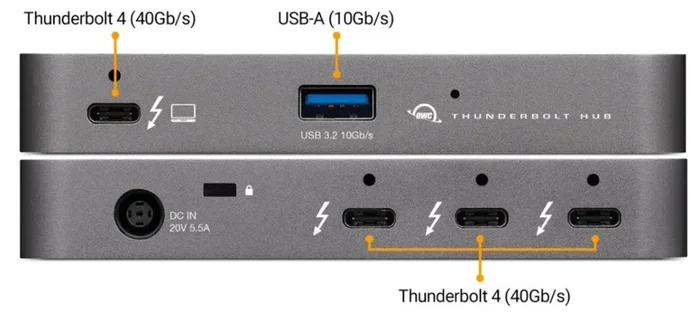
Is Thunderbolt better than USB A? Thunderbolt offers faster data transfer speeds, greater versatility, and support for multiple devices through a single cable, while USB-A remains widely compatible and familiar. Thunderbolt 3 and Thunderbolt 4 deliver up to 40Gbps speeds, whereas standard USB-A tops out at 10Gbps. Both ports serve important roles, and your choice depends on your device needs and workflow.
When you plug in a cable and wonder which port to use, the question Is Thunderbolt Better Than Usb A comes up a lot. Both ports connect your devices to computers, but they work very differently. Thunderbolt is a newer, faster technology built by Intel. USB-A is the classic rectangular port you have probably used for years.
Understanding the difference matters because it affects how fast you transfer files, how many devices you can connect, and even how you set up your workspace. Whether you are a casual user or a professional, knowing which port wins in which situation helps you make smarter buying decisions. Let us break it all down in simple terms.
Key Takeaways
- Thunderbolt is faster: Thunderbolt 3 and 4 offer speeds up to 40Gbps, far exceeding USB-A’s maximum of 10Gbps.
- USB-A is more universal: Almost every device supports USB-A, making it the most compatible port available.
- Thunderbolt supports more devices: A single Thunderbolt cable can connect displays, storage, and docking stations simultaneously.
- Cost differs: Thunderbolt cables and devices are more expensive than standard USB-A accessories.
- Choose based on your needs: Professionals need Thunderbolt; everyday users are fine with USB-A.
- Both ports are still relevant: USB-A is not going away anytime soon, even as Thunderbolt gains popularity.
📑 Table of Contents
- What Is USB-A?
- What Is Thunderbolt?
- Speed Comparison: Thunderbolt vs USB-A
- Compatibility and Ease of Use
- When to Choose Thunderbolt
- When USB-A Is the Better Choice
- Thunderbolt 3 vs Thunderbolt 4 vs USB-A: Quick Comparison
- Common Mistakes People Make
- Expert Tips for Choosing the Right Port
- The Bottom Line
What Is USB-A?
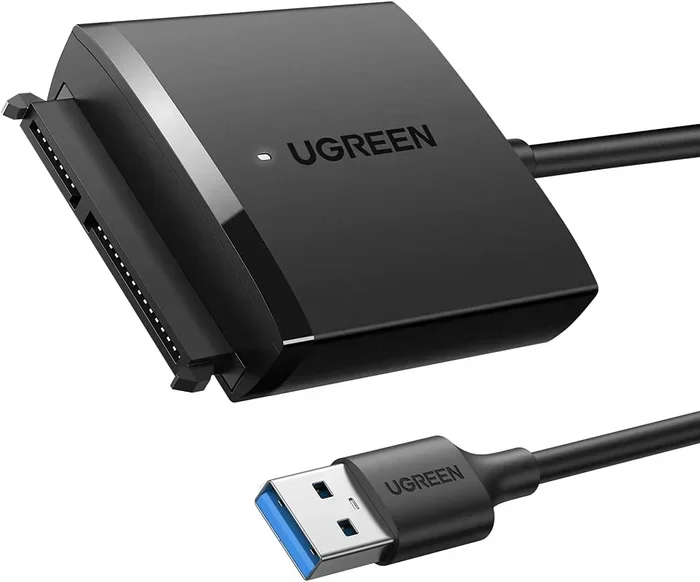
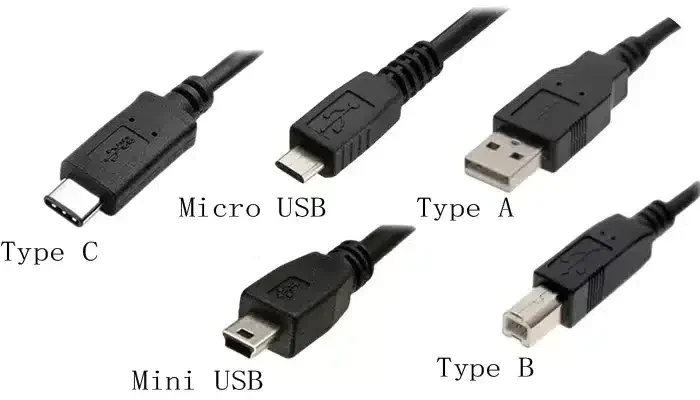
USB-A is the standard USB port you see on almost every computer, printer, and charger. It has the flat, rectangular shape that most people recognize instantly. This port has been around since the late 1990s and remains the most common connection type in the world.
USB-A comes in different versions. USB 2.0 is the oldest and slowest, with a top speed of 480Mbps. USB 3.0 boosted that to 5Gbps. The latest USB-A 3.2 Gen 2×2 reaches 10Gbps. While these speeds sound impressive, they fall far behind what Thunderbolt can do.
Where USB-A Shines
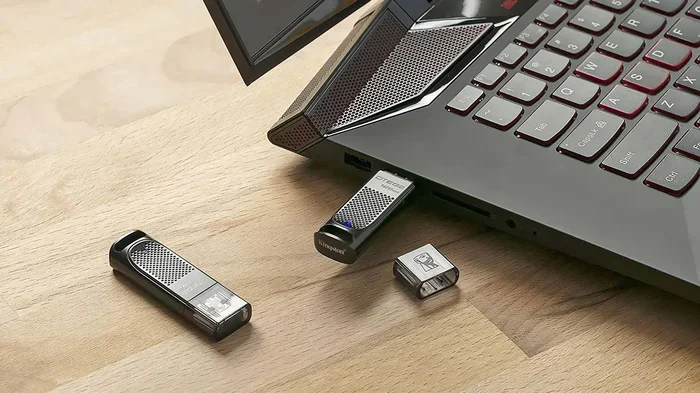
USB-A wins in one big area: compatibility. Nearly every external hard drive, keyboard, mouse, and printer uses a USB-A connection. You do not need special cables or adapters. Just plug it in and go.
USB-A is also cheap. Cables and devices cost less because the technology is mature and widely produced. If you need a quick connection for everyday tasks like charging your phone or moving photos from a camera, USB-A gets the job done just fine.
What Is Thunderbolt?
Thunderbolt is a high-speed connection technology developed by Intel in partnership with Apple. It combines data transfer, video output, and power delivery into one single cable. The most common versions today are Thunderbolt 3 and Thunderbolt 4, both of which use the USB-C connector shape.
Thunderbolt 3 offers a maximum data transfer speed of 40Gbps. Thunderbolt 4 maintains that 40Gbps speed but adds stricter requirements for video support and peripheral compatibility. This makes Thunderbolt 4 the most capable port available on laptops and desktops today.
What Thunderbolt Can Do
Thunderbolt is incredibly versatile. Here are things it can handle through a single port:
- Data transfer: Move huge files in seconds.
- Video output: Connect external monitors up to 4K or even 8K resolution.
- Charging: Deliver up to 100W of power to charge your laptop.
- Docking stations: Connect multiple peripherals through one cable.
- External GPUs: Boost graphics performance for gaming or design work.
This level of versatility is why many professionals prefer Thunderbolt over USB-A. When you are choosing a laptop for heavy work, the port options matter a lot. If you want to learn more about picking the right machine, check out the best time to purchase a laptop for helpful timing tips.
Speed Comparison: Thunderbolt vs USB-A
Speed is the biggest difference between these two technologies. Let us look at the numbers side by side.
| Feature | USB-A 3.2 | Thunderbolt 3 | Thunderbolt 4 |
|---|---|---|---|
| Max Data Speed | 10Gbps | 40Gbps | 40Gbps |
| Max Power Delivery | 10W (without USB-C PD) | 100W | 100W |
| Video Support | Limited (requires adapters) | 2 displays | 2 displays |
| Cable Length (max) | 3 meters (active) | 2 meters (passive) | 2 meters (passive) |
| Common Devices | Printers, flash drives | Docks, eGPUs, monitors | Docks, eGPUs, monitors |
As you can see, Thunderbolt is four times faster than the best USB-A speeds. For large file transfers like video editing projects or backing up entire hard drives, that difference is huge. A 100GB file takes about 20 seconds on Thunderbolt 3 but around 80 seconds on USB-A 3.2.
However, speed is not everything. For simple tasks like plugging in a USB flash drive or connecting a basic mouse, USB-A is fast enough. The extra speed of Thunderbolt only matters when you push large amounts of data regularly.
Compatibility and Ease of Use
USB-A wins the compatibility game by a landslide. You can walk into any hotel room, office, or classroom and find a USB-A port to charge your device or transfer files. It is the universal standard that everyone knows.
Thunderbolt, on the other hand, requires compatible devices. Not every laptop or desktop has Thunderbolt ports. Even if a computer has a USB-C port, it might not support Thunderbolt. You need to check the logo or the manufacturer’s specifications to be sure.
Adapters and Dongles
One challenge with Thunderbolt is that you sometimes need adapters to connect USB-A devices. Since Thunderbolt uses the USB-C shape, older USB-A cables do not fit directly. You can buy Thunderbolt to USB-A adapters, but they add cost and another thing to carry around.
USB-A devices plug directly into USB-A ports with no adapters needed. This simplicity is a real advantage for people who use lots of older peripherals. If you want to understand what makes a good laptop setup, learning about a good RAM size for a laptop can help you build a balanced system.
When to Choose Thunderbolt
Thunderbolt is the clear winner for certain use cases. Here are situations where you should choose Thunderbolt over USB-A:
- Video production: Editing 4K or 8K video demands fast data transfer. Thunderbolt handles this with ease.
- Multiple monitors: Thunderbolt supports daisy-chaining displays, so you can connect two monitors through one cable.
- External storage: Fast SSDs perform best on Thunderbolt connections.
- Docking stations: A single Thunderbolt cable can power your laptop, connect monitors, and link all peripherals.
- Professional audio: High-end audio interfaces benefit from Thunderbolt’s low latency and high bandwidth.
If you are building a high-performance workstation, Thunderbolt is worth the investment. The speed and versatility save time and reduce cable clutter on your desk.
When USB-A Is the Better Choice
USB-A is not obsolete. In fact, it remains the best choice for many everyday situations. Here is when USB-A makes more sense:
- Basic peripherals: Keyboards, mice, and webcams work perfectly on USB-A.
- Budget setups: USB-A cables and devices cost less than Thunderbolt alternatives.
- Older devices: Many printers and scanners only have USB-A ports.
- Simple file transfers: Moving documents or photos does not need Thunderbolt speed.
- Wide availability: USB-A ports are everywhere, from cars to airport lounges.
For most regular users, USB-A provides everything they need. You do not need Thunderbolt unless your work demands the extra speed and features.
Thunderbolt 3 vs Thunderbolt 4 vs USB-A: Quick Comparison
Here is a quick look at how the latest versions compare:
- Thunderbolt 3: 40Gbps speed, USB-C connector, supports charging and video.
- Thunderbolt 4: 40Gbps speed, stricter compatibility standards, guaranteed 4K display support.
- USB-A 3.2: 10Gbps speed, rectangular connector, universal compatibility.
Thunderbolt 4 is the best overall because it combines Thunderbolt 3 speeds with improved reliability and display support. But USB-A still holds its own for everyday tasks where raw speed is not the priority.
When choosing a laptop, consider both the port options and the internal specs like memory. For instance, understanding whether 16 GB of RAM is good for a laptop helps you pair the right ports with the right performance level.
Common Mistakes People Make
Many people assume all USB-C ports are Thunderbolt ports. This is not true. USB-C is just a connector shape, while Thunderbolt is a technology that runs through that shape. Always look for the Thunderbolt lightning bolt logo next to the port to confirm Thunderbolt support.
Another common mistake is buying Thunderbolt cables when USB-A cables would work fine. If you are only charging a phone or connecting a basic flash drive, a Thunderbolt cable is unnecessary and overpriced. Save your money and use the right cable for the right job.
Expert Tips for Choosing the Right Port
Here are some practical tips from our experience testing these ports:
- Check your device manual: Confirm which ports your computer supports before buying cables or adapters.
- Buy quality cables: Cheap Thunderbolt cables may not deliver the full 40Gbps speed.
- Plan for the future: If you buy a new laptop, prioritize Thunderbolt ports for maximum flexibility.
- Keep USB-A cables handy: Even with Thunderbolt, you will still need USB-A cables for older devices.
- Test your setup: Run a speed test after connecting devices to make sure you are getting the expected performance.
The right choice depends on your workflow, budget, and the devices you use daily. Both Thunderbolt and USB-A have a place in modern computing.
The Bottom Line
So, is Thunderbolt better than USB A? The answer depends on what you need. Thunderbolt is faster, more versatile, and better for professional workloads. USB-A is more compatible, cheaper, and perfect for everyday use.
Most people benefit from having both. A laptop with Thunderbolt ports for high-speed work and a few USB-A ports for everyday peripherals gives you the best of both worlds. As technology evolves, Thunderbolt is becoming more common, but USB-A is not disappearing anytime soon.
When you are ready to upgrade your setup, consider your actual needs. If you edit video, connect multiple monitors, or work with large files daily, Thunderbolt will save you time and frustration. If you mostly browse the web, type documents, and charge your devices, USB-A handles all of that with no problem.
Understanding the strengths of each port helps you build a smarter, more efficient workspace. The next time someone asks you is Thunderbolt better than USB A, you will know exactly how to answer.
Frequently Asked Questions
Can I use a Thunderbolt cable with a USB-A port?
No, Thunderbolt cables use the USB-C connector shape and cannot plug directly into a USB-A port. You would need a Thunderbolt to USB-A adapter or a different cable to make the connection work properly.
Is Thunderbolt 4 significantly faster than Thunderbolt 3?
Both Thunderbolt 3 and Thunderbolt 4 offer 40Gbps data speeds. The real difference is that Thunderbolt 4 has stricter requirements for video support, peripheral compatibility, and security features, making it more reliable overall.
Do I need Thunderbolt for gaming?
Thunderbolt is helpful for gaming if you use an external GPU or high-speed storage. For most casual gaming, USB-A is perfectly fine. Thunderbolt becomes essential when you need the fastest possible data transfer for game files or external graphics cards.
Are Thunderbolt cables more expensive than USB-A cables?
Yes, Thunderbolt cables cost more because of the advanced technology inside them. A good Thunderbolt cable can cost two to three times more than a standard USB-A cable. However, the speed and versatility often justify the extra cost for professionals.
Will USB-A become obsolete soon?
USB-A is not going away anytime soon. It is still the most widely used port on printers, keyboards, and many other devices. Even as Thunderbolt grows in popularity, USB-A will remain relevant for many years because of its universal compatibility.
Can I connect multiple devices to one Thunderbolt port?
Yes, Thunderbolt supports daisy-chaining, which means you can connect multiple devices like monitors, storage drives, and docking stations through a single Thunderbolt port. This reduces cable clutter and makes your workspace much cleaner.
=== CONCLUSION ===
Is Thunderbolt better than USB A? Thunderbolt wins on speed, versatility, and professional features. USB-A wins on compatibility, simplicity, and cost. The best choice depends entirely on your needs and workflow.
If you work with large files, multiple monitors, or professional peripherals, Thunderbolt is the clear winner. If you need simple, reliable connections for everyday devices, USB-A still does the job perfectly. Consider keeping both in your tech toolkit for maximum flexibility and convenience.