Is There a Way to Connect 2 Usb Cables Together

Yes, there is a way to connect 2 USB cables together using adapters, hubs, or extension cables. Whether you need more length, extra ports, or a different connector type, several solutions can help you connect two USB cables without losing data speed or power delivery. This guide walks you through every option so you can choose the right method for your setup.
There comes a time in every tech setup when a cable just isn’t long enough. Maybe your desk is too far from the outlet. Or perhaps you need to reach a device that sits on the other side of the room. Whatever the reason, the question is there a way to connect 2 USB cables together comes up more often than you might think. The short answer is yes. There are several reliable methods to join two USB cables and keep your devices powered and connected.
But connecting USB cables isn’t always as simple as plugging them together. Different cable types, USB versions, and connector shapes all play a role. Using the wrong method can lead to slow data speeds, weak charging, or even damage to your devices. That’s exactly why this guide exists. We’ll walk you through every practical option, explain how each one works, and help you avoid the mistakes that trip up most people.
Whether you’re a casual user or someone who relies on USB connections for work, this article has you covered. We’ll start with the basics and work our way up to more advanced solutions. By the time you finish reading, you’ll know exactly which method to use and why. Let’s get started.
Key Takeaways
- Multiple methods exist: You can use USB adapters, hubs, extension cables, or couplers to connect 2 USB cables together.
- Compatibility matters: Matching USB versions (2.0, 3.0, USB C) ensures the best speed and power delivery.
- Adapters are the simplest fix: A USB adapter can bridge different connector types quickly.
- USB hubs expand your options: They let you connect multiple devices and extend cable reach in one device.
- Avoid common mistakes: Never force mismatched connectors, and always check power ratings before joining cables.
- Quality cables make a difference: Cheap cables can slow data transfer and reduce charging speed.
📑 Table of Contents
- Why You Might Need to Connect 2 USB Cables Together
- Methods to Connect 2 USB Cables Together
- Understanding USB Cable Types and Compatibility
- Step-by-Step: How to Connect 2 USB Cables Together
- Common Mistakes to Avoid When Connecting USB Cables
- Expert Tips for the Best USB Cable Connection
- When You Should Not Connect 2 USB Cables Together
- Final Thoughts
Why You Might Need to Connect 2 USB Cables Together
There are many real-world situations where joining two USB cables makes sense. Understanding these scenarios helps you choose the right solution. Here are the most common reasons people need to connect two USB cables:
- Cable is too short: Your existing cable doesn’t reach the device or outlet you need. Adding another cable extends the total length.
- Different connector types: You have a USB A cable but need to connect to a USB C port. An adapter or coupler bridges the gap.
- More ports needed: You want to connect multiple devices but your computer or hub doesn’t have enough ports.
- Cable damage: One end of your cable is frayed or broken, and you want to salvage the other half by joining it to a new cable.
- Workspace setup: You’re setting up a desk or workstation and need cables to run longer distances without signal loss.
Each of these scenarios requires a slightly different approach. The method that works best for one situation might not be ideal for another. That’s why it’s important to understand your options before you buy anything. A quick decision based on guesswork can lead to frustration and wasted money.
Methods to Connect 2 USB Cables Together
Several practical methods let you join two USB cables. Each method has its own advantages and best use cases. Let’s explore them one by one.
Method 1: Using a USB Adapter
A USB adapter is the simplest way to connect two USB cables when the connectors don’t match. For example, if you have a USB A cable on one end and need a USB C connection, a USB A to USB C adapter solves the problem instantly. You plug one cable into the adapter and the other cable into the other side.
Adapters come in many shapes. Some convert USB A to USB C, while others handle USB B to USB A connections. There are even adapters that change USB C to micro USB. The key is to match the adapter to your specific cable types. A USB adapter works on the same basic principle of bridging two different connection types, just like these adapters bridge different USB standards.
When choosing an adapter, look for ones that support your USB version. A USB 3.0 adapter will maintain faster speeds compared to a USB 2.0 adapter. Also, check the build quality. Cheap plastic adapters can wobble and lose connection over time.
Best for: Quick, temporary connections where you need to bridge two different connector types.
Method 2: Using a USB Hub
A USB hub is a small device that adds extra USB ports to your setup. You plug the hub into one USB cable, and then you can connect multiple cables to the hub. This is one of the most versatile ways to connect two USB cables together because it also expands your connectivity options.
USB hubs come in powered and unpowered versions. A powered hub plugs into an outlet and provides its own electricity. This is great for devices that need more power, like external hard drives. An unpowered hub draws power from your computer, which works fine for keyboards, mice, and flash drives.
Some USB hubs also include features like card readers or Ethernet ports. A USB C enclosure that connects to a hub can extend your storage connectivity options, showing how USB hubs can serve as central connection points in a setup.
Best for: Situations where you need to connect multiple devices and extend cable reach at the same time.
Method 3: Using a USB Extension Cable
A USB extension cable is a straightforward solution. It has a USB connector on one end and another USB connector on the other end. You plug one end into your existing cable or port, and the other end reaches your device.
Extension cables come in various lengths, from a few inches to 10 feet or more. They’re available in USB A, USB C, and micro USB versions. The longer the cable, the more signal loss you can expect. For best results, keep extension cables under 16 feet for USB 2.0 and under 10 feet for USB 3.0.
When you use an extension cable, you’re essentially creating one longer cable from two shorter ones. This works well for permanent setups where you don’t need to disconnect and reconnect frequently.
Best for: Permanent setups where you need a longer cable run without adding extra connection points.
Method 4: Using a USB Coupler
A USB coupler is a small female-to-female adapter. It has a USB port on each side. You plug one cable into each end, and the coupler joins them into a single longer cable. This is probably the most direct answer to the question of how to connect two USB cables together.
USB couplers are inexpensive and easy to use. They come in USB A, USB C, and other formats. However, they do add a small connection point, which can slightly reduce signal quality. For most everyday uses, this reduction is negligible. But for high-speed data transfer or long cable runs, a coupler might not be the best choice.
Best for: Simple cable lengthening when you want a clean, low-profile solution.
Understanding USB Cable Types and Compatibility
Not all USB cables are the same. Before you try to connect two USB cables together, you need to understand the different types and how they work together. Mixing incompatible cables can lead to poor performance or no connection at all.
USB 2.0 vs. USB 3.0 vs. USB 3.1 vs. USB 3.2
USB cables come in different generations, each offering different speeds and power capabilities:
- USB 2.0: Maximum data speed of 480 Mbps. Suitable for keyboards, mice, and basic file transfers.
- USB 3.0 (USB 3.2 Gen 1): Maximum data speed of 5 Gbps. Great for external hard drives and large file transfers.
- USB 3.1 (USB 3.2 Gen 2): Maximum data speed of 10 Gbps. Ideal for fast backups and high-speed peripherals.
- USB 3.2 Gen 2×2: Maximum data speed of 20 Gbps. Found on newer devices and high-performance cables.
When you join two cables, the connection will run at the speed of the slowest cable in the chain. If one cable is USB 2.0 and the other is USB 3.0, the connection will default to USB 2.0 speeds. This is why matching cable versions is important.
USB Connector Types
USB cables use different connector shapes on each end. The most common types include:
- USB Type A: The classic rectangular connector found on most computers and chargers.
- USB Type B: A square-shaped connector often used for printers and scanners.
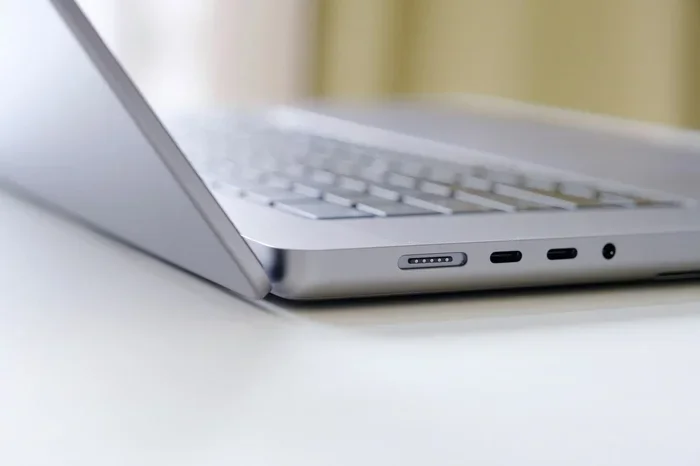
- USB Type C: A small, reversible connector used on modern laptops, phones, and tablets.
- Micro USB: A smaller connector commonly found on older phones and portable devices.
- Mini USB: An even smaller connector used on some cameras and older gadgets.
When connecting two cables, the connectors at each junction point must match. An adapter can bridge different connector types, but the cables themselves must share compatible standards. Think of it like plumbing. You can use different pipe sizes, but you need the right fittings to make them work together.
For example, a USB connection between an NVMe drive and a computer relies on matching the right USB standard and connector type. The same principle applies when you’re joining two USB cables. The connector shapes and USB versions must align for a reliable connection.
Step-by-Step: How to Connect 2 USB Cables Together
Now that you know the methods, let’s walk through the actual process. Here’s a simple step-by-step guide for the most common scenarios.
- Identify your cable types: Look at both cables and note the connector types on each end. Check if they are USB A, USB C, micro USB, or another type.
- Check the USB version: Look for USB 2.0, 3.0, or USB C markings on the cables. Note the slowest cable in your setup.
- Choose your method: Based on your needs, pick an adapter, hub, extension cable, or coupler. Make sure it matches your cable types.
- Connect the first cable: Plug one end of your first cable into the adapter, hub, or coupler.
- Connect the second cable: Plug the second cable into the other end of your chosen method.
- Test the connection: Plug the free end into your device and check if it works. Test data transfer and charging if applicable.
- Secure the setup: Use cable ties or clips to keep your connections neat and prevent accidental disconnections.
Following these steps ensures a clean, reliable connection every time. Don’t skip the testing step. A loose connection can cause intermittent problems that are hard to diagnose later.
Common Mistakes to Avoid When Connecting USB Cables
Even though connecting USB cables seems simple, several common mistakes can cause problems. Here’s what to watch out for:
- Forcing mismatched connectors: Never push a connector into a port that doesn’t fit. This can damage both the cable and the port. Use the right adapter instead.
- Ignoring power ratings: Some devices need more power than others. Joining cables with different power capabilities can result in slow charging or no charging at all.
- Using cheap adapters: Bargain-bin adapters often have poor contact quality. They can cause data corruption, slow speeds, and intermittent connections.
- Exceeding cable length limits: USB signals degrade over distance. A single long cable or a chain of joined cables that’s too long will lose speed and reliability.
- Mixing USB versions carelessly: Joining a USB 2.0 cable to a USB 3.0 cable will slow down the entire connection to USB 2.0 speeds.
- Not checking for bent pins: Before connecting, inspect the pins inside the USB connector. Bent pins can cause short circuits and damage your devices.
Avoiding these mistakes saves you time, money, and frustration. A little care goes a long way when working with USB connections.
Expert Tips for the Best USB Cable Connection
Here are some pro tips that make a real difference in your USB cable setup:
- Invest in quality cables: Good USB cables have better shielding, thicker wires, and tighter tolerances. They maintain signal integrity over longer distances.
- Label your cables: If you have multiple USB cables joined together, label each end. This saves confusion when troubleshooting later.
- Use cable management clips: Keep your joined cables organized with clips or ties. This prevents tension on the connection points.
- Test each cable individually first: Before joining two cables, make sure each one works on its own. This isolates any problems to a specific cable.
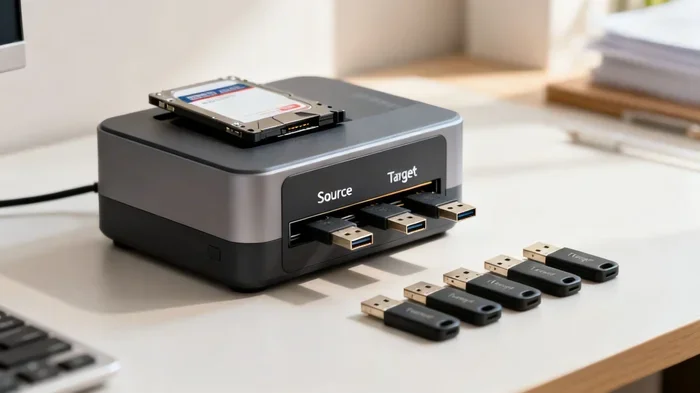
- Consider a docking station: For permanent setups, a USB docking station provides a cleaner solution than chaining multiple adapters together.
These small habits make your USB connections more reliable and your setup more organized. They’re especially helpful if you work with USB cables every day.
When You Should Not Connect 2 USB Cables Together
Sometimes the best approach is to avoid joining cables altogether. Here are situations where connecting two USB cables is not a good idea:
- High-speed data transfers: If you’re moving large files and need maximum speed, a single long cable or a direct connection is always better than joining two cables.
- Power-hungry devices: Devices like external monitors or hard drives that need consistent power may not work well through a chain of joined cables.
- Critical work setups: If your work depends on a stable USB connection, the extra connection point from joining cables introduces an unnecessary risk of failure.
In these cases, buying a longer cable or moving your device closer to the port is a better solution. Sometimes the simplest approach is the most reliable one.
Final Thoughts
Connecting 2 USB cables together is definitely possible, and there are multiple ways to do it. Whether you choose a USB adapter, a hub, an extension cable, or a coupler, the key is to match your cables and connectors correctly. Always check USB versions, connector types, and power requirements before you make any connection.
Remember that every connection point you add introduces a small amount of signal loss. Keep your setup as simple as possible while still meeting your needs. With the right method and a little care, you can extend your USB cables, add more ports, and make your devices work exactly the way you need them to. Start with the method that fits your situation best, and don’t be afraid to experiment until you find the perfect setup.
Frequently Asked Questions
Can I connect two USB cables to make one longer cable?
Yes, you can connect two USB cables to make a longer cable using a USB coupler, extension cable, or adapter. Just be aware that each connection point can slightly reduce signal quality. For best results, use high-quality couplers and keep the total cable length under 16 feet for USB 2.0 and 10 feet for USB 3.0.
Will connecting two USB cables slow down my data transfer speed?
It can. The connection will run at the speed of the slowest cable in the chain. If one cable is USB 2.0 and the other is USB 3.0, the entire connection will default to USB 2.0 speeds. Always match USB versions when joining cables for the best performance.
What is the easiest way to connect 2 USB cables together?
The easiest way is to use a USB coupler, which is a small female-to-female adapter. You plug one cable into each end and you have a longer cable in seconds. USB adapters and extension cables are also simple options that require no technical knowledge.
Can I join a USB A cable with a USB C cable?
Yes, you can join a USB A cable with a USB C cable using a USB A to USB C adapter or coupler. Make sure the adapter supports the USB version you need. Some adapters are USB 2.0 only, while others support USB 3.0 speeds for faster data transfer.
Is it safe to connect two USB cables together for charging?
It is generally safe, but you should check the power ratings of both cables. If one cable supports lower amperage than the other, your device will charge at the slower rate. Using quality cables and adapters ensures safe and efficient charging without overheating or damage.
Do USB couplers cause data loss?
Good quality USB couplers do not cause data loss. However, cheap or poorly made couplers can introduce connection issues that lead to corrupted files or dropped transfers. Always buy couplers from reputable brands and test your connection thoroughly before relying on it for important data.