Does Ss Mean Usb C
No, SS does not mean USB C. The letters SS on your ports and cables stand for SuperSpeed, a USB data transfer standard that tells you how fast your connection can go. Understanding what SS really means helps you choose the right cables, adapters, and storage devices for your setup.
If you have ever looked closely at a USB port or cable and noticed the letters “SS” printed on it, you might have wondered what it means. Does SS mean USB C? The short answer is no. But the full story is actually quite useful to know, especially if you buy external drives, adapters, or cables regularly.
The “SS” marking on a port or cable stands for SuperSpeed. It is a label used by the USB Implementers Forum to identify ports and cables that support faster data transfer rates. Many people confuse SS with USB-C because both labels often appear on the same devices. However, they describe two completely different things. One tells you the shape of the connector, and the other tells you the speed of the connection.
In this article, we will break down exactly what SS means, how it relates to USB-C, and why it matters for your everyday tech use. Whether you are shopping for an external SSD, a charging cable, or a simple adapter, understanding these labels will save you money and frustration.
Key Takeaways
- SS stands for SuperSpeed: It refers to the USB data transfer standard, not the USB-C connector type.
- USB-C is a connector shape: It describes the physical plug design, while SS describes the speed capability.
- SS markings appear on USB 3.0, 3.1, and 3.2 ports: Each generation offers different transfer speeds.
- Not all USB-C ports support SuperSpeed: Some USB-C ports only carry power and basic data.
- Matching SS standards to your devices matters: Using the right cable and adapter ensures you get the best performance.
📑 Table of Contents
What Does SS Stand For on USB Ports?
The term SS stands for SuperSpeed. It is a branding label introduced with USB 3.0 back in 2008. When you see “SS” on a port or cable, it means the connection supports the SuperSpeed data transfer standard. This standard allows much faster file transfers compared to older USB versions.
Here is a simple way to think about it. USB-C describes the physical shape of the plug. SuperSpeed (SS) describes how fast data can travel through that plug. You can have a USB-C port that supports SuperSpeed, and you can also have a USB-C port that does not. The SS marking confirms the speed capability.
The USB standards have evolved over the years. USB 3.0 was the first to use the SS label. Then came USB 3.1, which introduced SuperSpeed Plus. And USB 3.2 brought even faster versions. Each generation built on the last one, offering better transfer speeds and improved efficiency.
When you are shopping for accessories like a M.2 NVMe to USB C SSD enclosure, checking for the SS marking helps you confirm that the enclosure supports the full speed of your NVMe drive. Without SuperSpeed support, you would not get the performance you paid for.
Why the SS Label Matters
The SS label matters because it gives you instant information about a port or cable’s capabilities. Without it, you would have to dig through product manuals to find out the transfer speed. The label makes it easy to compare devices at a glance.
For example, if you are connecting a Sandisk Extreme Portable 2TB External USB C NVMe SSD to your computer, you want to make sure your port displays the SS symbol. This ensures you can take advantage of the drive’s blazing fast read and write speeds.
Understanding USB-C vs. SuperSpeed USB
One of the biggest sources of confusion in the tech world is the difference between USB-C and SuperSpeed. These two terms are not interchangeable. They refer to different aspects of USB technology.
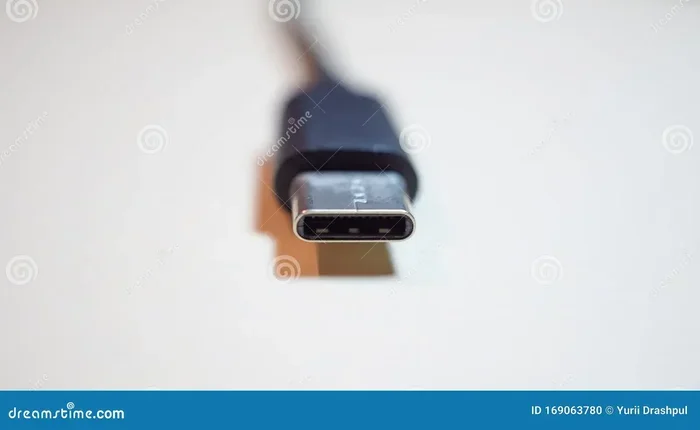
USB-C is a connector type. It describes the physical design of the plug. The USB-C connector is small, reversible, and oval-shaped. It has replaced older connector types like USB-A and USB-B in many modern devices. You will find USB-C ports on laptops, smartphones, tablets, and external storage drives.
SuperSpeed (SS) is a data transfer standard. It describes how fast information can move through the connection. A USB-C port can support SuperSpeed, or it might only support basic USB 2.0 speeds. The shape of the port does not guarantee the speed.
Think of it this way. USB-C is like the highway. SuperSpeed is how fast the cars can drive on that highway. A wide highway (USB-C) can support fast cars (SuperSpeed), but it could also have slow-moving traffic (USB 2.0 speeds) if the road is not designed for it.
This distinction is important when you are choosing a M2 NVMe SSD in USB enclosures. The enclosure needs both a USB-C connector and SuperSpeed support to deliver the full performance of your NVMe drive.
USB-C Ports That Lack SuperSpeed
Not all USB-C ports support SuperSpeed. Some devices come with USB-C ports that only handle charging and basic data transfer at USB 2.0 speeds. These ports will not have the SS marking. They look the same physically but perform much slower.
This is a common issue with some budget laptops and older devices. The manufacturer chose USB-C for its compact size and reversibility, but did not include the faster data transfer standard. Always check the specifications before assuming a USB-C port supports SuperSpeed.
How to Identify SS Ports on Your Devices
Finding the SS marking on your devices is straightforward once you know what to look for. The SuperSpeed symbol is a capital “SS” printed near the port or on the cable connector. On some devices, it appears alongside a number that indicates the specific USB generation.
Here are the most common SS markings you will encounter:
- SS: This indicates USB 3.0 SuperSpeed, with transfer speeds up to 5 Gbps.
- SS10: This indicates USB 3.1 Gen 2 SuperSpeed, with transfer speeds up to 10 Gbps.
- SS20: This indicates USB 3.2 Gen 2×2 SuperSpeed, with transfer speeds up to 20 Gbps.
The number after “SS” tells you the speed tier. A higher number means faster data transfer. When you are shopping for a NVMe SSD to USB adapter, look for the SS20 marking if you want the fastest possible speeds from your drive.
Where to Look for the SS Symbol
The SS symbol is usually found in one of these places:
- Right next to the USB port on your laptop or desktop.
- On the connector of a USB cable or adapter.
- On the packaging or product listing of the device.
- In the device specifications under the port details.
If you do not see the SS symbol, your port may still be USB-C, but it might not support SuperSpeed speeds. Always double-check the product specs to be sure.
Does SS Affect USB-C Compatibility?
One question many people ask is whether the SS standard affects compatibility. The good news is that USB-C and SuperSpeed are designed to work together seamlessly. A USB-C cable can connect to any USB-C port, regardless of whether it supports SuperSpeed or not.
However, the speed of your transfer will depend on the slowest device in the chain. If you plug a SuperSpeed USB-C drive into a non-SuperSpeed USB-C port, the transfer will default to the slower speed of the port. Similarly, if you use a non-SuperSpeed cable with a SuperSpeed port, you will not get the full speed benefits.
This is why it matters to check all the components in your setup. Your cable, adapter, and port all need to support SuperSpeed for you to get the best performance.
Cable Quality and SS Support
Not all USB-C cables are created equal. Some cables only support basic charging and data transfer at USB 2.0 speeds. Others are built to handle SuperSpeed and even Thunderbolt connections. When shopping for cables, look for the SS marking or check the product description for the supported USB standard.
A cheap, low-quality cable might physically fit into a USB-C port but limit your speeds dramatically. This is a common mistake that many people make when setting up their external storage or docking stations.
How SuperSpeed USB Impacts Real-World Performance
Understanding the real-world impact of SuperSpeed USB helps you make better buying decisions. The difference between a SuperSpeed connection and a standard USB 2.0 connection is massive, especially when you are working with large files.
Here is a quick comparison of the different SuperSpeed tiers:
- USB 3.0 (SS): Up to 5 Gbps transfer speed. Great for everyday file transfers and basic external storage.
- USB 3.1 Gen 2 (SS10): Up to 10 Gbps transfer speed. Ideal for large video files and fast backup drives.
- USB 3.2 Gen 2×2 (SS20): Up to 20 Gbps transfer speed. Best for professionals working with massive datasets and 4K video editing.
When you are transferring a 100 GB file, the difference between USB 2.0 and SuperSpeed USB is the difference between waiting hours and finishing in minutes. This is why checking for the SS marking before you buy an accessory is so important.
When SS Matters Most
SuperSpeed USB matters most in these situations:
- Backing up large amounts of data to an external drive.
- Editing 4K or 8K video files stored on an external SSD.
- Transferring game files between your PC and an external drive.
- Running applications directly from an external NVMe SSD.
If you only use your USB-C port for charging your phone or connecting a basic mouse, the SS standard may not matter as much to you. But for anyone who relies on fast data transfer, SuperSpeed support is essential.
How to Choose the Right USB-C Cable and Adapter
Choosing the right USB-C cable and adapter can feel overwhelming with so many options on the market. But if you keep a few key things in mind, the process becomes much simpler.
First, always check for the SS marking. This tells you the cable or adapter supports SuperSpeed data transfer. Second, match the speed tier to your needs. If you are using a fast NVMe drive, you want an adapter or cable that supports at least SS10 speeds.
Third, pay attention to the build quality. A well-built cable with proper shielding and quality connectors will last longer and perform better than a cheap, flimsy alternative. Look for cables that are certified by the USB-IF (USB Implementers Forum) for the best assurance of quality and compatibility.
Finally, consider your specific use case. If you need a compact solution for on-the-go storage, a portable enclosure or adapter that supports SuperSpeed will give you the best experience. Investing in the right accessories now saves you time and frustration later.
Quick Tips for Choosing USB-C Accessories
- Always look for the SS symbol on cables and adapters.
- Match the USB generation to your device’s capabilities.
- Buy from reputable brands with proper certifications.
- Check the product description for specific transfer speed ratings.
- Avoid the cheapest options if you need reliable, fast data transfer.
Common Myths About SS and USB-C
There are several myths floating around about what SS means and how it relates to USB-C. Let us clear up a few of the most common ones.
Myth 1: SS means the port is USB-C. As we have covered, SS stands for SuperSpeed, not USB-C. A port can be USB-C without supporting SuperSpeed, and a port can support SuperSpeed without being USB-C (though this is rare in modern devices).
Myth 2: All USB-C cables support SuperSpeed. This is not true. Many USB-C cables only support basic USB 2.0 speeds. Always check the specifications before assuming a cable supports fast data transfer.
Myth 3: SS only matters for external storage. While external storage benefits the most from SuperSpeed, any fast data transfer task can see a big improvement. This includes connecting to docking stations, transferring photos from cameras, or using USB-C headphones that require fast data streaming.
Myth 4: Newer devices always have SuperSpeed USB-C ports. Not necessarily. Some newer budget devices still include USB-C ports without SuperSpeed support. Always check the specs.
Final Thoughts
So, does SS mean USB C? Now you know the answer clearly. SS stands for SuperSpeed, and it is all about data transfer speed. USB-C is simply the connector shape. These two things work together but are not the same thing.
Understanding this difference empowers you to make smarter buying decisions. The next time you shop for a cable, adapter, or external drive, you will know exactly what to look for. Checking for the SS marking ensures you get the speed and performance your devices are capable of delivering.
Whether you are a student backing up files, a creative professional editing video, or just someone who wants faster transfers, SuperSpeed USB-C technology has something to offer. Take a moment to check your current setup. Do your ports and cables support SuperSpeed? If not, a small upgrade could make a big difference in your daily workflow.
The world of USB technology can be confusing, but it does not have to be. Once you understand what the labels mean, choosing the right accessories becomes much easier. Keep this guide handy for your next purchase, and you will always know exactly what you are getting.
Frequently Asked Questions
What does SS mean on a USB-C port?
SS stands for SuperSpeed. It indicates that the USB-C port supports the faster SuperSpeed data transfer standard, which is much quicker than older USB 2.0 speeds. The SS marking helps you identify ports that can handle fast file transfers and high-performance accessories.
Is USB-C the same as SuperSpeed USB?
No, they are not the same. USB-C refers to the physical shape and design of the connector. SuperSpeed (SS) refers to the data transfer speed standard. A USB-C port can support SuperSpeed, but it is not guaranteed. Always check for the SS marking to confirm speed support.
Can I get SuperSpeed speeds with any USB-C cable?
No, not all USB-C cables support SuperSpeed. Some cables only support basic USB 2.0 data transfer. To get SuperSpeed performance, you need a cable that is specifically designed and rated for SuperSpeed. Look for the SS marking or check the product specifications before purchasing.
What is the difference between SS, SS10, and SS20?
SS stands for SuperSpeed USB 3.0 with speeds up to 5 Gbps. SS10 stands for SuperSpeed USB 3.1 Gen 2 with speeds up to 10 Gbps. SS20 stands for SuperSpeed USB 3.2 Gen 2×2 with speeds up to 20 Gbps. The number indicates the speed tier of the connection.
Do I need SuperSpeed USB for everyday use?
For basic tasks like charging your phone or connecting a simple mouse, SuperSpeed is not necessary. However, if you regularly transfer large files, use external storage drives, or work with media files, SuperSpeed USB makes a significant difference in speed and efficiency.
Why does my USB-C port not have the SS marking?
If your USB-C port does not have the SS marking, it likely only supports USB 2.0 speeds or a basic data transfer standard. This is common on some budget devices and older laptops. Check your device specifications to confirm the port’s capabilities, and consider using a SuperSpeed adapter if you need faster transfer speeds.