Is Thunderbolt the Same as Usb C
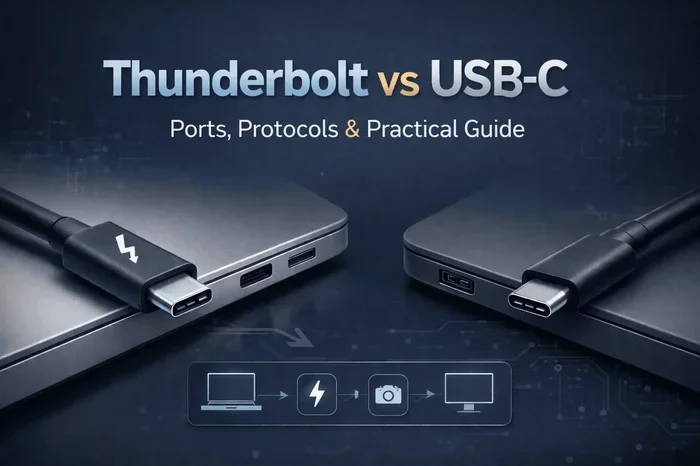
Thunderbolt and USB-C are not the same thing, even though they share the same connector shape. Thunderbolt is a protocol that uses the USB-C connector but delivers much faster speeds, video output, and daisy-chaining capabilities. USB-C is just a connector type, while Thunderbolt is a full technology standard built on top of it.
Key Takeaways
- Different technologies: USB-C is a connector shape; Thunderbolt is a protocol that uses that connector.
- Speed matters: Thunderbolt 3 offers 40Gbps, while standard USB-C usually maxes out at 10Gbps.
- Video and power: Thunderbolt supports DisplayPort and power delivery simultaneously, making it a one-cable solution.
- Daisy chaining: Thunderbolt lets you connect up to six devices in a chain; USB-C does not support this.
- Not all USB-C is Thunderbolt: Always check the port symbol or device specs to know what you have.
- Cost difference: Thunderbolt cables and devices cost more due to the advanced technology inside.
- Future-proofing: Thunderbolt 5 is the latest standard, offering even faster speeds for demanding workflows.
📑 Table of Contents
- Is Thunderbolt the Same as USB-C?
- What Is USB-C?
- What Is Thunderbolt?
- Key Differences Between Thunderbolt and USB-C
- How to Tell if Your Port Is Thunderbolt or Just USB-C
- When Should You Use Thunderbolt vs USB-C?
- Common Myths About Thunderbolt and USB-C
- Expert Tips for Getting the Most Out of Your Ports
- Conclusion
Is Thunderbolt the Same as USB-C?
Here is the short answer: no, Thunderbolt and USB-C are not the same. They look almost identical, and that is exactly what confuses most people. You plug in a cable, it fits, and you assume they are one and the same. But underneath the surface, they are very different technologies serving different purposes.
USB-C is simply a connector type. It is a small, reversible plug that you can find on phones, laptops, tablets, and chargers. Thunderbolt is a protocol, a set of rules and technology built by Intel that happens to use the USB-C connector shape. Think of it this way: USB-C is the plug. Thunderbolt is the engine inside.
Understanding this difference matters a lot. If you buy a Thunderbolt cable thinking it will give you USB-C speeds, you might be disappointed. And if you buy a regular USB-C cable expecting Thunderbolt performance, you will miss out on incredible speeds and features. Let us break it all down so you never confuse the two again.
What Is USB-C?
USB-C is a connector standard developed by the USB Implementers Forum. It is small, oval-shaped, and reversible, meaning you never have to flip it to plug it in. This connector has become the universal standard for charging, data transfer, and video output on modern devices.
What Can USB-C Do?
USB-C is incredibly versatile for a simple connector. Here are the things it handles well:
- Charging: USB-C supports USB Power Delivery, which can charge laptops, tablets, and phones quickly.
- Data transfer: Depending on the version, USB-C can transfer data at speeds up to 20Gbps with USB 3.2 Gen 2.
- Video output: Some USB-C ports support DisplayPort Alt Mode, letting you connect to external monitors.
- Peripheral connections: Keyboards, mice, external hard drives, and more all work through USB-C.
USB-C Speeds Explained
Not all USB-C ports are created equal. The speed depends on the USB version the port supports:
- USB 2.0: Up to 480Mbps. This is the slowest and most common.
- USB 3.0 (USB 3.2 Gen 1): Up to 5Gbps. Solid for everyday file transfers.
- USB 3.1 (USB 3.2 Gen 2): Up to 10Gbps. Great for external storage.
- USB 3.2 Gen 2×2: Up to 20Gbps. Found on newer premium devices.
You can connect an M2 Nvme Ssd In Usb Enclosures using a USB-C cable, and you will get solid speeds for backing up files or running games. But you will not get the full Thunderbolt experience from that setup.
What Is Thunderbolt?
Thunderbolt is a hardware interface developed by Intel in collaboration with Apple. It combines multiple protocols into a single connection. The first Thunderbolt port used a Mini DisplayPort shape, but starting with Thunderbolt 3, it switched to the USB-C connector. This is where the confusion begins.
The Evolution of Thunderbolt
Thunderbolt has gone through several versions, each bringing major improvements:
- Thunderbolt 1: Introduced in 2011. Max speed of 10Gbps. Used a Mini DisplayPort connector.
- Thunderbolt 2: Still 10Gbps but added support for DisplayPort natively. Same connector.
- Thunderbolt 3: A massive leap. Switched to USB-C shape. Max speed jumped to 40Gbps. Added power delivery and DisplayPort support.
- Thunderbolt 4: Released in 2020. Still 40Gbps but with stricter minimum requirements for performance and security.
- Thunderbolt 5: The latest standard, introduced in 2024. Speeds up to 80Gbps and 120Gbps with bandwidth boosting.
What Makes Thunderbolt Special?
Thunderbolt stands out because it combines several technologies into one port:
- PCIe (Peripheral Component Interconnect): This gives Thunderbolt its blazing fast data transfer speeds.
- DisplayPort: Thunderbolt can output video directly to monitors without any extra adapters.
- USB Power Delivery: It can charge your device while transferring data and sending video.
- Daisy Chaining: You can connect up to six Thunderbolt devices in a single chain from one port.
For creative professionals, this is a game changer. You can plug a single Thunderbolt cable into your laptop and connect an external monitor, a fast storage drive, and a docking station all at once. If you are looking for a Thunderbolt enclosure for your NVMe SSD, the Acasis 80Gbps M 2 NVMe SSD Enclosure Compatible With Thunderbolt 5 is an excellent option that takes full advantage of the latest Thunderbolt speeds.
Key Differences Between Thunderbolt and USB-C
Now that you know what each technology does, let us compare them side by side. The table below makes it easy to see the differences at a glance.
| Feature | USB-C | Thunderbolt 3/4 | Thunderbolt 5 |
|---|---|---|---|
| Connector Shape | USB-C | USB-C | USB-C |
| Max Data Speed | 20Gbps | 40Gbps | 80Gbps (120Gbps boost) |
| Video Output | DisplayPort Alt Mode | DisplayPort natively | DisplayPort natively |
| Power Delivery | Up to 240W | Up to 100W | Up to 240W |
| Daisy Chaining | No | Yes (up to 6 devices) | Yes (up to 6 devices) |
| Protocol | USB only | USB + PCIe + DisplayPort | USB + PCIe + DisplayPort |
| Price | Low to moderate | Moderate to high | High |
| Compatibility | Universal | Backward compatible with USB | Backward compatible with USB |
The most important thing to notice is that every Thunderbolt port is a USB-C port, but not every USB-C port is a Thunderbolt port. This is the single biggest source of confusion. When you see a USB-C port on your laptop, you need to check whether it also supports Thunderbolt.
How to Tell if Your Port Is Thunderbolt or Just USB-C
Figuring out what kind of port you have is simpler than you might think. Here are the easiest ways to check:
- Look for the lightning bolt symbol: Thunderbolt ports have a small lightning bolt icon next to or above the port. This is the easiest visual clue.
- Check your device specs: Go to the manufacturer’s website or your device settings and look for the port details. It will clearly state Thunderbolt 3, Thunderbolt 4, or Thunderbolt 5 if applicable.
- Check the cable: Thunderbolt cables often have the lightning bolt symbol on the connector. Regular USB-C cables do not.
- Use system information: On Windows, open Device Manager and look under Universal Serial Bus controllers. On Mac, click the Apple menu, then About This Mac, and click System Report.
If you want to expand your storage using a Thunderbolt connection, a M 2 NVMe SSD Enclosure Thunderbolt 4 gives you blazing fast external storage that takes full advantage of the Thunderbolt protocol. These enclosures are perfect for video editors, photographers, and anyone who needs speed on the go.
When Should You Use Thunderbolt vs USB-C?
Knowing the difference is one thing, but understanding when to use each is another. Here is a practical guide to help you decide.
Choose Thunderbolt When:
- You need maximum speed: If you are editing 4K or 8K video, Thunderbolt’s 40Gbps or 80Gbps speeds make a huge difference.
- You are daisy chaining devices: Connecting multiple peripherals through one port saves you from using multiple USB hubs.
- You need reliable video output: Thunderbolt supports multiple high-resolution displays natively without compression or lag.
- You work with professional external storage: NVMe SSDs in Thunderbolt enclosures deliver speeds that standard USB-C simply cannot match.
- You want future-proofing: Thunderbolt 5 devices are built to handle the next generation of high-bandwidth workflows.
For example, if you are a video editor who needs to connect an external SSD, a monitor, and a audio interface to your laptop, a single Thunderbolt cable can handle all of that through daisy chaining. You can also check out the M 2 NVMe SSD to USB 3.1 Adapter if you need a more budget-friendly USB-C solution for everyday tasks.
Choose USB-C When:
- You just need to charge your device: USB-C charging is universal and works with any USB-C power brick.
- You are transferring everyday files: Documents, photos, and music transfer just fine at USB-C speeds.
- You are on a budget: USB-C cables and devices cost significantly less than Thunderbolt options.
- You need universal compatibility: USB-C works with virtually every modern device, from phones to consoles.
- You do not need video output: If you are only using the port for data or charging, USB-C handles it perfectly.
Common Myths About Thunderbolt and USB-C
There are a lot of misconceptions floating around about these two technologies. Let us clear up the most common ones.
Myth 1: All USB-C Cables Are Thunderbolt Cables
This is flat-out false. A regular USB-C cable will not give you Thunderbolt speeds. Thunderbolt cables are specially designed with extra shielding and technology inside to handle the higher bandwidth. A standard USB-C cable maxes out at 10Gbps or 20Gbps depending on the version, while Thunderbolt cables handle 40Gbps or more.
Myth 2: Thunderbolt Only Works with Apple Devices
While Thunderbolt was originally popularized by Apple, it works on Windows and Linux machines too. Many high-end Windows laptops and desktops now come with Thunderbolt ports. The technology is platform-agnostic and works across operating systems.
Myth 3: Thunderbolt and USB4 Are the Same
They are related but not identical. USB4 is based on the Thunderbolt 3 protocol, but it does not always meet the same strict performance requirements. Thunderbolt 3 and 4 devices must meet minimum specifications, while USB4 devices can vary more in performance.
Expert Tips for Getting the Most Out of Your Ports
Here are some practical tips from someone who has tested dozens of Thunderbolt and USB-C setups:
- Always check the port symbol: Do not assume. Look for the lightning bolt before you buy a Thunderbolt cable or device.
- Buy certified cables: Thunderbolt cables that are certified guarantee the speeds they advertise. Cheap knockoffs often fall short.
- Use Thunderbolt for storage, USB-C for peripherals: Keep your workflow smart. Reserve Thunderbolt for tasks that need the speed boost.
- Match your cable to your device: A Thunderbolt 4 cable works with Thunderbolt 3 and 4 ports. But a Thunderbolt 5 cable is needed to get Thunderbolt 5 speeds.
- Do not daisy chain too many devices: While Thunderbolt supports up to six devices, each one adds latency. Keep your chain short for best performance.
If you are building a setup around external storage, consider pairing a Thunderbolt enclosure with a fast NVMe drive. The combination gives you desktop-class speeds in a portable package. For a great option, the M 2 NVMe to USB C SSD Enclosure is a reliable choice for USB-C setups, while Thunderbolt enclosures push the boundaries even further.
Conclusion
Thunderbolt and USB-C are not the same, and now you know exactly why. USB-C is a connector that handles charging, data, and video at decent speeds. Thunderbolt is a powerful protocol that uses the USB-C shape but delivers dramatically faster speeds, native video output, and daisy-chaining capability.
The choice between them depends on what you need. For everyday tasks, USB-C is perfectly fine and more affordable. For professional workflows involving video editing, large file transfers, or multi-device setups, Thunderbolt is the clear winner.
Always check your ports, buy the right cables, and do not let the similar connector shapes fool you. With the right knowledge, you can make the best choice for your setup and get the most out of every connection.
Frequently Asked Questions
Can I use a USB-C cable with a Thunderbolt port?
Yes, you can. Thunderbolt ports are backward compatible with USB-C cables and devices. However, you will only get USB-C speeds, not Thunderbolt speeds. The port will automatically detect the cable and adjust the performance accordingly.
Can I use a Thunderbolt cable with a regular USB-C port?
Yes, but it will only work at USB-C speeds. A Thunderbolt cable is physically compatible with USB-C ports, but it will not unlock Thunderbolt features unless the port itself supports Thunderbolt.
Is Thunderbolt 5 backward compatible with Thunderbolt 3 and 4?
Yes, Thunderbolt 5 is fully backward compatible with Thunderbolt 3 and Thunderbolt 4 devices. You can connect older Thunderbolt devices to a Thunderbolt 5 port and they will work. However, you will only get the speeds supported by the older device.
Do I need Thunderbolt for gaming?
For most gaming setups, USB-C is more than enough. Thunderbolt becomes useful if you are connecting external GPUs or ultra-fast external storage for game libraries. Standard USB-C speeds handle gaming peripherals and even external drives without any issues.
Why are Thunderbolt cables more expensive than USB-C cables?
Thunderbolt cables contain more advanced technology inside, including better shielding and chipsets that manage the higher bandwidth. The manufacturing costs are higher, which is why Thunderbolt cables typically cost two to three times more than standard USB-C cables.
Can I connect two Thunderbolt monitors to one port?
Yes, Thunderbolt supports daisy chaining, which means you can connect multiple monitors in a chain from a single port. Thunderbolt 3 and 4 support up to two 4K displays or one 8K display per port, and you can add more devices to the chain as well.