Should I Get a Usb or Usb C Flash Drive 2
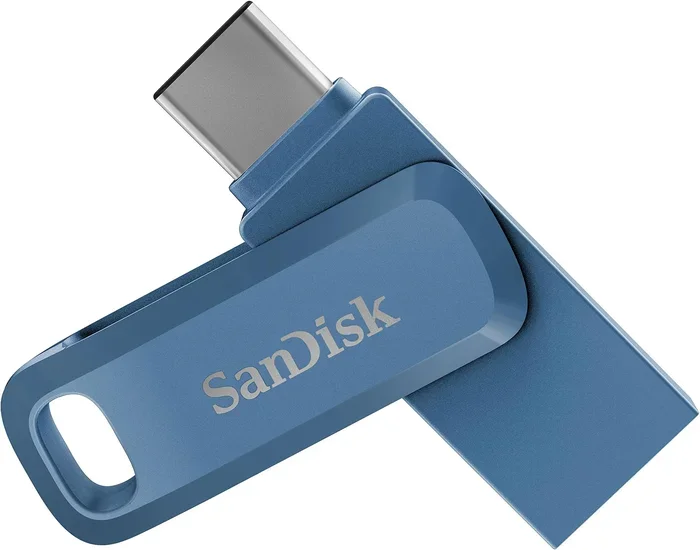
Choosing between a USB and USB C flash drive comes down to speed, compatibility, and your devices. USB C offers faster transfer speeds and a reversible connector, but USB A drives still work with older laptops and desktops. This guide breaks down the real differences so you can decide with confidence.
You stand in front of a shelf of flash drives. Some have the classic USB Type A plug. Others have the sleek, oval-shaped USB C connector. You wonder which one you actually need. The truth is, the right choice depends on what devices you use, how fast you need transfers, and how long you plan to keep the drive. This guide walks you through everything so you can make a smart decision without overthinking it.
USB C flash drives are everywhere now. They come in phones, modern laptops, tablets, and even some cameras. The reversible connector is a game changer. You never flip the plug three times trying to get it right. Standard USB drives still hold value though. They work with older desktops, certain printers, car stereos, and TVs. So which one should you pick? Let us break it all down.
Key Takeaways
- USB C is the future: It delivers faster speeds, a reversible plug, and works with modern laptops and phones.
- USB A still matters: If you use older computers or specific devices, a standard USB flash drive remains practical.
- Speed matters a lot: USB 3.0 and USB 3.1 offer real-world performance gains over USB 2.0 for large files.
- Check your ports first: Before buying, confirm which ports your devices actually have to avoid compatibility headaches.
- Dual-drive options exist: Some flash drives offer both USB A and USB C ends for maximum flexibility.
- Price gap is closing: USB C drives are getting more affordable, making them a smart choice for most users.
- Consider your use case: Work files, media storage, and backups each have different speed and capacity needs.
📑 Table of Contents
- What Is the Difference Between USB and USB C?
- USB C Flash Drive Benefits You Should Know
- When a Standard USB Flash Drive Still Makes Sense
- USB C vs USB A: Speed Comparison
- How to Choose the Right Flash Drive for You
- Common Mistakes People Make When Buying Flash Drives
- Quick Tips for Getting the Most From Your Flash Drive
- Expert Insight: The Future of Flash Drive Connectivity
- Final Thoughts: Which Drive Should You Buy?
- FAQ
What Is the Difference Between USB and USB C?
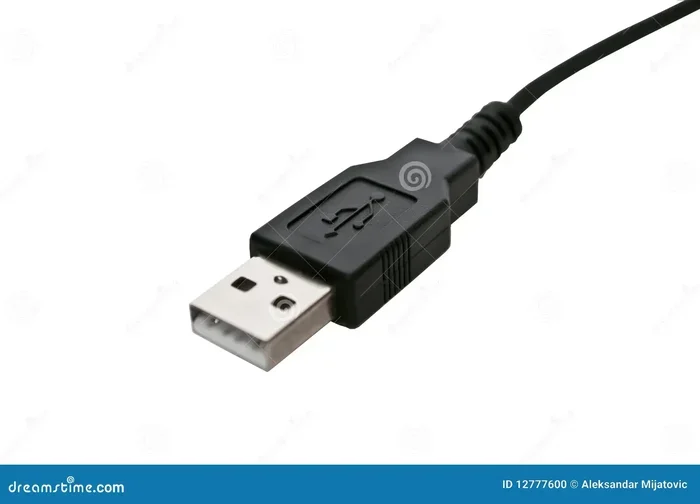
The simplest way to think about it is shape and speed. A standard USB plug, also called USB Type A, is the flat rectangular connector you have likely used for years. USB C is smaller, oval-shaped, and reversible. You can plug it in either way, and it fits snugly into modern devices.
Connector Shape and Design
USB A plugs only go in one way. Everyone has experienced the frustration of flipping it back and forth. USB C solved that problem. The connector is symmetrical, so it works no matter which direction you insert it. The design is also more compact, which makes it ideal for thin laptops and phones.
Speed and Performance
Here is where USB C really shines. Most USB C flash drives support USB 3.1 or even USB 3.2 standards. These deliver transfer speeds up to 10 Gbps or more. Standard USB 3.0 drives top out around 5 Gbps. And older USB 2.0 drives? They crawl along at about 480 Mbps. If you regularly move large video files or back up big folders, the speed difference is real.
For example, copying a 5 GB video file takes roughly 30 seconds on a fast USB C drive. On a USB 2.0 drive, you are waiting several minutes. That adds up fast if you do this daily.
Compatibility Across Devices
USB A works with almost everything made before 2015. USB C works with most devices made after 2018. If you own a modern laptop, a USB C flash drive gives you one drive that works across your phone, tablet, and computer. Some drives even offer both USB A and USB C ends, giving you the best of both worlds.
USB C Flash Drive Benefits You Should Know
USB C flash drives have several real advantages that make them worth considering for most people.
Reversible Plug Means No More Frustration
You never have to worry about orientation. Just plug it in. This small convenience adds up, especially when you are rushing to transfer files before a meeting or class.
Faster Data Transfer Speeds
USB C supports the latest USB 3.1 Gen 2 and USB 3.2 standards. These deliver speeds that make a noticeable difference. Large photo libraries, video projects, and software installs complete much faster. If you work with media files regularly, this speed boost is a must.
Slimmer and More Durable Design
USB C connectors are built into many modern devices. The drives tend to be smaller and more compact. They fit comfortably in laptop bags, pockets, and keychains. Many also feature durable metal housings that resist breakage better than plastic-only USB A drives.
Future-Proof Your Storage
USB A is slowly being phased out of newer laptops and devices. Investing in a USB C flash drive now means your drive will remain useful for years. You avoid the hassle of needing a new drive when you upgrade your computer.
When a Standard USB Flash Drive Still Makes Sense
Do not count out the classic USB A drive just yet. There are still plenty of situations where it is the smarter pick.
You Use Older Computers or Devices
If your desktop, laptop, or workstation only has USB A ports, a USB C drive will not work without an adapter. Many office computers, school labs, and older printers still rely on USB A. In these cases, a standard flash drive saves you from carrying extra cables or adapters.
You Need Maximum Compatibility
USB A drives work with virtually every device that has a USB port. TVs, car stereos, gaming consoles, and projectors often only accept USB A. If you frequently plug drives into different machines, a USB A drive gives you peace of mind.
Budget-Friendly Options Are Plentiful
USB A flash drives come in a wide range of prices. You can find reliable 64 GB or 128 GB drives for very little money. While USB C drives are getting cheaper too, USB A still offers the lowest cost per gigabyte in many cases.
USB C vs USB A: Speed Comparison
Speed is one of the biggest reasons people switch to USB C. Here is a quick look at how the different standards compare.
| Standard | Max Speed | Connector Type | Best For |
|---|---|---|---|
| USB 2.0 | 480 Mbps | USB A | Basic file transfers, small documents |
| USB 3.0 | 5 Gbps | USB A | General use, moderate file sizes |
| USB 3.1 Gen 1 | 5 Gbps | USB C | Fast transfers, modern devices |
| USB 3.1 Gen 2 | 10 Gbps | USB C | Large files, media work |
| USB 3.2 Gen 2×2 | 20 Gbps | USB C | Professional workflows |
The table makes one thing clear. USB C drives offer the fastest speeds available today. If you regularly move files larger than 1 GB, the upgrade from USB 2.0 or USB 3.0 to USB C is well worth it.
Real-World Speed Test Examples
In practical terms, a USB C flash drive with USB 3.1 Gen 2 can transfer a 10 GB folder in under 10 seconds. The same folder on a USB 2.0 drive takes over three minutes. That is a huge difference when you are on a tight deadline or backing up important data.
Some external SSDs use USB C connections and push speeds even higher. If you need storage that doubles as a super-fast external drive, options like a SanDisk Extreme Portable 2TB External USB C NVMe SSD show what USB C can really do for serious storage needs.
How to Choose the Right Flash Drive for You
Picking the right drive comes down to a few simple questions. Answer these honestly, and the decision becomes easy.
What Devices Do You Use Most?
List the devices you plug drives into regularly. If most are modern laptops, phones, or tablets, go with USB C. If you use a mix of older and newer machines, consider a dual-ended drive with USB A on one side and USB C on the other.
What Kind of Files Do You Transfer?
Small documents and photos do not need blazing speed. A basic USB 3.0 drive handles them fine. But if you work with video, large design files, or backup archives, you want the speed of USB C. The time you save adds up significantly over weeks and months.
How Much Storage Do You Need?
Flash drives come in sizes from 16 GB to 1 TB or more. For everyday use, 64 GB to 128 GB covers most needs. For media storage and backups, 256 GB and above makes more sense. USB C drives are available in higher capacities now, and prices continue to drop.
Do You Need Extra Features?
Some USB C flash drives include features like password protection, hardware encryption, or waterproof designs. If you carry sensitive data, these extras add real value. Look for drives that offer hardware encryption if privacy matters to you.
Common Mistakes People Make When Buying Flash Drives
Avoid these pitfalls so you do not waste money or end up with a drive that does not fit your needs.
Buying Based on Price Alone
The cheapest drive is not always the best. Very low-priced drives sometimes use slow flash memory that bottlenecks performance. You end up waiting longer for transfers, which defeats the purpose of a fast connection like USB C.
Ignoring Compatibility
Do not assume USB C works everywhere. Many devices still only have USB A ports. Always check your device ports before buying. If you need both types, a dual connector drive solves the problem.
Overlooking Speed Ratings
Not all USB C drives are fast. Some use older USB 3.0 chipsets inside a USB C shell. Look for drives that clearly state their USB generation and read/write speeds. A drive rated for USB 3.1 Gen 2 will be noticeably faster than one that just says USB C.
Forgetting About Durability
Flash drives get tossed in bags, dropped, and exposed to dust and moisture. A metal-bodied USB C drive holds up better than a flimsy plastic one. Look for drives with good build quality, especially if you travel often.
Quick Tips for Getting the Most From Your Flash Drive
- Always safely eject your drive before pulling it out. This prevents data corruption.
- Keep your drive clean. Wipe the connector with a dry cloth occasionally to maintain a solid connection.
- Back up your files. A flash drive is convenient storage, not a replacement for a proper backup system.
- Format correctly. Use exFAT format if you need the drive to work across Windows, Mac, and Linux systems.
- Store your drive properly. Use a protective case to prevent the connector from bending or breaking.
- Update your firmware if the manufacturer offers updates. This can improve speed and fix bugs.
Expert Insight: The Future of Flash Drive Connectivity
The industry is clearly moving toward USB C. New laptops, tablets, and phones almost exclusively feature USB C ports. The reversible design, high speeds, and compact size make it the natural choice for the next generation of portable storage.
That said, USB A is not disappearing overnight. Millions of older devices still use it. For now, the smartest move is to own at least one USB C flash drive for your newer gear. If you still rely on older equipment, keep a USB A drive handy or invest in a dual-ended model.
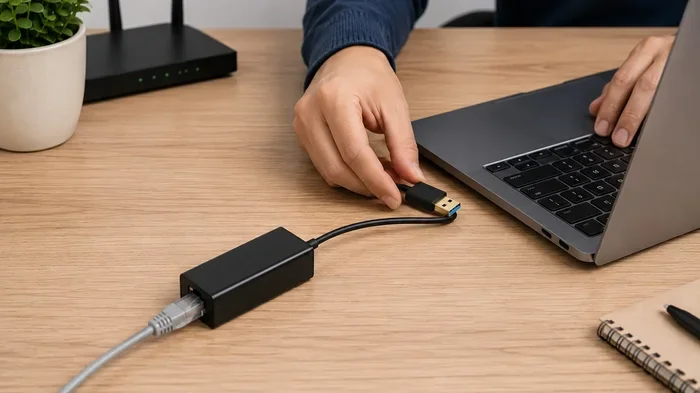
Adapters also play a role. A USB C to USB A adapter lets you use a USB C drive on older ports. And for users who work with internal storage, options like an M.2 NVMe SSD to USB 3.1 Adapter show how far connectivity has come. These adapters turn internal SSDs into portable external drives with blazing USB C speeds.
The bottom line is simple. USB C is the present and the future. USB A is still useful for legacy devices. The best strategy is to own both or choose a dual connector drive that covers all your bases.
Final Thoughts: Which Drive Should You Buy?
If you use modern devices and want the best speed and convenience, a USB C flash drive is the clear winner. The reversible plug alone is worth the switch. Add in faster transfer speeds and a sleeker design, and it is easy to see why USB C is becoming the standard.
If you work in environments with older equipment, or you need a drive that plugs into TVs, car stereos, and legacy machines, a standard USB flash drive still earns its place. It is reliable, widely compatible, and affordable.
For most people, the ideal solution is a dual-ended drive. You get a USB A connector on one end and a USB C connector on the other. One drive, full compatibility, no adapters needed. This approach future-proofs your storage while keeping older devices happy.
Take a moment to assess your devices and needs. Check which ports you have. Think about the file sizes you work with. Then pick the drive that fits your life. A good flash drive should make your day easier, not add complexity to it.
FAQ
Is USB C faster than regular USB?
Yes, USB C supports faster standards like USB 3.1 and USB 3.2, which deliver speeds up to 10 Gbps or more. However, the speed also depends on the specific standard the drive supports, not just the connector shape.
Can I use a USB C flash drive on an older computer with USB A ports?
Not directly. You will need a USB C to USB A adapter. Some dual-ended drives solve this problem by including both connector types on one drive.
Are USB C flash drives more expensive than USB A drives?
The price gap is shrinking. USB C drives used to cost more, but they are now very competitive. You can find reliable USB C drives at prices similar to USB A drives of the same capacity.
What is the best capacity for a flash drive?
For everyday use, 64 GB to 128 GB covers most needs. If you store large videos or backup files, 256 GB or higher works better. Choose based on how much data you typically carry.
Do USB C flash drives work with phones?
Yes, most modern Android phones and tablets support USB C flash drives directly. iPhones use Lightning or USB C depending on the model, so check your specific device for compatibility.
How do I know if my laptop has USB C ports?
Look at your laptop’s ports. USB C ports are oval-shaped and smaller than the rectangular USB A ports. Most laptops made after 2018 include at least one USB C port. Check your laptop’s manual if you are unsure.