Are There Two Types of Usb B 2
Yes, there are two main types of USB B 2 connectors: the standard USB B and the USB mini B. Both belong to the USB 2.0 family but serve different devices and purposes. This guide breaks down each type so you can easily identify them and pick the right cable for your setup.
Have you ever looked at a USB cable and wondered exactly what type of connector you are holding? If you have ever seen a square-ish plug on a printer cable or a smaller plug on an older camera cord, you have likely encountered a USB B 2 connector. The question is, are there really two types of USB B 2, or is it all just confusing naming?
The short answer is yes. There are two main types of USB B 2 connectors, and understanding the difference can save you a lot of frustration. Whether you are trying to connect a printer, transfer files from an old device, or just organize your cable collection, knowing your USB connector types is essential. In this guide, we will walk you through everything you need to know about the two types of USB B 2 connectors.
USB 2.0 has been around for a long time. It became a standard in the early 2000s and remains widely used today. While newer versions like USB 3.0 and USB 3.1 have come along, USB 2.0 is still the backbone of many devices in homes and offices. The USB B 2 connector is one of the most recognizable shapes in the USB world. It comes in two main forms, and each has its own role to play.
Key Takeaways
- Two distinct types exist: Standard USB B and USB mini B are the two main USB 2.0 Type B variants.
- They look different: The standard USB B is a larger square-shaped connector, while the mini B is smaller and compact.
- They serve different devices: Standard USB B is common in printers and scanners, while mini B is often found in older cameras and portable devices.
- Both support USB 2.0 speeds: Each type delivers up to 480 Mbps data transfer rates.
- Compatibility matters: Using the wrong connector can lead to poor connections or damaged ports.
- USB B 2 is not the same as USB 3.0 Type B: The USB 3.0 Type B connector is larger and has an extra tab.
📑 Table of Contents
What Is USB B 2?
Before we dive into the two types, let us clear up what USB B 2 actually means. USB stands for Universal Serial Bus. It is the standard way to connect devices to computers and chargers. The “B” in USB B refers to the shape of the connector on the device side. The “2” means it is part of the USB 2.0 specification.
USB 2.0 was designed to support data transfer speeds of up to 480 Mbps. That is much faster than the original USB 1.1 standard, which topped out at 12 Mbps. For most everyday tasks like printing, scanning, and charging, USB 2.0 is more than enough. The USB B 2 connector was created to provide a sturdy, reliable connection for these devices.
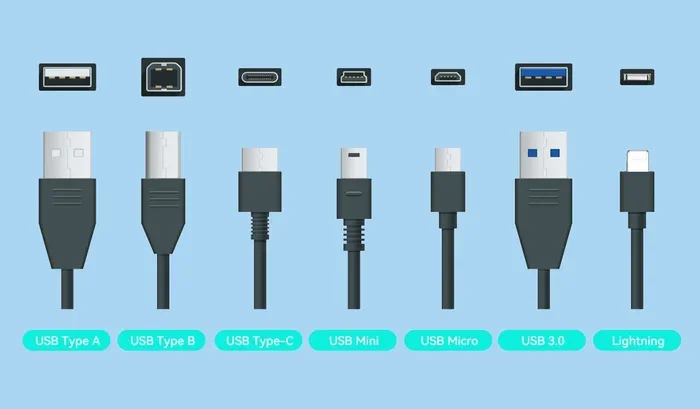
There are actually several USB connector shapes out there. Type A is the flat rectangular plug you plug into your computer. Type C is the small, reversible plug that is popular on modern laptops and phones. But Type B is different. It is the connector that goes on the device end, not the computer end. And within Type B, there are two main versions that fall under the USB 2.0 umbrella.
The Two Types of USB B 2 Connectors
So, what are the two types? The answer comes down to size and shape. The two main USB B 2 connectors are the Standard USB B and the USB Mini B. Each has its own design, its own use case, and its own place in the history of USB technology.
Standard USB B
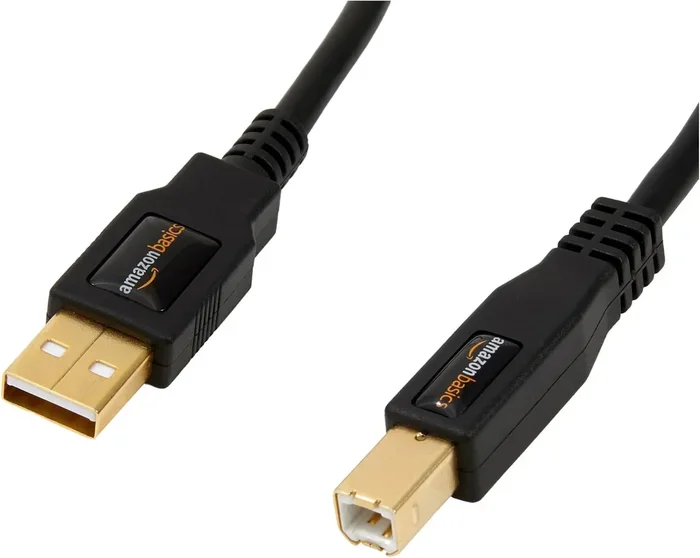
The Standard USB B connector is the larger of the two. It has a square shape with slightly beveled corners on the top. If you have ever used a printer cable, you have almost certainly seen this connector. It is one of the most common USB connectors in offices and homes around the world.
The Standard USB B connector is designed for devices that need a strong, stable connection. Printers, scanners, external hard drives, and some older monitors all use this type of connector. The square shape makes it hard to plug in upside down, which is a nice feature. It also fits snugly into the port, reducing the chance of accidental disconnection.
One thing to keep in mind is that the Standard USB B connector is not reversible. You have to align it correctly before plugging it in. The connector has a specific top and bottom, and forcing it in the wrong way can damage the port or the cable. Always take a moment to check the orientation before inserting it.
USB Mini B
The USB Mini B connector is smaller and more compact than the Standard USB B. It was introduced to support smaller portable devices that needed a USB connection but did not have the space for a full-size connector. You will often find USB Mini B on older digital cameras, MP3 players, and some portable hard drives.
The Mini B connector has five pins, just like the Standard USB B. However, it is roughly half the size. This made it possible to design thinner and lighter devices without sacrificing the ability to connect to a computer. For a while, the USB Mini B was the go-to connector for mobile devices before USB Micro B came along.
Like the Standard USB B, the Mini B connector is not reversible. It has a specific orientation, and you need to match it correctly. The smaller size can sometimes make it harder to plug in, especially if your hands are not steady. Over time, the Mini B connector can also wear out more quickly due to its smaller pins and tighter tolerances.
How to Tell Them Apart
Telling the two types of USB B 2 connectors apart is pretty simple once you know what to look for. The size difference is the most obvious clue. The Standard USB B is noticeably larger and squarer. The Mini B is smaller and has a more rounded shape.
Here are some quick tips to help you identify each type:
- Look at the size. The Standard USB B is about 12 millimeters wide, while the Mini B is about 7 millimeters wide.
- Check the shape. The Standard USB B has sharp, square corners. The Mini B has slightly softer, more rounded edges.
- Count the pins. Both connectors have five pins, but the Standard B has a wider internal frame.
- Check the device. Printers and scanners usually use Standard USB B. Older cameras and portable devices often use Mini B.
If you are ever unsure, try comparing the connector to a known reference. Holding the cable up to a printer cable or a camera cable can help you make the right identification quickly. The shape and size differences are easy to spot once you have seen them side by side.
Common Devices That Use USB B 2 Connectors
Now that you know what the two types look like, let us talk about where you will actually find them. The USB B 2 connectors are not just theoretical. They are in devices all around you. Here is a look at the most common devices that use each type.
Devices Using Standard USB B
- Printers: Most desktop printers from the early 2000s to the mid-2010s used Standard USB B connectors. Many printers still include this port today.
- Scanners: Flatbed scanners and document scanners commonly use Standard USB B for data transfer.
- External Hard Drives: Some older external hard drive enclosures use Standard USB B, especially those with USB 2.0 connections.
- CAD and Plotter Devices: Large format printers and plotters often rely on Standard USB B for reliable data transfer.
- Some Monitors: Older monitors with USB upstream ports sometimes use Standard USB B.
Devices Using USB Mini B
- Digital Cameras: Many older digital cameras from brands like Canon, Nikon, and Sony used USB Mini B for charging and data transfer.
- MP3 Players: Portable music players from the mid-2000s often featured USB Mini B ports.
- PDA Devices: Personal digital assistants and handheld organizers commonly used USB Mini B.
- Portable GPS Units: Some older GPS navigation devices used USB Mini B for charging and map updates.
- Older Portable Hard Drives: Compact portable drives from the USB 2.0 era sometimes came with Mini B connectors.
If you are trying to find a replacement cable, knowing which type your device uses is the first step. Check your device manual or look closely at the port itself. The shape and size will tell you whether you need a Standard USB B cable or a Mini B cable.
USB B 2 vs Other USB Connector Types
The USB world has many connector types, and it can get confusing. How does USB B 2 compare to the other types you might encounter? Let us break it down by looking at how USB B 2 differs from USB Type A, USB Type C, and USB 3.0 Type B.
USB Type A is the flat, rectangular connector that goes into your computer. It is the most common USB connector you will see. The Standard USB B is the matching connector that goes on the device end. Together, they form a USB 2.0 connection. USB Type C is the newer, smaller, reversible connector that is replacing older types on many modern devices. Unlike USB B 2, USB Type C is not part of the USB 2.0 specification alone. It supports faster speeds and more power delivery.
USB 3.0 Type B is a different animal entirely. It is larger than USB 2.0 Type B and has an extra tab on the side. This extra tab prevents you from plugging a USB 2.0 cable into a USB 3.0 port by mistake. If you have ever seen a blue port inside a USB Type B connector, that is a USB 3.0 port. The standard black USB B connector is typically USB 2.0.
When shopping for cables, always check the connector type on both ends. A cable that has a Standard USB B on one end and a USB Type A on the other is a common USB 2.0 printer cable. A cable with USB Mini B on one end and USB Type A on the other is an older camera or device cable. The USB B 2 connectors are specifically designed for USB 2.0 speeds and devices.
Tips for Buying and Using USB B 2 Cables
Buying the right USB B 2 cable might seem simple, but there are a few things you should keep in mind. Not all cables are created equal, and choosing the wrong one can lead to slow transfer speeds or connection problems.
Check the Version
Make sure the cable you buy is actually USB 2.0. Some cables are labeled as USB 2.0 but may not support the full 480 Mbps speed. Look for cables that clearly state USB 2.0 on the packaging or in the product description. A good USB B 2 cable should provide reliable data transfer for printers, scanners, and other peripherals.
Consider Cable Length
USB 2.0 cables have a maximum recommended length of about 5 meters (16 feet) for optimal performance. If you need a longer cable, consider using an active repeater cable or a M 2 Nvme Ssd USB adapter setup for better signal integrity. Longer cables without proper amplification can lead to data loss or connection drops.
Look for Quality Build
Cheap cables can cause all sorts of problems. Look for cables with good strain relief, solid connector housing, and reputable brand names. A well-built M 2 Nvme Ssd To Usb 3 1 Adapter or a quality USB B 2 cable will last much longer than a flimsy alternative. The connector should fit snugly into the port without being too tight or too loose.
Avoid Force-Fitting Connectors
If a USB B 2 connector does not fit easily, do not force it. Check the orientation and try again. Forcing a connector can damage the port on your device or break the cable itself. The Standard USB B and Mini B connectors are designed to go in one way only, so take your time and align them correctly.
Common Mistakes People Make with USB B 2
Even experienced users make mistakes when it comes to USB connectors. Here are some common errors to avoid.
- Assuming all USB B connectors are the same: USB 2.0 Type B and USB 3.0 Type B are different. Using the wrong one can result in a poor fit or no connection at all.
- Confusing Mini B with Micro B: These two connectors look similar but are different sizes. Make sure you know which one your device needs.
- Buying the wrong cable length: A cable that is too long can cause signal degradation, while one that is too short may not reach your device.
- Ignoring cable quality: A cheap, poorly made cable can damage your devices or cause intermittent connection issues.
- Forgetting that USB B 2 is not reversible: Unlike USB Type C, USB B 2 connectors have a specific orientation. Plugging them in the wrong way will not work and can cause damage.
By being aware of these common mistakes, you can save time, money, and frustration. Take a moment to verify the connector type before making a purchase, and always handle your cables with care.
The Future of USB B Connectors
The USB ecosystem is constantly evolving. USB Type C is becoming the new standard for most devices, offering faster speeds, more power, and a reversible design. But USB B 2 connectors are not going away anytime soon. Millions of devices still rely on them, and they continue to be manufactured and sold worldwide.
For now, if you have a printer, scanner, or older device that uses a USB B 2 connector, you will need to keep those cables on hand. The good news is that these cables are widely available and affordable. You can find them at most electronics stores, online retailers, and office supply shops. As devices gradually shift to USB Type C and newer standards, the demand for USB B 2 cables will slowly decline, but they will remain relevant for years to come.
Understanding the two types of USB B 2 connectors gives you the knowledge to make smart buying decisions. Whether you are setting up a home office, organizing your tech accessories, or simply trying to connect an older device, knowing the difference between Standard USB B and USB Mini B puts you ahead of the curve.
Conclusion
So, are there two types of USB B 2? Yes, there are. The Standard USB B and the USB Mini B are the two main connectors in the USB 2.0 Type B family. Each has its own shape, size, and purpose. The Standard USB B is the workhorse connector found on printers and scanners, while the Mini B serves smaller portable devices like cameras and MP3 players.
Both connectors support USB 2.0 speeds and deliver reliable performance for everyday tasks. By learning to tell them apart and understanding where each is used, you can confidently choose the right cable for any device. The next time you pick up a USB cable, you will know exactly what type of USB B 2 connector you are holding.
Keep this guide handy for reference, and you will never have to guess again. Whether you are buying a replacement cable or setting up a new device, knowing your USB B 2 types is a small piece of knowledge that makes a big difference.
Frequently Asked Questions
What is the difference between USB B 2 and USB B 3?
The main difference is the connector size and speed. USB B 2 connectors are smaller and support up to 480 Mbps. USB B 3 connectors are larger, have an extra tab, and support much faster speeds of up to 5 Gbps. They are not interchangeable, so always check which version your device needs.
Can I use a USB B 2 cable for charging?
Yes, you can. USB B 2 cables can carry power as well as data. Many printers and scanners use the USB B connection for both charging and data transfer. However, the charging speed may be slower compared to modern USB Type C chargers.
Are USB Mini B and Micro B the same thing?
No, they are not the same. USB Mini B is larger than USB Micro B. Mini B was common in older cameras and portable devices, while Micro B became popular with smartphones and newer portable gadgets. Make sure you check your device manual to confirm which one you need.
Where can I buy USB B 2 cables?
You can find USB B 2 cables at electronics stores, online marketplaces, and office supply shops. They are widely available and usually very affordable. Look for reputable brands to ensure you get a quality cable that will last.
Do all printers use Standard USB B connectors?
Most desktop printers use Standard USB B connectors, but not all. Some newer printers may use USB Type C or even wireless connections. Always check the back of your printer or the user manual to confirm the connector type before buying a cable.
Is USB B 2 still relevant today?
Yes, USB B 2 is still very relevant. Many printers, scanners, and older devices continue to use this connector type. While USB Type C is gaining popularity, USB B 2 cables remain essential for anyone with legacy devices or office equipment that relies on them.