Is Usb C to Hdmi Possible 2
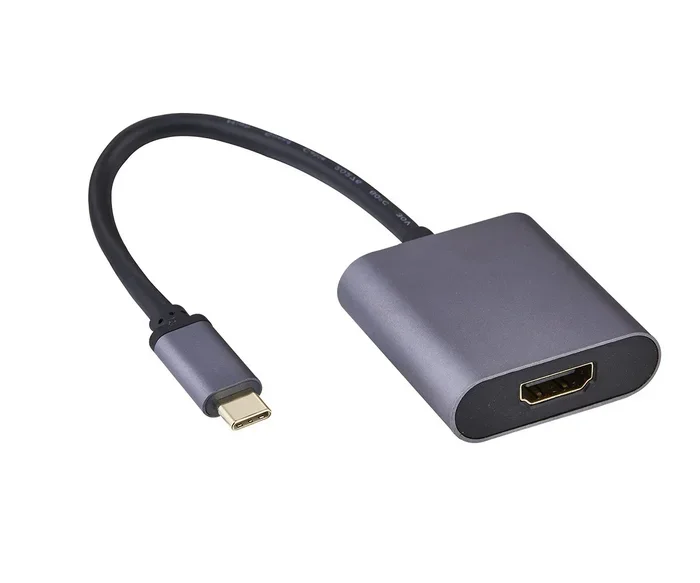
Yes, USB C to HDMI is absolutely possible, and it has become one of the most popular ways to connect laptops, phones, and tablets to external displays. The USB C to HDMI 2.0 standard supports high-resolution video output with fast data transfer. Whether you need a simple cable or a full docking station, this guide breaks down every option.
Have you ever looked at your laptop or phone and wondered if you could just plug it straight into your TV or monitor? The good news is that USB C to HDMI is possible, and it works better than most people expect. Whether you want to mirror your screen, extend your workspace, or just watch movies on a bigger display, USB C to HDMI adapters make it easy.
But here is the thing not every USB C connection is the same. Some ports carry video signals, and some do not. Some adapters support 4K resolution, while others are limited to 1080p. This guide will walk you through everything you need to know about connecting your device to an HDMI display using a USB C cable or adapter.
Key Takeaways
- USB C to HDMI works seamlessly on most modern devices with the right adapter or cable.
- HDMI 2.0 over USB C supports 4K resolution at 60Hz for crisp, smooth visuals.
- Not all USB C ports support video output, so check your device specs before buying an adapter.
- USB C to HDMI adapters come in many forms, from simple cables to full docking stations.
- Thunderbolt 3 and 4 ports offer the best compatibility for USB C to HDMI connections.
- Common mistakes include buying the wrong adapter version or assuming all USB C ports are equal.
📑 Table of Contents
What Is USB C to HDMI?
USB C to HDMI refers to the technology that lets you send video and audio from a USB C port to an HDMI display. This connection uses a small reversible connector on one end and a standard HDMI plug on the other. The result is a simple, clean way to hook up your laptop, tablet, or phone to a TV, monitor, or projector.
The technology behind this is called DisplayPort Alternate Mode, or DP Alt Mode for short. When a device supports DP Alt Mode over USB C, it can output video directly to an HDMI screen. This is not the same as regular data transfer. Video output is a dedicated function that certain USB C ports are built to handle.
How Does It Work?
When you plug a USB C to HDMI adapter into your device, the adapter reads the video signal from the USB C port and converts it into an HDMI signal. The HDMI end then connects to your display. Most adapters handle both video and audio at the same time, so you get sound through your HDMI cable without needing a separate audio connection.
The speed and quality of the connection depend on several factors. These include the version of USB C on your device, the adapter you use, and the HDMI standard on your display. A good adapter will support high resolutions and refresh rates without any lag or quality loss.
Is USB C to HDMI Possible on All Devices?
Here is where things get a little tricky. USB C to HDMI is not supported on every device that has a USB C port. The port needs to support video output, which is not guaranteed just because a device has USB C. Some USB C ports are designed only for charging and data transfer, with no video capability at all.
Devices That Support USB C to HDMI
Most modern devices do support video output over USB C. Here are some common examples:
- MacBook Pro and MacBook Air from 2016 and newer
- Dell XPS and Latitude laptops with USB C ports
- Samsung Galaxy phones and tablets with USB C
- Google Pixel devices and other Android phones
- Microsoft Surface laptops and tablets
- Nintendo Switch (with the right dock or adapter)
Devices That May Not Support It
Some devices limit their USB C ports to charging and data only. These include certain budget laptops, older tablets, and some external hard drive enclosures. If you are not sure whether your device supports video output over USB C, check the manufacturer specifications or look for a DisplayPort icon next to the port.
Also, keep in mind that USB C accessories like external storage drives, such as an M 2 Nvme Ssd Usb enclosure, use USB C for data transfer only and do not carry video signals. These are different from video-capable USB C ports.
USB C to HDMI 2.0 vs. Earlier Versions
The USB C to HDMI 2.0 standard is a big step forward. HDMI 2.0 supports 4K resolution at 60Hz, which means your picture looks incredibly sharp and smooth. Earlier versions like HDMI 1.4 were limited to 4K at 30Hz, which can feel laggy and less responsive.
What Makes HDMI 2.0 Better?
There are several real-world advantages to using an HDMI 2.0 adapter over an older one:
- 4K at 60Hz for smooth video and gaming
- Higher color depth for richer, more accurate colors
- Better audio support with multi-channel sound
- Reduced latency for a more responsive experience
- Wider compatibility with modern TVs and monitors
If you are buying a USB C to HDMI adapter today, make sure it supports HDMI 2.0 or higher. Older adapters may still work for basic tasks, but you will miss out on the full quality that modern displays can deliver.
Quick Comparison Table
| Feature | HDMI 1.4 | HDMI 2.0 |
|---|---|---|
| Max 4K Resolution | 30Hz | 60Hz |
| Color Depth | 8-bit | 10-bit |
| Audio Channels | Up to 8 | Up to 32 |
| Bandwidth | 10.2 Gbps | 18 Gbps |
| HDR Support | No | Yes |
How to Choose the Right USB C to HDMI Adapter
Not all adapters are created equal. The market is full of options, and choosing the right one can feel overwhelming. But it does not have to be. Here are the key things to look for when shopping for a USB C to HDMI adapter.
Check Your Device Compatibility
The first step is to confirm that your device supports video output over USB C. Look up your device model online and check the specs for DisplayPort Alt Mode or Thunderbolt support. If your device has Thunderbolt 3 or Thunderbolt 4, you are in great shape. These ports support almost every USB C to HDMI adapter on the market.
Consider What You Need
Think about how you plan to use the adapter. Are you just watching movies? A basic adapter will do the job. Do you need to connect to a 4K monitor for work? You will want an HDMI 2.0 adapter. Are you gaming? Look for adapters with low latency and high refresh rate support.
Some people also use USB C hubs that include HDMI ports along with USB ports and SD card readers. These are great for people who need multiple connections at once. If you are into audio, you might even pair your setup with best USB Type C headphones for a complete multimedia experience.
Build Quality and Brand Reputation
Cheap adapters can be tempting, but they often come with problems. You might experience flickering, no signal, or poor audio sync. Stick with reputable brands that have good reviews. A well-built adapter will last longer and perform better, which saves you money in the long run.
Cable Length Matters
The length of your USB C to HDMI cable or adapter cable can affect signal quality. Short cables, under six feet, usually work perfectly. Longer cables may need better shielding to maintain a strong signal. If you need a long cable, look for one that is rated for high-speed data and video transfer.
Common Uses for USB C to HDMI
USB C to HDMI adapters are incredibly versatile. People use them in many different situations every day. Here are some of the most common use cases.
Presentations and Work
If you travel for work or attend meetings often, a USB C to HDMI adapter is a lifesaver. You can plug your laptop directly into a conference room display or projector without needing extra cables or dongles. This makes presentations quick, clean, and professional.
Home Entertainment
Watching movies or TV shows on a big screen is always better than staring at a small laptop display. A USB C to HDMI adapter lets you connect your phone or laptop to your living room TV in seconds. You get better sound through the HDMI connection and a much larger picture.
Gaming
Gamers love USB C to HDMI because it lets them connect their devices to larger monitors or TVs. With HDMI 2.0 support, you can enjoy 4K gaming at smooth frame rates. Some adapters also support features like FreeSync and G-Sync for an even better gaming experience.
Education and Learning
Students and teachers use USB C to HDMI adapters to connect to classroom displays. It is a simple way to share content from a tablet or laptop with a whole room. The portable size of most adapters makes them easy to carry in a backpack or laptop bag.
Troubleshooting Common USB C to HDMI Problems
Even with the right adapter, you might run into issues from time to time. Here are some common problems and how to fix them.
No Signal on the Display
If your screen shows no signal, the first thing to check is whether your device supports video output over USB C. Try unplugging the adapter and plugging it back in. Sometimes a loose connection is all it takes. Also, make sure your TV or monitor is set to the correct HDMI input channel.
Flickering or Intermittent Signal
Flickering usually points to a cable or adapter quality issue. Try a different adapter or a shorter cable. Check that your adapter supports the resolution and refresh rate of your display. Using an adapter that is too old for your display can cause flickering and instability.
No Audio Through HDMI
Some adapters handle video only and do not pass audio. If you are not getting sound through your HDMI connection, check your device audio settings. Make sure the HDMI output is selected as the audio device. Most modern adapters do carry audio, but it is always worth double-checking.
Expert Tips for Getting the Best USB C to HDMI Experience
Here are some tips from people who use USB C to HDMI connections every day:
- Always check your port specifications before buying an adapter. Look for DisplayPort Alt Mode or Thunderbolt support.
- Buy an adapter with HDMI 2.0 or higher if you want 4K at 60Hz or HDR support.
- Keep your adapter firmware updated if the manufacturer provides updates. This can fix bugs and improve compatibility.
- Use a high-quality USB C cable to connect your device to the adapter. A cheap cable can bottleneck your video quality.
- Test your setup before important presentations or events. Do not wait until the last minute to discover a compatibility issue.
The world of USB C connectivity has changed the way we use our devices. What used to require multiple cables and adapters can now be done with a single USB C to HDMI connection. As more devices adopt USB C as their standard port, these adapters will only become more essential.
If you are also looking to expand your storage using USB C, consider an external SSD enclosure. Many modern enclosures use USB C for fast data transfer, and you can find options that connect directly to M 2 Nvme To Usb C Ssd Enclosure setups for a complete connectivity solution.
Conclusion
USB C to HDMI is not only possible, it is one of the most convenient ways to connect your devices to external displays. With the right adapter, you can enjoy 4K video, crystal-clear audio, and a seamless connection in seconds. The key is to understand your device capabilities and choose an adapter that matches your needs.
Whether you are a professional who presents every day, a student who needs a bigger screen for studying, or a movie lover who wants to watch on a big TV, a USB C to HDMI adapter is a simple and affordable solution. Just remember to check for HDMI 2.0 support, confirm your device compatibility, and invest in a quality adapter from a trusted brand.
The technology is here, it works well, and it keeps getting better with each new generation of USB C and HDMI standards. So go ahead, plug in, and enjoy the bigger screen experience.
Frequently Asked Questions
Can I connect my laptop to a TV using USB C to HDMI?
Yes, most modern laptops with USB C ports can connect to a TV using a USB C to HDMI adapter. Just make sure your laptop supports video output over USB C, which most do. Plug the adapter into your laptop, connect an HDMI cable from the adapter to your TV, and switch your TV to the correct HDMI input.
Does USB C to HDMI support 4K resolution?
It does, but only if your adapter supports HDMI 2.0 or higher. HDMI 2.0 adapters can deliver 4K video at 60Hz, which looks smooth and sharp. Older HDMI 1.4 adapters can do 4K at 30Hz, which may feel a bit laggy for fast-moving content.
Why is there no sound when I use USB C to HDMI?
This usually happens when the adapter does not pass audio or when your device audio settings are not configured correctly. Check that your adapter supports audio output and make sure your device is set to output sound through the HDMI connection in your audio settings.
Can I use a USB C to HDMI adapter with a docking station?
Absolutely. Many docking stations include USB C to HDMI outputs along with USB ports, Ethernet, and other connections. Docking stations are great if you need multiple ports and want a clean, organized setup for your workspace.
Are all USB C to HDMI adapters the same?
No, they are not. Adapters vary in quality, supported resolutions, refresh rates, and features. Some support only 1080p, while others handle 4K at 60Hz. Thunderbolt-compatible adapters tend to offer the best performance and broadest device compatibility.
Do I need a special cable or just an adapter?
You need both an adapter and an HDMI cable in most cases. The USB C to HDMI adapter converts the signal, and the HDMI cable carries it to your display. Some all-in-one cables have USB C on one end and HDMI on the other, which eliminates the need for a separate adapter.