Are All Dvd Players Hdmi Compatible
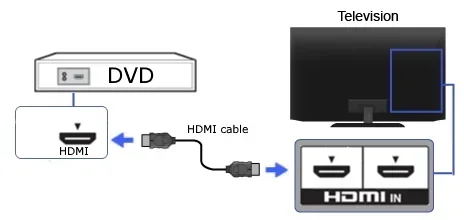
Not all DVD players are HDMI compatible. Older models may only have composite or component outputs, while newer ones include HDMI ports for high-definition viewing. This guide helps you identify which DVD player you have, how to connect it to an HDMI-equipped TV, and what options exist if your player lacks HDMI support.
Have you ever plugged in a DVD player and found that it doesn’t have an HDMI port? You are not alone. Many people buy a DVD player only to discover it lacks the modern connection they need for their TV. The short answer is no, not all DVD players are HDMI compatible. But the good news is there are simple solutions that get you watching your favorite movies in no time.
Understanding DVD player connections matters more than most people think. The type of port your player has directly affects picture quality, sound output, and how easy it is to set up your home entertainment system. Whether you are using a brand-new Blu-ray player or a dusty older model from the closet, knowing your connection options makes all the difference.
In this guide, we break down everything you need to know about DVD player HDMI compatibility. We will cover which DVD players have HDMI, which do not, how to connect non-HDMI players to modern TVs, and what cables and adapters you may need. By the end, you will feel confident choosing the right setup for your home.
Key Takeaways
- Older DVD players often lack HDMI ports: Many models manufactured before 2008 use composite or component video connections instead.
- HDMI adapters and converters can bridge the gap: You can connect non-HDMI DVD players to modern TVs using affordable converter cables.
- Not all HDMI connections deliver the same quality: Standard HDMI supports up to 1080p, while newer versions support 4K and higher refresh rates.
- Check your DVD player model before buying: The user manual or manufacturer website will confirm available ports and connections.
- Modern DVD and Blu-ray players almost always include HDMI: Most devices made after 2010 come standard with HDMI output.
- Audio quality improves with HDMI: HDMI carries both video and audio in a single cable, simplifying your home theater setup.
📑 Table of Contents
- What Does HDMI Mean for DVD Players?
- Which DVD Players Have HDMI Ports?
- How to Check if Your DVD Player Supports HDMI
- How to Connect a Non-HDMI DVD Player to an HDMI TV
- Common DVD Player Connection Types Compared
- Do You Need a Special HDMI Cable for DVD Players?
- Tips for Getting the Best Picture Quality from Your DVD Player
- Expert Insights on DVD Player HDMI Compatibility
- Common Mistakes People Make with DVD Player Connections
- The Future of DVD Playback and HDMI
- Final Thoughts
What Does HDMI Mean for DVD Players?
HDMI stands for High-Definition Multimedia Interface. It is a single cable that carries both video and audio signals. This is a big deal compared to older connection types that needed multiple cables for sound and picture.
When a DVD player has an HDMI port, it sends a digital signal directly to your TV. This means sharper images, better color, and clearer sound. A standard HDMI connection supports resolutions up to 1080p. Some newer versions of HDMI can handle even higher resolutions like 4K, though standard DVD content maxes out at 480p or 576p depending on your region.
Why HDMI Matters for Home Entertainment
Most modern TVs only have HDMI inputs. If your DVD player does not have HDMI, you will need extra adapters or different cables to make it work. HDMI also simplifies your setup. Instead of running three or four separate cables, one HDMI cable handles everything. This keeps your entertainment center clean and clutter-free.
Another advantage is that HDMI supports digital surround sound formats like Dolby Digital and DTS. Older cables like composite or S-Video carry analog signals, which do not support these audio formats. So if you want the best picture and sound from your DVD collection, HDMI is the way to go.
Which DVD Players Have HDMI Ports?
Most DVD players made in the last 15 years or so include HDMI output. Here is a general breakdown of what to expect based on the type of player.
Blu-ray and 4K Players
Blu-ray players and 4K Ultra HD players almost always come with HDMI. These devices are designed for modern TVs and home theater systems. Brands like Sony, Samsung, LG, and Panasonic include HDMI as a standard feature on all their current models. If you bought a Blu-ray player in the last five years, it definitely has HDMI.
Standard DVD Players
Standard DVD players made after 2008 typically include HDMI. Many budget-friendly models from brands like Toshiba, Magnavox, and Sony started adding HDMI ports around 2007 and 2008. However, some cheaper or older models still only have composite or component outputs. Always check the back of the unit or the product specifications before purchasing.
Portable DVD Players
Portable DVD players are a mixed bag. Some higher-end portable models include HDMI output, but many only have composite AV outputs or even just a 3.5mm headphone jack for built-in screens. If you need HDMI from a portable player, look for models that specifically list HDMI in their specs.
How to Check if Your DVD Player Supports HDMI
If you already own a DVD player and want to know if it has HDMI, there are a few easy ways to find out.
Step 1: Look at the Back of the Player
Flip your DVD player over or pull it out from the entertainment center. Look at the back panel for ports. An HDMI port is a small, trapezoidal-shaped opening. It is wider than a USB port and usually labeled “HDMI Out” or just “HDMI.” If you see one, you are good to go.
Step 2: Check the User Manual
Your DVD player’s user manual lists all the ports and connections. If you do not have the physical manual, search online for the model number plus “specifications.” Most manufacturers publish digital versions of their manuals on their websites.
Step 3: Visit the Manufacturer’s Website
Go to the manufacturer’s website and look up your exact model number. The product page will list all the features and connections. This is the most reliable way to confirm HDMI support.
How to Connect a Non-HDMI DVD Player to an HDMI TV
So your DVD player does not have HDMI. No worries. You still have options. Here is how to connect older DVD players to modern HDMI TVs.
Option 1: Use an HDMI Converter
An HDMI converter takes the analog signal from composite or component cables and converts it to a digital HDMI signal. These converters are affordable and widely available online. You plug your DVD player’s RCA cables into the converter, then run an HDMI cable from the converter to your TV.
Keep in mind that converters do not improve the original DVD resolution. A standard DVD is 480p, so even through an HDMI converter, you will not get true high-definition. But the picture will look cleaner and more stable than composite cables directly on a modern TV.
Option 2: Use Composite or Component Cables Directly
Most modern TVs still have composite inputs (the red, white, and yellow RCA jacks). Some also have component inputs (green, blue, red, and white, red for audio). You can connect your non-HDMI DVD player directly using these cables.
Composite cables give you standard definition. Component cables offer slightly better quality and support up to 480p or 576p. Neither will match the clarity of a true HDMI connection, but they work well enough for casual viewing.
Option 3: Upgrade to a Newer DVD or Blu-ray Player
If you want the best experience, consider upgrading to a modern DVD or Blu-ray player with built-in HDMI. Newer players are often reasonably priced and offer better picture quality, smoother playback, and more features like upscaling. Some models also support streaming apps, which adds extra value.
For those who store their movie collections digitally, an external drive connected to a media player can be a great alternative. For example, if you store your ripped DVDs on a fast external drive, devices like the Acasis 80Gbps M.2 NVMe SSD Enclosure offer blazing-fast transfer speeds for large media files.
Common DVD Player Connection Types Compared
There are several connection types you might encounter with DVD players. Here is a quick comparison to help you understand the differences.
| Connection Type | Video Quality | Audio Quality | HDMI Compatible? |
|---|---|---|---|
| HDMI | Up to 1080p (or 4K on newer versions) | Digital surround sound | Yes |
| Component | Up to 480p or 576p | Analog (requires separate audio cables) | No (needs converter) |
| Composite | Up to 480p or 576p | Analog (requires separate audio cables) | No (needs converter) |
| S-Video | Up to 480i | Analog (requires separate audio cables) | No (needs converter) |
| Coaxial Digital | No video (audio only) | Digital | No (separate video connection needed) |
| Optical Digital | No video (audio only) | Digital | No (separate video connection needed) |
As you can see, HDMI is the clear winner for convenience and quality. It handles both video and audio in one cable and supports the best available resolution for your DVD content.
Do You Need a Special HDMI Cable for DVD Players?
You do not need a fancy or expensive HDMI cable for a DVD player. Standard HDMI cables work perfectly fine. DVDs have a maximum resolution of 480p (NTSC) or 576p (PAL), which is well within the capabilities of even basic HDMI cables.
That said, if you plan to use a Blu-ray player or upscaling DVD player, a high-speed HDMI cable ensures the best signal transfer. Look for cables labeled “High Speed HDMI” or “Premium High Speed HDMI.” These support resolutions up to 4K and refresh rates up to 60Hz. For most DVD playback needs, any standard HDMI cable will do the job just fine.
When shopping for cables, avoid overly long runs unless you need them. Longer cables can sometimes cause signal degradation. A 6-foot to 10-foot cable is usually perfect for most home setups.
Tips for Getting the Best Picture Quality from Your DVD Player
Want to get the most out of your DVD collection? Here are some practical tips.
- Use HDMI whenever possible: It provides the cleanest signal and easiest setup.
- Clean your DVD discs: Dust and fingerprints cause skipping and poor image quality. Use a soft microfiber cloth to wipe discs before playing.
- Enable upscaling on your TV: Many modern TVs can upscale standard DVD content to near-HD quality. Check your TV settings to turn this on.
- Check your cables: Damaged or worn cables degrade signal quality. Replace any cables that show visible wear or damage.
- Keep your DVD player ventilated: Overheating can cause playback issues and shorten the life of the device. Make sure the vents are not blocked.
- Consider a Blu-ray player for HD content: Standard DVDs look their best on HDMI-connected HD TVs, but Blu-ray discs offer a noticeable upgrade in sharpness and color.
Expert Insights on DVD Player HDMI Compatibility
From a technical standpoint, HDMI compatibility in DVD players has been standard for over a decade. The real question most people face is not whether their player has HDMI, but whether they are using the right cable and settings to get the best results.
One thing many people overlook is the difference between standard HDMI and Ethernet-enabled HDMI. Standard HDMI handles video and audio perfectly for DVD playback. Ethernet HDMI includes a built-in internet connection, which is useful for smart TVs and streaming but offers no benefit for DVD playback specifically.
Another common misconception is that HDMI cables improve DVD quality beyond the disc’s native resolution. No cable can add detail that is not on the disc. A good HDMI cable ensures the signal reaches your TV cleanly and without interference, but it does not magically enhance the picture beyond what the disc contains.
If you are building a home theater system and want to explore audio options, consider how your DVD player connects to your sound system. Some setups benefit from dedicated speakers. You might also explore whether monitor speakers are good for listening to music if you use your DVD player for audio playback beyond movies.
Common Mistakes People Make with DVD Player Connections
Avoid these common mistakes to get the best experience from your DVD player.
- Using the wrong cable type: Plugging a composite cable into an HDMI-only TV without a converter will not work. Always match your cable type to your TV’s inputs or use the proper adapter.
- Ignoring audio settings: Some DVD players default to stereo audio even when connected to a surround sound system. Check your player’s audio output settings and select the appropriate format.
- Buying unnecessary expensive cables: A $5 HDMI cable performs the same as a $50 HDMI cable for DVD playback. Save your money and skip the marketing hype.
- Not updating firmware: Some modern DVD and Blu-ray players receive firmware updates that improve compatibility and playback quality. Check the manufacturer’s website for updates.
- Assuming all ports are the same: HDMI ports on TVs can be different versions. An HDMI 2.0 port supports 4K, while an HDMI 1.4 port may not. This matters if you upgrade to a 4K Blu-ray player later.
The Future of DVD Playback and HDMI
DVDs are still widely used around the world, but the trend is clearly moving toward digital streaming and higher-capacity disc formats like Blu-ray and 4K Ultra HD. HDMI continues to evolve alongside these technologies. The latest HDMI 2.1 standard supports resolutions up to 8K, dynamic HDR, and higher refresh rates.
For now, most DVD players on the market are fully HDMI compatible, especially models made in the last decade. If you are shopping for a new DVD player, HDMI should be a standard feature, not a premium add-on. Always double-check the specifications, but you can expect HDMI to be included on virtually all new DVD and Blu-ray players.
If you are storing digital copies of your DVD collection, having fast and reliable storage matters. The speed of your storage device can affect how quickly you can access and play your media files. The difference between NVMe and traditional SSD speeds can be noticeable when loading large media libraries or ripping discs.
Final Thoughts
So, are all DVD players HDMI compatible? The answer is no, but most modern ones are. If you have an older DVD player without HDMI, you can still use it with a modern TV through converters or direct composite and component connections. For the best experience, consider upgrading to a player with built-in HDMI or a Blu-ray player that supports higher resolutions and better audio formats.
HDMI makes everything simpler. One cable for video and audio. Better picture quality. Easier setup. These benefits make HDMI the preferred connection for any DVD player. Whether you are watching a classic movie or a brand-new Blu-ray release, HDMI delivers the clearest and most reliable connection available.
Take a moment to check your current DVD player. If it does not have HDMI and you want the best picture quality, an HDMI converter is an inexpensive and easy solution. And if you are in the market for a new player, look for one with HDMI built in. Your movies will look and sound better for it.
Frequently Asked Questions
Can I use an HDMI cable with any DVD player?
Only if the DVD player has an HDMI port. Older DVD players without HDMI cannot use an HDMI cable directly. You will need an HDMI converter or adapter to connect them to an HDMI TV.
Do all Blu-ray players have HDMI?
Yes, virtually all Blu-ray players manufactured in the last 15 years include HDMI output. It is a standard feature on every modern Blu-ray and 4K UHD player.
Will an HDMI converter improve my DVD picture quality?
An HDMI converter will give you a cleaner, more stable signal compared to composite cables on a modern TV. However, it cannot improve the resolution beyond what the DVD contains, which is typically 480p or 576p.
Can I connect two DVD players to one HDMI port on my TV?
Not directly. You will need an HDMI switch or splitter that allows you to connect multiple devices to a single HDMI input on your TV. These are inexpensive and widely available.
Is HDMI better than component cables for DVD playback?
Yes. HDMI provides a digital signal that is cleaner and more stable than the analog signal from component cables. It also carries audio in the same cable, so you need fewer connections overall.
What should I do if my DVD player has no video output at all?
First, check all cable connections and try a different cable. If the problem persists, the player may have a hardware issue. Consult the user manual or contact the manufacturer for troubleshooting steps. You may also consider replacing the player if it is an older model with limited support.