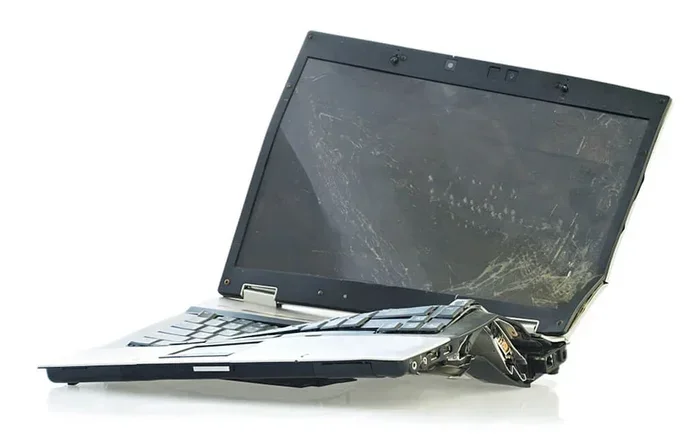
Rtx Laptop Crashing Randomly Causes and Fixes
An RTX laptop crashing randomly is frustrating, but the causes are often fixable with the right steps. This guide covers the top reasons — from overheating and outdated drivers to power settings and hardware failures — and gives you clear, actionable fixes. Whether you game, work, or both, these solutions can bring your RTX laptop back to stable performance.
There’s nothing worse than being in the middle of a game or an important project, and suddenly your RTX laptop crashes randomly. The screen goes black, the system restarts, or you get a dreaded blue screen. It happens without warning, and it leaves you wondering what went wrong.
Random crashes on an RTX laptop are more common than you might think. These machines pack powerful graphics cards and high-performance processors into slim frames. That power generates heat, and heat is the enemy of electronics. But overheating is just one piece of the puzzle. Driver conflicts, power management issues, and even faulty hardware can all trigger crashes.
The good news? Most causes are easy to identify and fix. In this guide, we walk you through every major reason your RTX laptop might be crashing and give you step-by-step solutions. You do not need to be a tech expert to follow along. By the end, you will know exactly what to check and how to stop those annoying crashes for good.
Key Takeaways
- Overheating is the #1 cause of random RTX laptop crashes, especially during gaming or heavy workloads.
- Outdated or corrupt GPU drivers are a very common reason for crashes and blue screens.
- Power settings and BIOS issues can trigger unexpected shutdowns on RTX laptops.
- Hardware problems like faulty RAM or failing storage drives also lead to random crashes.
- Regular maintenance — cleaning vents, updating drivers, and monitoring temperatures — prevents most crashes.
- Windows Event Viewer is a powerful free tool that helps you pinpoint the exact crash cause.
- Most fixes are simple and don’t require expensive repairs or professional help.
📑 Table of Contents
Why Does My RTX Laptop Crash Randomly?
Before you can fix the problem, you need to understand what is causing it. RTX laptops are built for demanding tasks like gaming, video editing, and 3D rendering. All of that work puts a lot of stress on the system. When something goes wrong, the laptop shuts down to protect itself. Here are the most common reasons this happens.
1. Overheating and Poor Ventilation
Heat is the biggest enemy of any high-performance laptop. RTX GPUs run hot, especially under heavy load. If the internal fans are clogged with dust or the vents are blocked, heat builds up fast. When the temperature crosses a safe threshold, the laptop shuts down automatically to prevent damage.
This is why you might notice crashes happen more during gaming or intense tasks. The system gets hot, and it just gives up to save itself. Laptops like the RTX 4080 laptop 64GB RAM or RTX 4070 laptop 32GB RAM models are especially prone to this because they push the hardware so hard.
2. Outdated or Corrupt GPU Drivers
Your graphics card driver is the software that tells the GPU how to work. If that driver is outdated, corrupt, or incompatible with a recent Windows update, crashes can happen out of nowhere. NVIDIA releases driver updates regularly to fix bugs and improve stability.
Many users ignore driver updates until something breaks. That is a mistake. An outdated driver is one of the simplest and most common reasons for random laptop crashes. The good part is that fixing it is usually quick and easy.
3. Power Settings and Battery Issues
RTX laptops need a lot of power. If your power plan is set to save energy, the system might not deliver enough juice to the GPU when it needs it. This can cause sudden crashes or shutdowns. Battery problems also play a role. A worn-out battery that cannot hold a charge may cause the laptop to power off unexpectedly.
Some users plug in their laptop but still experience crashes because the power adapter is not delivering enough wattage. Using a cheap or wrong charger can cause all kinds of stability issues.
4. Faulty RAM or Storage Drive
Random access memory (RAM) and storage drives are the backbone of your laptop’s performance. If your RAM has a bad sector or your SSD is failing, the system can crash without warning. These hardware issues are less common than overheating or driver problems, but they are still a real possibility.
A laptop with 32GB RAM and 1TB SSD should run smoothly, but even the best components can develop faults over time. Age, physical damage, and manufacturing defects can all contribute.
5. Software Conflicts and Windows Errors
Sometimes the problem is not hardware at all. Certain software programs conflict with each other or with the operating system. A recent Windows update might have introduced a bug. Antivirus software can interfere with GPU operations. Background programs that consume too many resources can also push the system to its limits.
These software-related crashes are tricky because they do not always follow a pattern. You might crash during one app but not another, making it harder to figure out the root cause.
How to Diagnose the Cause of Your RTX Laptop Crashes
Before jumping into fixes, it helps to narrow down the cause. Windows has built-in tools that can tell you a lot about what went wrong. You do not need any special software to get started.
Open the Event Viewer by typing it into the Windows search bar. Look under Windows Logs > System for error messages that appear around the time of a crash. These logs often point you directly to the problem — whether it is a driver failure, a kernel error, or a hardware warning.
You can also monitor your laptop’s temperatures using free tools like HWMonitor or MSI Afterburner. If your GPU temperature spikes above 85°C to 90°C during normal use, overheating is likely the culprit. For memory issues, Windows has a built-in tool called Windows Memory Diagnostic that checks your RAM for errors.
Top Fixes to Stop Your RTX Laptop From Crashing
Now that you know the common causes, let us get into the fixes. These steps are listed from the simplest to the more advanced, so you can work through them one by one.
Fix 1: Clean Your Laptop Vents and Fans
Start with the easiest fix. Grab a can of compressed air and carefully blow out the dust from your laptop’s vents and fan openings. Do this outdoors or in a well-ventilated area. Dust buildup is one of the leading causes of overheating, and it is something you can prevent with regular cleaning.
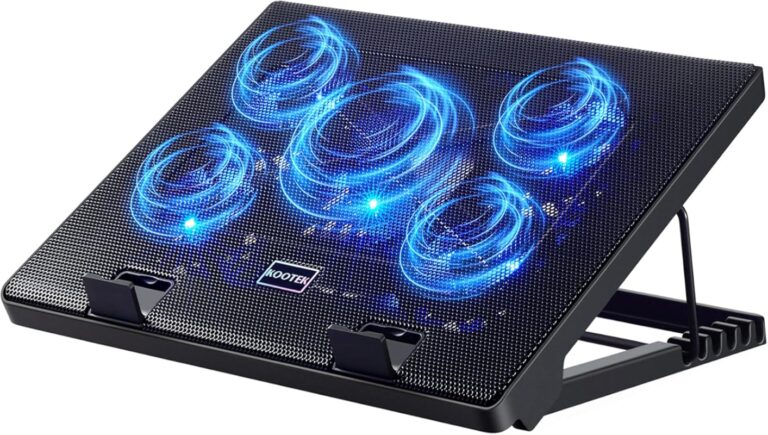
Try to clean your vents every few months, especially if you use your laptop on beds or couches where fabric can block the airflow. A simple laptop cooling pad can also help improve air circulation.
Fix 2: Update Your GPU Drivers
Go to the NVIDIA website and download the latest driver for your RTX card. You can also use the NVIDIA GeForce Experience app to update automatically. After installing the new driver, restart your laptop and check if the crashes stop.
If a recent driver update caused the crashes, you can roll back to a previous version. Go to Device Manager > Display Adapters > Right-click your GPU > Properties > Driver tab > Roll Back Driver. This is a quick fix if the new driver is the problem.
Fix 3: Adjust Power Settings
Go to Control Panel > Power Options and select the High Performance plan. This ensures your laptop delivers maximum power to the GPU when needed. If you are on a laptop, also check your battery settings and make sure it is not in a power-saving mode that limits GPU performance.
For users with a dedicated charger, make sure it is the original one that came with the laptop or a certified replacement. A wrong power adapter can cause all sorts of stability problems.
Fix 4: Run Hardware Diagnostics
Use the built-in Windows tools to check your RAM and storage. Open Command Prompt as administrator and type sfc /scannow to repair any corrupted system files. Run the Windows Memory Diagnostic tool to test your RAM. If errors show up, you may need to replace a memory stick.
For storage, check your SSD’s health using tools like CrystalDiskInfo. If your drive is failing, replacing it can solve many crash-related issues. A laptop with 16GB RAM and 1TB SSD or higher specs generally handles these diagnostic tools well.
Fix 5: Uninstall Conflicting Software
If crashes started after installing a new program, try uninstalling it. Sometimes antivirus software, overlay tools, or even Windows updates can conflict with GPU operations. Use the Task Manager to check what programs are running in the background and close anything you do not need.
You can also perform a clean boot of Windows to isolate the problem. This disables all non-Microsoft services and startup programs, helping you figure out if a third-party app is causing the crashes.
Prevention Tips to Keep Your RTX Laptop Stable
Once you have fixed the crashes, you want to make sure they do not come back. Prevention is always better than cure. Here are some simple habits that keep your RTX laptop running smoothly.
- Update drivers regularly. Set a reminder to check for NVIDIA driver updates once a month.
- Keep your laptop clean. Avoid using it on soft surfaces like beds or pillows that block vents.
- Monitor temperatures. Use a free temperature monitoring tool to keep an eye on your GPU heat levels.
- Keep Windows updated. Microsoft releases patches that fix bugs and improve system stability.
- Use a surge protector. Power surges can damage internal components and cause random crashes.
- Avoid overloading your system. Close unused programs and browser tabs to free up resources.
These small habits add up over time. A well-maintained laptop runs cooler, faster, and far more reliably. If you are shopping for a new setup, consider models like the laptop with i9 processor and 32GB RAM or laptop with 32GB RAM and 1TB SSD for a more stable, high-performance experience.
When to Seek Professional Help
Most crashes can be fixed at home with the steps above. But sometimes the problem runs deeper. If you have tried all the fixes and your laptop still crashes randomly, it is time to consult a professional. Signs that you need expert help include crashes that happen even during light tasks, strange clicking sounds from the laptop, or a burning smell coming from the device.
A certified technician can run deeper hardware diagnostics and check for issues like a failing motherboard, a damaged GPU, or a defective power circuit. These are not problems you want to ignore. The sooner you address them, the less likely it is that the damage will spread to other components.
Also, if your laptop is still under warranty, contact the manufacturer before opening it up yourself. Opening the chassis might void your warranty, and you do not want to lose that protection.
Conclusion
A RTX laptop crashing randomly is a frustrating experience, but it is almost always fixable. The most common causes are overheating, outdated drivers, power settings, and hardware faults. By following the steps in this guide, you can identify the root cause and apply the right fix. Start with the simple solutions — clean the vents, update drivers, adjust power settings — and work your way up if needed. With a little patience and regular maintenance, your RTX laptop can run smoothly and reliably for years to come.
Do not let random crashes ruin your workflow or gaming sessions. Take action today, and give your laptop the care it deserves. Your RTX machine is a powerful tool — with the right attention, it will perform at its best every single time.
Frequently Asked Questions
Why does my RTX laptop crash randomly during gaming?
The most common reason is overheating. Gaming pushes your GPU and CPU to their limits, generating a lot of heat. If your laptop’s cooling system cannot keep up, it shuts down to protect itself. Updating your GPU drivers and cleaning your vents usually solve this problem quickly.
Can outdated drivers cause my RTX laptop to crash?
Yes, absolutely. Outdated or corrupt GPU drivers are one of the leading causes of random crashes. NVIDIA releases regular driver updates that fix bugs and improve stability. Keeping your drivers up to date is one of the simplest and most effective ways to prevent crashes.
How do I know if my RTX laptop is overheating?
Use a free temperature monitoring tool like HWMonitor or MSI Afterburner. If your GPU temperature regularly exceeds 85°C to 90°C during use, your laptop is likely overheating. Other signs include loud fan noise, slow performance, and sudden shutdowns during heavy tasks.
Is it safe to update my NVIDIA GPU driver?
Yes, it is completely safe and recommended. Always download drivers from the official NVIDIA website or use the GeForce Experience app. If a new driver causes problems, you can roll back to the previous version through Device Manager in just a few clicks.
Can a faulty RAM stick cause random laptop crashes?
Yes, bad RAM is a common cause of random crashes and blue screens. Windows has a built-in tool called Windows Memory Diagnostic that can test your RAM for errors. If errors are found, replacing the faulty memory stick usually fixes the problem.
What should I do if my RTX laptop keeps crashing even after trying all the fixes?
If all the standard fixes fail, the issue may be a deeper hardware problem like a failing motherboard or a damaged GPU. Contact a certified technician for a professional diagnosis. If your laptop is still under warranty, reach out to the manufacturer first to avoid voiding your coverage.